Only when you call. What Springle sees and hears.
Springle rests at the top of your screen, hearing and seeing nothing until you call it. Here is when it listens, when it looks, and what leaves your Mac.
Springle can hear you, see your screen and work in your apps. That’s a lot of trust, so here is exactly when it does each, in plain words. The full detail is in our Privacy Policy.
Resting: nothing heard, nothing seen
When you haven’t called it, Springle rests quietly at the top of your screen. The microphone is off and it isn’t looking at your screen. Pointing at the island only shows its buttons; it doesn’t start listening.
| Springle is | The microphone | Your screen |
|---|---|---|
| Resting | Off | Not looked at |
| Listening while you hold ⌃⌥ | On, only while you hold | Looked at when it helps |
| In a spoken conversation | On until the conversation ends | Looked at when it helps |
| In a typed conversation | Never used | Looked at when it helps |
| Finished | Off | Not looked at |
When it listens
- Holding ⌃⌥. The microphone runs only while you hold the keys. Nothing leaves your Mac until the press is clearly a hold, so a quick tap sends nothing.
- A spoken conversation. The microphone is on from ⌃⌥ Space until the conversation ends. Only speech is sent: the quiet between turns stays on your Mac. The conversation ends by itself after two quiet minutes.
- Typing. A typed conversation never uses the microphone.
When it looks at your screen
Springle looks at your screen only while it’s helping you, when it needs to know what’s there. It doesn’t record your screen in the background.
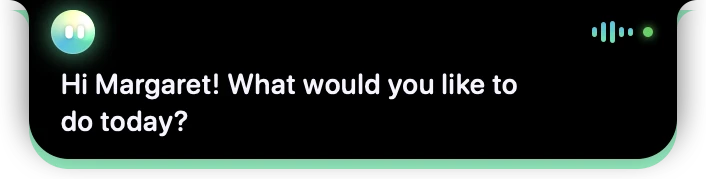
- 1Springle is awake and listening.
- 2The small green dot, like a camera light, shows Springle can see your screen while it helps.
Each time it looks, Springle reads the names and labels of what’s on screen. When that isn’t enough, it takes a picture of the screen you’re working on. Before any picture leaves your Mac:
- Password, card, bank, PIN and code boxes are blacked out. If that can’t be done, the picture isn’t sent.
- Windows behind the one in front are checked too. A window Springle can’t check in time is blacked out whole.
- Text that tries to give Springle orders is hidden from the AI, and the screen is treated as suspicious.
Springle finds private boxes using what macOS tells it. It catches the standard ones, but no tool can promise to spot every secret on every screen. If something very private is open, close it or move it aside before you ask Springle to look.
What leaves your Mac
While Springle helps you, some of what you say, type and show goes to an AI service so it can work out the answer. Springle’s makers don’t keep it on their servers.
| What | When it’s sent |
|---|---|
| Your voice | While you hold ⌃⌥, or during a spoken conversation you started |
| What you type | When you send it. Anything that looks like a password, card number, code or key is held back |
| A description of your screen | Each time Springle looks to help you |
| A picture of the screen | When the description isn’t enough, or to point precisely. Private boxes blacked out |
| What you circled or highlighted | Only when you circle something or ask about it |
| Your town and time zone | In Springle’s instructions. Never your exact location |
| The facts you chose to keep about yourself | In Springle’s instructions, so it can help you personally |
| A short web search | Only when Springle looks something up. Never your screen |
Springle works with a few leading AI services, each with its own job. Between them they hear your voice, work out answers and steps, tell when you want Springle to stop, write fuller explanations and run web searches. They work under business terms that don’t allow them to train their AI on what you send. The Privacy Policy says how they may use and keep it.
What stays on your Mac
- Your notebook. Notes, clips, how-tos and reminders are files on your Mac, or in your iCloud Drive if you turn that on. They’re never uploaded to Springle’s servers.
- Where your pointer was. Springle keeps the last minute of pointer movement in memory, never on disk, so "what’s this?" works. The AI only hears where it rested, and only when Springle looks.
- Your calendar. Read on your Mac. Only the events needed to answer you are sent, and only when you ask, like "what’s on tomorrow?".
- The activity log. A record of what happened in each session, with no audio and no pictures. What was said is kept only if you turn on Settings › Advanced › Keep what was said in the session log. See The session log.
More on all of this, and how to delete it, in Your data.
What Springle never does
- Never keeps your passwords, card numbers, PINs or one-time codes.
- Never types a password or payment details for you.
- Never sells your information, shows you ads, or uses your voice, screen or words to train AI.
You can switch off any of Springle’s access at any time in System Settings › Privacy & Security. See Permissions for what each one does.
Did this help?