Your notes, your Mac. Where your data lives.
Your notebook and Springle’s records live on your Mac, or in your own iCloud Drive if you choose. Here is what’s kept where, and how to delete it.
Most of what Springle keeps never leaves your Mac. Your account details live with Springle’s makers so you can sign in and use your plan. This page says what’s where, and how to remove each part. The full detail is in our Privacy Policy.
On your Mac
| What | Where | What’s in it |
|---|---|---|
| Your notebook | ~/Library/Application Support/Springle/Notebook, or your iCloud Drive if you turn that on | Notes, clips, explanations, how-tos, reminders, the facts you kept about yourself, and earlier versions of each note |
| Learned tasks | ~/Library/Application Support/Springle | Short descriptions of steps that worked, so Springle can do a task faster next time. Never what you typed |
| The session log | ~/Library/Logs/Springle | What happened in each session: tasks, buttons pressed, sites visited, look-ups and scam warnings. No audio and no pictures |
| Typed history | Springle’s settings | Your last 50 typed messages, so ↑ and ↓ work in the box |
| Settings and sign-in | Springle’s settings and the macOS Keychain | Your choices, the details you gave about yourself, and your sign-in, kept on this Mac only |
The notebook is never uploaded to Springle’s servers. Springle’s makers can’t see it.
Passwords, card numbers, PINs and one-time codes are never kept in the notebook, whoever asks.
Your notebook
Each note is a plain file, one per note, that you can open in any text editor and back up like any other file.
- See the files: Settings › Notebook › Storage › Notebook folder › Show in Finder. The row also says how many notes there are.
- Keep it in iCloud Drive: Settings › Notebook › Your notes › Keep the notebook in iCloud Drive. Your notebook moves to a folder called Springle Notebook in your iCloud Drive, so the same notebook is on your other Macs and in the Files app on iPhone and iPad. It needs iCloud Drive turned on in System Settings. Turn it off and the notebook moves back to this Mac.
- Deleting a note moves its file to the Trash, so you can get it back until you empty the Trash.
Springle checks every note has arrived safely before it switches folders. If the move can’t finish, your notes stay where they were and Settings says why.
Forget everything
To clear the whole notebook:
- Open Settings › Notebook and scroll to Storage.
- Next to Forget everything, press Move to Trash….
- Springle asks first. Press Move N Notes to the Trash to go ahead, or Cancel.
Every note’s file goes to the Trash, and Springle forgets everything in the notebook, including what you kept about yourself. You can still get the files back from the Trash until you empty it. See Forget everything.
Learned tasks and the session log
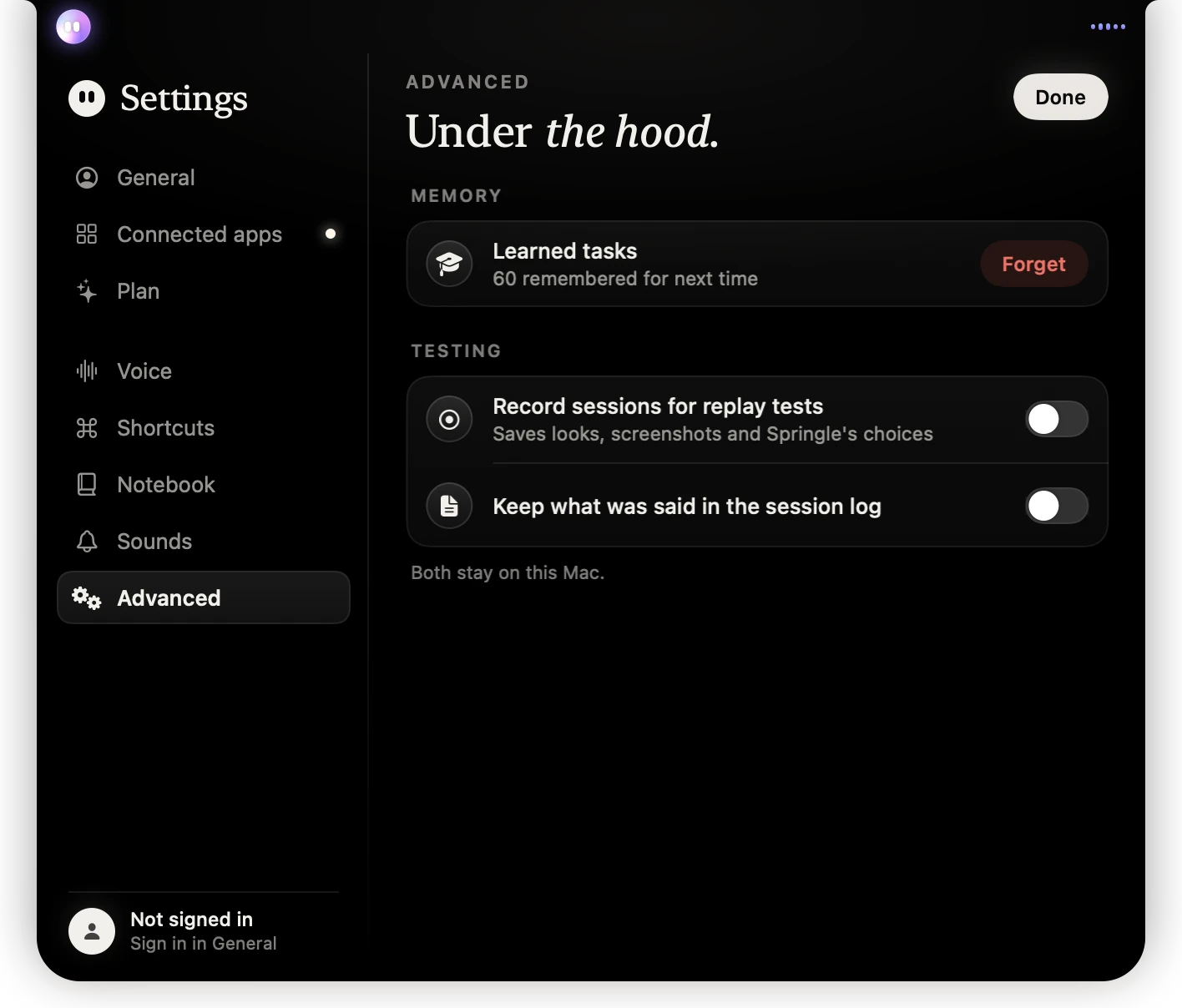
- 1Learned tasks: how many Springle remembers. Forget clears them all.
- 2Record sessions for replay tests: a testing feature, off unless you turn it on.
- 3Keep what was said in the session log: off unless you turn it on.
- Learned tasks: Settings › Advanced › Memory › Forget.
- What was said: the session log keeps what you and Springle said only if you turn on Keep what was said in the session log. It’s off unless you turn it on. See The session log.
- Session recordings save pictures of the screen (with secrets blacked out) and are meant for testing. Only turn them on with the agreement of the person using the Mac.
You can delete any of these files yourself. Removing Springle and its folders removes them for good.
With Springle’s makers
To run your account, a few things are stored on Springle’s servers:
- Your account: the name, email address and account ID from your Google sign-in. Springle never sees your Google password.
- Your profile: what Springle calls you, your birthday and how you found Springle, so another Mac doesn’t ask again. Your birthday is private to your account.
- Your plan and use: your plan, and counts of asks, talk time and explanations each month. Counts only, never what was said.
- Receipts: a record that a connected app was used (which action, whether it worked, when), kept about 30 days. Never what was in it.
- Family and helper: who is in your Family plan, and your trusted helper’s name and email, if you chose one.
Your voice, your screen and your conversations are not stored on Springle’s servers. Payments are handled by Paddle, which keeps its own receipts.
Delete your account
- Click Springle’s face in the menu bar.
- Open your account (the line with your email address) and choose Delete Account….
- Springle says what goes and what stays. Press Delete Account to confirm.
This deletes your profile, plan details and use, and disconnects your connected apps. It can’t be undone. Within 30 days, everything else about you is deleted or anonymised, apart from what the law requires to be kept, such as billing records.
Cancel a plan that renews first. If your plan would renew, Springle asks you to cancel it before deleting the account, and offers Manage Plan. Deleting the account doesn’t cancel, charge or refund anything by itself.
Your notebook stays on your Mac after you delete your account. To remove it too, use Forget everything, or delete the notebook folder.
To leave this Mac without deleting anything, choose Sign Out… in the same account menu. It removes your sign-in from this Mac.
Ask for a copy, or for changes
Whatever the law where you live, you can ask for a copy of what Springle’s makers hold about you, ask them to correct it, or ask them to delete it. Email support@innoventuresai.com from the address on your Springle account and say what you’d like. A reply comes within 30 days.
Turning things off
- Microphone, screen, location, calendar and reminders: System Settings › Privacy & Security. See Permissions.
- Your town: Settings › General › You › Use this Mac’s location. Off forgets the town Springle found.
- Answers from your notes: Settings › Notebook › Your notes › Answer questions from my notes. Off, Springle only searches your notes on this Mac.
- Connected apps: disconnect each one in Settings › Connected apps.
Did this help?