Everything Springle remembers, in one place.
The notebook holds what you kept: numbers, answers, how-tos, reminders and what Springle knows about you. Click into any note to change it, and format it with headings, lists, checklists and links.
The notebook is Springle’s only memory between conversations. If something isn’t in it, Springle doesn’t remember it. That makes its memory something you can see, change and delete.
Things go in when you keep them: an order number, an address, a fuller answer, the steps of something you did together, a reminder, or a fact about yourself.
Open it
Opens the notebook from any app. Press it again, or esc, to close it.
Other ways in:
- The menu bar: click Springle’s icon, then Open Notebook. Recent Notes lists the six most recently changed, each opening the notebook at that note.
- The island: point at the island and choose Notebook.
- By asking: "show me my notebook", or "open the note about the Wi-Fi".
- From the card: tap Kept in your notebook after keeping something.
You can change the shortcut, or turn it off, in Settings › Shortcuts. See Shortcuts.
Four places
The tabs under the title are Today, Notes, How-tos and About you. ⌘ command with 1 to 4 switches between them.
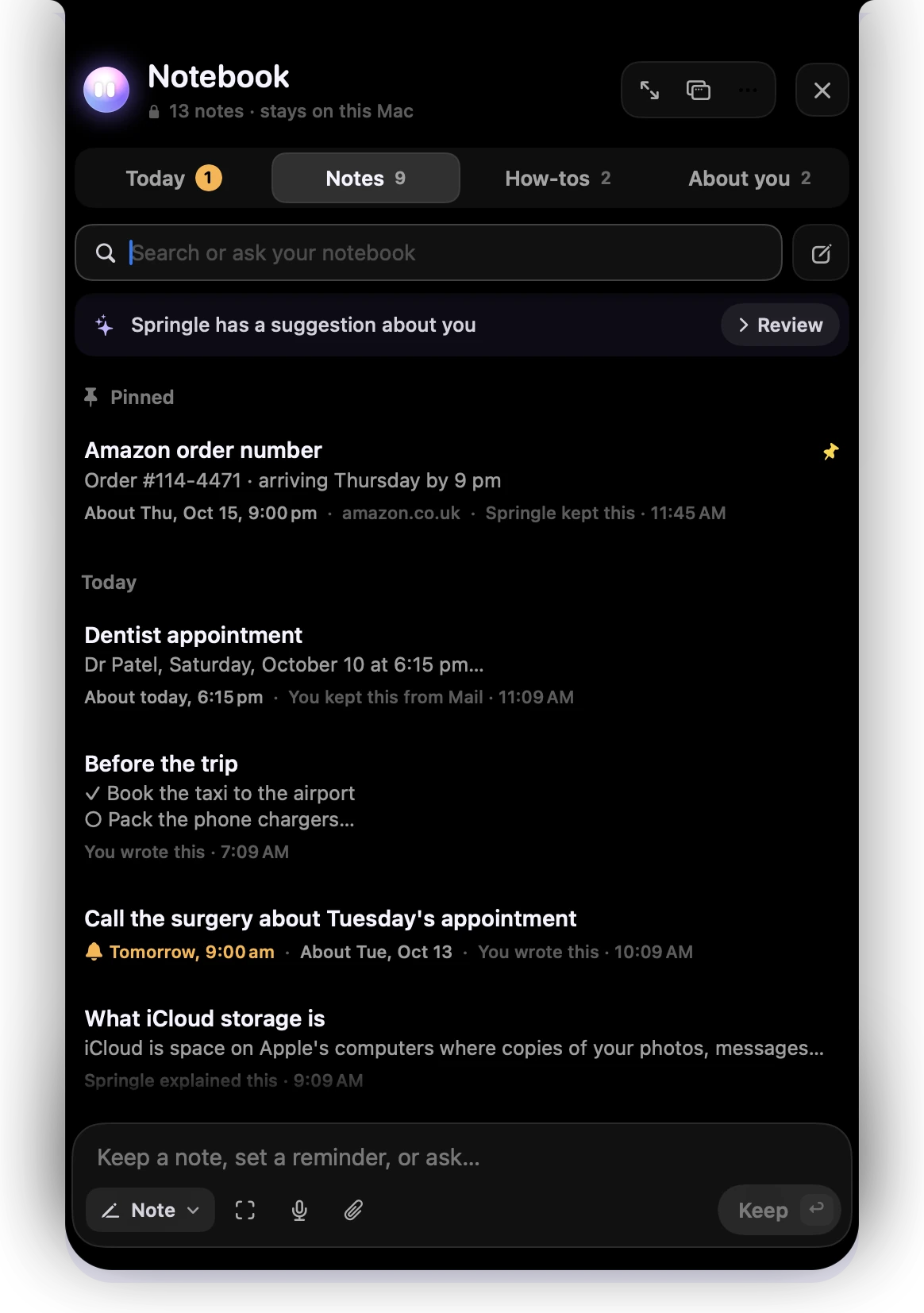
- 1Where your notes are kept, and how many there are.
- 2The four tabs. The amber number on Today is reminders waiting for you.
- 3Search or ask your notebook. Type to find a note, or ask a question.
- 4New note: a blank page, ready for you to write.
- 5A suggestion about you waits here as one line. Review takes you to About you.
- 6A pinned note, with the site it came from, the day it’s about and who kept it.
- 7The note box. Write a note and press Keep.
- Today: reminders that went off, your day in time order and the week ahead. See Today.
- Notes: clips, your own notes and explanations. Pinned ones first, then by day.
- How-tos: steps you kept, plus Learned on this Mac, the steps Springle noticed worked.
- About you: the facts Springle knows about you. See What Springle remembers about you.
Kinds of notes
Every note says who wrote it and where it came from ("Springle kept this", "You kept this from Mail"). In the wide notebook’s list, an explanation or a document also says so in words.
| Kind | What it is | How it gets there |
|---|---|---|
| Clip | Exact words from a page or the screen, like "Order #114-4471 · arriving Thursday" | "Keep that", or text dropped on the notebook |
| Note | Something you wrote | The box at the bottom, or New note (⌘ N) |
| Explanation | A fuller answer, in layers | Keep in notebook under a fuller answer, or asking in the notebook |
| How-to | Numbered steps you can tick off | Save on a receipt after a task |
| About you | A fact about you | "Remember that…", or keeping Springle’s suggestion |
Explanations
An explanation opens with the short answer, then In more detail, then On your Mac when there’s something specific to your screen. Simpler, Standard and Expert write it again pitched that way. You can ask a follow-up under it and the answer joins the same note.
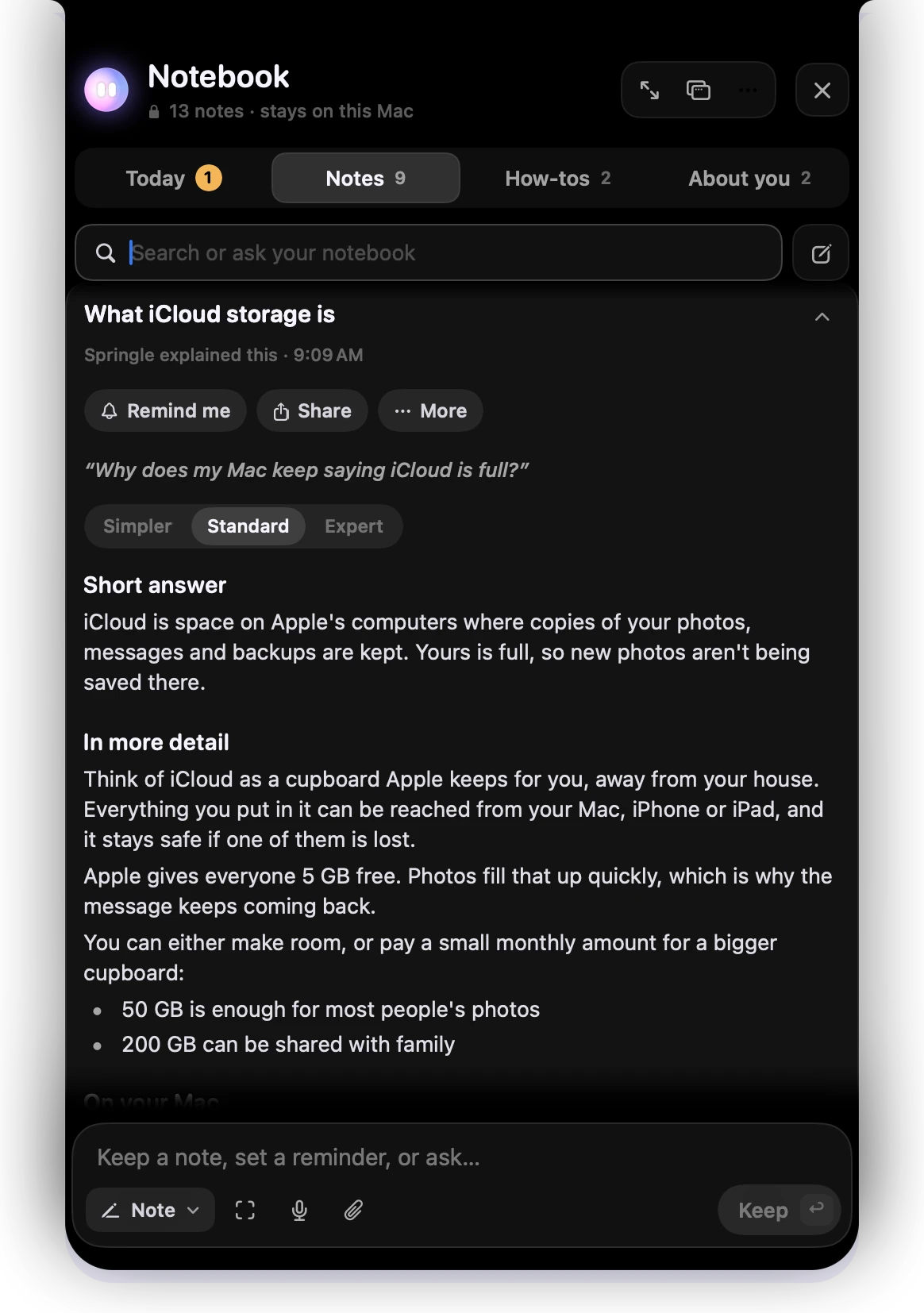
- 1Remind me, Share and More, the same on every note.
- 2The question you asked, in your words.
- 3Simpler, Standard and Expert write it again at that level.
- 4The short answer.
- 5In more detail, for when you want the whole picture.
Once it’s written, an explanation is yours to change like any other note: click into it and type. Its parts are subheadings you can write under. Springle never rewrites an explanation you’ve changed yourself, so Simpler, Standard and Expert go away once you have.
How-tos
A how-to is a checklist. Tap a step’s number to tick it off.
Each step is a line you can change. Click into it and type. return adds a step below it. A step you leave empty is removed. Drag the handle on the left to move a step, and its tick moves with it. Paste a list of lines and each line becomes a step.
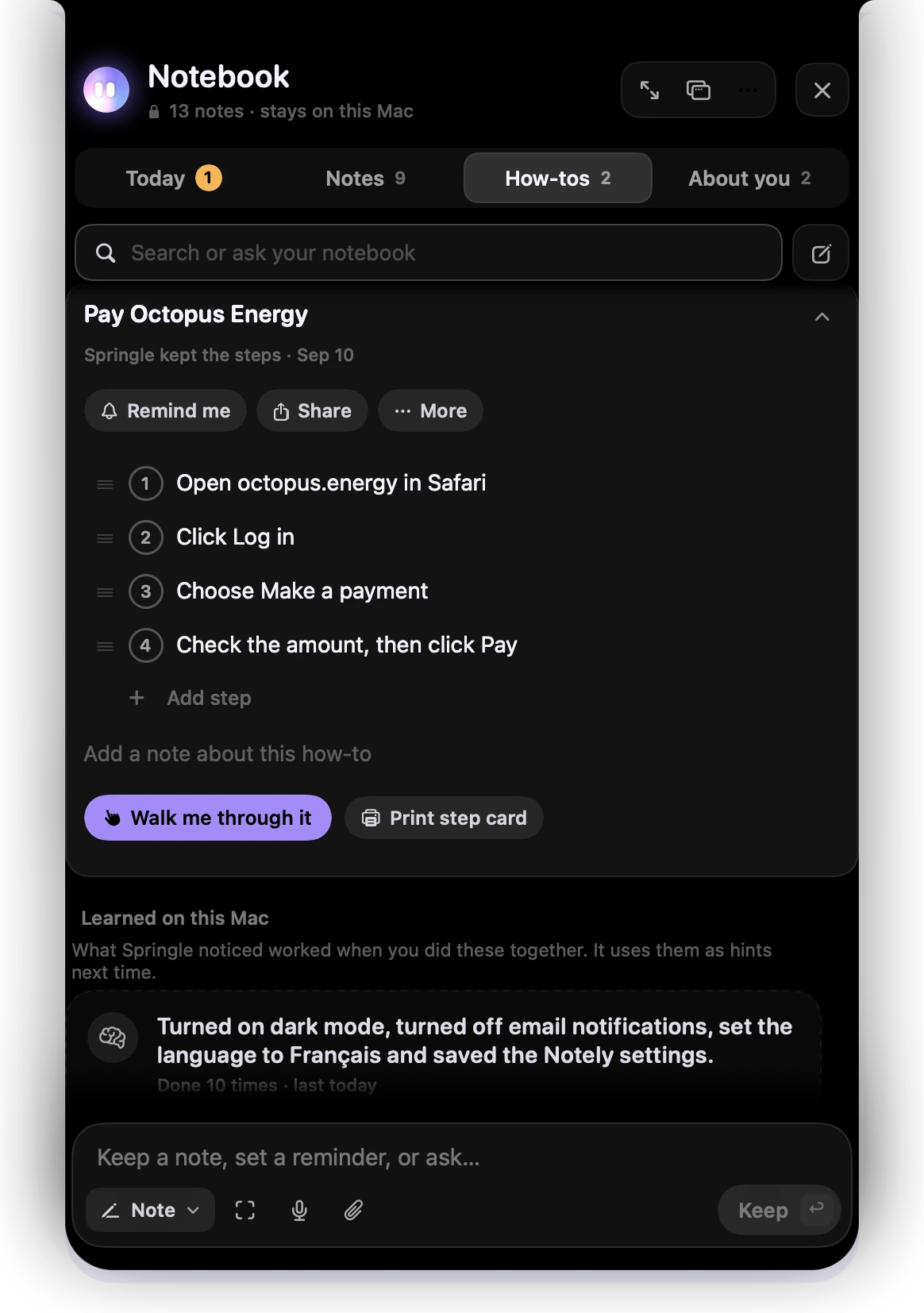
- 1Remind me, Share and More, the same on every note.
- 2Each step is a line you can change. Tap its number to tick it off.
- 3Drag the handle to move a step.
- 4Add step puts a new one at the end.
- 5Walk me through it starts a guided task with these steps.
- 6Print step card prints big numbered steps to keep by the computer.
- 7Learned on this Mac: steps Springle noticed worked, which it uses as hints next time.
Write on a note
There’s no Edit button and no Save button. Click anywhere in a note’s words, or in its title, and type. The note saves itself as you go: the bar above it says Saving…, then Saved. When you’ve finished, press Done or esc. Nothing you typed is lost if you close the notebook.
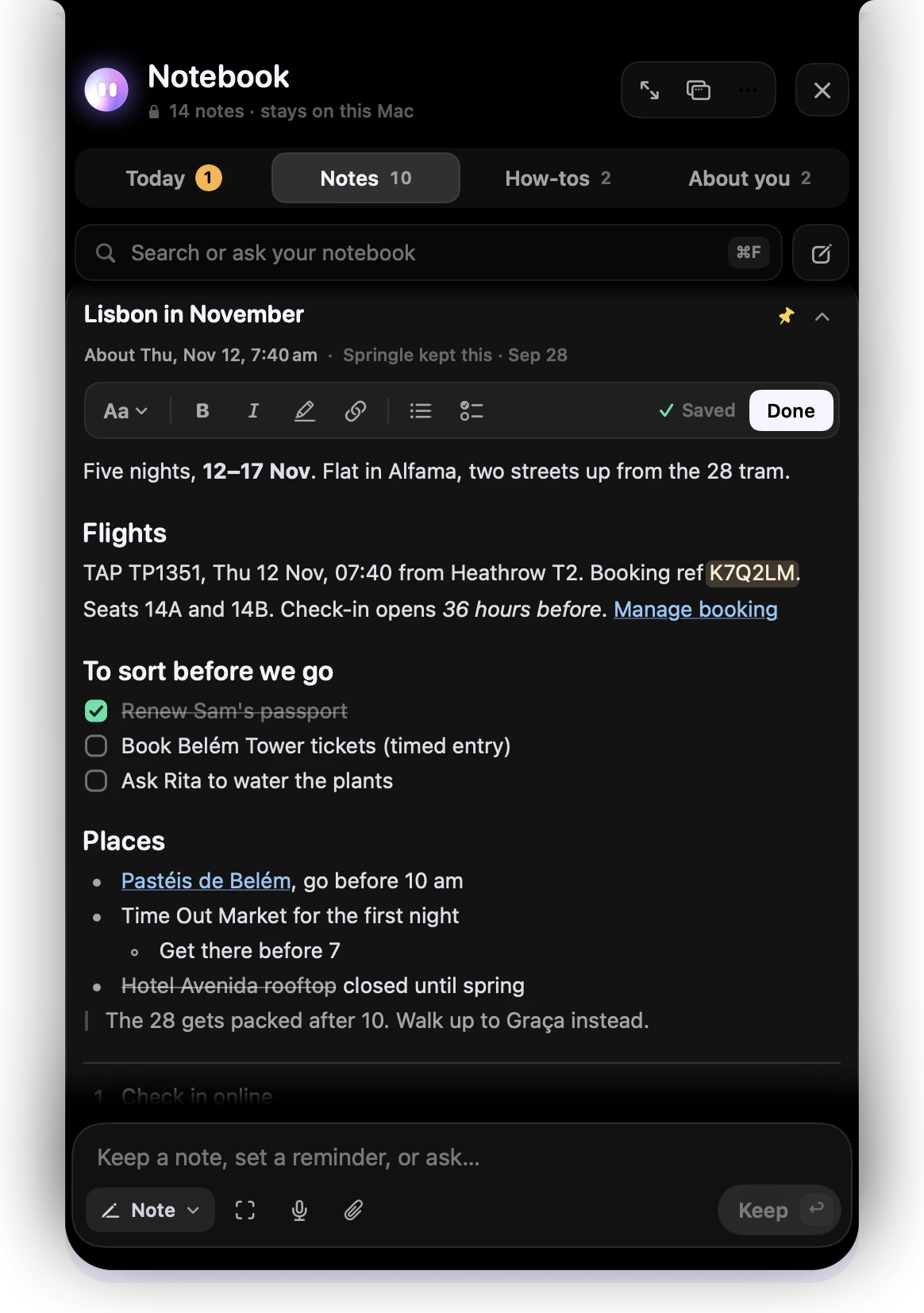
- 1The title. Click it to change it.
- 2Aa: Heading, Subheading, Body, Quote, Numbered list, Divider and Picture.
- 3Bold, italic, highlight and link. A button lights up when the words at your cursor have it.
- 4Bulleted list and checklist.
- 5Saved as you type. Done, or esc, when you’ve finished.
- 6Highlighted words, for the one thing you’ll look for again.
- 7Click a box to tick a to-do.
While your cursor is in a note, the buttons above it turn into the format bar. When you click away, Remind me, Share and More come back.
Each earlier version is kept. Under the note, earlier versions has one for each time you changed it, with Put back.
Formatting
| Style | Type at the start of a line, or around words | Keys |
|---|---|---|
| Heading | # | ⇧ ⌘ H |
| Subheading | ## | ⇧ ⌘ J |
| Body | ⇧ ⌘ B | |
| Bold | **words** | ⌘ B |
| Italic | *words* | ⌘ I |
| Strikethrough | ~~words~~ | ⇧ ⌘ X |
| Highlight | ==words== | ⇧ ⌘ M |
| Link | paste a web address over selected words | ⌘ K |
| Bulleted list | - | ⇧ ⌘ 7 |
| Numbered list | 1. | ⇧ ⌘ 9 |
| Checklist | [] | ⇧ ⌘ L |
| Quote | > | ⌘ ' |
| Divider | --- |
The marks you type, like ** or # , disappear and the words take the style. With nothing selected, ⌘ B makes the next words you type bold, and pressing it again stops.
- Lists: return starts the next item. return on an empty item ends the list. tab tucks an item under the one above, two levels deep, and ⇧ tab brings it back. delete at the start of an item takes its bullet away.
- Type
/on an empty line for a menu: Checklist, Bulleted list, Numbered list, Heading, Subheading, Quote, Divider, Today’s date, Remind me about this… and Picture…. - Links: select some words and press ⌘ K, then paste or type the address. The bar suggests a link you’ve copied, the page the note was kept from and the links already in it. Click a link to open it. When the note came from a web page or the screen, Springle asks first.
- Pasting from a web page or a document keeps bold, italic, links and lists, and leaves out fonts and colours. ⌥ ⇧ ⌘ V pastes the words only.
- Pictures: paste or drag a picture into a note, or choose Picture… in the
/menu. It goes on a line of its own.
Your notes stay plain text. The formatting is saved as Markdown, the same marks other note apps use, so a note reads the same in TextEdit, Obsidian or iCloud Drive.
Notes Springle kept
You can change any note, including one Springle kept or wrote. Once you have, it’s yours: Springle may add to it, but never rewrites it. If Springle adds something while you’re typing in that note, it waits until you’ve finished, so the words never move under your cursor.
Something private
If you type something that looks like a card number or a password, it’s underlined in amber and isn’t saved. It stays on the page until you leave the note, so you can move it somewhere safe, like the Passwords app.
What a note can do
Above a note are Remind me, Share and More. More has Pin to the Top, Read It Aloud, Keep on Screen, Copy, Print Step Card (for a how-to), Focus on This Note (in the wide notebook), Move to Older Notes, Show File in Finder and Move to Trash.
Under its words is a row of buttons that comes from what’s in it: Call a phone number, Map an address, Add to Calendar for a day and time, Open a link, Copy an order or booking number on its own, Track a UPS or USPS parcel.
When the note came from a web page or the screen, Call and Open ask first ("This came from amazon.co.uk. Call it?").
Search or ask
Type in the box at the top. Search looks in every tab and in Older notes, copes with small typos, and understands plain words for when and what: "order last week", "pinned", "september".
When what you type reads as a question, the first row says Ask your notebook. Press return and Springle answers from your notes, and shows which notes it used.
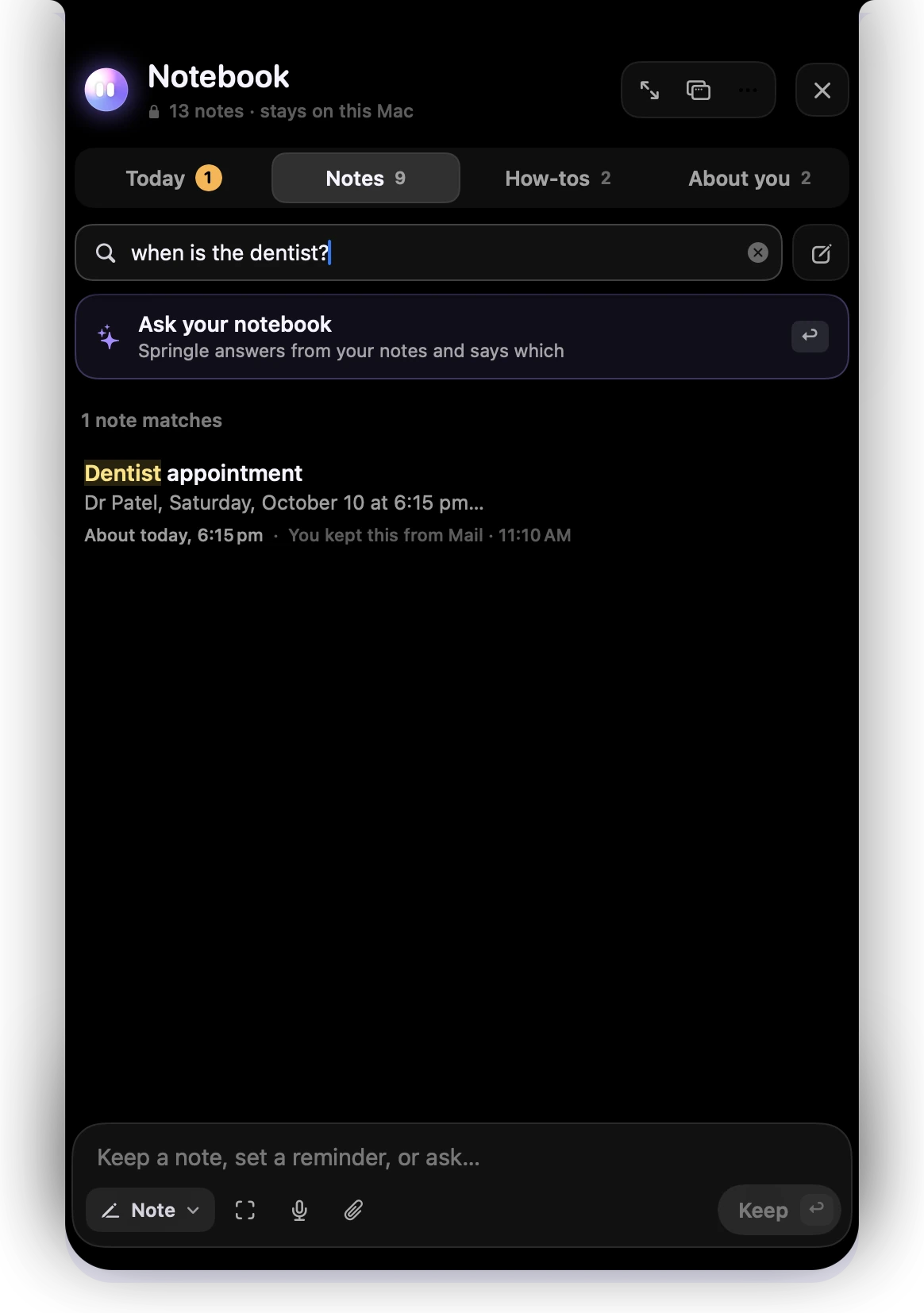
- 1A question typed in the top box.
- 2Ask your notebook. Return answers it from your notes and says which ones.
- 3The notes that match, with your words lit up.
If your notes don’t say, Springle goes on to a proper explanation. The box at the bottom only keeps things, so a question typed there offers Ask instead.
Answer questions from my notes in Settings › Notebook is on by default. The few notes that match go to the explaining model with your question. Turn it off and Springle only searches your notes on this Mac and lists them.
Write, speak or clip
- Start a new note with ⌘ N, or New note beside the search box. A blank page opens with the cursor in its title. return moves to the words. If you leave it empty, it goes away again. A note with no title takes its first words as one.
- Write it in the box at the bottom and press Keep. A day or time in your words becomes a reminder chip first. See Remind me. In the wide notebook, a note (not a reminder) then opens on the page with the cursor at its end, ready for more.
- Speak it with the microphone in the note box.
- Clip part of the screen with the button beside it, then drag over what you want. The picture is kept with its words, so you can search for it. Anything that looks like a password, card number or code is blacked out.
- Ask Springle to keep it, and a picture, a link back to the exact spot, and your own words come with it. Files and folders are remembered where they are. See Pictures, links and files.
Keep a note on screen
More › Keep on Screen puts a note in a small window that floats over every app until you close it. A how-to keeps its checklist there, so you can tick steps off as you go. It’s still there after a restart.
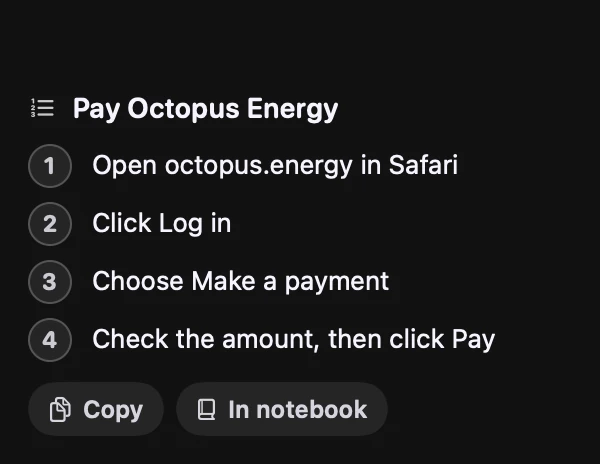
- 1The how-to, floating over your other apps.
- 2Copy the words, or go back to it In notebook.
Bigger text and bigger notebook
The ⋯ button at the top has Bigger Text, Smaller Text and Usual Text Size. The keys are ⌘ +, ⌘ − and ⌘ 0.
The same menu has Make It Wide (⌘ E), which adds a sidebar and shows a note on its own page, and Open in a Window (⇧ shift ⌘ E), a normal window you can move and resize. Springle remembers the size and the text size.
When it’s wide, ⇧ ⌘ F (or More › Focus on This Note) puts the sidebar and the list away, so it’s only the page. Show the list, ⇧ ⌘ F or esc brings them back.
In the wide notebook, the sidebar’s Topics gather three or more notes about the same thing, named by what they share, like "Lisbon trip".
Delete a note
Open it, then More › Move to Trash, or press ⌘ delete. Undo shows for six seconds, and the file is in the Trash until you empty it. To clear everything, see Forget everything.
Notes aren’t deleted by tidying. After 30 days, clips move to Older notes at the bottom of Notes, unless they’re pinned. You can turn that off in Settings › Notebook.
Where it’s stored
Each note is a plain Markdown file you can open in any text editor, with its formatting as Markdown marks, in ~/Library/Application Support/Springle/Notebook. Settings › Notebook › Notebook folder › Show in Finder opens it.
Turn on Keep the notebook in iCloud Drive to have the same notebook on your other Macs, and in the Files app on iPhone and iPad. It needs iCloud Drive turned on in System Settings. Springle copies everything across and checks it before switching. If the move can’t finish, your notes stay where they were and Settings says why.
Passwords, card numbers, PINs, one-time codes and ID numbers are never kept in the notebook. Springle suggests the Passwords app instead.
Did this help?