Every key, in one place.
Springle’s five shortcuts, the keys that work in its text box, and how to change any of them in Settings › Shortcuts.
Springle has five shortcuts of its own, and they work in every app. A few more keys do things inside Springle’s card. You can change all five in Settings › Shortcuts.
The standard shortcuts
| Shortcut | Keys | What it does |
|---|---|---|
| Talk or type | Hold ⌃ control ⌥ option | Ask out loud. Springle writes down what you say while you hold the keys, and sends it when you let go. The answer comes back written. |
| Tap ⌃⌥ | Opens the text box, so you can type to Springle. | |
| Dictate | Hold ⌃ control fn | Write by voice in any app. What you say is typed into the text box with your cursor when you let go. Nothing goes to Springle. A tap does nothing. See Dictate with ⌃fn. |
| Spoken conversation | ⌃⌥ Space | Starts a conversation where Springle talks back. Press it again to end it. It also ends a typed conversation. |
| Notebook | ⌃⌥ N | Opens the notebook, or closes it. |
| Circle to ask | ⌃⌥ C | Dims the screen so you can draw round something and ask about it. Press it again to put the screen back. |
A tap is a quick press and release. A hold is anything longer, about a third of a second or more. If you press another key while holding ⌃⌥ or ⌃fn, such as an arrow or a letter, Springle treats it as some other shortcut and sends or types nothing. ⌃⌥ and ⌃fn never start together: hold ⌃ control ⌥ option fn all at once and neither does anything.
Holding ⌃⌥ during a spoken conversation does nothing extra, because Springle is already listening. During a typed conversation, holding the keys lets you say your next message instead of typing it.
Keys in the text box
| Key | What it does |
|---|---|
| return | Sends your message. |
| Shift-Return or Option-Return | Starts a new line. |
| ↑ and ↓ | Bring back messages you sent earlier. |
| esc | Stops Springle talking, pauses anything it’s doing, and gives your keyboard back to your app. |
| return with the box empty | Answers Yes when Springle has asked a yes-or-no question. When it offers named choices, picks the first one. |
| esc with the box empty | Answers No when Springle has asked a yes-or-no question. |
Other keys Springle listens for
| Key | When | What it does |
|---|---|---|
| esc | Springle is clicking or typing for you | Counts as taking over: Springle pauses. Say "carry on" when you’re ready. |
| esc | You’re circling something | Cancels the circle. |
| esc | Settings are open | Closes Settings, like Done. |
Typing a few keys in a row also takes over from Springle while it’s doing something for you. Moving the mouse, scrolling and clicking don’t: Springle just waits for your hand to settle. See Take over or stop.
Keys in the notebook
| Key | What it does |
|---|---|
| ⌘ N | A new note, with the cursor in its title. |
| ⌘ F | Search or ask your notebook. |
| ⌘ 1 to 4 | Today, Notes, How-tos, About you. |
| ⌘ E / ⇧ ⌘ E | Wide or narrow / a window of its own. |
| ⇧ ⌘ F | When it’s wide: just the page, without the sidebar and the list. |
| esc | Done writing in a note. Pressed again, it folds the note, then closes the notebook. |
While you write in a note: ⌘ B bold, ⌘ I italic, ⇧ ⌘ X strikethrough, ⇧ ⌘ M highlight, ⌘ K link, ⇧ ⌘ H heading, ⇧ ⌘ J subheading, ⇧ ⌘ B body, ⇧ ⌘ 7 bulleted list, ⇧ ⌘ 9 numbered list, ⇧ ⌘ L checklist, ⌘ ' quote. See Write on a note.
In the menu bar
Each shortcut has a twin in Springle’s menu in the menu bar, which works even if you turn the shortcut off:
| Menu item | Same as |
|---|---|
| Talk to Springle (reads Stop Springle during a conversation) | ⌃⌥ Space |
| Type to Springle | Tapping ⌃⌥ |
| Circle Something to Ask About | ⌃⌥ C |
| Open Notebook | ⌃⌥ N |
The menu always shows the keys you’ve chosen, next to each item. Dictation has no menu item, because it types where your cursor is.
Change a shortcut
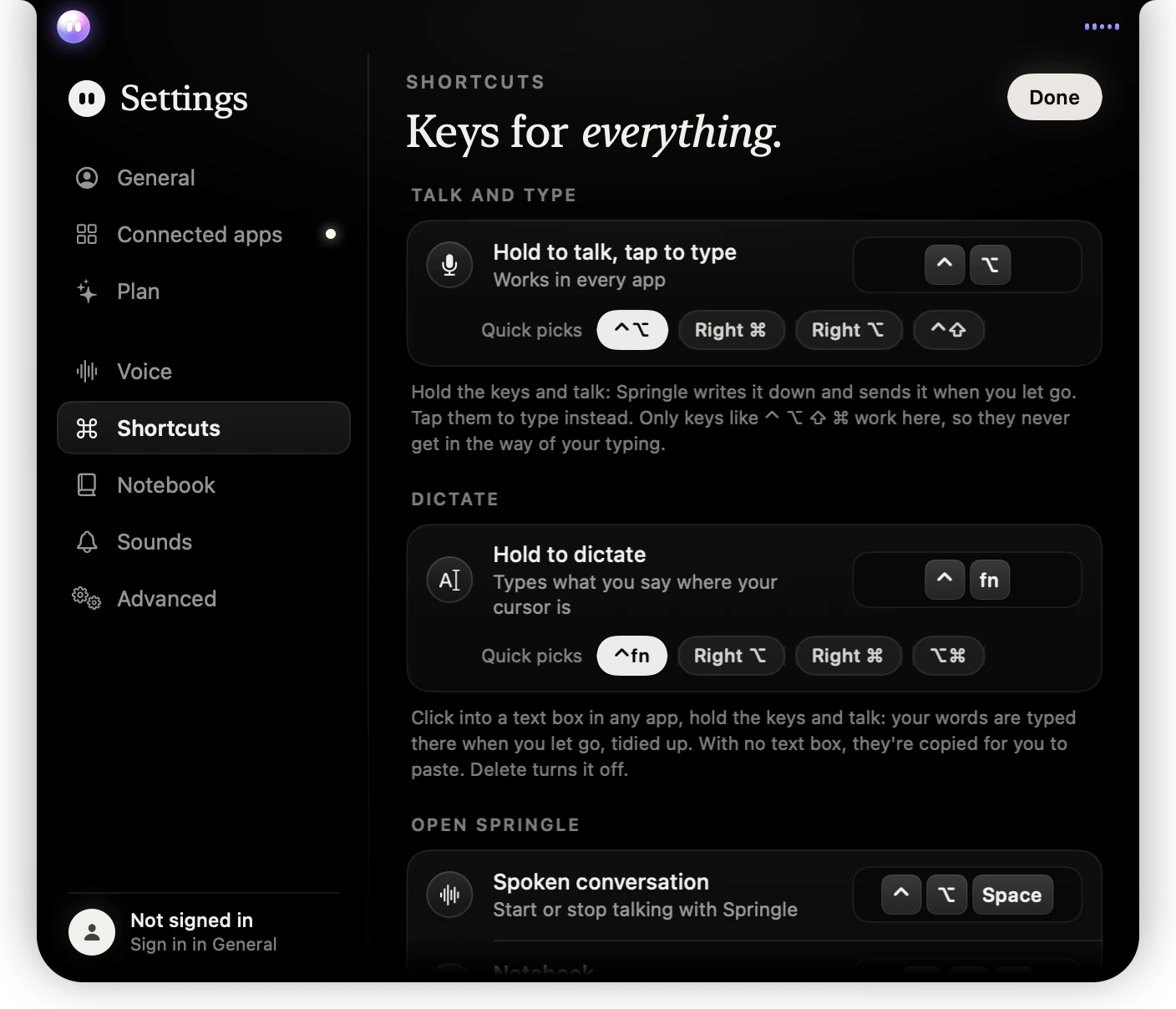
- 1Hold to talk, tap to type, with the keys set now.
- 2Quick picks: the common choices, one click each.
- 3Hold to dictate, with its own keys and quick picks.
- 4The other three shortcuts. Click one to change it.
- Open Settings › Shortcuts. You can also choose Help › Keyboard Shortcuts… from Springle’s menu in the menu bar.
- Click the shortcut you want to change.
- Press the new keys.
It’s saved at once and works straight away. There’s nothing to restart. While you’re choosing, Springle’s own shortcuts stand aside so the keys reach Settings.
- To cancel, press esc.
- To turn a shortcut off, press Delete while choosing. It then shows Off. This works for Dictate, Spoken conversation, Notebook and Circle to ask. For the last three, the menu bar item still works.
- To put one shortcut back, click the small arrow beside it.
- To put them all back, click Restore Standard Shortcuts. It’s greyed out when they already are.
Choose a single key to talk
The keys you hold to talk must be modifier keys only, the ones like ⌃ ⌥ ⇧ ⌘, so they never get in the way of your typing. You can choose:
- Two or more held together, like ⌃⌥ or ⌃⇧. Hold the new keys and let go.
- One key on the right-hand side of the keyboard, on its own: Right ⌘ or Right ⌥. This is handy if you’d rather use one hand.
The Quick picks under the shortcut set the common ones in one click: ⌃⌥, Right ⌘, Right ⌥ and ⌃⇧.
The keys you hold to dictate follow the same rules, and can include fn. Their quick picks are ⌃fn, Right ⌥, Right ⌘ and ⌥⌘. They can’t be the same as the keys you hold to talk.
A single key on the left, or any letter, isn’t allowed: it would go off all day. Some choices work with a catch, and Springle says so when you pick them:
- Right ⌥: if you type accents or symbols with that key, choose another.
- Anything with ⌘: many shortcuts start with ⌘, so Springle may start listening for a moment as you use them.
- Anything with fn: some keyboards made for Windows have no Fn key, or keep it to themselves. If yours does, choose another.
Use VoiceOver? VoiceOver uses ⌃⌥ too. Springle waits until it’s clearly a hold, but Right ⌘ keeps the two from ever meeting.
When Springle won’t take a shortcut
Springle checks each new combination as you press it, and says why if it can’t use it:
| You pressed | Springle says |
|---|---|
| A letter on its own, or with only Shift | "Add ⌃, ⌥ or ⌘, so it doesn’t go off while you type." F keys are fine on their own. |
| One of Springle’s other shortcuts | It’s already your shortcut for that. |
| A key the Mac uses, like ⌘Space for Spotlight, ⌘Tab or the screenshot keys | "Your Mac uses ⌘Space for Spotlight." |
| One that nearly every app uses, like ⌘C, ⌘V or ⌘S | It’s Copy, Paste or Save in almost every app. |
| One switched on in System Settings › Keyboard › Keyboard Shortcuts | Your Mac already uses it. Change it there, or pick another. |
| A key Springle can’t name | "Springle can’t use that key. Try a letter, a number, Space or an F key." |
Some combinations are saved with a note. ⌥ with a letter types special characters in some apps and languages, so Springle takes it everywhere. ⌘ with a letter may already be used by some apps, which won’t see it while it’s Springle’s.
If another app grabbed a combination first, Settings says another app is using it, so it won’t reach Springle, and asks you to pick another.
Your keys show everywhere
Once you change a shortcut, the menu bar, the hints on the island and the keycaps in the tour all show your keys, drawn for your keyboard’s layout. The tour’s recorded voice still says "Control and Option", because it was recorded once.
Did this help?