Hold two keys. Say it. Let go.
The quickest way to ask Springle anything. It listens only while you hold the keys, and sends your words the moment you let go.
Holding ⌃ control ⌥ option is the everyday way to ask Springle for something. You hold the keys, say what you want in plain words, and let go. Springle writes your words down as you say them and sends them as a message. The answer comes back written in the card.
Hold both, bottom-left of your keyboard. A green microphone appears beside the island while Springle listens.
Ask in three steps
- Hold ⌃⌥ in any app. You don’t need to click anything first.
- Say what you want. Plain words are fine, and so are pauses in the middle of a sentence.
- Let go. Springle sends what you said and gets on with it.
What’s on my calendar tomorrow?
Reply to Sam and say I’ll be late
How do I make the writing bigger?
Is this email really from my bank?
Springle keeps listening for a split second after you let go, so the end of your last word isn’t cut off.
Want the words typed into another app instead? Hold ⌃ control fn: what you say is typed into the text box you’re in, and nothing goes to Springle. See Dictate with ⌃fn.
What you’ll see

- 1Springle’s face, on the left of the notch. It’s awake and listening to you.
- 2The green microphone. It swells with your voice while you hold the keys.
- 3"Listening…" shows until your first words come back.
- 4The island’s lower edge glows green while it’s really listening.
As you talk, your words appear under the island in grey, so you can tell Springle heard you right. When you let go, the island says Writing it down for a moment while it finishes the last few words. Then your message is sent and the card opens with the answer.
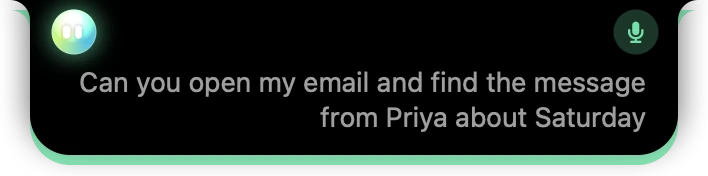
- 1The green microphone, still lit while you hold the keys.
- 2Your own words, written under the island as you say them.
If you’re already in a typing conversation, holding the keys puts your words in the box’s place instead, and sends them as your next message.
Music and videos go quiet
While you hold the keys, Springle mutes the Mac’s sound so music, a video or a ringing call doesn’t drown you out. The sound comes back as soon as you let go, at the same volume as before. If you had already muted the sound yourself, it stays muted.
You can turn this off in Settings › Voice › Listening › Quiet other sounds while I hold ⌃⌥.
When nothing is sent
Holding the keys never sends anything by accident:
- A quick tap (under about a third of a second) is not a hold. It opens the typing box instead. See Type to Springle.
- Another key joins in. If you press an arrow, Space or a letter while holding ⌃⌥, Springle treats it as some other shortcut and drops what it heard.
- You said nothing. Springle says "I didn’t catch that" and nothing is sent. Hold the keys while you talk, then let go.
- A very long hold finishes by itself after three minutes.
Nothing leaves your Mac until the press is clearly a hold. A tap stays on your Mac.
Rewrite what you’ve selected
Select some of your own writing (a few sentences of an email, a message you’re drafting), hold ⌃ control ⌥ option and say how to change it: "make this shorter", "warmer", "more polite", "fix the spelling", "put this in Spanish". Springle writes the new version in place of your selection, and a small receipt shows Undo for a moment, in case you liked it better before.
It only rewrites your own words in a box you’re typing in. Text you’ve selected on a web page or in a document you can’t edit is answered in the card instead.
How it’s different from a conversation
Holding the keys is one message, and the reply is written. For a back-and-forth where Springle talks back out loud, press ⌃⌥ Space instead: see Have a conversation.
Holding ⌃⌥ always means asking Springle, even when your cursor is in a text box in another app. To write into that box by voice, hold ⌃fn.
If you’d like written replies read aloud, open the card’s ⋯ menu and choose Read replies aloud. It uses your Mac’s own voice.
Each message you send by holding the keys counts as one ask on your plan. It doesn’t use talk time, so it keeps working when this month’s talk time has run out. See Talk time.
Change the keys
Open Settings › Shortcuts. The first row, Hold to talk, tap to type, shows the keys in use.
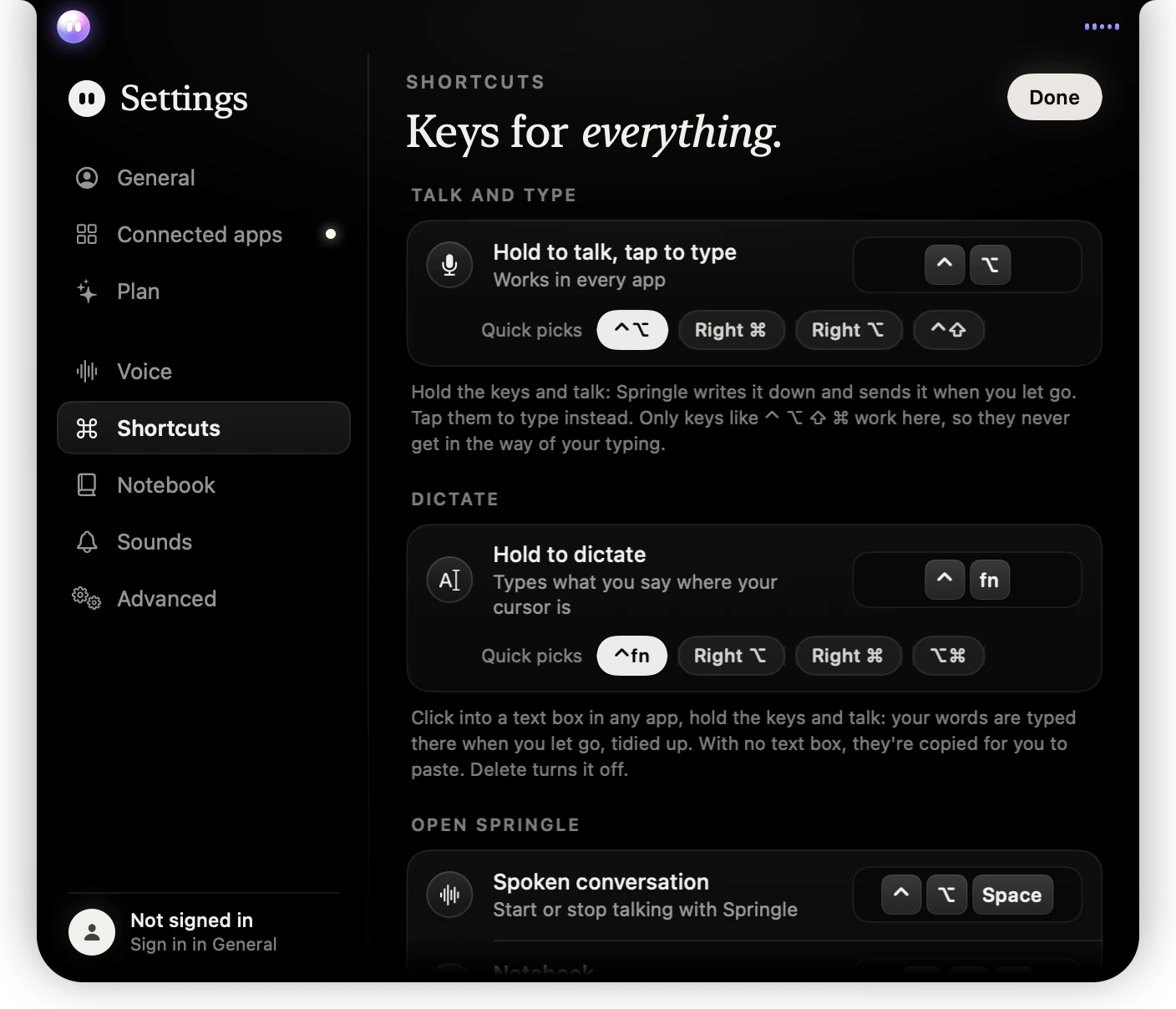
- 1Hold to talk, tap to type: click the keys on the right, then press the new ones.
- 2Quick picks set the common choices in one click.
- 3Dictate: the keys you hold to have what you say typed into any app.
- 4The other shortcuts: a spoken conversation, the notebook and Circle to ask.
- Click the keys and press the new ones. The change works straight away, with no restart.
- The talk keys can only be modifier keys: two held together, such as ⌃⌥ or ⌃ control ⇧ shift, or one key on the right-hand side on its own.
- Quick picks under the row set ⌃⌥, Right ⌘, Right ⌥ or ⌃⇧ in one click.
- Press esc to cancel while you’re choosing. Restore Standard Shortcuts at the bottom puts everything back.
Springle won’t take a key that would go off while you type, or one your Mac already uses, and says why.
Prefer one key? Choose Right ⌘ in the quick picks. You then hold only the right-hand ⌘ command key to talk. It’s also the best choice if you use VoiceOver, which uses ⌃⌥ for its own commands.
If it doesn’t hear you
- Check the microphone in Settings › Voice › Microphone and speaker.
- If macOS has never asked about the microphone, your first press opens the typing box and macOS asks. Allow it, and the next press listens.
- More fixes are in Springle can't hear me.
Did this help?