Tap the keys. Type it instead.
Tap ⌃⌥ to open the typing box, write what you want and press Return. Nothing listens while you type.
Sometimes talking isn’t right: you’re in a library, on a train, or you’d rather write it down. Tap ⌃ control ⌥ option (press and let go straight away) and Springle opens a box to type in. A typed conversation never uses the microphone.
Tap both and let go. The card opens with the cursor in the box, ready to type.
Three ways to open the box
- Tap ⌃⌥ from any app. If a conversation is already open, the tap puts the cursor back in its box.
- Point at the island until it widens, then click the keyboard icon.
- Click Springle’s face in the menu bar and choose Type to Springle.
The box
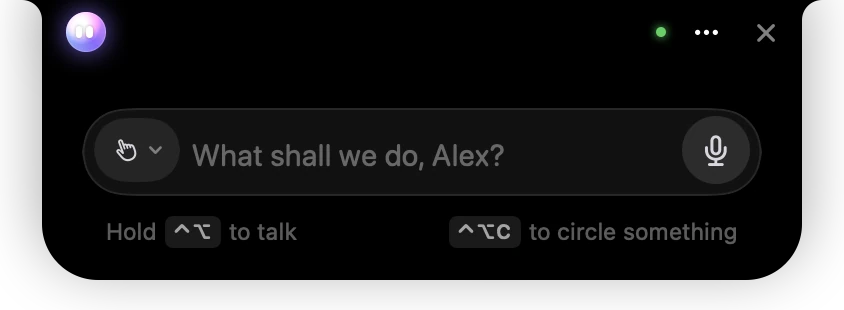
- 1× closes the conversation. ⋯, beside it, has everything else.
- 2The mode chip. The hand means Guide me.
- 3The box greets you by name. Type here, then press Return.
- 4The microphone: click it to talk instead.
- 5Until you’ve asked something, a faint line shows the keys.
From left to right, the box holds:
- The mode chip, a small icon that says how Springle helps: a hand for Guide me (it shows you where to click), a wand for Auto (it gets you to the right place and hands you the steps that decide something) or sparkles for Do it for me (it clicks and types while you watch). Point at it to see its name, and click it to change. See Guide me, Auto and Do it for me.
- The text field. When you start, it greets you by name: "What shall we do, Alex?". After your first message it reads "Ask a follow-up".
- One round button. While the box is empty it’s the microphone. Click it to turn this into a spoken conversation without losing what came before; it turns green while Springle listens, and clicking it again takes you back to typing. As soon as you type, it becomes Send, an arrow that does the same as return.
Until you’ve asked something, a faint line under the box shows the keys: hold ⌃⌥ to talk, and ⌃⌥ C to circle something on screen. Circling is also in the card’s ⋯ menu, as Circle something to ask about. See Circle to ask.
Keys in the box
| Key | What it does |
|---|---|
| return | Sends your message |
| ⇧ shift return | Starts a new line |
| ↑ and ↓ | Bring back messages you typed before |
| esc | Stops Springle’s voice, pauses a task under way and hands the keyboard back to your app |
While Springle works
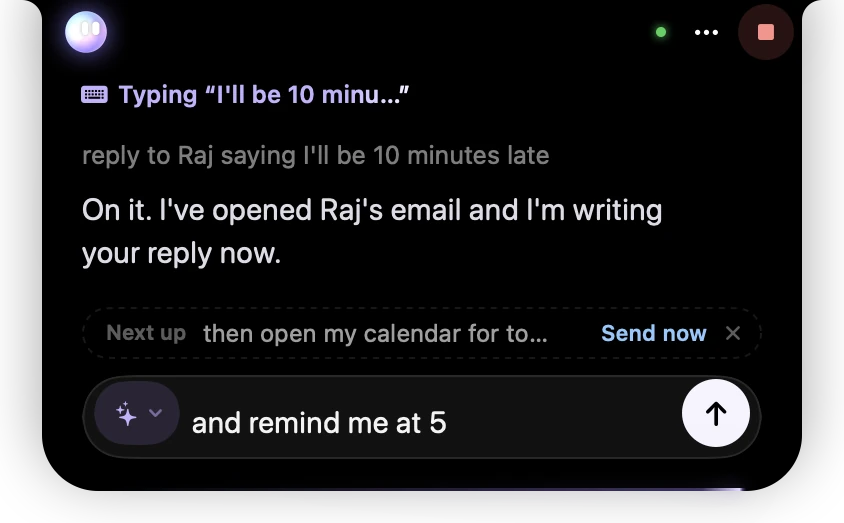
- 1The line at the top says what Springle is really doing, here typing a reply for you.
- 2Stop, red while Springle is busy, ends the conversation.
- 3What you asked, as one quiet line, with Springle’s answer under it.
- 4A message you sent while Springle was busy waits under Next up. Send now cuts in, × takes it back.
- 5The next thing you’re typing. The button has turned into Send.
You can type the next thing while Springle is still working. It waits under Next up and goes when Springle is ready. Typing "stop", "wait" or "hold on" stops Springle at once.
If something you type looks like a card number, password, PIN, one-time code or ID number, Springle keeps it in the box and doesn’t send it. Type those into the website or app yourself.
Answering Yes or No
When Springle’s reply ends in a plain yes-or-no question, such as "Shall I open it?", Yes and No buttons appear under it and the line at the top says Waiting for your answer in amber.
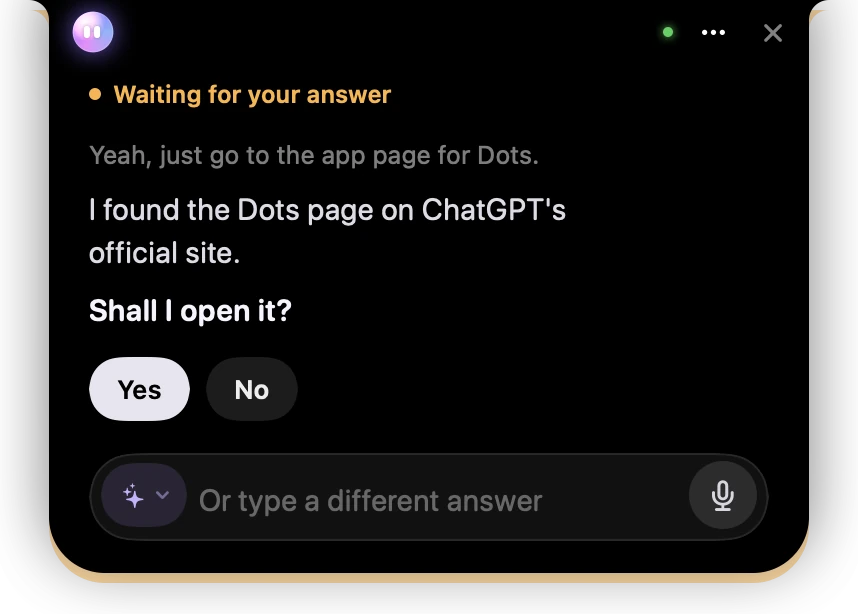
- 1Amber: Springle is waiting for your answer.
- 2The question Springle asked.
- 3Yes and No. With the box empty, Return answers Yes and Esc answers No.
- 4Or type a different answer in the box.
With the box empty, return answers Yes and esc answers No. You can also click a button, or type something else instead.
Reading a long answer
A typed reply opens the card by itself, so you can read all of it. It stays open longer for a longer reply, and stays while you’re pointing at it or typing.
When an answer is long (more than about ten lines), the card widens by itself to a reading size, and can grow to most of the screen’s height before it scrolls.
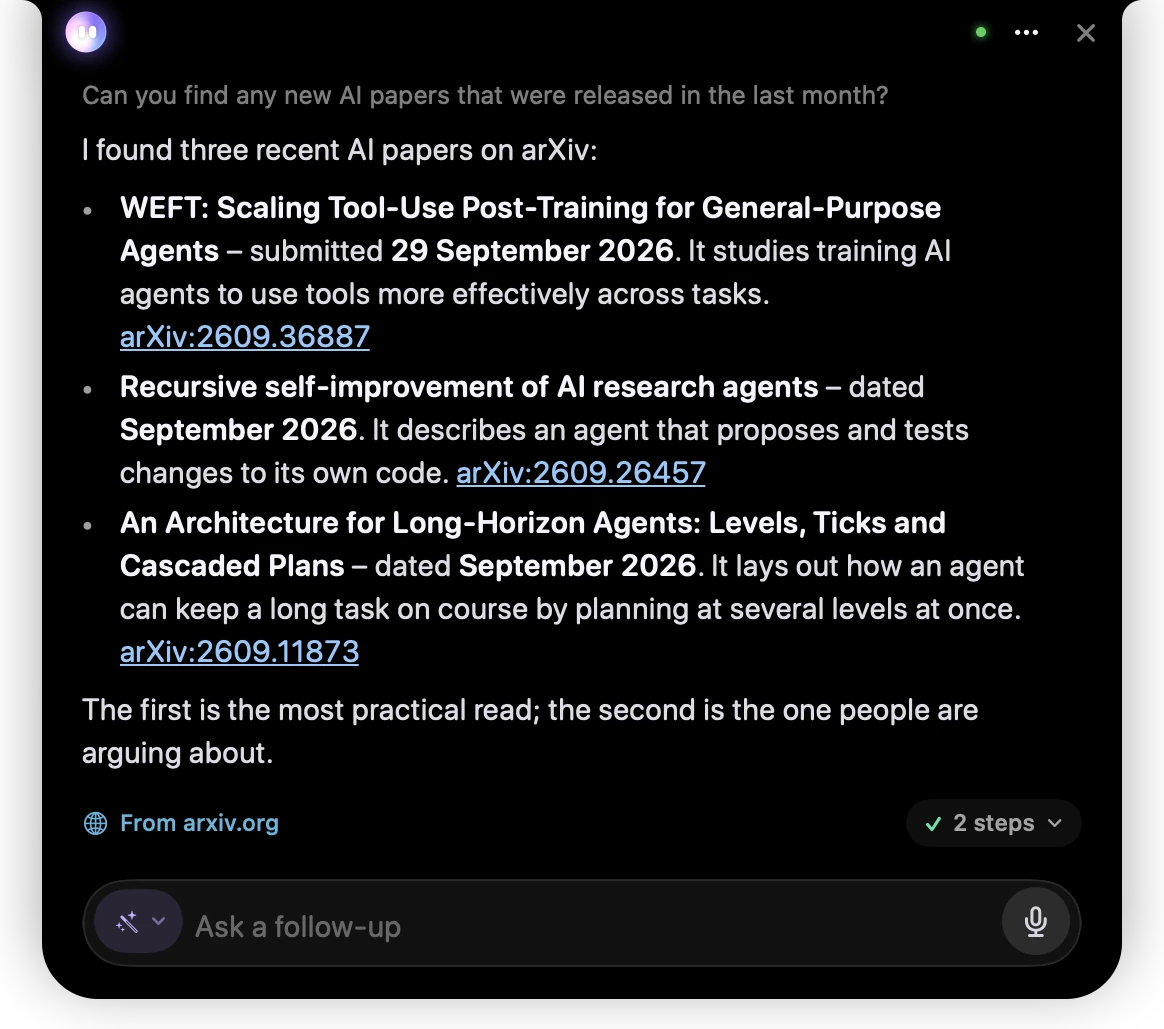
- 1Your question, as one quiet line, so the answer has the room.
- 2⋯ has Smaller card and More room to read, to switch sizes yourself.
- 3The answer, with lists, bold names and links you can click.
- 4Where the answer came from, and the steps Springle took, share one line at the bottom.
- Smaller card and More room to read, in the card’s ⋯ menu, switch between the usual card and the reading size. Your choice holds for the rest of the conversation.
- At the reading size, the web sources and the steps share one line at the bottom. Click the steps to see them.
- The card goes back to its usual size if the wide one would cover something Springle is pointing at.
Links in an answer open in your browser. Hover over a reply to copy it.
Putting it away
- ×, at the far right beside the notch, ends a typed conversation once nothing is going on. While Springle is busy, the same button is a red Stop square.
- Click anywhere outside the card, or choose Fold away from the ⋯ menu, to fold the card back into the island. The conversation stays open.
- A typed conversation with nothing going on puts itself away about a minute after the answer, so the island goes back to rest. If Springle asked you something, it waits three minutes.
- Ask again within ten minutes and Springle carries on where you left off, so "and the one after that?" still makes sense.
Want the answers out loud as well? Open the card’s ⋯ menu and choose Read replies aloud. Springle reads them in your Mac’s own voice.
Did this help?