Say it rough. Press a letter.
While you hold ⌃fn, press a letter before you let go and your words are shaped before they’re typed: tidied, made shorter, written as an email or a prompt for an AI, translated, or done your own way.
A finish shapes what you say before it’s typed. Hold ⌃ control fn, say it the way it comes to you, and press a letter before you let go. Springle tidies it, makes it shorter, writes it as an email or as a clear request for an AI, translates it, or does it your own way, and types the result where your cursor is.
Hold both and talk. Before you let go, press the finish’s letter.
Springle’s own finishes
| Letter | Finish | What you get |
|---|---|---|
| T | Tidy | What you said, cleaned up: no "um"s or false starts, your corrections followed, in your own words. |
| S | Shorter | The same, in fewer words. Every name, number, date and request kept. |
| P | Prompt | The prompt you’d want to send, written for the AI you’re typing to: what you want first, then only what helps. For Claude Code or Cursor, the error on your screen word for word and how it should prove it works; for research or a plan, what a good answer includes; for an image, a vivid description. Every request and number you said is kept. |
| E | Written as an email, ready to send: a greeting, short paragraphs and your name at the end. | |
| L | Translate | Typed in the language you choose in Settings › Dictation › Finishes. |
Finishes work in boxes where you write words: messages, emails, notes, documents, AI chats and one-line boxes. A search box, code and a command prompt get your words exactly as you said them, unless one of your own finishes is made for them.
tell sam thanks for the deck and can he fix slides four to nine before thursday
so the build’s failing again, it’s the date thing we changed, don’t touch the tests
um move the call to Thursday, no wait, Friday
Pick one while you talk
When Springle knows which box your words are going into, the card at your cursor shows the letters that fit it. Before you’ve said anything you see each letter with its name; once your words are coming, only the letters, so they don’t get in the way.

- 1Springle is listening.
- 2The finishes that fit this box. In an AI chat, Prompt comes first.
- 3Press any of them before you let go.
Press a letter and it shows at the end of your words. Press it again to change your mind, or press another letter to pick that one instead. When your words show under the island rather than at your cursor, the finish you picked sits beside the app’s icon.

- 1Prompt is picked. Your words will be shaped as a prompt when you let go.
When your words show under the island instead (some apps don’t say where their cursor is), the letters sit at the start of that line:
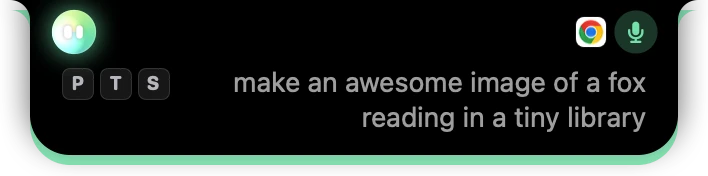
- 1The finishes that fit this box. Press one before you let go.
- 2Your words, as you say them.
Any finish’s letter works in any box, even one whose card doesn’t show it: press P in a note and you get a prompt. You don’t have to look: the letters work whether or not they’re shown. To hide the names, turn off Settings › Dictation › Show finishes while I talk.
What happens when you let go
Springle writes your words down, shapes them, and types the result. It usually takes about two seconds, and the card and the island say what’s happening ("Sharpening it for Terminal…"). If it takes too long, your words are typed as you said them, and Springle tells you so.
Then one line under the island says what was done:

- 1Done, and what was done.
- 2What was added from your screen, or left out because you didn’t say it.
- 3Undo puts back your words as you said them.
Undo takes out the finished words and types what you said in their place. It works for two minutes. A finish never makes up facts: if it needed something you didn’t say, it leaves it out and says so on that line.
Make your own
You might write the same kind of thing every day: a bug report, a standup update, notes from a call, a commit message. Make a finish for it once, and it’s one letter away from then on.
Open the Finishes window from Settings › Dictation › Finishes › Open Finishes, or from the Springle menu (Finishes…). It has your finishes down the left, the one you’ve chosen in the middle, and Try it on the right.
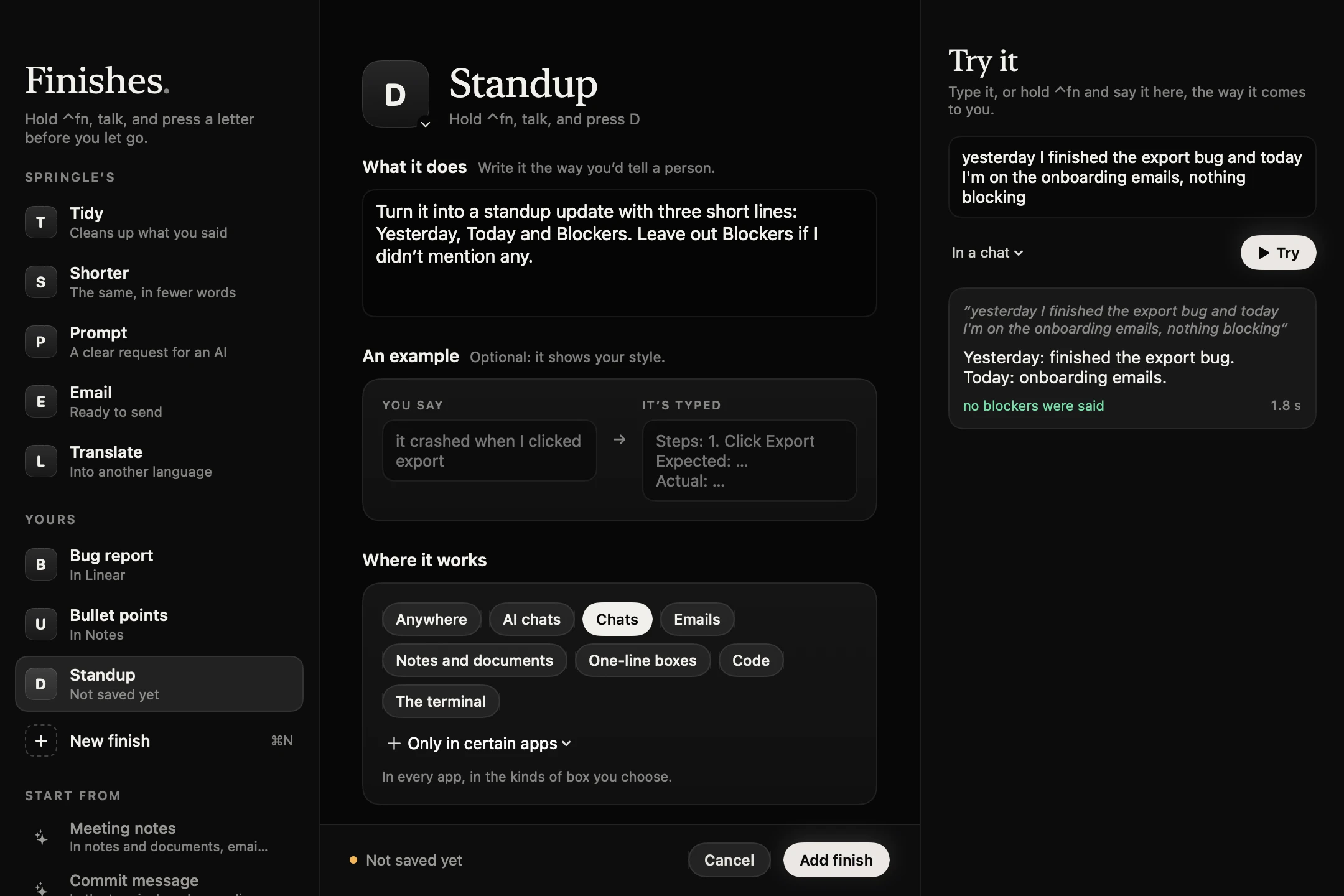
- 1New finish, or press ⌘N. Below it, ready-made ones to start from.
- 2Its letter. Click it to choose another on a keyboard.
- 3What it does, in your own words. The box grows as you write.
- 4Where it works: kinds of box, or only certain apps.
- 5Try it on something you’d say. Press ⌘↩.
- 6What came out, with anything it added or left out.
- 7Add it, or press ⌘S. Nothing is saved until you do.
There are four ways to start one:
- New finish, and say what it should do, the way you’d tell a person.
- From a ready-made one under Start from (Bug report, Meeting notes, Commit message, Kind reply).
- From one of Springle’s: choose it and press Make my own version. Yours takes over its letter once you save it.
- By asking Springle: hold ⌃ control ⌥ option and say "Make a finish that turns what I say into a bug report with steps, expected and actual." Springle shows you the whole finish and saves it when you say yes.
Springle can also offer one when you keep changing dictated words the same way (see below).
What you can choose
- Its letter: click the big key and pick one on the keyboard. F, C and R are left out, because with ⌃fn held they’re your Mac’s own window keys. A dot marks one of Springle’s, which yours would replace.
- What it does: in your own words. "I" and "my" mean you.
- An example, if you like: something you’d say, and how it should come out. It helps the finish match your style.
- Where it works: anywhere, or only in some kinds of box (AI chats, chats, emails, notes, one-line boxes, code, the terminal), or only in certain apps.
- Can read the text around my cursor: for a finish that needs it, like the error in a terminal or the message you’re replying to. It never reads a password box or a password manager.
- Then: type it, type and send it (only where return sends, like a chat), or hand it to Springle with something to do ("make a Linear issue from this"). Springle asks before it sends or changes anything.
Try it before you use it
Type into Try it, or click in it, hold ⌃fn and say it, then press Try. You see exactly what would be typed, before you save. Choose the kind of box it’s for under the box ("In a chat", "In an email"). Your last dictations are there too, one click each. Springle’s own finishes can be tried the same way.
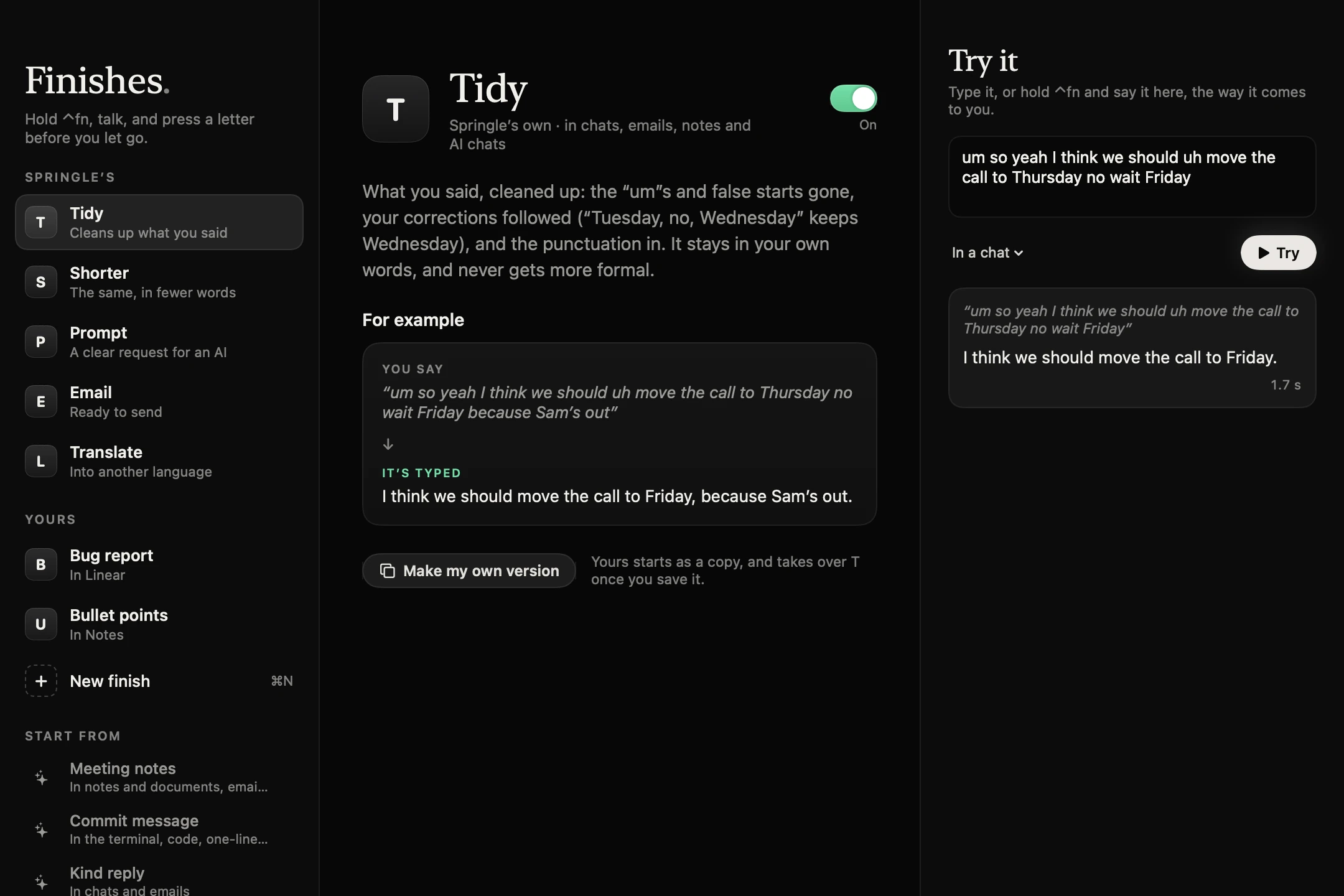
- 1Turn one of Springle’s off.
- 2What you say, and what’s typed.
- 3Make your own version of it.
- 4Try it on your own words.
Change or delete one
- Change it: click it under Yours, change anything, and press Save (⌘S). Undo changes puts it back as it was. You can also ask Springle: "Make my Bug report finish shorter."
- Delete it: click it, then Delete… at the bottom. Or right-click it in the list for Edit, Duplicate, Copy Link to Share and Delete….
- Springle’s own can’t be deleted: turn one off with its switch, or right-click it and choose Make My Own Version to change how it works.
- A new one you don’t want: press Cancel, or click another finish.
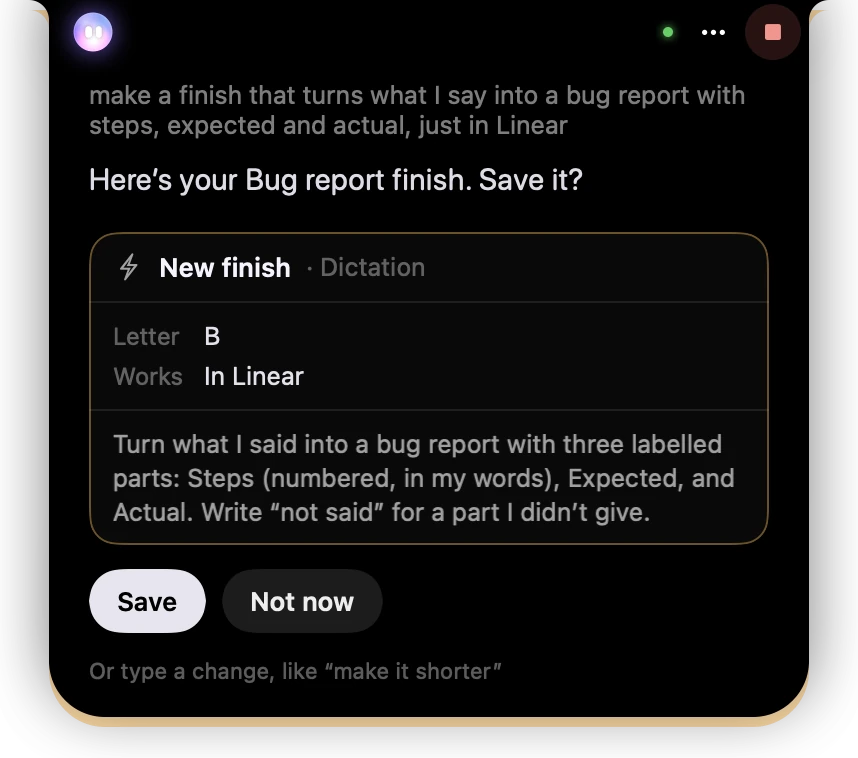
- 1Its letter and where it works.
- 2Everything it will do, in full.
- 3Nothing is saved until you press Save or say yes.
On words you’ve already written
Select some words in a box you’re writing in, hold ⌃ control ⌥ option and say a finish’s name: "Make this a bug report", "Standup this". Springle rewrites them in place with that finish, and shows what it did with Undo. Springle’s own work this way too: "Tidy this", "Make it shorter", "Put this in Spanish". See Rewrite what you've selected.
Finishes from your own changes
If you keep changing what you dictated the same way in one app, Springle notices and offers to do it for you. Say you turn every note in Linear into bullet points after dictating it. After a few times, one line under the island asks:

- 1What Springle noticed, and where.
- 2Make it saves a finish for that app. No, and it won’t ask about that app again for a month.
Springle offers one at most once a day. The changes it learns from stay on this Mac for two weeks. Turn this off in Settings › Dictation › Offer finishes from my changes, and the changes are forgotten.
Share a finish
Choose a finish of yours in the Finishes window, and use … › Copy link to share. Send the link to someone with Springle. When they open it, the finish opens in their Finishes window with everything it does, for them to read and try before they add it. Opening a link never adds anything by itself, and it never carries which apps you made it for.
In Settings
Settings › Dictation › Finishes lists them all, with a switch for each of Springle’s own and the language Translate types in. Click any of them to open it in the Finishes window.
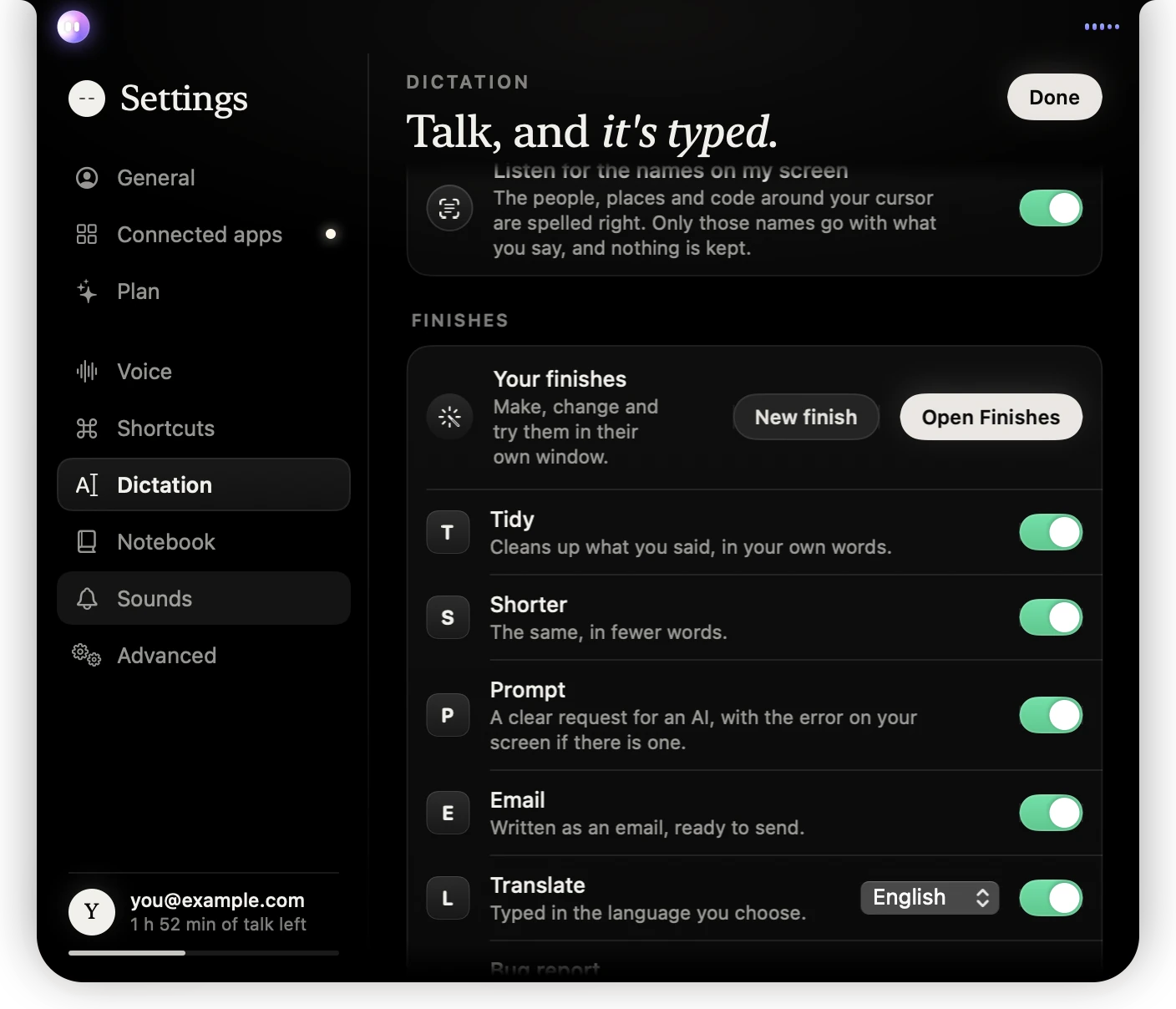
- 1Open the Finishes window, or start a new finish.
- 2Each finish’s letter. Click a row to open it.
- 3Turn one of Springle’s off.
- 4The language Translate types in.
Show finishes while I talk shows their letters beside your words (the letters work either way). Offer finishes from my changes lets Springle offer one when you keep changing dictated words the same way.
Which plans have them
Springle’s own finishes work on every plan. Making your own, and finishes offered from your changes, come with Springle and Springle Family. If you move to Free, your own finishes are kept but paused until you’re back. See Plans.
What’s sent
What you say is written down by the same service as any dictation. A finish sends those words, the finish’s instructions, the kind of box and app, and a little of the text before your cursor, so the words fit what’s already there. Only a finish that may read your screen sends the text around your cursor, and never from a password box or a password manager. Your own finishes, and the changes Springle learns from, are kept on this Mac. See What Springle sees.
Did this help?