Draw round it. Then ask.
For a chart, a photo, a bill or anything without a label, circle it on screen and ask about it. The circle goes with whatever you ask next.
Some things on screen are hard to describe: a line on a chart, a charge on a bill, a strange icon, part of a photo. Circle it instead. The circle works like a photo attached to a message: you draw it first, then ask your question the way you always do.
Press all three. The screen dims a little and you can draw round what you’d like to ask about.
Circle, then ask
- Start a circle. Press ⌃⌥ C, or choose Circle something to ask about from the card’s ⋯ menu. It’s also in the menu bar as Circle Something to Ask About. While a typed conversation is new, the line under the box reminds you of the keys.
- Draw round the thing. The screen dims a little and a note says "Draw round what you’d like to ask about · Esc to cancel". Draw with the mouse or trackpad. The line is thick and yellow.
- It attaches. A small picture of what you circled appears above the text box, labelled Your circle. Springle has it and waits for you.
- Ask the way you always do. Hold ⌃⌥ and say it, type it and press return, or talk if you’re in a spoken conversation.
What’s this charge?
Is this real?
What does this chart show?
Which button do I press here?
Springle never answers a circle on its own. It always waits for you to ask, or to press What’s this?
In a typed conversation
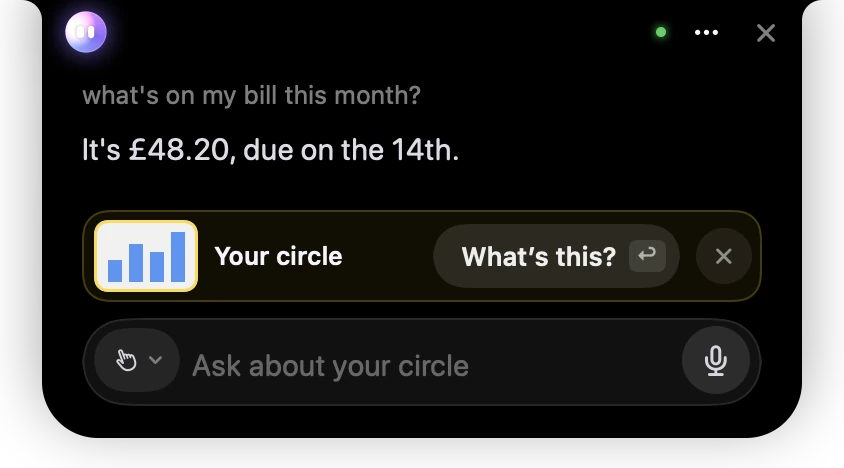
- 1Your circle: a small picture of what you drew round, attached to your next message.
- 2What’s this? asks about it without typing. Return in the empty box does the same.
- 3The × takes the circle off.
- 4The box now reads "Ask about your circle". Type your question and press Return.
Type your question and press return, or hold ⌃⌥ and say it. The circle goes with that message. If you start a circle with nothing open, Springle opens a typing conversation with the circle attached and the box ready.
In a spoken conversation
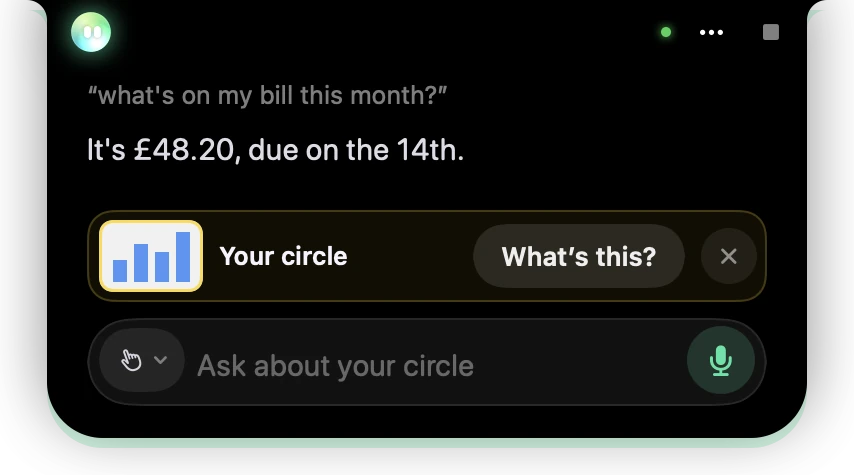
- 1Your circle, attached and ready.
- 2What’s this? asks about it for you.
- 3The green microphone: you’re in a spoken conversation, so you can just say your question.
In a spoken conversation, Springle gets the picture as soon as you finish drawing. Whatever you say next is about it, so you can draw and then say "what’s this?" out loud.
Changing your mind
- Before you draw: press esc, or press ⌃⌥ C again, to put the screen back.
- After you draw: the × takes the circle off. Drawing a new circle replaces the old one.
- A click or a tiny squiggle isn’t a circle. It cancels instead.
What Springle sees
Springle takes a sharp picture of the area you circled at the moment you finish drawing, with your circle drawn on it. Password, card and code boxes are blacked out before the picture leaves your Mac. The picture goes with your question to the AI service that answers it, and only then. See What Springle sees and hears.
A circle is only something to look at. It never counts as your yes to an action.
Circle to ask needs the Screen Recording permission. Without it, a note in the box says so. See Permissions.
Change or turn off the shortcut
Open Settings › Shortcuts and click the keys beside Circle to ask. Press new keys to change it, or press delete to turn the shortcut off. The menu items still work either way.
Did this help?