What Springle asks your Mac for. And why.
Springle needs three macOS permissions to help you, and may ask for a few more when a feature needs them. What each one is for, what happens without it, and how to switch it on or off.
macOS keeps apps away from your microphone, your screen and the controls of other apps until you say yes. Springle asks for three permissions during setup, one at a time, and a few more later only when you use a feature that needs them.
| Permission | Asked | Without it |
|---|---|---|
| Microphone | During setup | You can still type to Springle |
| Accessibility | During setup | Springle can’t start |
| Screen Recording | During setup | Springle can’t start |
| Calendar and Reminders | When you turn the feature on | No calendar in Today or the island; reminders stay on your Mac |
| Location | Once, after setup and the tour | Springle uses the town you type, or asks |
To check or change any of them, open System Settings › Privacy & Security and click the permission’s name. Find Springle in the list and switch it on or off. If Springle isn’t in the list, click Springle’s face in the menu bar and choose Finish Setting Up Springle… (it’s Help › Set Up Springle… once nothing is missing).
If one of the three main permissions is turned off later, Springle’s face in the menu bar turns dashed, and the menu shows Finish Setting Up Springle… with what’s off. Choosing it takes you straight to the right step.
Microphone
Why: so Springle can hear you while you hold ⌃⌥ or talk with it. It’s never on while Springle is resting.
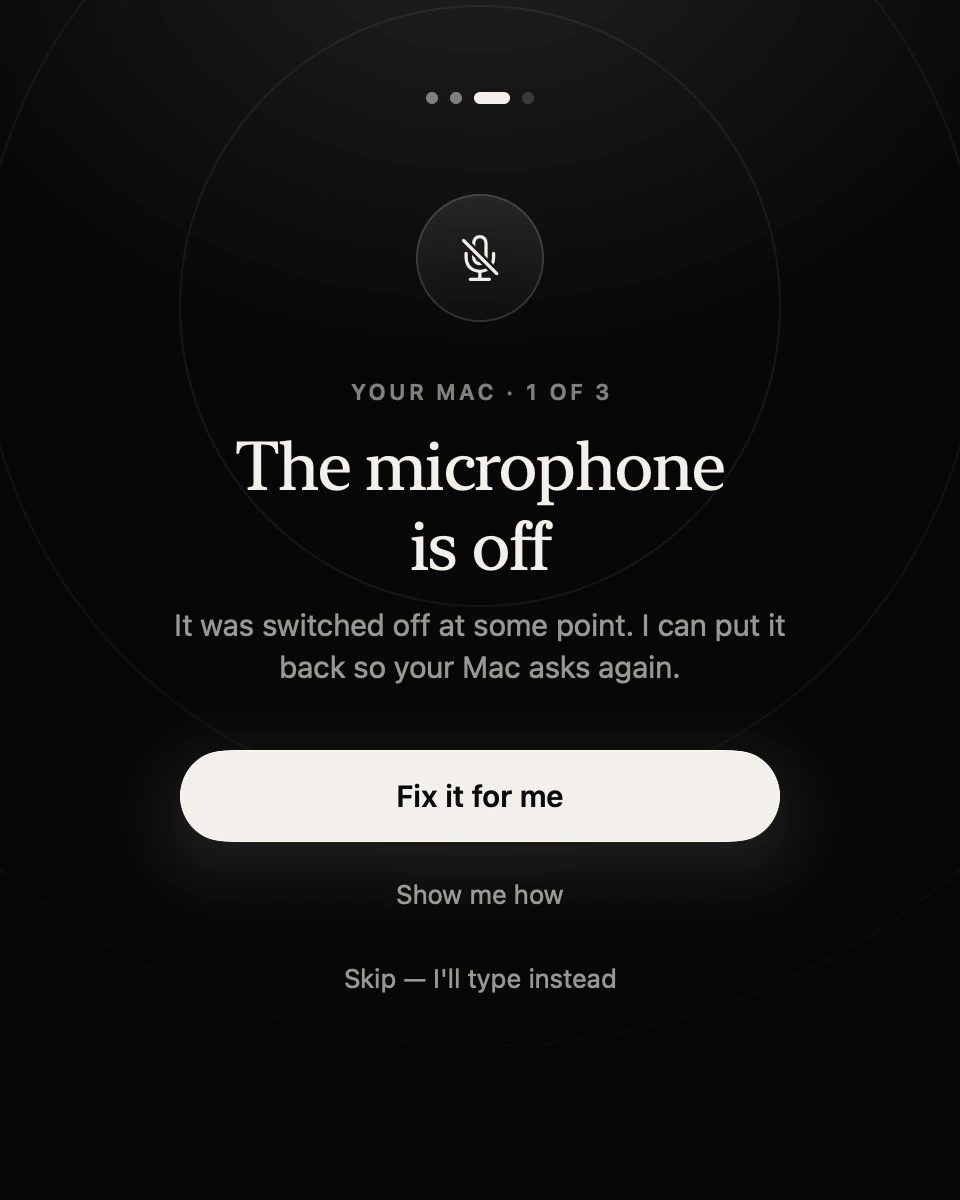
- 1Which of the three Mac permissions this is.
- 2If the microphone was switched off before, Fix it for me puts it back so your Mac asks again.
- 3Show me how gives the steps to do it yourself.
- 4Skip and type instead, if you’d rather not use your voice.
Without it: you can still type to Springle. In setup, choose Skip — I’ll type instead. If you hold ⌃⌥ or start a conversation without the microphone, Springle opens the typing box and tells you how to turn the microphone on.
Turn it on or off: System Settings › Privacy & Security › Microphone › Springle.
Speech Recognition
When you allow the microphone, macOS also asks about Speech Recognition. Springle uses it to write down what you say on your Mac itself: when you speak a note into the notebook, and when Springle rests in a quiet spell of a conversation. Without it, you can type notes into the notebook instead of speaking them. It’s in System Settings › Privacy & Security › Speech Recognition.
Accessibility
Why: to find the buttons and boxes on your screen by name, show you where they are, click and type for you when you ask, and notice when you hold ⌃⌥. It’s the permission that lets Springle point and click.
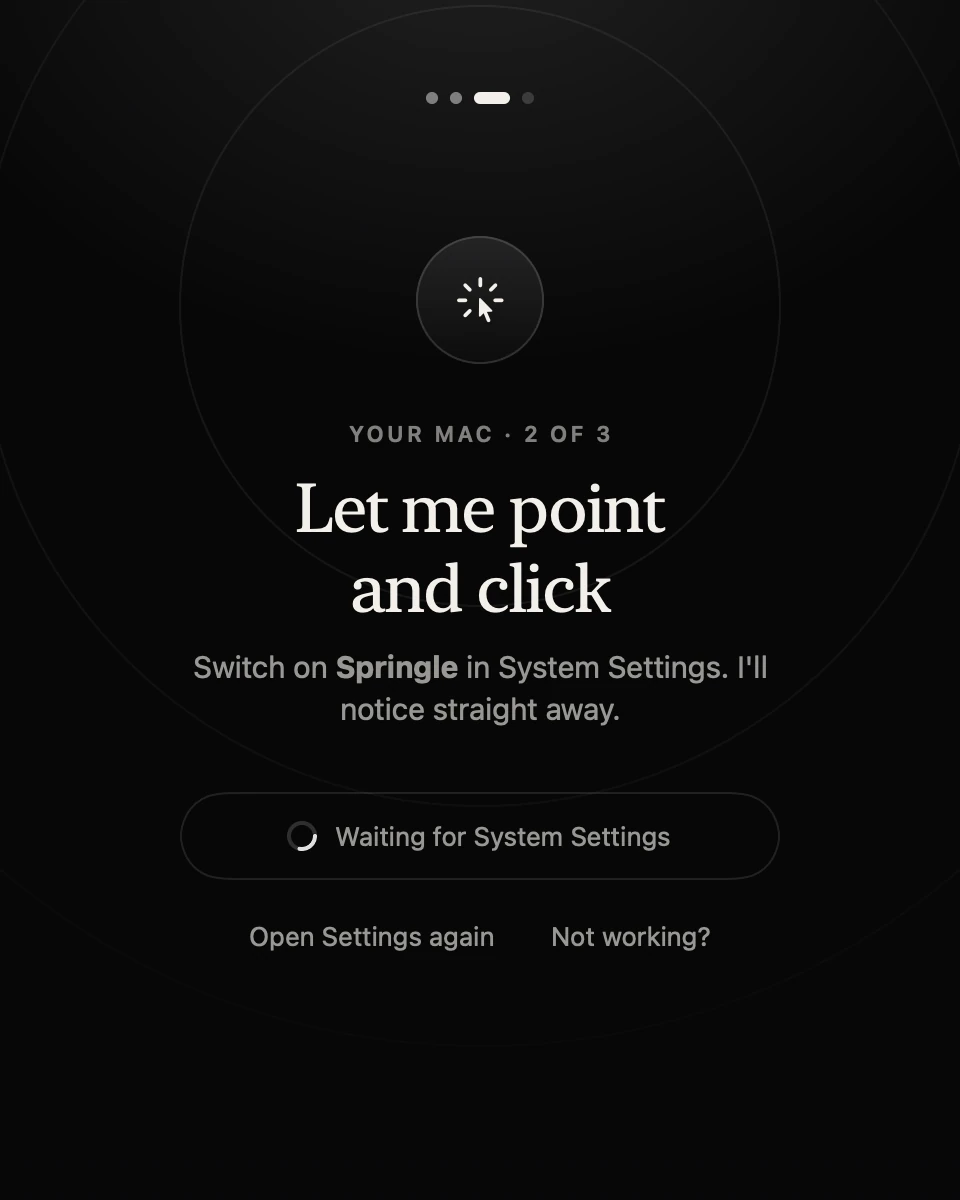
- 1Springle asks you to switch it on in System Settings.
- 2It notices the moment you do, and moves on.
- 3Not working? opens help if the switch is on but nothing happens.
Without it: Springle can’t help, because it can’t tell what’s on screen or hear the talk keys. A conversation won’t start, and Springle says what’s missing.
Turn it on or off: System Settings › Privacy & Security › Accessibility › Springle. During setup, Springle opens this page for you and puts a spotlight on its own switch.
The first time Springle switches tabs or goes back in your web browser for you, macOS may ask whether Springle can control that browser. That’s the Automation permission. Springle only uses it to list, switch and go back through tabs, never to run code in your web pages. If you said no, you can change it in System Settings › Privacy & Security › Automation.
Screen Recording
Why: so Springle can see your screen while it helps. It looks only while it’s helping you, and blacks out password, card and code boxes in every picture before it leaves your Mac. See What Springle sees and hears.
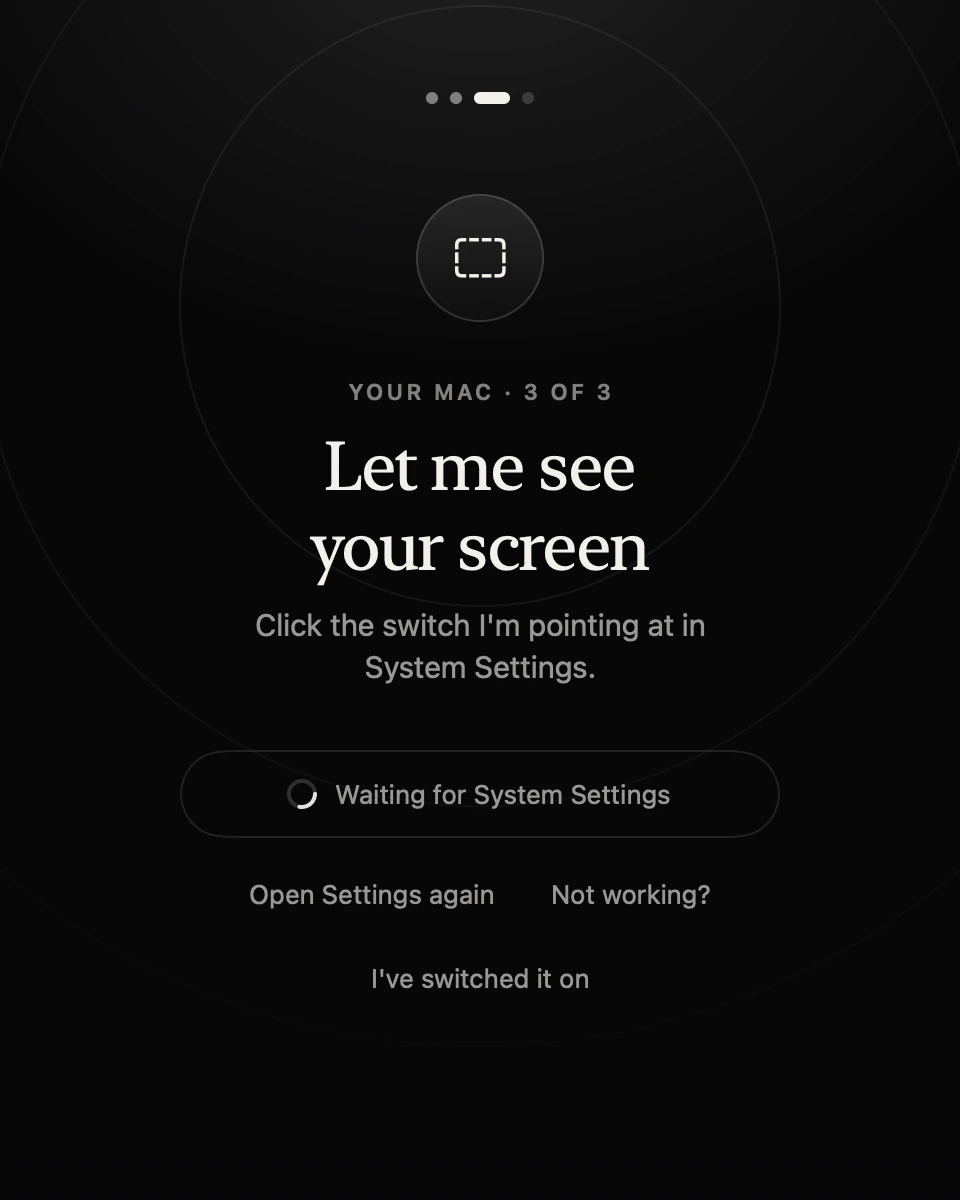
- 1Springle points at its own switch in System Settings.
- 2It waits for you to switch it on.
- 3I’ve switched it on moves to the quick restart if Springle hasn’t noticed.
Without it: Springle can’t start a conversation, and Circle to ask can’t take its picture.
Turn it on or off: System Settings › Privacy & Security › Screen Recording (on newer versions of macOS it’s called Screen & System Audio Recording) › Springle.
macOS only applies this permission after Springle reopens. Setup shows One quick restart with a Restart Springle button, and carries on where it left off. If the switch is on but Springle still can’t see, see Screen Recording won't stick.
Calendar and Reminders
These are optional. Springle asks only when you turn on a feature that uses them.
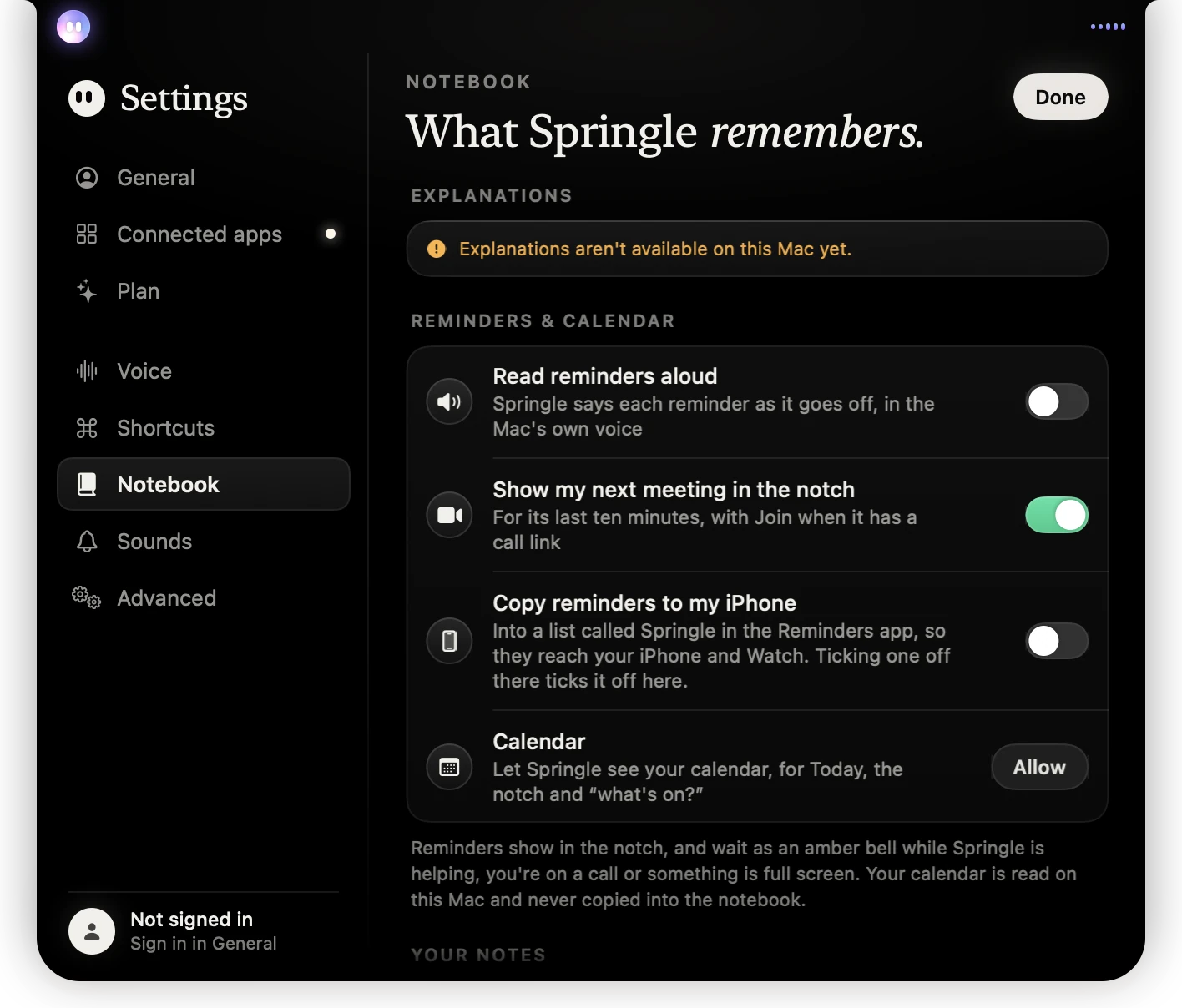
- 1Copy reminders to my iPhone: turning it on asks for Reminders access.
- 2Calendar: Allow asks macOS to let Springle read your calendar.
- 3Your calendar is read on this Mac and never copied into the notebook.
Calendar lets Springle tell you what’s on, put your meetings in Today in the notebook, and show your next meeting on the island with a Join button.
- Turn it on: Settings › Notebook › Reminders & calendar › Calendar › Allow, then allow it when macOS asks.
- Your calendar is read on your Mac and never copied into the notebook. Only the events needed to answer you are sent, and only when you ask.
- Once it’s allowed, you can choose which calendars Springle shows.
Reminders is used only for Copy reminders to my iPhone (Settings › Notebook › Reminders & calendar). It keeps a list called Springle in the Reminders app, so your reminders reach your iPhone and Apple Watch. Springle’s own reminders work without it: they live in your notebook.
Without them: Springle’s reminders still go off on the island. You won’t see calendar events in Today or the island, and reminders stay on this Mac.
Turn them off: System Settings › Privacy & Security › Calendars or Reminders › Springle.
Location
Why: so Springle knows which town you’re in, for the weather, opening hours and anything near you. It uses only the town, region and country, never your exact spot. It checks at most once an hour.
Springle asks once, after setup and the tour.
Without it: type your town in Settings › General › You › Where you are. Springle goes by what you write. If it knows no town, it uses your Mac’s country and time zone, and asks when the place matters.
Turn it on or off:
- In Springle: Settings › General › You › Use this Mac’s location. Turning it off makes Springle forget the town it found.
- In macOS: System Settings › Privacy & Security › Location Services › Springle.
Stuck on a switch? In setup, Not working? offers Fix it for me, which clears Springle’s old entries and asks again, and Show me how for the steps by hand.
Did this help?