Screen Recording won’t stick? One restart usually does it.
You switched Springle on in System Settings, but it still can’t see your screen. macOS needs Springle to reopen, and sometimes an old copy is in the way.
You switched Springle on under Screen Recording, but setup still waits, or Springle says "I need your OK to see your screen". This is the most common setup snag, and it has a known fix.
Why Springle needs it
Springle looks at your screen so it can see what you see, explain it and show you where to click. It only looks while it’s helping you. macOS calls this permission Screen & System Audio Recording (on older versions, Screen Recording), and only applies it after the app reopens.
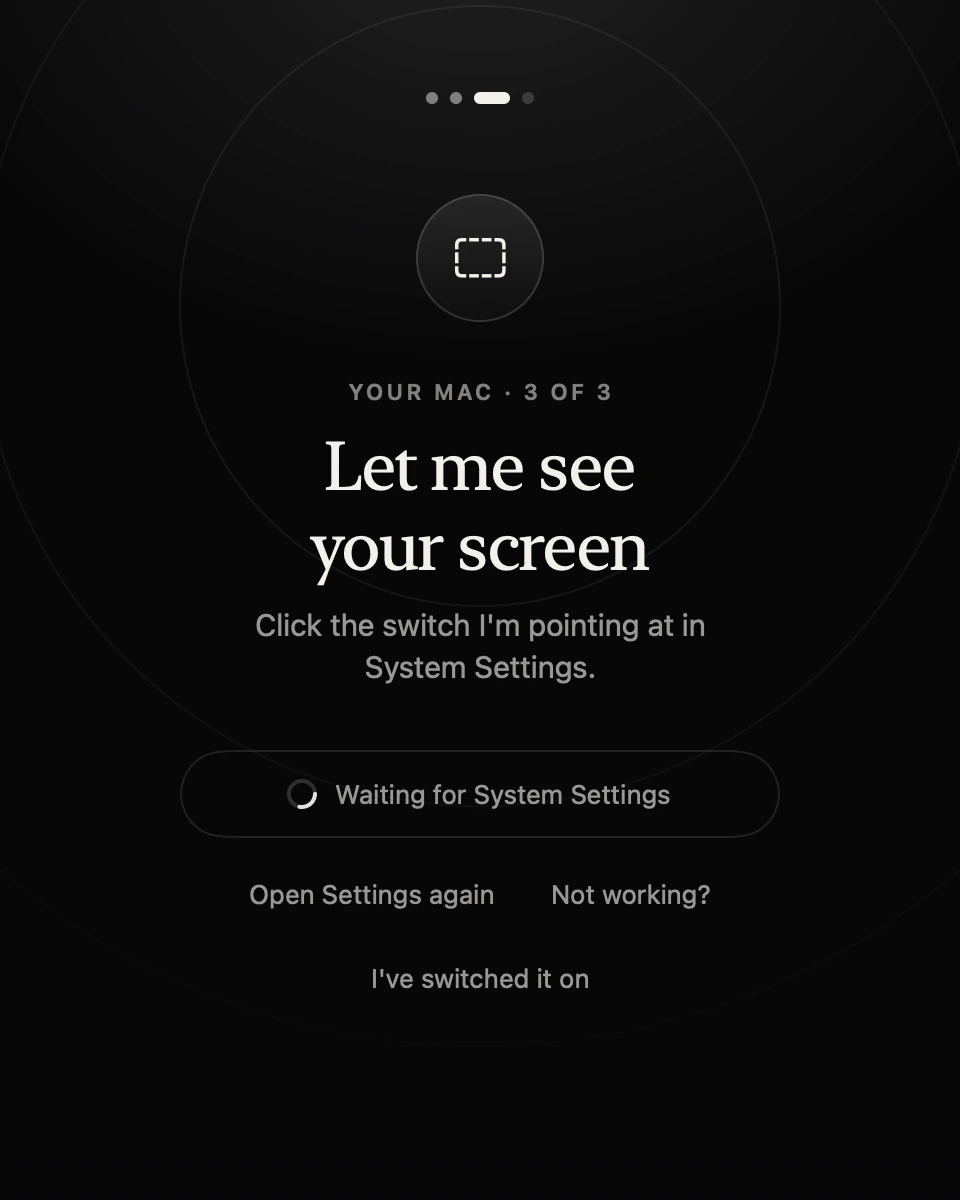
- 1Setup asks for the permission and waits while you switch it on.
- 2Waiting for System Settings: Springle points at its own switch there.
- 3Not working? opens the fixes below.
- 4I’ve switched it on: press this once the switch is on, and Springle reopens.
Fixes, quickest first
- Let Springle reopen. When the switch is on, macOS may offer Quit & Reopen. Click it. If it doesn’t, press I’ve switched it on in setup. Springle closes, opens again a few seconds later and carries on from the same step.
- Press Restart Springle. If setup shows "One quick restart", the switch is on and Springle only needs to reopen. Press Restart Springle.
- Let Springle clear out old entries. If it still can’t see the screen, setup shows "Still not working?". An older copy of Springle left in the list is the usual cause. Press Fix it for me: Springle removes its own old entries (nothing else is touched), then you switch it on again and restart.
- Remove and re-add Springle yourself. Press Show me how. In System Settings › Privacy & Security › Screen & System Audio Recording, select every Springle in the list and remove it with the minus (−) button. Press plus (+) and add Springle again (Show Springle in Finder in setup shows where it is). Switch it on, then press Restart Springle.
- Make sure you’re running the copy in Applications. A copy opened from Downloads or the disk image can confuse macOS. Quit it, open Springle from your Applications folder, and run the steps again.
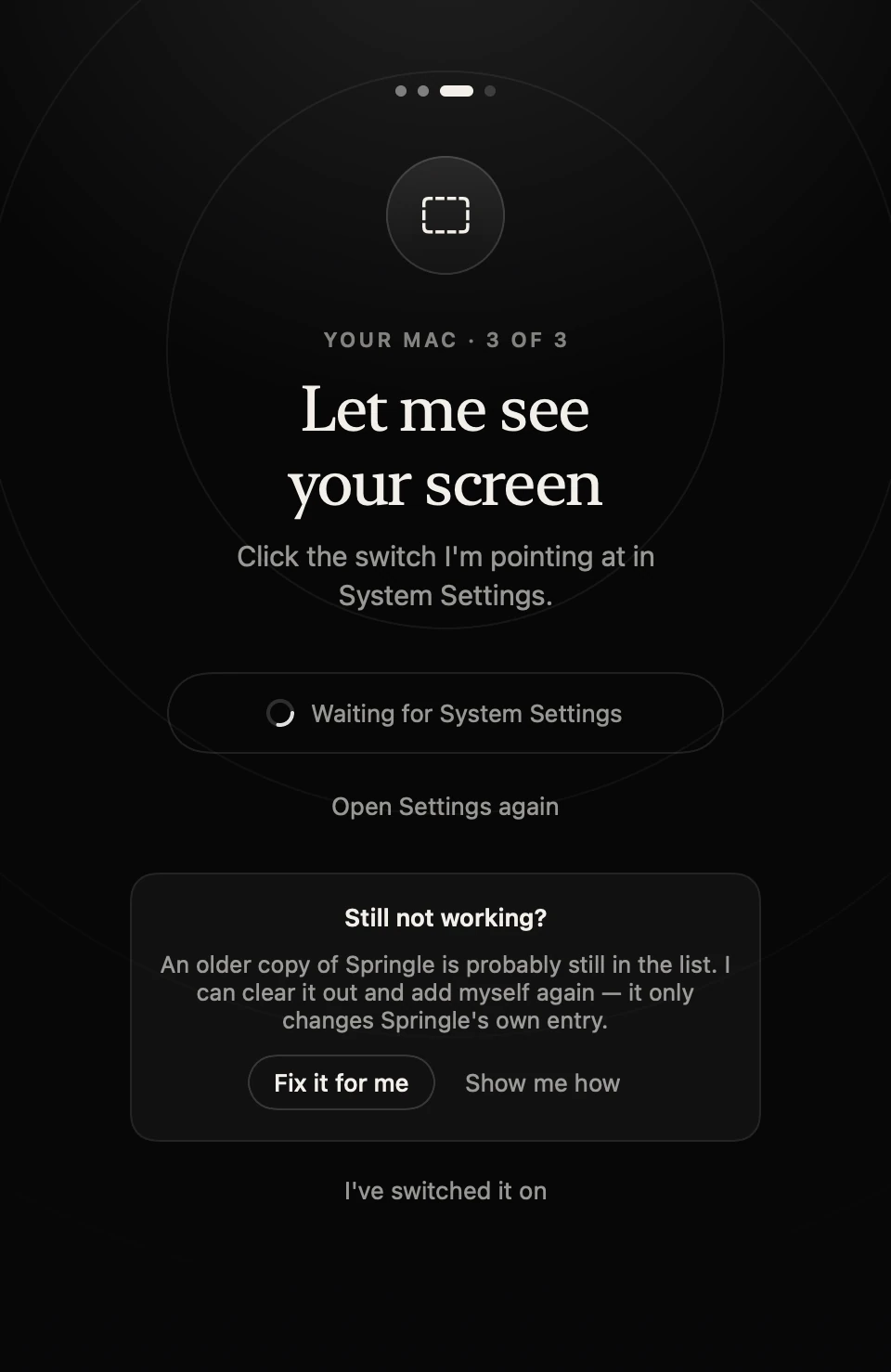
- 1Still not working? appears once Springle notices you’re stuck.
- 2Fix it for me clears Springle’s own old entries.
- 3Show me how lists the steps to do it by hand.
Springle only offers this help once it sees you’ve been to System Settings and the switch still isn’t working. Press Not working? to see it sooner.
What working looks like
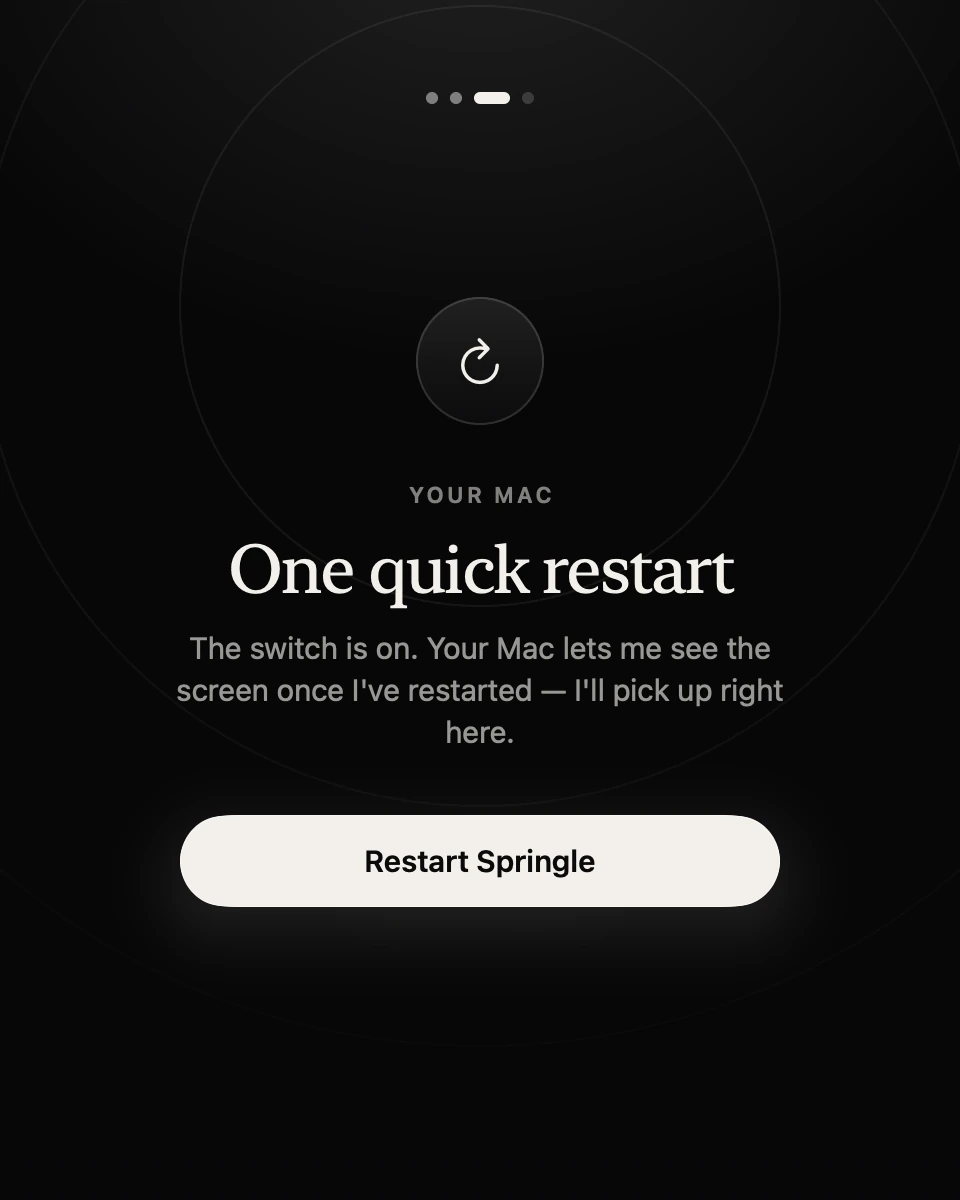
- 1The switch is on. Springle only needs one quick restart.
- 2Restart Springle reopens it, and setup picks up right here.
After the restart, setup says "Now I can see your screen" and moves on.
If it switches off later
If Screen Recording is turned off after setup, Springle stops what it’s doing and says so. The face in the menu bar turns dashed, and the menu shows Finish Setting Up Springle… with "Screen Recording is off" under it. Choose it to switch the permission back on.
Still stuck?
Open the session log and email it to support@innoventuresai.com, with your macOS version and what setup shows. We’ll take a look.
Did this help?