A connected app stopped working? Reconnect it.
Springle says Gmail, Calendar or another app needs reconnecting, or a request to it fails. Reconnecting in Settings usually fixes it in a minute.
You ask Springle to check your email or add something to your calendar, and it says the app needs reconnecting, or it couldn’t reach it. Apps you connect give Springle access for a while; when that access runs out, or the app’s sign-in changes, Springle needs you to approve it again. Only you can do that.
Fixes, quickest first
- Say yes when Springle offers. When an app needs reconnecting, Springle asks in one short question the next time you need it. Answer Yes, finish signing in in your browser, and Springle carries on with what you asked.
- Reconnect in Settings. Open Settings from the menu bar, or point at the island and click the gear, then choose Connected apps. An app that needs you has an amber edge, says Access expired and shows Reconnect. If the app has several accounts, look for the account that says Access expired. Click Reconnect, sign in in your browser with that same account, and come back. The green dot comes back when it’s done.
- Check your internet. If Springle says it couldn’t reach the connection service, nothing was sent. Check you’re online, then ask again.
- Make sure you’re signed in to Springle. Connected apps belong to your Springle account. If Settings asks you to sign in, do that first.
- Check your plan. Connected apps come with the Springle and Family plans. On Free, the apps show locked with Upgrade. See Plans.
- Update Springle. If an amber line says Update Springle to keep using it, this version is too old to reach your apps. Choose Update. See Update won't install.
- Disconnect and connect again. If reconnecting doesn’t take, point at the app (or the one account) in Settings › Connected apps, click the bin, then Remove to confirm. Then connect it again and sign in.
Disconnecting removes Springle’s access straight away. It doesn’t remove the permission you gave on the app’s own side. To remove that too, use the app’s account settings (for Gmail, Calendar and Drive, your Google Account’s security page).
What working looks like
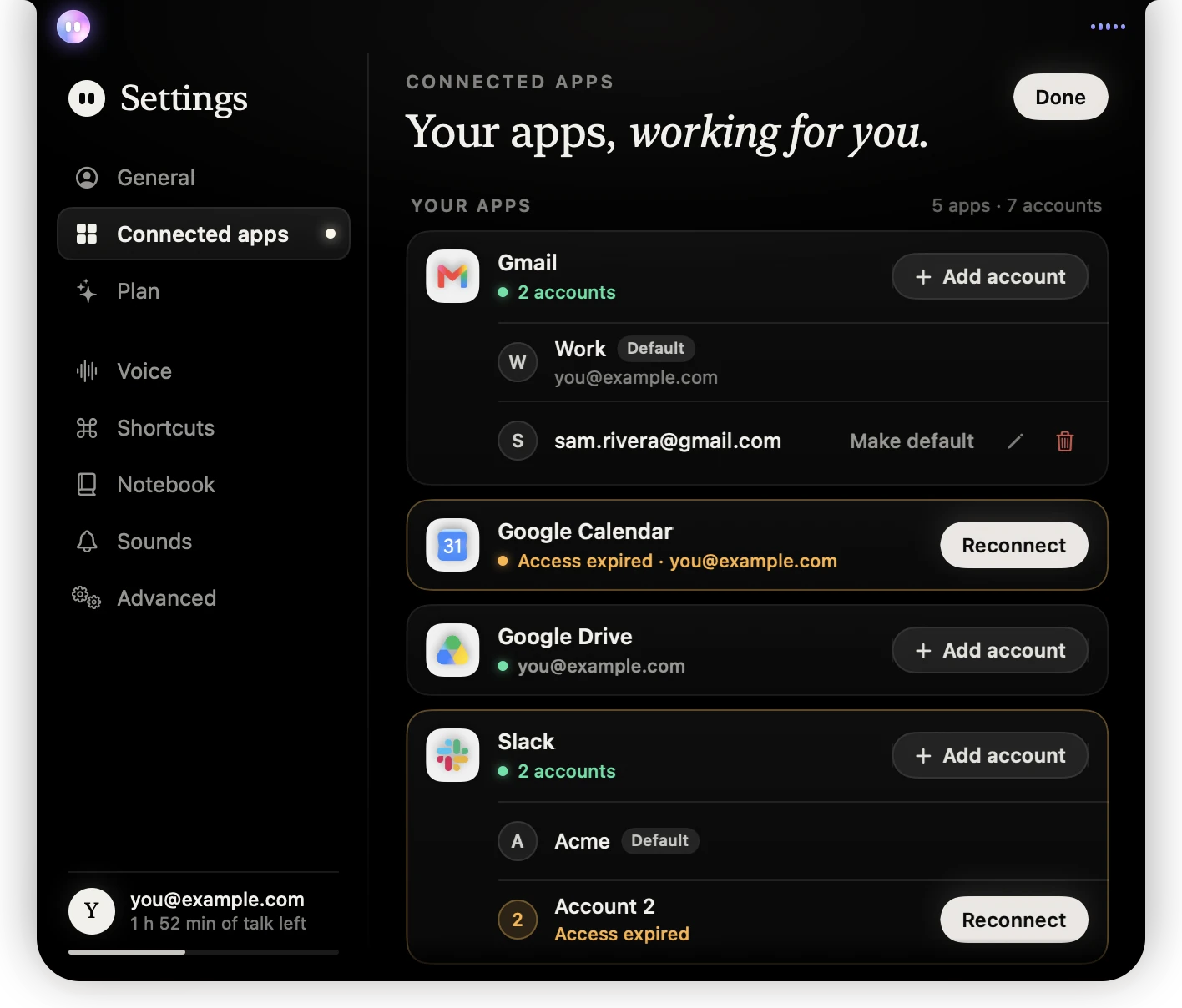
- 1Connected apps, in the Settings sidebar.
- 2A working app: a green dot and the account it’s connected to.
- 3An app that needs you: an amber edge and Access expired.
- 4Reconnect signs you in again in your browser.
Each app shows where it stands. The line at the bottom sums it up, for example "Gmail and Google Drive connected. Google Calendar needs reconnecting."
Springle can still help on screen. While an app is disconnected, Springle can open it in your browser and guide you through it instead.
Still stuck?
Open the session log and email it to support@innoventuresai.com, with the app’s name and roughly when it failed. The log records which app tool ran and how it turned out, never your messages or files.
Did this help?