Connect an app once. Then ask away.
Link Gmail, Calendar, Drive, Slack and more, so Springle can work in them directly instead of clicking around your screen.
When an app is connected, Springle works in it through the app’s own service. "Any emails from Sam this week?" is answered straight from Gmail, and "add that to my calendar" makes the event in Google Calendar. The app doesn’t need to be open, and nothing moves on your screen.
Any emails from Sam this week?
Add lunch with Priya on Friday at 1
Find the budget sheet in my Drive
Before you start
- Connected apps come with Springle and Springle Family. On the Free plan the apps show locked, with an Upgrade button, and Springle can still help with the same apps on screen. See Plans and prices.
- You need to be signed in to Springle. Signed out, Settings › Connected apps shows one row, Sign in to connect your apps. See Your account.
- Signing in with Google doesn’t open your mail or files to Springle. Each app connects on its own, and only you can approve it, in your browser.
Connect an app in Settings
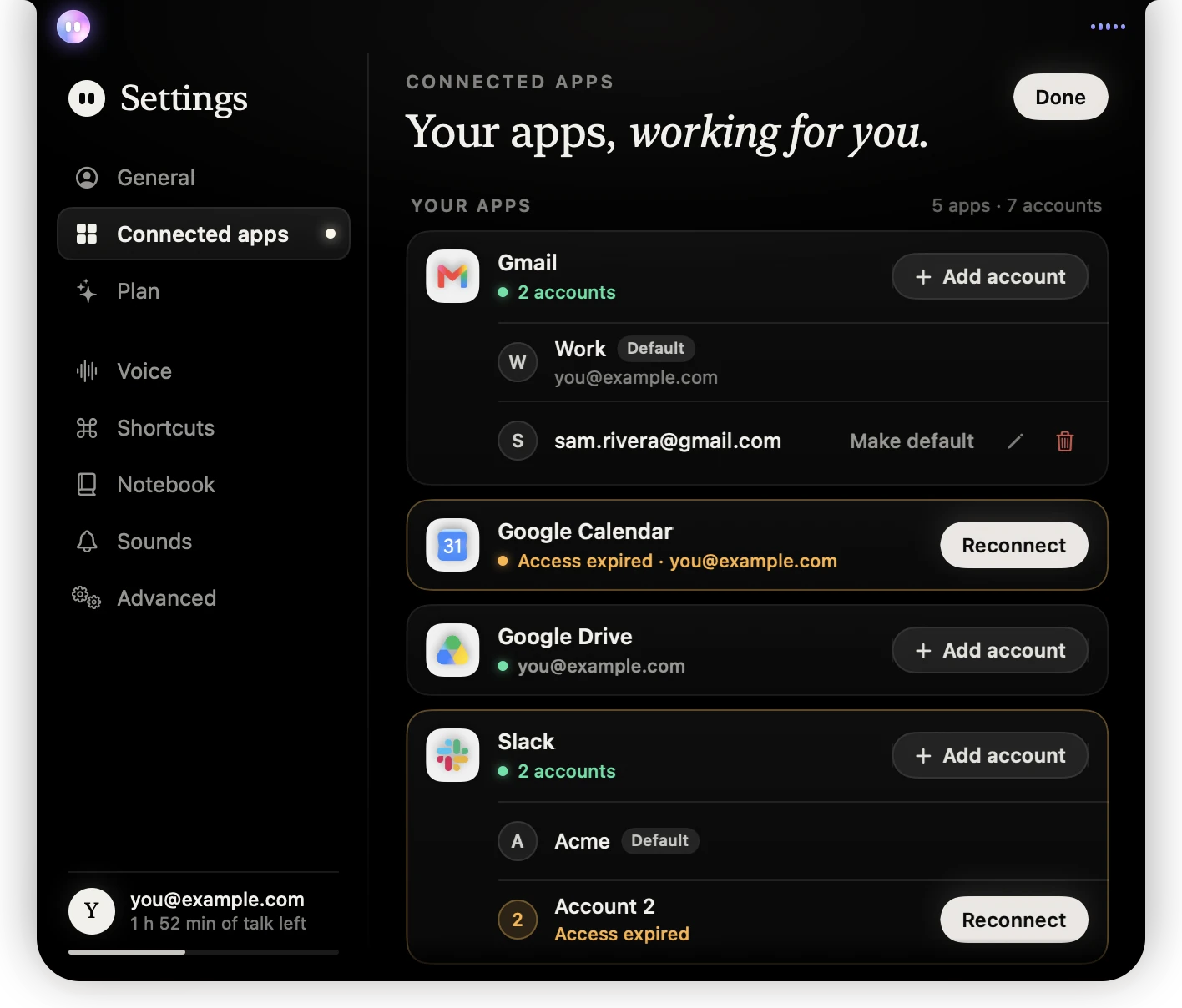
- 1Connected apps in the Settings sidebar.
- 2How many apps and accounts you’ve connected.
- 3Each app you’ve connected has its own card. Gmail here has two accounts.
- 4Add account connects another account of the same app.
- 5The default account: Springle uses it unless you name another.
- Open Settings. Point at the island and click the gear, or choose Settings… from Springle’s menu bar icon.
- Choose Connected apps, then scroll to Your apps. Apps you’ve connected are listed there. Before you’ve connected any, Gmail, Google Calendar, Google Drive and Google Sheets are shown there to start with.
- Click the app, or the + beside it, under Add more. Click All … apps to see the whole list by group, and type in the search box to find one. Your browser opens the app’s own sign-in page, and the app’s card says Finish in your browser…
- Sign in and allow access in the browser. Springle notices by itself. The card shows a green dot and the account it’s connected to, such as your email address.
Still says it’s waiting? After a few minutes Springle stops watching and says Still waiting for Gmail. Finish in your browser, then check again. Finish the page in your browser, or click Cancel on the card and connect it again.
Connect more than one account
Most apps can have up to five accounts connected, for example a work Gmail and a personal one, or two Slack workspaces. Meta Ads connects one account at a time.
- On the app’s card in Your apps, click Add account.
- Your browser opens the sign-in page. Sign in with the other account. On Google’s page, if it picks an account you’ve already connected, choose Use another account.
- The new account appears under the app, named by its email address when the app shares it, or as Account 2.
If you sign in to an account that was already connected, Springle doesn’t add it twice. It tells you, so you can try again with the other account.
Which account Springle uses
- The default. One account of each app is marked Default, at first the one you connected first. Springle uses it whenever you don’t say which. To change it, point at another account and click Make default.
- Name the account when you ask. "Check my work email", "send it from my personal Gmail" or "post it in the Acme Slack" uses that account.
- Searches look everywhere. When you ask to find something and don’t say which account, Springle checks each one.
- Sends say where they’re from. The preview card for an email or message starts with From, so you can see which account it goes from before you press Send. See Check before it sends.
Name an account
Point at the account and click the pencil. Type a name you’ll recognise, like Work or Family, and press return. You can use the name when you ask ("send it from Work"). To go back to the email address, clear the name and press return.
Or ask Springle to connect it
You can also say "connect my Gmail", or ask for something in an app that isn’t connected yet. To add another account, say "connect my other Gmail account". Springle asks Yes or No in the card, then opens the sign-in page in your browser. You do the approving there; Springle never clicks through that page for you. Once the app is connected, Springle carries on with what you asked, without you having to ask again.
During setup
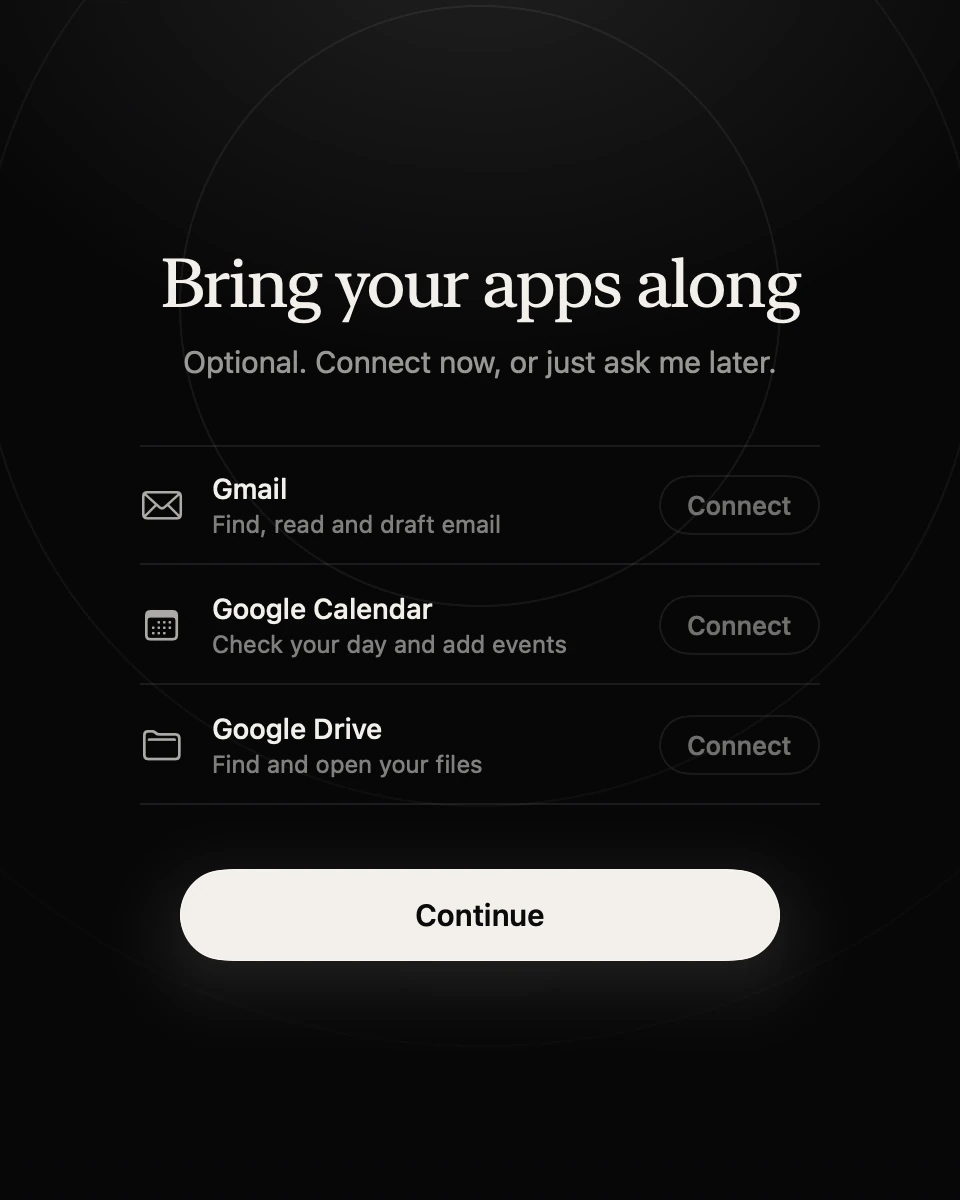
- 1Gmail, Google Calendar and Google Drive, each with what Springle can do there.
- 2Connect opens that app’s sign-in page in your browser.
- 3Continue moves on. You can connect apps later from Settings, or by asking.
Setup has an optional step, Bring your apps along, for the three apps people use most. It only appears on plans that include connected apps.
What Springle can do in a connected app
- Find, read and sum up. "What did the bank email me about?" Springle answers in a sentence or two rather than reading out raw data.
- Make ordinary changes to your own things without asking again: a draft, a note, a task, an event only you are on.
- Ask first for anything that reaches other people or can’t be undone. Sending, replying, sharing, inviting, posting and deleting all wait in a preview card for your OK. See Check before it sends.
- Work across apps. "Read this email and add it to my calendar" looks in Gmail, then makes the event.
- Work in any mode. Guide me, Auto and Do it for me can all use connected apps, because nothing happens on screen.
If you’d rather see it done on screen, say so: "show me how", "open Mail" or "do it in Chrome" makes Springle use the screen instead.
Some things Springle never does in a connected app, whatever the request: move money or make payments, change anything in Meta Ads (changes there spend money), change admin roles, passwords or forwarding rules, delete a whole account, workspace, channel or calendar, delete 25 or more things at once, or share something with anyone who has the link. Springle says so, and you can do it in the app itself.
The full list of apps, with examples, is in Apps you can connect.
Disconnect an app or an account
- Go to Settings › Connected apps.
- To remove one account, point at it and click the bin beside it. To remove the whole app, point at the app’s name and click the bin there.
- It says Springle loses access. Click Remove to confirm, or Keep to leave it.
Springle loses access straight away. Removing one account leaves the app’s other accounts connected, and if it was the default, the account you connected earliest takes over. This removes Springle’s connection; the permission you gave in your Google or Microsoft account stays listed there until you remove it in that account’s own security settings.
If your plan changes to Free, apps you connected earlier stay listed, and you can still disconnect them. Deleting your Springle account disconnects every app. See Your account.
Did this help?