Nothing goes out until you say so.
Before Springle sends, shares or deletes something in a connected app, it shows you exactly what will happen and waits for your OK.
In a connected app, Springle finds, reads and makes ordinary changes to your own things without stopping to ask. For anything that reaches other people or can’t be taken back, it lays the whole thing out in a card first: who it goes to, the subject, the full message. The island’s lower edge glows amber (red for a delete), and nothing happens until you answer.
When you’ll see a card
- Sending, replying to or forwarding an email or message
- Sharing a file, or inviting someone to an event
- Posting, publishing or commenting
- Accepting, declining or cancelling an invitation, and archiving
- Deleting anything
- Any change that names someone else, such as adding a guest to an event
- Anything Springle doesn’t recognise. When it’s unsure, it asks.
A draft, a note, a task, or an event only you are on doesn’t need a card.
Reading the card
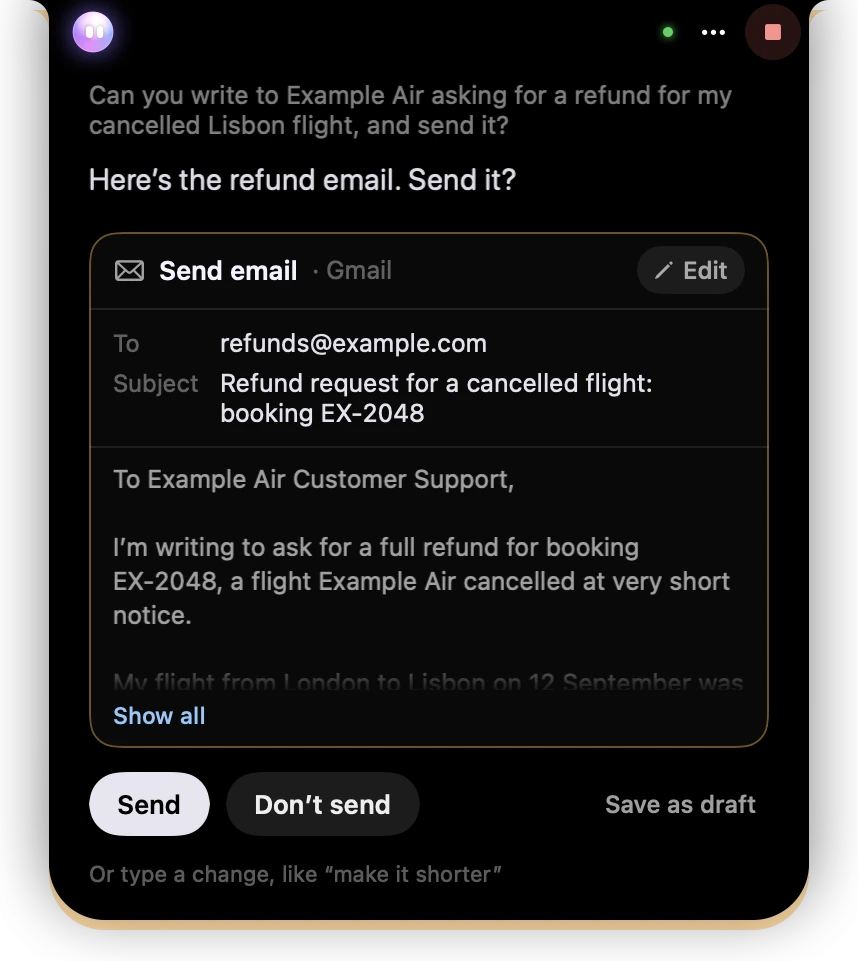
- 1Stop is there too, if you’d rather end it.
- 2What it will do, and where: here, Send email in Gmail.
- 3Edit opens the email in a window of its own, to rewrite it.
- 4Who it goes to, and the subject.
- 5The message itself. Show all opens the rest.
- 6Send sends it. Don’t send stops, and nothing goes.
- 7Save as draft keeps it in your Gmail drafts instead.
- 8Or type what to change, and Springle redrafts it.
- 9The amber edge means Springle needs your OK before anything goes.
The buttons are named for what they do:
| The card is about | Buttons |
|---|---|
| An email or message | Send · Don’t send |
| A post or comment | Post · Don’t post |
| Sharing a file | Share · Don’t share |
| An invitation | Invite · Don’t invite |
| Making something new | Create · Not now |
| Changing something | Save changes · Not now |
| Deleting | Delete · Keep it |
You can answer by clicking, or by saying "yes, send it" or "no". With the text box empty, return presses the first button and esc the second.
See the whole message
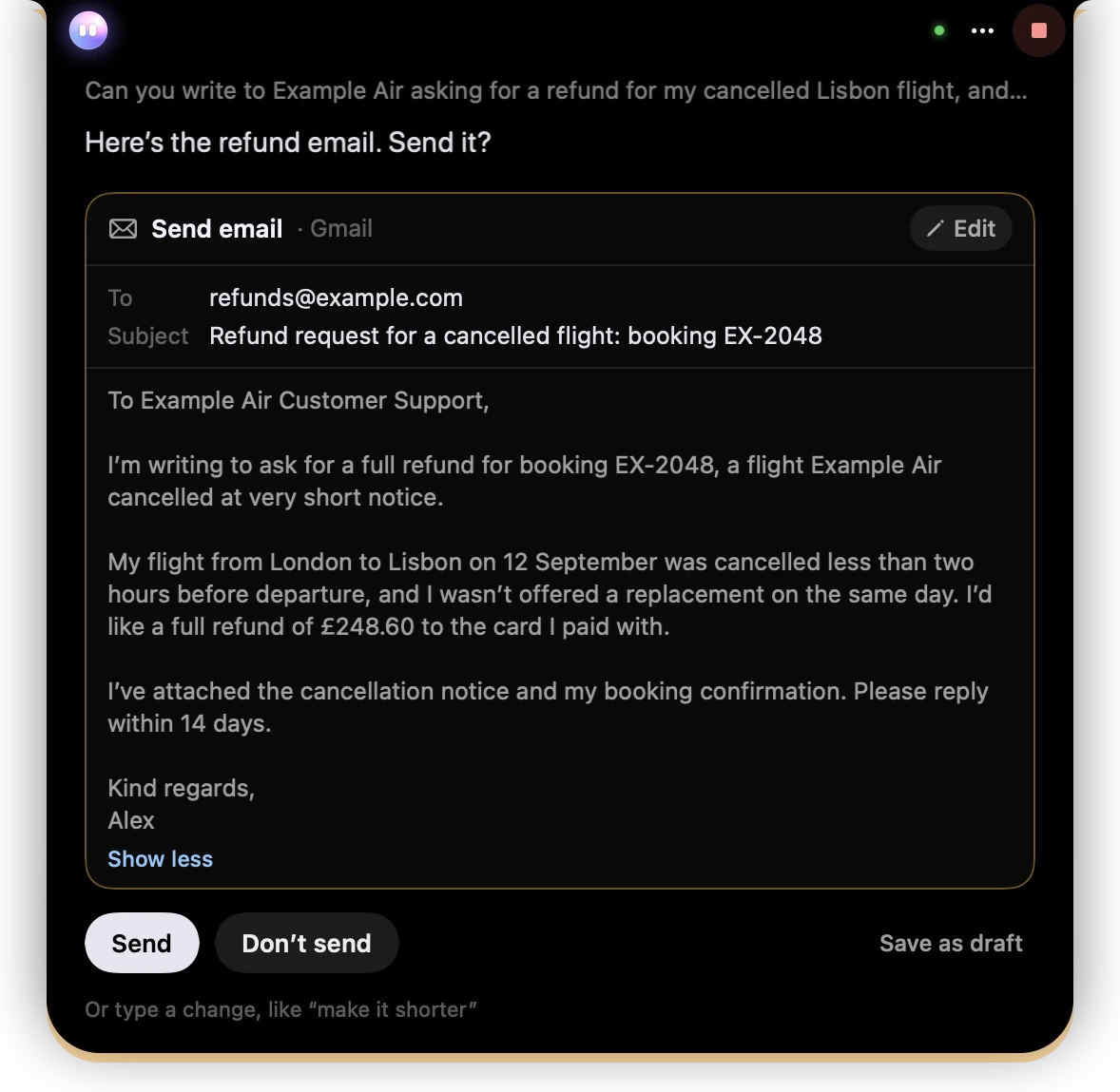
- 1Show all opened the message, so you can read every line before it goes.
- 2Show less folds it away again.
A long message folds to about six lines. Show all opens it, and a very long one scrolls inside the card.
Change it before it goes
Type a change. Under the buttons it says Or type a change, like "make it shorter". Type what you want ("add that I’ll call tomorrow", "send it to Raj instead") and Springle rewrites it and shows you a fresh card.
Edit it yourself. Click Edit at the top of the card. The email opens in a window under the island with room to write:
- People are shown as chips. Type a comma, semicolon or return to add another. An address that doesn’t look right turns amber.
- Rows with a lock can’t be changed here; ask Springle to change them.
- ⌘ command return sends your version. esc closes the window. If you’ve made changes, the first esc asks, Press esc again to discard your changes.
While the window is open, the card says Editing in its own window, with Show it to bring it back. Springle checks that what goes out is exactly what you wrote. If anything differs, it shows you a new card instead of sending.
Save as draft
Gmail and Outlook emails have Save as draft. Nothing is sent: Springle keeps the same recipients, subject and message as a draft in that app, and tells you when it’s there.
Deleting
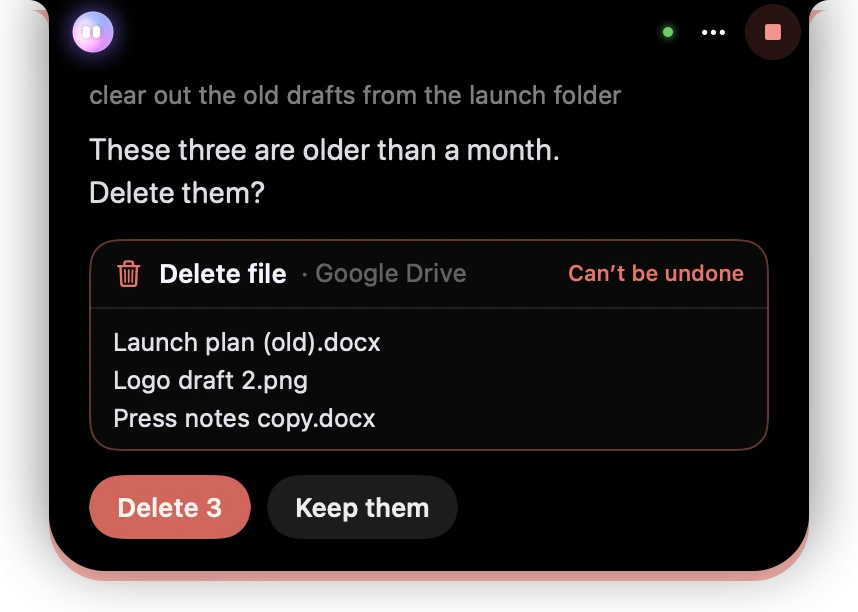
- 1A delete is red, round the island’s edge too, and the card says it can’t be undone.
- 2The files it will delete, by name.
- 3The red button says how many. Keep them leaves everything where it is.
A delete card shows what will go, by name. There’s no Edit and no "type a change": the choice is delete, or keep. Springle never deletes 25 or more things at once, never deletes a whole drive, calendar, channel or workspace, and never empties the trash. For those, it tells you to do it in the app itself.
Saying no
Don’t send, Keep it or Not now means nothing was sent or changed. Springle asks what you’d like instead.
Your yes covers that one thing. It applies to exactly the card you saw, in this conversation, for a few minutes. Text inside an email or web page can’t give the OK for you. If the connection drops in the middle of a send, Springle never sends again on its own: it tells you, and offers to check the app, for example your Sent folder.
Springle’s other careful moments, on screen rather than in connected apps, are in When Springle asks first.
Did this help?