Before anything that matters, Springle asks.
Sending, agreeing, downloading and other steps that can’t be taken back wait for your Yes. Paying, passwords and deleting are always left to you.
Springle can click and type for you, so the app checks every step before it happens. The AI model suggests a step; the app on your Mac decides whether it can go ahead, needs your OK, or is yours alone. Your choice of mode never loosens these rules.
Three kinds of step
| Kind | Examples | What Springle does |
|---|---|---|
| Goes ahead | Opening things, looking, scrolling, searching, menus, saving, printing, getting a cookie banner out of the way | Does it, if your mode lets it |
| Asks first | Send, submit, post, share, upload, download, allow, agree, accept, sign up, subscribe, sign out, call, join, pressing return in a message box | Asks out loud, shows Yes and No, and waits |
| Yours alone | Paying or buying, passwords, installing, deleting, remote access | Points at it, and you press it yourself |
Some places make Springle more careful still. On banking, payment, account and government sites, and when changing something in System Settings, every click and key asks first. Buttons with no words on them, and plain OK or Continue in a dialog, ask first too, because nobody can tell what they’ll do.
In Auto and Guide me, steps like Send are yours to press anyway. Springle asks first in Do it for me, or when you’ve told it to do a task for you.
When Springle needs your OK
Springle asks the question out loud, and the island’s lower edge glows amber until you answer (red for a delete).
A plain yes or no, with nothing to look over first, waits as a quick question. A short one sits in the band beside the notch, with No and Yes on the right. A longer one hangs under the notch as one amber line with Yes and No. Pointing at it doesn’t open the card, so it’s never in the way of the buttons. Click its words to see the whole conversation.
When there is something to look over, like a message about to be sent, the card opens by itself with the question and a preview of exactly what will happen.
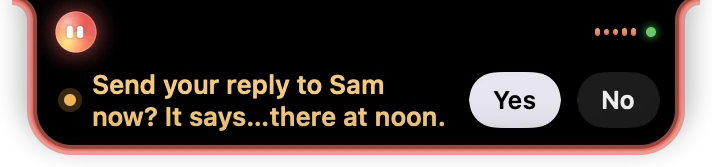
- 1The question, in amber, says exactly what will happen.
- 2Yes and No, right beside it.
Answer any of these ways:
- Click Yes or No.
- With the typing box empty, press return for Yes or esc for No.
- Say or type your answer: "Yes, send it", "sure, go ahead", "no", "not now".
A safety question stays open until you answer. It doesn’t fold away when you click somewhere else.
What counts as a yes
Springle acts only on a clear yes. "Yes", "okay" and "sure, go ahead and send it" count. These don’t:
- anything hesitant, or a question back ("yes? what will it send?");
- a "but" or "instead" ("yes, but change the subject first");
- a yes to something else: with "Shall I send it?" waiting, "okay, save it" isn’t a go-ahead for Send.
Your yes covers that one action, on the screen as it was when Springle asked. If the recipient, the message or the button changes before you answer, Springle asks again. If you don’t answer within 45 seconds, nothing is done, and Springle can ask again later.
Already said it? If your request named the risky part ("send it to Raj", "sign me in"), Springle doesn’t ask a second time for that one action. Any "wait", "don’t" or "no" straight after cancels it.
Yes and No under a question
When Springle ends a reply with a question that a plain yes or no answers, like "Shall I open it?", the same Yes and No buttons appear under it. The status reads Waiting for your answer. return and esc work from the empty box here too.
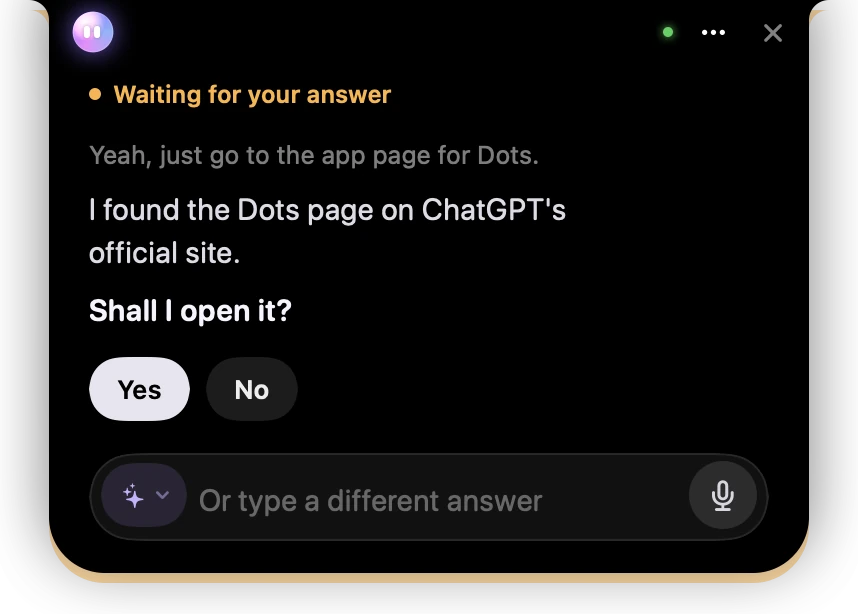
- 1Waiting for your answer, in amber.
- 2Springle’s question, in bold at the end of its reply.
- 3One click answers it.
Open questions, like "Mail or Gmail?", don’t get Yes and No, because they need your own words. Type or say your answer.
Named choices
Sometimes the answer is one of two things, not yes or no. A reminder "at 7" could mean this evening or tomorrow morning, so Springle shows each one as a button. The first is the likeliest, and return picks it.
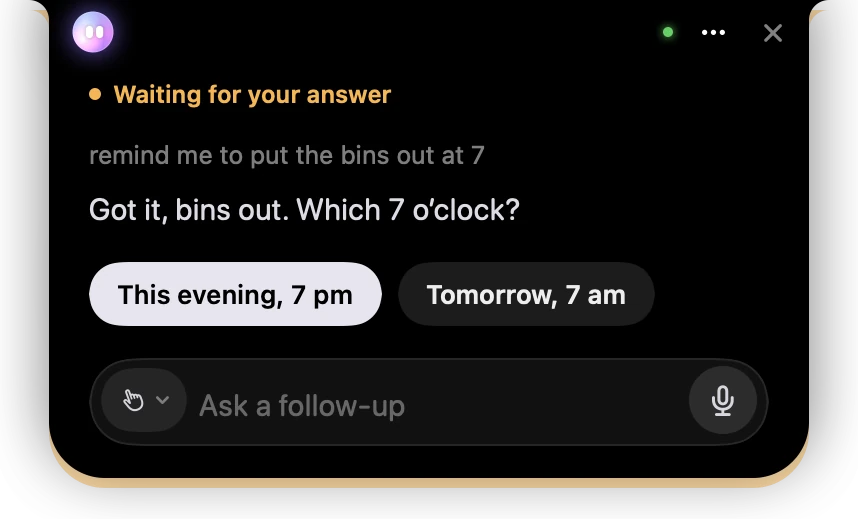
- 1What you asked for.
- 2Springle’s question: which 7 o’clock?
- 3The two answers, as buttons. The first one takes return.
Emails, messages and deletes in connected apps
When Springle sends an email or a message, or deletes a file, through one of your connected apps, the card shows a preview of exactly what will happen: who it goes to, the subject, and the whole message. The buttons say what they do, like Send and Don’t send. A delete is shown in red, because it can’t be undone. More in Check before it sends.
Things Springle never does
On your screen, however you ask, Springle won’t pay for anything, type a password or card number, install software, delete things, or open remote-access tools. It shows you where the button is, and you decide whether to press it. If a page looks like a scam, Springle tells you plainly and helps you close it. See Scam checks.
Did this help?