The yellow ring means it’s your turn.
When a step is yours, Springle shows it, waits, and carries on by itself once you’ve done it. Press Done if it hasn’t noticed, or Do it for me to hand it back.
In Guide me, every step is yours. In Auto, Springle gets you to the right place and then hands you the step that decides something, like switching a setting on or pressing Send. And in any mode, some steps are only yours: signing in, getting past a "not a robot" check, typing a code from your phone, or paying. Springle shows you what to do, waits, and carries on by itself once you’ve done it.
What you’ll see
When a step is yours, Springle:
- dims the screen a little, except round the thing to press;
- draws a yellow ring round it, with a small arrow and the instruction in large words beside it;
- says what to do, and shows the same words under the island, starting "Your turn" in Auto;
- plays a soft chime as the ring appears.
When there’s nothing to ring, like a keyboard shortcut or a sign-in page, the step is written in the card instead. Either way the card says Your turn, in amber, with a Done button.
In Auto, the mode chip in the typing box turns white while it’s your turn, and violet while Springle does a step.
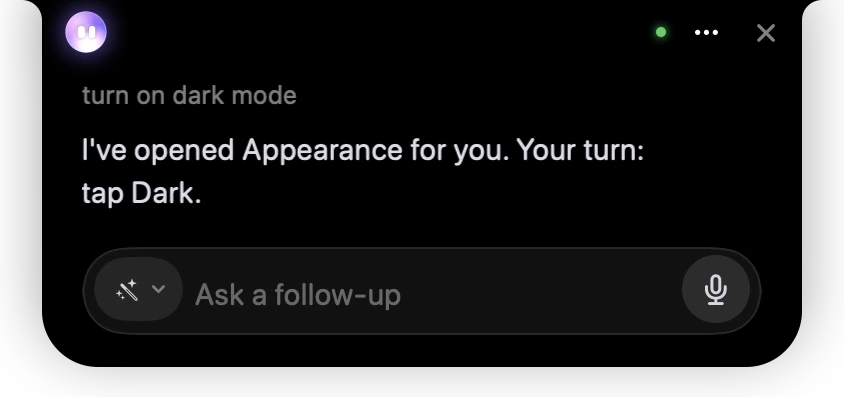
- 1What you asked for.
- 2Springle says what it did and what’s yours: here, choosing Dark.
- 3The chip shows a wand for Auto, in white because this step is yours.
The card folds out of the way if the thing you need to click is underneath it, and the words under the island stay clear of it too.
Doing the step
Click what the ring is round, or type where it points. Clicks inside the ring don’t count as you taking over: you’re following. Springle notices when you’ve done it, waits for the screen to settle, and carries on: it points at the next step, or does its own next steps in Auto. You don’t need to say anything.
It notices:
- a click on the ring, or on the words beside a tick box;
- your words in a box, once you press Return or move on;
- a new choice in a list (just opening the list doesn’t count);
- the keyboard shortcut it asked for;
- a sign-in or check that’s gone, or a window that’s closed.
If it hasn’t noticed, press Done in the card, or type or say "done". If you click somewhere else, nothing happens: the ring stays where it is. After a couple of stray clicks, the card says which thing it is.
Can you do this bit?
Sometimes Springle stops and asks you to do one step, then picks the task up again on its own:
- A sign-in. "Can you sign in? I’ll carry on once you’re in." Only you type your password. Once the page moves past the sign-in, Springle carries on.
- A "not a robot" check. Springle never answers these for you.
- A code from your phone, a file to choose, or your Mac asking you something.
- A step it couldn’t do. If it has tried a step a couple of ways and it hasn’t worked, it asks you to press it, then carries on.
- Paying, and anything else it never does for you.
There’s no hurry. After a while the card says Waiting for you, and Springle picks the task up again when you do the step, for about ten minutes.
Lost the ring? Ask "where was it again?" or "say that again", and Springle points again or describes it another way.
Do it for me
In Auto, a step that’s yours has a Do it for me button in the card, from the start. Press it and Springle does that step, and the rest of this task. Your choice of Auto stays for the next task. It’s never there for a step only you may do, like a password or paying.
Want me to do this bit?
In Guide me, the card has Do this bit, which presses just that one thing for you. Springle also offers it if a step is giving you trouble. It asks when either of these happens:
- you click in the wrong place twice, or
- 20 seconds pass with nothing done.
The card shows Want me to do this bit? with Yes and No, and Springle asks the same out loud.
- Yes (click it, say it or type it): Springle presses that one thing for you, with its pointer, so you can see it happen. Then you carry on as before. Your mode doesn’t change.
- No: Springle describes where the thing is in a different way.
It asks once per step. The offer goes away if you do the step yourself, ask for something else, or after 45 seconds.
Springle only offers this for a plain click that’s safe for it to make. It never offers for typing your own words, or for anything it would have to ask about first, like sending or agreeing. Asking "where is it?" doesn’t make it go away.
Rough spots
Most things on screen have a name Springle can read, so the ring lands exactly on them. Some don’t: a place on a map, part of a photo or chart, or a button a program draws itself. For those, Springle takes a sharp look at the area and checks the ring is really on the thing before it says anything.
When it can’t be sure, it tells you:
- the ring is dashed instead of solid;
- the instruction starts "Roughly here";
- Springle says it’s about there.
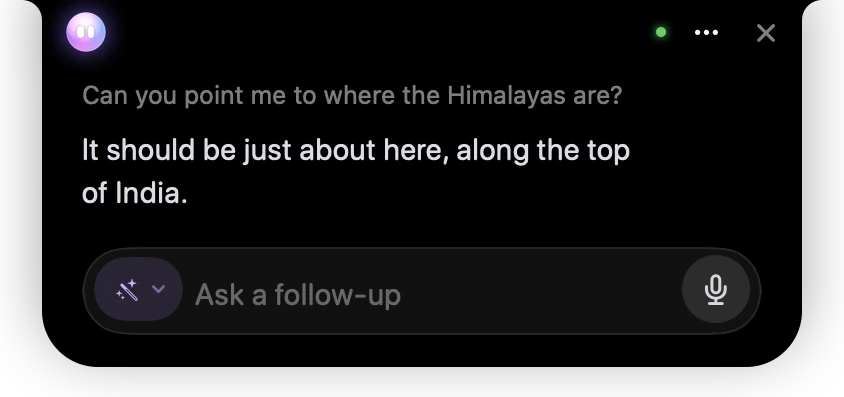
- 1Your question about a place on a map.
- 2Springle’s answer says "just about here", because it can’t confirm the exact spot.
If it can’t find the thing at all, it tells you, and doesn’t point anywhere. Point precisely, in Settings › General › Helping, makes this finding more exact on maps and pictures. It sends a small picture of that part of the screen to an AI service, with password boxes blanked.
If you see the ring on the wrong thing, say so ("that’s not it") and Springle looks again. More in When Springle points at the wrong thing.
Handing the whole thing over
If you’d rather not do the steps at all, say "do it for me", or press Do it for me in the card. In Auto, that covers the rest of this task, and Springle still asks before anything that sends or agrees. To switch for good, use the chip or Settings: see Guide me, Auto and Do it for me.
When a task is done and some of it was yours, the receipt says done together.
Did this help?