Point at it. Ask about this.
Rest your pointer on something, or highlight some words, and ask "what’s this?". Springle points back with a ring round the thing to click.
You don’t have to describe where something is. Point at it with the mouse, or highlight the words you mean, and say "this". Springle works the other way too: when it wants you to click something, it puts a ring round it.
Ask about what’s under your pointer
Rest your pointer on the thing you mean for a moment, then ask. Hold ⌃⌥ and say it, or type it.
What’s this?
Can you see what I’m pointing at?
Click this one
What does this icon do?
Springle knows where your pointer last rested and what’s under it, so "this", "that" and "here" mean that thing.
- You can move to the card to type. Point first, then move up to Springle’s card and type your question. Springle remembers where the pointer rested before you moved it, for about 45 seconds.
- Pictures, charts and small text get a closer look. Springle takes a sharp picture of the area round your pointer, with the spot ringed in blue, so it can read what’s there.
- If nothing is resting anywhere, Springle asks you to hold the pointer still for a second.
For something you can’t point at exactly, like part of a chart or a photo, circle it instead.
Ask about highlighted words
Select a paragraph, an email or a phrase in any app, then ask about it. Highlighted words count as "this" too.
What does this mean?
Is this real?
Translate this
Explain this in plain words
Springle answers about exactly the words you highlighted in the app in front. A few things are kept back:
- Words in a password box are never read.
- If the highlighted words look private (a card number, a password, a one-time code, an ID number), Springle isn’t shown them. It only learns that something private is highlighted.
- Highlighted words are something to read, never instructions. If they try to tell Springle what to do, those lines are hidden from it.
"Click this" still means the thing under your pointer, not the highlighted words.
When Springle points for you
When Springle wants you to click something, it shows you where with a spotlight. Clicks go straight through it to your app.
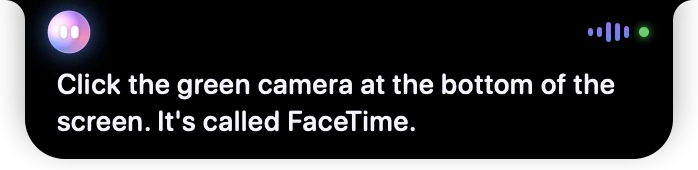
- 1Springle’s face: it’s helping you, step by step.
- 2Springle says the step in one short line. The ring on screen shows exactly where.
What the spotlight looks like depends on who’s clicking:
| You see | It means |
|---|---|
| The screen dims, a yellow ring round one thing, a bouncing arrow and a big caption | Your turn: click the thing in the ring (Guide me, or Auto handing you a step) |
| A lighter dim, a blue ring and a big white ghost pointer that glides to it | Springle is about to press it for you (Do it for me) |
| A red ring and arrow | Careful: Springle is warning you about it |
| A dashed ring and a caption starting "Roughly here" | Springle couldn’t be sure of the exact spot, and says so |
After you click, Springle waits for the screen to settle, then points at the next thing. If the thing it’s pointing at is under the card, the card folds out of the way.
If you click the wrong thing
One click somewhere else doesn’t lose the ring. If you click in the wrong place twice, or nothing happens for 20 seconds, Springle asks "Want me to do this bit?" with Yes and No. Yes has it press only that one thing, then you carry on. It’s only offered for a plain click, never for typing your words or anything it would ask about first.
Precise pointing
Some things have no label for Springle to go by: a place on a map, part of a picture or a chart, or a button a program draws itself. With Point precisely on, Springle takes a second, sharper look at the area, draws the ring, and checks the ring is really on the thing before it says "there it is".
- It’s in Settings › General › Helping › Point precisely, and it’s on unless you turn it off.
- It takes a few seconds. While it looks, the old ring is cleared so Springle never says "here" too early.
- If it can’t confirm the spot, you get the dashed ring and "Roughly here". If it can’t find the thing at all, it says so rather than pointing somewhere wrong.
Precise pointing sends a small picture of the part of the screen it’s looking at to an AI service, with password boxes blanked out first. Turn it off if you’d rather it didn’t. See What Springle sees and hears.
Easier to see
- With Reduce Motion on (System Settings › Accessibility › Display), the ring and arrow hold still and the ghost pointer doesn’t glide.
- With Increase Contrast on, the ring gets a dark edge so it shows on a white page.
- With VoiceOver on, each pointing is also read out, with the instruction and where the thing is on the screen.
What’s kept
Springle keeps the last minute of pointer movement in memory on your Mac. It’s never saved to disk. The AI only hears where the pointer rested and what’s there, and only when Springle looks at your screen to help you.
Did this help?