Three ways to help. You choose who clicks.
Springle can show you each step, get you most of the way and hand you the steps that matter, or do the whole thing while you watch. Here’s how each one works and how to switch.
When you ask Springle to do something on your Mac, it has to decide who does each click. You set that with one choice, and Springle keeps to it until you change it.
| Guide me | Auto | Do it for me | |
|---|---|---|---|
| Who clicks | You, every step | Springle gets you there; you do the steps that decide something | Springle, every step |
| What you see | A yellow ring on the next thing to click | Springle working, then a yellow ring when it’s your turn | A blue ghost pointer doing each step |
| Good for | Learning how to do something yourself | Most everyday jobs | Long or fiddly jobs you’d rather not do |
| Still asks before sending or agreeing | You press those yourself | You press those yourself | Yes, with Yes / No |
Auto is where new installs start. If you chose a mode before Auto existed, Springle keeps your choice.
Guide me
Springle points, and you click. A yellow ring appears round the next thing to press, with the instruction in large words beside it, and Springle says it out loud. When you click, it waits for the screen to settle and then points at the next thing.

- 1Springle’s instruction under the island: what to click, and what it looks like.
In Guide me, Springle never clicks or types on its own. The one exception is when you get stuck: it can offer to press that one thing for you, and only does it if you say yes. See When it's your turn.
Auto
Springle does the getting-there and hands you the steps that decide something.
Springle’s steps: opening a program or website, moving between pages, tabs and rows, opening menus that only show you things, scrolling, searching, and typing the words you gave it or asked it to write: a destination, a search, a message, a poem, the details for a form.
Your steps: switching a setting on or off, choosing an option, and pressing the button that does something, like Send, Save, Buy, or Return to send a message. These stay yours even when you named them ("turn on dark mode").
The app decides which is which by looking at the thing being pressed. The AI model can’t move a step from your side to Springle’s.
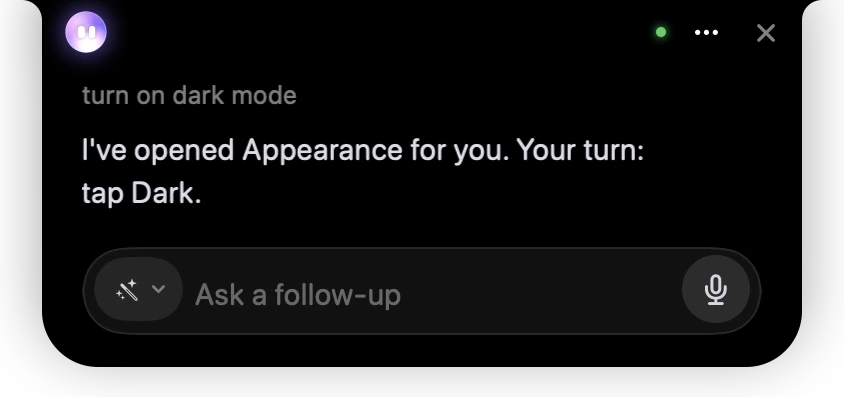
- 1Your request, as you typed it.
- 2Springle has done the getting-there and says it’s your turn.
- 3The mode chip shows a wand: Auto. It turns violet while Springle does a step, and is plain when it’s yours.
In Auto, how you ask changes how that one task goes:
- Start with "how do I…", "show me", "walk me through" or "teach me", and Springle shows you every step of that task. It may still scroll to bring the next thing into view.
- Say "do it for me" and it does the whole task, still asking before anything that sends, submits or agrees.
- Anything else gets the everyday split.
That change lasts for the task. Your choice of Auto stays. Do it for me in the card, on a step that’s yours, does the same: the rest of this task, then Auto again. See When it's your turn.
When you’ve done your step, Springle notices and carries on by itself. You don’t need to say anything.
Do it for me
Springle does each step while you watch. A blue ring and a ghost pointer show where it’s about to press, and a thin light runs along the bottom of the island while its hands are on the mouse or keyboard.

- 1Springle says what it’s doing, and where to look.
It still stops and asks before anything that sends, submits, downloads, allows or agrees. Some things it never does for you, such as paying, typing a password, answering a "not a robot" check or deleting. It shows you those, you do them, and it carries on by itself. See Springle asks first and Can you do this bit?.
You can move the mouse, scroll or click while it works. Springle waits for your hand to settle before its next click. To stop it, see Take over or stop.
Switching
There are three ways, and each one keeps your choice for the rest of the task, every task after it, and the next time you call Springle.
- The chip in the typing box. Point at the island to open the card, then click the small chip at the start of the box. Its icon shows the mode that’s on: a hand for Guide me, a wand for Auto, sparkles for Do it for me. Pick one from its menu, where each choice explains itself.
- Settings › General › Helping. Under How Springle helps, choose one of the three. A change here applies straight away, even in the middle of a conversation.
- Say it or type it. Everyday words work.
Do it for me
You take over
Let me do it
I’ll do it myself
Walk me through it
Show me
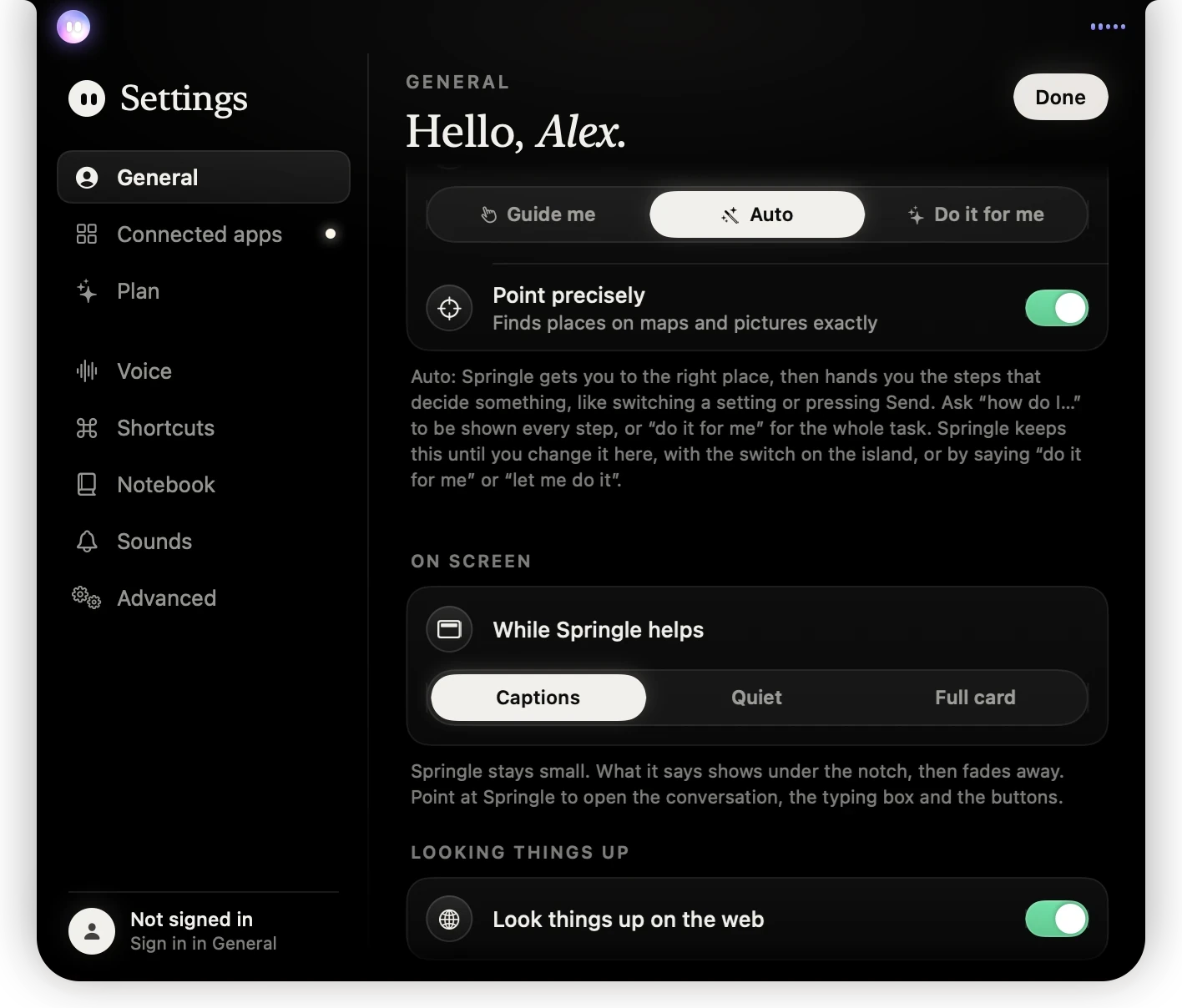
- 1How Springle helps: Guide me, Auto or Do it for me.
- 2Point precisely helps Springle find places on maps and pictures.
- 3The words underneath explain what the chosen mode does.
A few things to know about switching with words:
- A request can carry the task with it: "open my email and do it for me" counts.
- A bare "do it" or "yes, do it" doesn’t switch anything. It might be your answer to "Shall I send it?".
- A "don’t" stops it counting: "don’t click anything" never switches to Do it for me.
- Switching with your words lasts for this conversation. The chip and Settings save it for next time.
- Springle can’t change the mode on its own. Only your words, the chip or Settings can.
Switched to Do it for me halfway through? If Springle was pointing at something, it presses that highlighted step straight away and carries on from there.
Which one should I use?
- Try Auto first. It saves you the hunting around and leaves the decisions with you.
- Choose Guide me if you want to learn the steps, or if you’d like to press everything yourself.
- Choose Do it for me for longer jobs, like a task with several steps. You’ll still be asked before anything is sent.
Did this help?