Bigger jobs get a plan you can follow.
For a job with several parts, Springle writes a short plan, works through it step by step, and shows how far it has got in the card and on the island.
Some jobs take more than a click or two: gathering information from several pages, writing a reply and sending it, or filling in a long form. For these, Springle writes a short plan first, then works through it. You can watch, or leave it to get on.
Find the opening hours of these three museums and put them in a note
Reply to Raj and say I’ll be ten minutes late
Compare these two hotels and tell me which is closer to the station
Long tasks work the same way in every mode. In Do it for me, Springle does the steps. In Auto, it does the getting-there and hands you the steps that decide something. In Guide me, it points at each one. See Guide me, Auto and Do it for me.
The plan in the card
While a planned task runs, one line sits near the top of the card: which step it’s on (like 2/4), what that step is, and a thin bar with one segment per step. Finished segments are green, and the current one is violet.
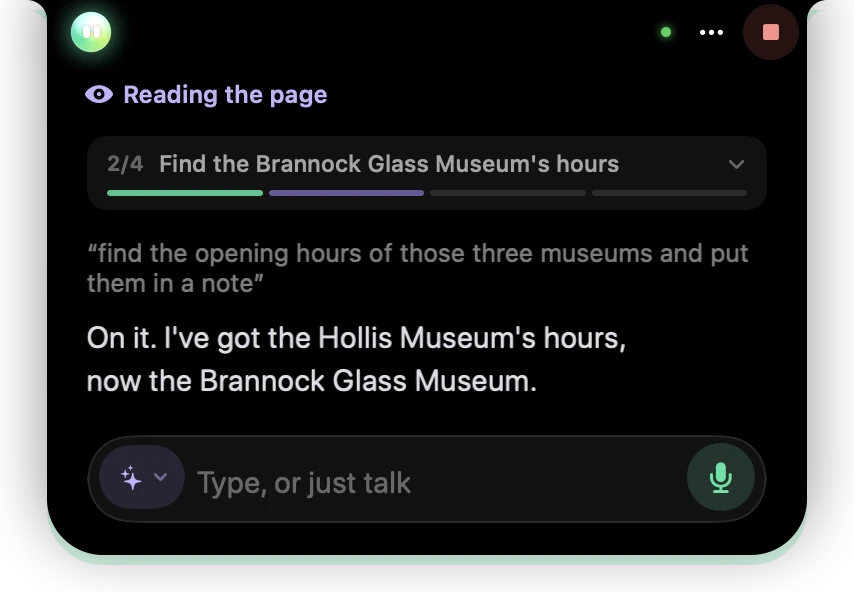
- 1Stop ends it at any time.
- 2The status line says what Springle is doing right now, like Reading the page.
- 3The plan line: the current step, and a bar showing how far it has got.
- 4Springle’s update on your request, in its own words.
The plan stays one line so the card stays small. It goes away when the receipt appears at the end.
Seeing every step
Point at the plan line, or click it, to open the whole list. Finished steps have a tick, the current step is bold with a violet dot, and steps still to do have an empty circle. Move the pointer away and it folds back.
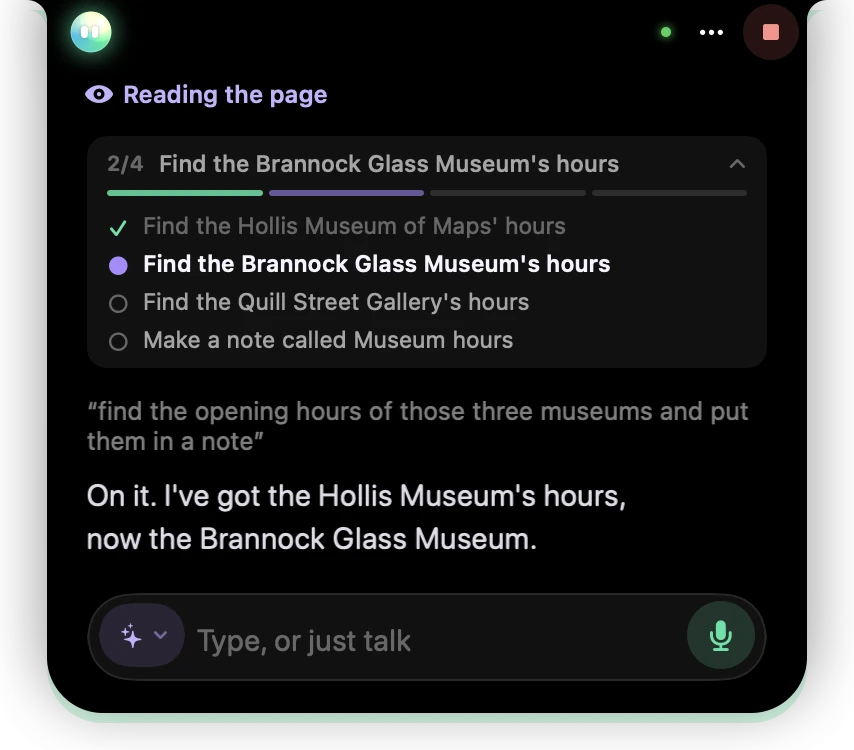
- 1A finished step, ticked.
- 2The step Springle is working on now.
- 3Steps still to come.
Springle can change the plan as it goes, for example if a page doesn’t have what it expected. If you add to the job ("and put them in a note too"), the plan carries on with the new part added.
Leaving it to work
You don’t have to watch. Move the pointer away and the card folds into the island. Beside Springle’s face, the island says what it’s doing, like Reading the page. What Springle says shows under the island, and the ring on the right keeps counting the steps.

- 1The step in hand, beside Springle’s face.
- 2The ring keeps counting: step 2 of 4.
- 3Springle’s update under the island.
While Springle works through a plan, its updates don’t pop the card open. Only a question for you does. If you use the Full card style (Settings › General › On screen) and fold the card during a planned task, it stays folded while Springle talks.
Some things to know before you walk away:
- It may need your OK. Before sending or agreeing to something, Springle stops and asks. If nobody answers within 45 seconds, nothing is done, and it can ask again when you’re back. See Springle asks first.
- Locking your Mac stops it. If your Mac locks, sleeps or its screen goes to sleep, Springle stops and doesn’t start again on its own.
- Typing stops it. Moving the mouse or clicking doesn’t stop Springle. Typing a few keys while it works, or pressing esc, does. See Take over or stop.
When the card is folded
With the card folded, the island says in words what Springle is doing right now, beside its face. On the right, a ring fills step by step, with the count beside it. While Springle’s hands are on the mouse or keyboard, a thin violet light runs along the bottom edge of the island.

- 1Springle’s face.
- 2The step Springle is on, in words: here, typing your message.
- 3Step 2 of 5.
- 4The light along the bottom edge: Springle is clicking or typing right now.
Shorter tasks
When a task is short enough not to need a plan, there is no ring. The island still says the step in words beside Springle’s face, and the right side shows what kind of step is under way, like a keyboard while Springle types or a globe while it looks something up. The edge light works the same way.

- 1The step in hand, in words.
- 2A keyboard: Springle is typing.
- 3What Springle is about to do.
- 4The edge light, while its hands are on the keyboard.
If you’d like even less on screen, the Quiet style shows no words, only a slim line saying what Springle is doing, with a dot for each step. See Captions, quiet or the full card.
If it gets stuck
A planned task can run for a long time, as long as it keeps getting steps done. Springle stops and tells you how far it got if it:
- goes a long stretch without finishing a step;
- tries the same thing twice and it fails both times;
- keeps going round in circles;
- has worked a very long time without hearing from you. It asks whether to carry on.
When a step doesn’t answer in time, Springle looks at the screen again and carries on, or tries another way. Nothing waits forever.
When it’s done
Springle checks the result where it can before it says it’s finished. Then the card shows a receipt with every step, which you can save as a how-to. See Receipts and how-tos.
Did this help?