Captions, Quiet or the card. Choose how much you see.
Three ways for Springle to look while it helps. Pick one in Settings › General › On screen.
While Springle helps, it stays out of your way. How much it shows is up to you. There are three styles: Captions (the usual), Quiet and Full card. Whichever you choose, you can always point at Springle to open the full card.
Choose a style
- Point at the island until it widens, then click the gear to open Settings. You can also click Springle’s face in the menu bar and choose Settings….
- Go to General and scroll to On screen.
- Under While Springle helps, click Captions, Quiet or Full card.
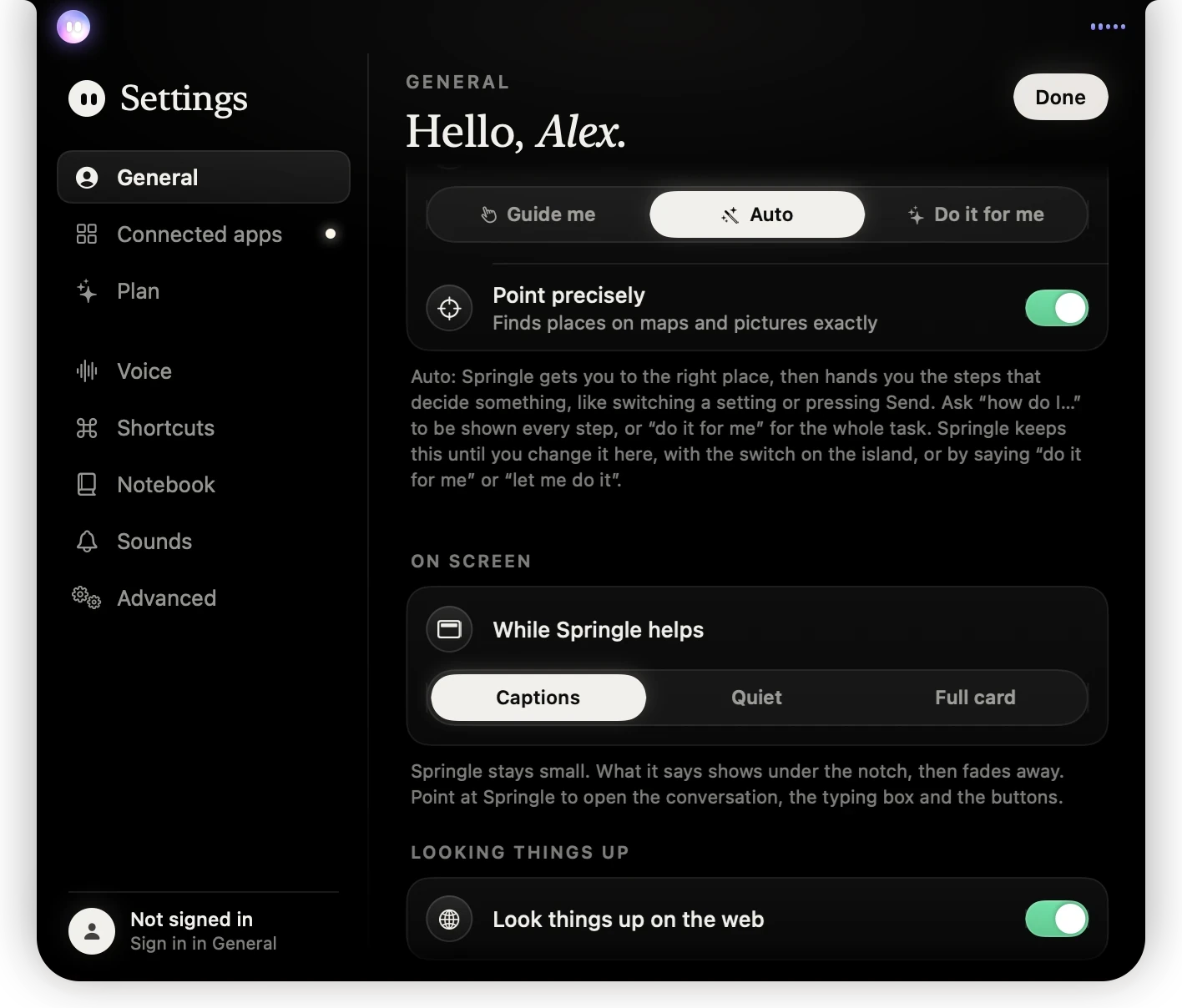
- 1How Springle helps: Guide me, Auto or Do it for me.
- 2On screen: the three styles. Captions is chosen here.
- 3The line under the choice says what the style does.
The change works straight away.
Captions
The usual style. Springle stays small, and what it says appears under the island like film subtitles, then fades away.
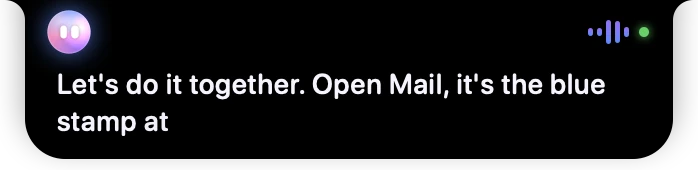
- 1Springle’s face, in the left wing.
- 2The voice bars, moving while Springle talks.
- 3Springle’s words, appearing as it says them, at most two short lines at a time.
- Words appear as Springle says them, two short lines at a time.
- When you heard them, they fade a couple of seconds after Springle stops. With its voice off, they stay long enough to read at a comfortable pace.
- What you say shows there too, in grey, while you hold ⌃⌥.
- The words get out of your way. Move the pointer under them, onto a tab or a toolbar button they’re covering, and they lift back into the notch so you can see and click what’s there. Move it away and they come back. Resting the pointer on the notch itself still opens the card.
- If the thing you need to click is right under the words, they move out of the way and the voice does the talking.
- A written reply you still have to read, or a question waiting for you, stays until you deal with it.
The card opens when you point at Springle, when you type, or when Springle needs you to answer.
Quiet
No words at all. A slim line says what Springle is doing, with a dot for each step, and only while it’s doing something. The face and the voice bars already show when it’s listening or talking. Its voice says the rest.

- 1What Springle is doing right now: typing "Hi Asha".
- 2A dot for each step. The long one is the step in progress.
Choose Quiet if words under the island distract you, or if you mostly listen to Springle rather than read it. What you say still shows under the island while you hold ⌃⌥, so you know Springle is hearing you.
Full card
The whole conversation and the typing box stay open while Springle helps, so you can always see everything. The card’s buttons sit beside the notch.
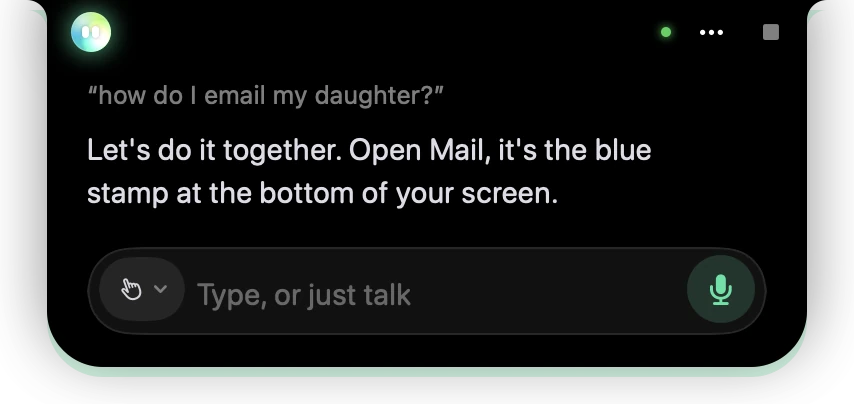
- 1Springle’s face, beside the notch.
- 2⋯ has Fold away, More room to read and the rest.
- 3Stop ends the conversation.
- 4What you said.
- 5Springle’s answer, written out in full.
- 6The box: the mode chip, a place to type, and the microphone.
- 7The green glow: Springle is listening.
If you fold the card away (Fold away in its ⋯ menu, or a click outside it), it stays folded until the next thing Springle says. The card still steps aside when what you need to click is underneath it.
Which should I pick?
| If you... | Try |
|---|---|
| Want to see what Springle says without it taking up room | Captions |
| Listen more than you read, or find moving words distracting | Quiet |
| Like to read along, scroll back and keep the box handy | Full card |
In any style, point at Springle to open the card, and move the pointer away to fold it again. Clicking anywhere outside Springle folds it too.
Things every style keeps
- Anything Springle needs your OK for, like sending a message, always opens the card with Yes and No, and waits for your answer.
- Long written replies open the card by itself so you can read them. See Type to Springle.
- With Reduce Motion on in System Settings › Accessibility › Display, everything holds still: no swirling, sparkles or shake.
Did this help?