The island. Springle’s home in the notch.
What the shape in your notch is showing you: four colours with fixed meanings, the folded island, the card that opens when you point at it, and the controls beside the notch.
Springle lives in the notch at the top of your screen. We call it the island: a black shape that grows out of the notch while Springle helps, and shrinks back to nothing when it’s done. It never takes over your screen. Everything extra waits in the card, which opens when you point at the island.
At rest

- 1The notebook.
- 2Talk: starts a spoken conversation.
- 3Type: opens the text box.
- 4Settings.
When Springle isn’t helping, the island is only the notch. Rest the pointer on it for a moment and it widens sideways, inside the menu bar, with four small buttons: the notebook and Talk on the left, Type and Settings on the right.
It never hangs down over the app below, so the address bar or search box under the island stays yours. Sweeping the pointer past opens nothing, and moving down into your app folds it straight away. Only Talk and Type start a conversation.
On a Mac or display without a notch, a small pill with Springle’s face rests in the middle of the menu bar instead. See Macs without a notch.
While it helps
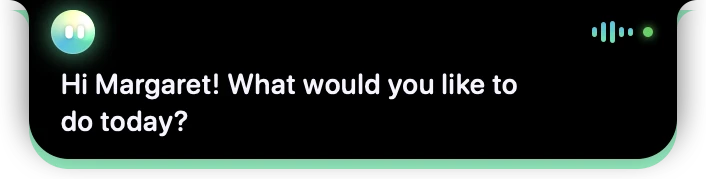
- 1Springle’s face. Green means it’s really listening to you.
- 2The sound bars move with the conversation.
- 3The small green dot: Springle can see your screen while it helps, like a camera light.
- 4What Springle says, as captions under the island.
During a conversation the island grows two small wings:
- On the left, Springle’s face. It swirls while Springle thinks or talks.
- On the right, one small sign of what’s going on: the sound bars, a microphone while you hold ⌃ control ⌥ option, a keyboard in a typed conversation, a globe while it searches the web, the icon of the step it’s doing, a green check when it finishes, or an amber pause when it’s waiting for you.
- A tiny green dot, like the camera light on a phone, whenever Springle can see your screen. It’s only there while Springle is helping.
Under the island, what Springle says appears as captions, a line or two at a time, and fades away. What you say shows there too while you hold the keys, so you know it heard you. If the thing you need to click is right under the island, the words stay out of the way and the voice does the talking.
Four colours, four meanings
Springle uses only four colours, and each one always means the same thing.
| Colour | Means | You’ll see it when |
|---|---|---|
| Green | You, and done | Springle is listening, you’re holding the keys, or a task has just finished ("Done · 3 steps", a green check) |
| Violet | Springle is thinking or acting | It’s working something out, looking something up, or clicking and typing for you |
| Amber | It needs you | A yes-or-no question, a check before something that matters, "Paused" after you took over, a question waiting while the card is folded, a reminder bell |
| Red | Danger | A likely scam or a risky button ("Careful"), or a delete that can’t be undone |
Links in the card are blue. Everything else is white or grey. If you only remember one thing: amber means it’s your turn, and red means stop and look.
The colours also show as light along the island’s lower edge. It glows green while Springle really listens, brightening as you speak, amber with a slow pulse while it needs you, and red before a delete. While Springle acts, a violet light runs along the edge instead. At rest there’s no glow: the island is as black as the notch.
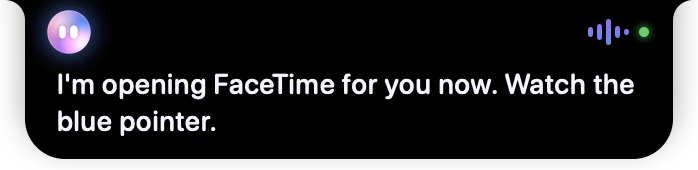
- 1Violet: Springle is doing something for you right now.
- 2It tells you what it’s doing, and where to look.
Folded

- 1Springle’s face.
- 2The step in hand, in words.
- 3A ring that fills step by step: step 2 of 5 of a longer task.
- 4The green dot: Springle can see the screen.
- 5The thin violet light along the bottom edge: Springle’s hands are on the mouse or keyboard right now.
Most of the time the island stays folded: the island, its two wings and perhaps a line of words. It’s small on purpose, so you can see what you’re working on.
Beside the face, a few words say what’s really happening, and only then: the step in hand, like Typing "Thanks", or Looking it up while Springle searches the web. When a task finishes, the same place shows what was done, with a green check on the right, for a few seconds. In the Quiet style that’s a Done line under the island instead.
The thin light along the bottom edge only shows while Springle is clicking, typing or pointing for you. When it goes, Springle’s hands are off.
When you fold away a written question, it waits beside the island as an amber Question chip. Point at it to read it, or click it to answer.
The card
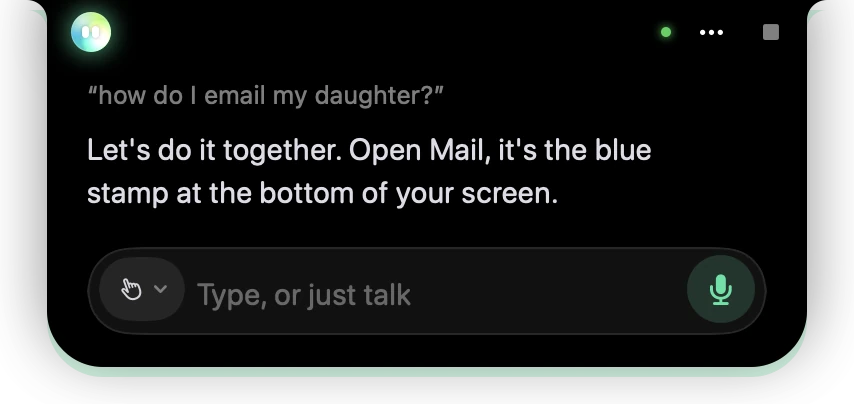
- 1Springle’s face, beside the notch.
- 2The green dot: Springle can see your screen while it helps.
- 3⋯: fold the card away, give it more room to read, circle something, and more.
- 4Stop ends the conversation. It’s grey while Springle is only listening.
- 5What you said, as one quiet line.
- 6Springle’s answer.
- 7The box: the mode chip, a place to type, and the microphone.
- 8The green glow along the lower edge: Springle is listening.
Point at the island to open the card. Move the pointer away and it folds again. It stays open while the pointer is on it or you’re typing in it. You can also click the folded island to open it.
The card also opens by itself when:
- Springle needs your OK for something with a message or a list to look over, like a send. That question opens the card and stays until you answer. A plain yes or no is asked beside the notch instead (see A quick yes or no).
- Springle writes you an answer instead of saying it, for example after you typed or held the keys. It stays long enough to read, longer for longer answers, and a reply that ends in a question stays until you answer.
The card has no title bar. Springle’s face sits beside the notch on the left, and the card’s buttons sit beside it on the right. Under them, from top to bottom: a line saying what Springle is doing (only while it’s doing something), what you asked as one quiet line, Springle’s reply (a line like "Show 2 earlier" brings back the rest), where an answer came from, a receipt or Yes and No, and the box to reply in.
The box
The box at the bottom of the card has three parts:
- The mode chip, a small icon at the start: a hand for Guide me, a wand for Auto, sparkles for Do it for me. Click it to change how Springle helps. After you take over a task it reads Carry on. See Guide me, Auto and Do it for me.
- The text field. When you start, it greets you by name ("What shall we do, Alex?"). In a spoken conversation it reads "Type, or just talk".
- One round button. It’s the microphone while the box is empty: click it to talk, and it turns green while Springle listens. Once you type, it becomes Send.
Until you’ve asked something, a faint line under the box reminds you of the keys: hold ⌃⌥ to talk, and ⌃⌥ C to circle something on screen.
The card folds away when you click anywhere outside Springle, like a popover does. Clicks Springle makes for you don’t count, and a safety question stays put. It also folds when you start typing in a box it’s covering, and when the thing Springle is pointing at is underneath it.
The buttons beside the notch
| Button | What it does |
|---|---|
| The green dot | Not a button: like a camera light, it shows Springle can see your screen while it helps. |
| ⋯ | Things you need now and then: Fold away, More room to read (or Smaller card), Circle something to ask about, Notebook, Say it again, Read replies aloud, Settings…, your plan, and Stop Springle or Close Springle. |
| Stop (a square) | Ends the conversation. It’s red while Springle is busy or waiting for your OK, and grey while it’s only listening, turning red when you point at it. |
| × | The same button when nothing is running: a typed conversation at rest. It closes the conversation. |
Fold away in ⋯ folds the card back into the island, and nothing stops. Moving the pointer away or clicking outside the card does the same. Long answers get a wider card by themselves; More room to read and Smaller card choose for the rest of the conversation.
Stop is never the only way out. ⌃⌥ Space always stops Springle, so does Stop Springle in the menu bar, and so does typing "stop". Pressing esc in the box pauses what Springle is doing and hands the keyboard back. See Take over or stop.
The status line tells the truth
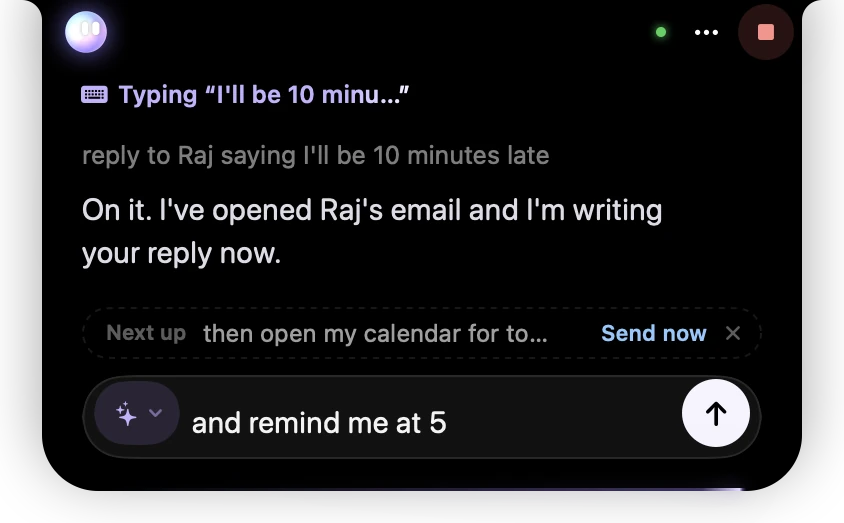
- 1Violet: Springle is typing, and the line says exactly what.
- 2Stop is red because Springle is busy.
- 3A message you sent while Springle was busy waits here as Next up. Send now cuts in, × takes it back.
- 4The box, with your next message ready. The button has turned into Send.
While Springle is doing something, one line at the top of the card says what, never only the mode you picked. At rest there’s no line: the face and the colours say the rest. Some of what you’ll see:
| Status | Colour | Means |
|---|---|---|
| Listening | green | You’re holding the keys and it hears you |
| Writing it down | green | You let go of the keys and your words are being written out |
| Thinking, or a short line like "Finding the Reply button" | violet | It’s working out what to do |
| Looking it up | violet | A web search is running |
| Typing "Thanks", Pressing "Reply" | violet | The step it’s doing right now |
| Working on it | violet | It’s in the middle of a longer task |
| Waiting for your answer | amber | Springle asked you something |
| Paused | amber | You took over, so it stopped |
| Careful | red | It spotted something risky |
When Springle needs your OK, the question’s own card says so, and when a task is done, the receipt does.
Yes and No
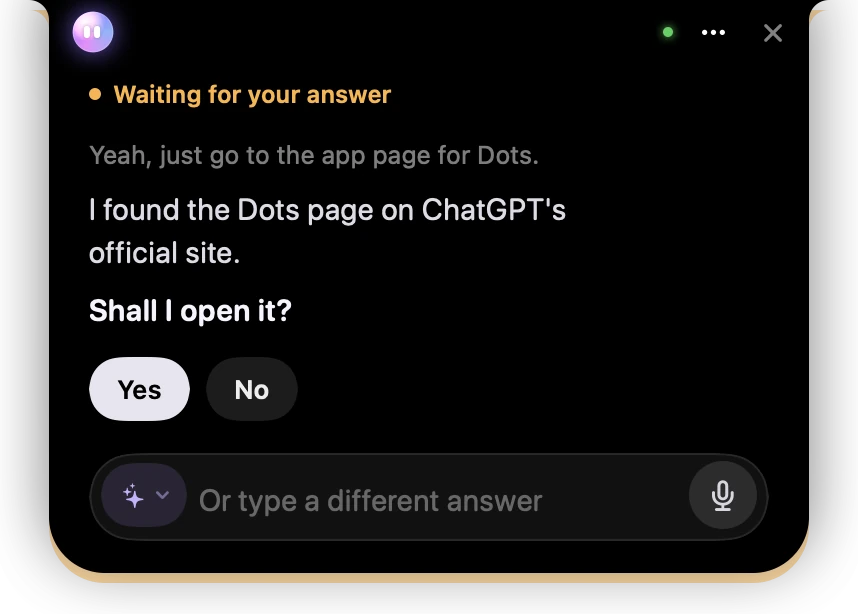
- 1Amber: Springle is waiting for your answer.
- 2What you asked for.
- 3The question, in plain words.
- 4Yes and No. Click one, or press Return for Yes and Esc for No.
- 5Or type a different answer here.
When Springle’s answer ends in a question that a plain yes or no answers, like "Shall I open it?", big Yes and No buttons appear and the line at the top says Waiting for your answer in amber. With the box empty, return answers Yes and esc answers No. Open questions, like "Which one?", get no buttons, because they need your own words.
Before Springle sends, submits, downloads or agrees to anything, it asks first. When there’s a message or a list to look over first, the question opens the card and waits until you answer. See Springle asks first.
A quick yes or no beside the notch

- 1The question, in amber, beside the notch.
- 2No and Yes. Click one, or say or type your answer.
When Springle needs a plain yes or no in the middle of a task, like "Open the checkout page?", it doesn’t drop the card over your work. A short question is asked right beside the notch: the question in amber on the left, No and Yes on the right. A longer one hangs under the island as one amber line with the same buttons. Pointing at it doesn’t open the card, because your pointer is on its way to the buttons; click the question’s words to see the whole conversation around it.
Receipts
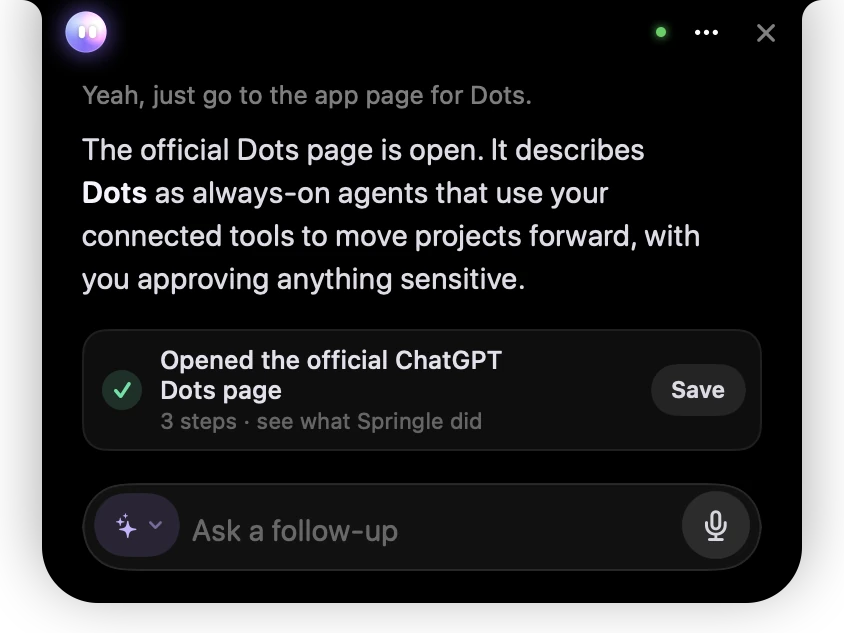
- 1× closes the conversation now that nothing is running.
- 2What Springle found, in plain words.
- 3The receipt: what Springle did, in one line.
- 4Save keeps the steps as a how-to in your notebook.
Every finished task leaves a receipt: one line saying what Springle did. Click it to see each step. Save keeps those steps as a how-to in your notebook, so you can follow them yourself next time. See Receipts.
When something looks wrong
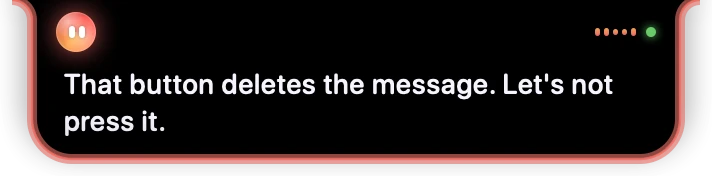
- 1Red: Springle has spotted something risky, and says what.
If Springle sees a likely scam, or a button that would do something you can’t undo, the island turns red, shakes gently and, with sounds on, plays a soft warning chime. It tells you why in one sentence and doesn’t press anything. See Scam checks.
Words, quiet, or the whole card
You choose how much the island shows in Settings › General › On screen:
- Captions (the standard): Springle stays small, and what it says shows under the island, then fades.
- Quiet: no words, only a slim line saying what Springle is doing. Its voice says the rest.
- Full card: the whole conversation, the box and the buttons stay open while Springle helps.
In every style you can point at the island to open the card. See Captions, quiet or the card.
Motion, and Reduce Motion
The island only moves while Springle is doing something: the face swirls, the edge light shows while it clicks and types, and a small sparkle marks a finished task. If you’ve switched on Reduce Motion (System Settings › Accessibility › Display), it all holds still: a still face, no swirling, sparkles, shaking or pulsing glow, and quick fades instead of springs.
The face in the menu bar
Springle also has a small face in the menu bar. It fills in while Springle is helping, and turns dashed if setup isn’t finished, for example when a permission was switched off. Click it for Talk, Type, Circle, the notebook, Settings and Help.
Did this help?