Your first ask. Say it, or type it.
A gentle walk through asking Springle something out loud, then by typing, with what you’ll see at each moment and real things worth trying.
Once setup is done, Springle waits quietly at the top of your screen. Nothing is listening and nothing is watching until you ask. Here’s what your first two asks look like: one spoken, one typed.
Ask out loud
Hold both, bottom-left of your keyboard, while you speak. Let go when you’re done.
- Think of something real you’d like help with. "Where do I turn on Night Shift?" is a good first one.
- Hold ⌃ control ⌥ option together. After a moment a green microphone appears beside the island, and any music or video on your Mac goes quiet.
- Say what you want, in plain words, as if you were asking a friend.
- Let go of the keys.
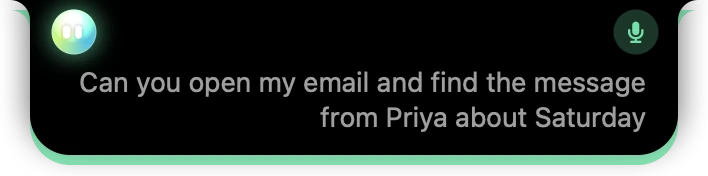
- 1Springle’s face, beside the notch.
- 2The microphone badge swells with your voice.
- 3Your words appear as you say them, so you can see it heard you right.
When you let go, the status says Writing it down for a moment. Your words then go to Springle as a written message, and its answer comes back written in the card, which opens by itself so you can read it.
A few things that are good to know:
- Hold, don’t tap. A quick tap of ⌃⌥ opens the text box instead.
- Pressing another key while you hold cancels it, because that was some other shortcut. Nothing is sent.
- Said nothing? Springle says "I didn’t catch that", and you can try again.
What you’ll see next
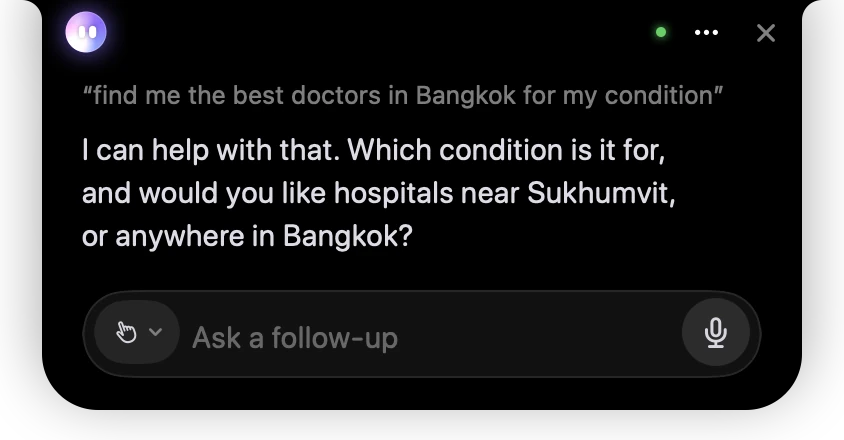
- 1× closes the conversation when you’re finished.
- 2What you asked, in quotes because you said it.
- 3Springle’s answer. Here it asks something back, so the card stays open.
- 4Reply in the box, or hold the keys and say it.
If your ask needs something done on screen, Springle starts on it. Depending on how it’s set to help, it points at each thing to click, or it does the clicking while you watch. While it works, a line at the top of the card says what’s really happening, and the colours tell you whose turn it is: violet while Springle thinks or acts, amber when it needs you, green when it’s done. See The island.
To carry on, ask again: hold the keys, or type in the box. When you go quiet, the conversation puts itself away after a while. Ask again soon after and Springle still remembers what you were talking about.
Ask by typing
- Tap ⌃⌥: press them together and let go straight away. The card opens with a text box ready, asking "What shall we do?" with your name.
- Type what you want and press return.
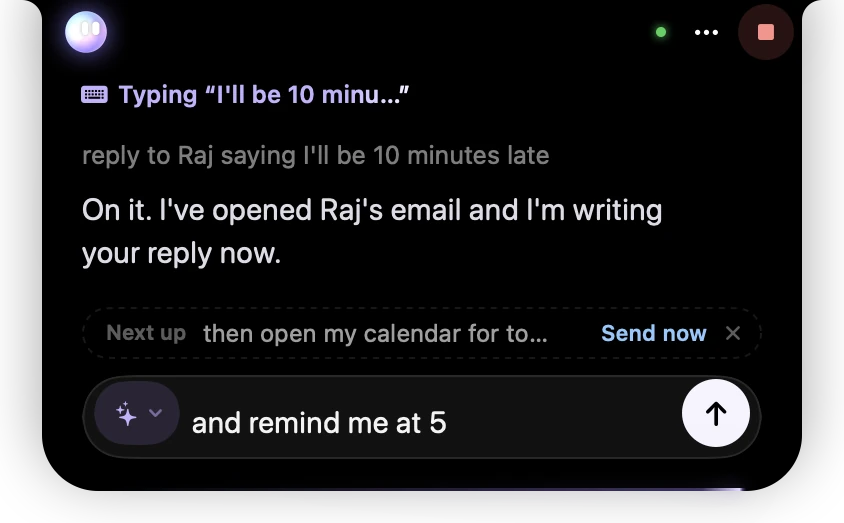
- 1The line at the top says exactly what Springle is doing for you.
- 2Stop, if you change your mind.
- 3What you typed.
- 4Springle’s reply, written, with no voice.
- 5You can keep typing while it works. Your next message waits its turn.
A typed conversation never uses the microphone, and Springle answers in writing. You can still hold ⌃⌥ in the middle of it to say something instead.
In the box, return sends, and Shift-Return starts a new line. See Type to Springle.
Things worth trying
Ask for real things you’d otherwise look up or put off. Some ideas:
Reply to Sam’s email and say I’ll be there at noon
What’s this charge on my phone bill?
Join my next meeting
Where do I turn off notifications from Slack?
- Reply to an email. Open the email first, or name who it’s from. Springle writes the reply and asks before it sends anything: the card shows the email with Send and Don’t send, and the island glows amber until you answer.
- Explain something on screen. Open the bill, the letter or the page and ask "What’s this charge?" or "What does this mean?". Springle reads what’s on screen and answers in plain words.
- Join a call. With Springle allowed to see your calendar (Settings › Notebook), or the invitation open, ask Springle to join your next meeting. Joining is one of the things it checks with you first.
- Find a setting. "How do I share my screen in Zoom?", "Where do I turn off notifications from Slack?". Springle shows you the way, step by step.
- Write something down. "Remind me to call the dentist at 4", or "Keep a note of this page".
You can also circle something on screen and ask about it: press ⌃⌥ C, draw round it, then ask. See Circle to ask.
On the free plan, each ask counts towards your 20 a month. Scam checks are always free. See Plans.
Have a spoken conversation
For a back-and-forth chat where Springle talks back, press ⌃⌥ Space. Talk naturally; Springle waits for a short pause before answering, and you can interrupt it any time by speaking. Press ⌃⌥ Space again to end it. See Have a conversation.
Spoken conversations use talk time. Holding ⌃⌥ to ask doesn’t.
Show me, or do it for me
The small chip at the start of the text box sets how Springle helps. Its icon shows which one is on:
- Guide me (a hand): Springle points to where to click, and you click.
- Auto (a wand): Springle gets you there, and you do the steps that decide something.
- Do it for me (sparkles): Springle clicks and types while you watch. Start typing or press Esc to take over.
You can also say "do it for me" or "let me do it". See Guide me, Auto and Do it for me.
Stopping
Press esc in the box to pause Springle and get your keyboard back. To end the conversation, click Stop (or × when nothing is running) at the far right beside the notch, or press ⌃⌥ Space. See Take over or stop.
If Springle didn’t hear you, see Springle can't hear me.
Did this help?