A three-minute tour, from the island.
Springle shows you around in its own voice, and you try each thing for real as you go, including a practice email that never leaves your Mac.
The tour is Springle showing you around, out loud, from the island. Each step is something to try for real, and Springle reacts when you do it. It takes about three minutes. Turn your sound on.
Starting the tour
At the end of setup, Springle says You’re all set and offers the tour:
- Click Take the tour to start, or Skip for now.
- The first time a new account sets up, the tour starts by itself after a short countdown. Click Skip the tour if you’d rather not.
- If VoiceOver is on, the tour never starts by itself. It waits for you to press the button.
You can take it again whenever you like: open Springle’s menu in the menu bar and choose Help › Take the Tour….
The tour card
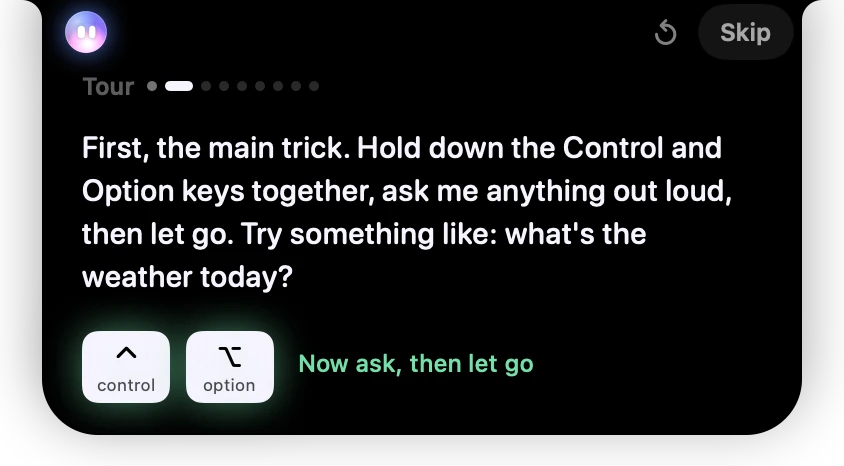
- 1Progress dots: one for each part of the tour.
- 2Say it again replays what Springle just said.
- 3Skip ends the tour at any time.
- 4Springle’s words appear as it says them.
- 5The keycaps light up as you press your own keys.
- 6A hint for what to do right now.
The tour lives in Springle’s card under the island. Say it again and Skip sit beside the notch, where the card’s own buttons usually are. If you hesitate, Springle gives you a gentle nudge after a few seconds. You can’t get it wrong: everything you try is real, but the tour never touches anything outside Springle’s own windows.
What you’ll try
- Hold to ask. Hold ⌃ control ⌥ option, ask something out loud ("What’s the weather today?"), and let go. Springle really answers.
- Tap to type. Tap ⌃⌥, type "hi" and press return.
- Talk. Press ⌃⌥ Space and have a short conversation. Press the same keys again, or click Back to the tour, when you’re done.
- Guide me. A practice window opens and Springle points at the Reply button. You click it.
- Do it for me. Open the chip at the start of the box and choose Do it for me. Springle’s pointer glides to the reply box and types a reply for you.
- Yes or No. Springle asks before sending. You answer.
- Dictate. Hold ⌃ control fn, say your own reply to Sam, and let go. Your words appear in the Practice Desk.
- Stop. Press esc, or click the red Stop at the top of the card, beside the notch.
If you chose to type instead of talk during setup, the tour leaves out the talking parts and dictation. If you’ve turned dictation off in Settings › Shortcuts, it leaves out dictation.
Talk
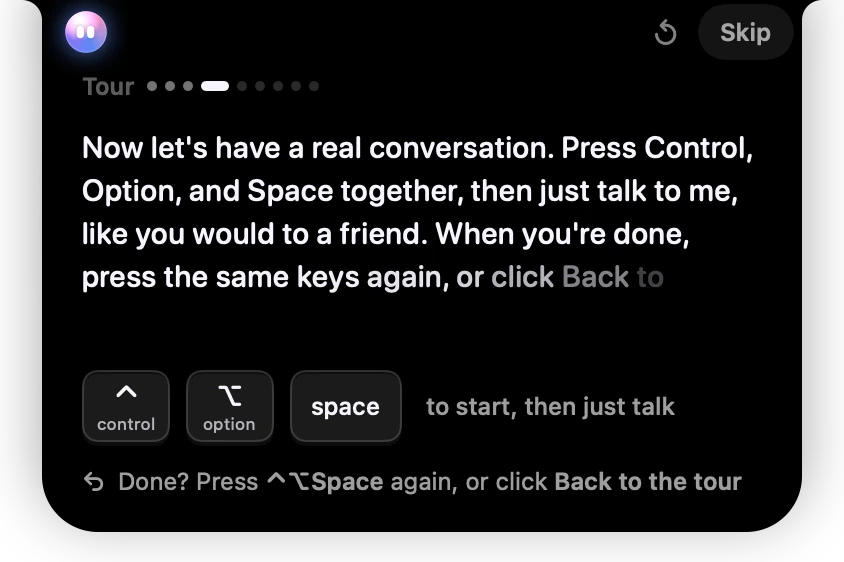
- 1Springle explains what to do in its own voice.
- 2The keys for a spoken conversation: Control, Option and Space.
- 3How to come back: the same keys again, or Back to the tour.
This is a real spoken conversation. Talk to Springle the way you’d talk to a friend. When you’ve had enough, press ⌃⌥ Space again or click Back to the tour, and the tour carries on.
The Practice Desk
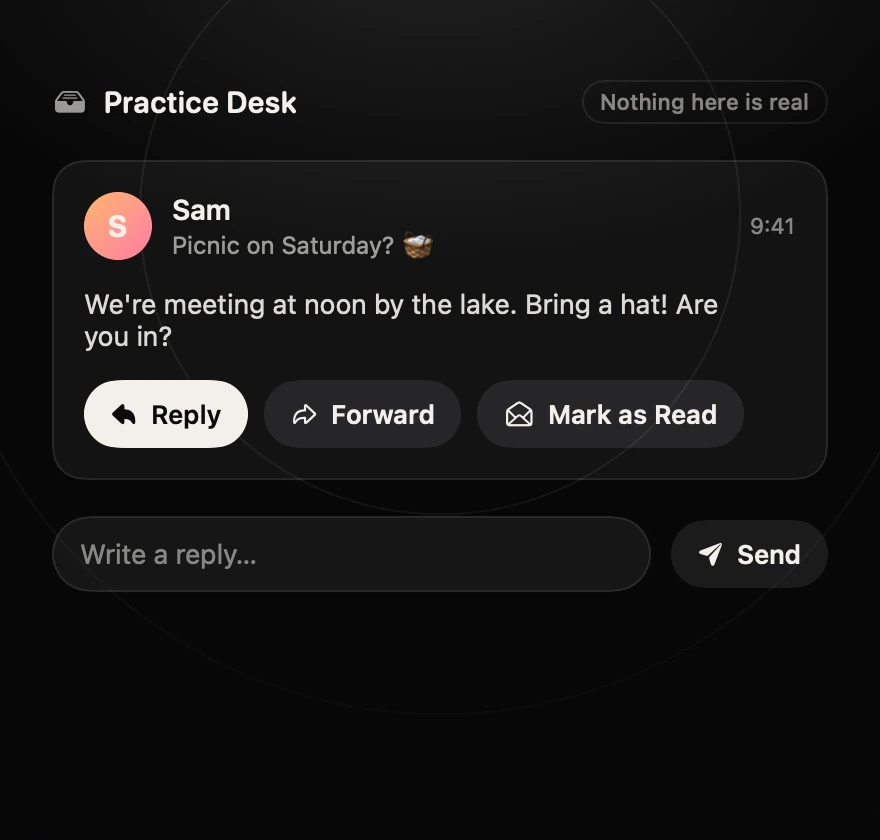
- 1Practice Desk: a pretend message window that belongs to Springle.
- 2Nothing here is real. Nothing you do in it leaves the window.
- 3A note from Sam inviting you to a picnic.
- 4Reply, the button Springle points at for Guide me.
- 5The reply box and Send. Send only pretends.
For the Guide me and Do it for me parts, Springle opens the Practice Desk, a small make-believe message window. Sam has written: "Picnic on Saturday?". Springle dims the rest of the window and rings the Reply button for you to click. Click something else and it tells you, gently, that you’re close.
The Practice Desk is Springle’s own window. Nothing in it is a real email, and nothing is ever sent.
Do it for me
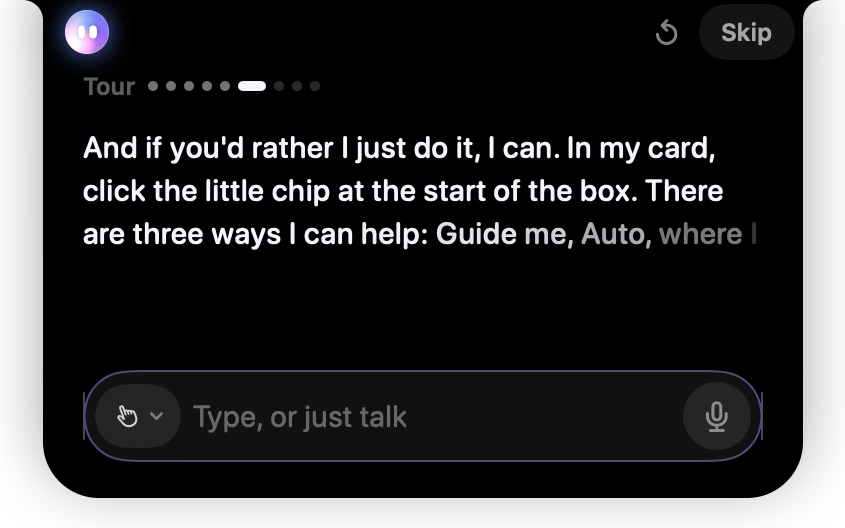
- 1Springle tells you where to look: the chip at the start of the box.
- 2The chip. Its icon shows how Springle helps now. Click it and choose Do it for me.
The chip at the start of the box chooses how Springle helps: Guide me, Auto or Do it for me. Its menu explains each one. Choose Do it for me and watch Springle’s pointer type a reply to Sam.
Switching the chip during the tour doesn’t change your own choice. Afterwards Springle helps the way you had it set. See Guide me, Auto and Do it for me.
Yes or No
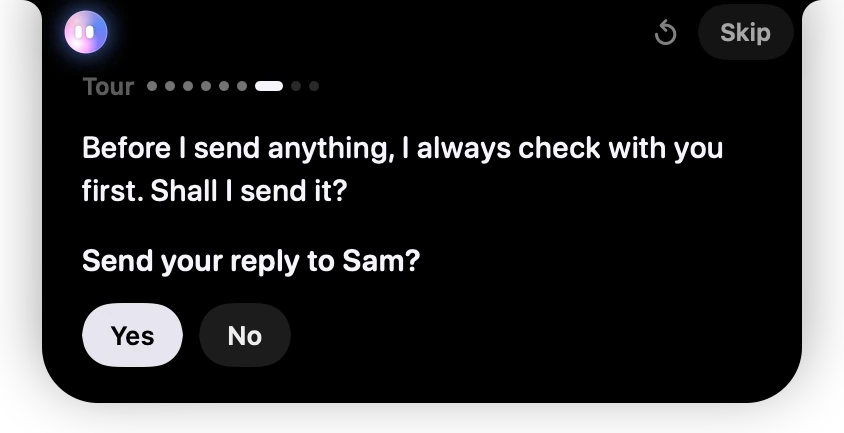
- 1Springle always checks before it sends anything.
- 2The question, the way the card asks it.
- 3Yes sends the pretend reply. No keeps it as a draft.
Before Springle sends, submits or agrees to anything for real, it asks you first. The tour shows you how that looks. Click Yes and Sam answers. Click No and the reply is kept as a draft.
Dictate
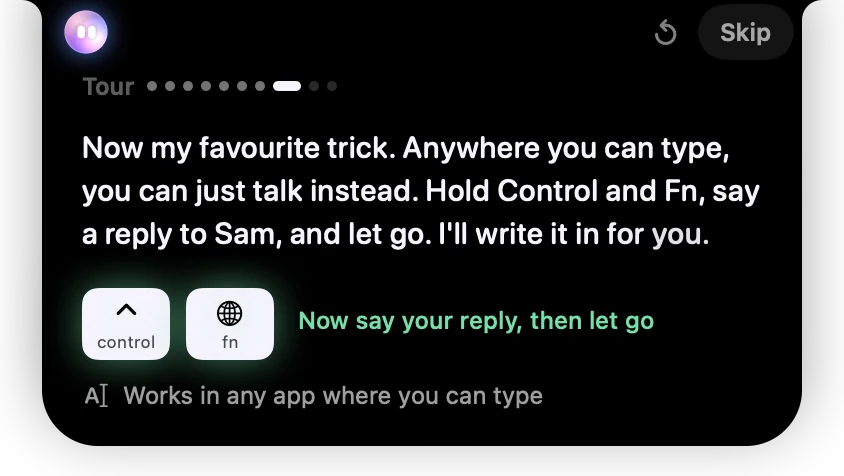
- 1The two keys to hold: Control and Fn. They light up while you hold them.
- 2A reminder that the same keys work in any app.
Springle wrote that reply for you. Now you write one yourself, by voice. A Say a reply… box opens in the Practice Desk. Hold ⌃fn, say anything you like to Sam, and let go: your words appear in the box. If you hold ⌃⌥ by mistake, Springle reminds you that those keys are for asking it things.
Outside the tour, it works the same in any app where you can type. See Dictate with ⌃fn.
Stop
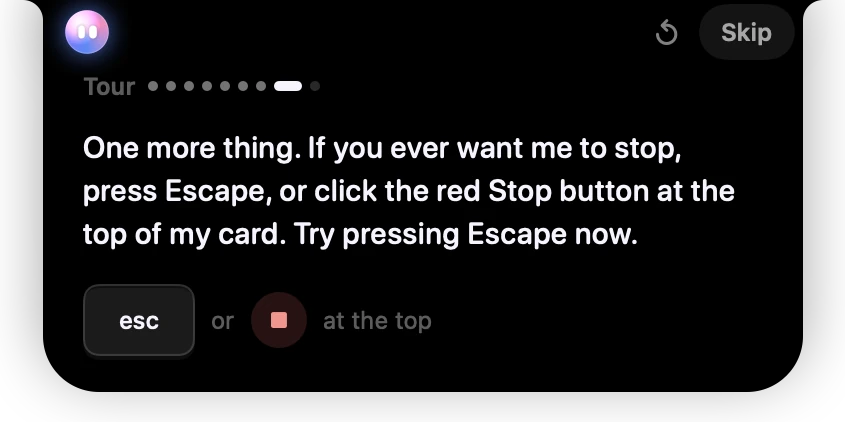
- 1How to stop Springle at any time.
- 2Press Escape, or click the red Stop at the top of the card.
Whenever you want Springle to stop, press esc or click Stop. The tour asks you to try it once.
Show me more
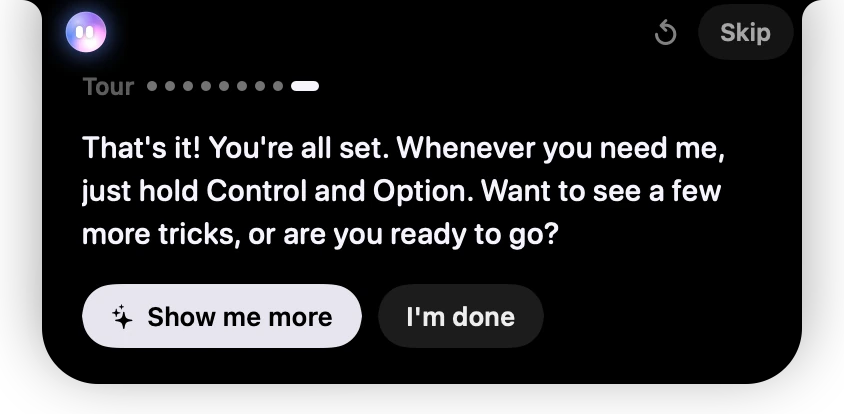
- 1The end of the main tour.
- 2Show me more carries on with a few real tricks.
- 3I’m done closes the tour.
Show me more carries on with real apps. For the first one, Springle switches to Do it for me for a moment so it can do the work itself, then puts your own choice back. Hold the keys and say each one, or tap them and type it:
- Open a site. Ask "Open the Wikipedia page about picnics".
- Keep a note. Ask "Keep a note of this page". It goes into your notebook.
- Find it. Open the notebook with ⌃⌥ N.
- Set a reminder. Ask "Remind me to stretch in two minutes". It’s real: two minutes later it drops down from the island.
- Your calendar. Springle tells you how it shows what’s on, when you’re free, and your next meeting on the island, with a Join button.
- Connected apps. Springle shows you where to find them: point at the island and click the gear.
Good to know
- Your first tour is on the house. On the free plan, what you try in your account’s first tour doesn’t count against your month, up to 10 asks and 4 minutes of talk. Taking the tour again later counts as usual.
- The recorded voice always says "Control and Option" (and "Control and Fn" for dictation), because it was recorded once. If you changed your keys in Settings › Shortcuts, the keycaps on the card show the keys you chose.
- Skipping is fine. Skip plays a short goodbye and closes it. You can always come back with Help › Take the Tour….
- Start talking and Springle stops. If you speak or press the keys while the tour’s voice is playing, it stops at once so it never talks over you.
When you’re done, Your first ask has ideas for real things to try.
Did this help?