Talk anywhere you type. It’s written for you.
Click into any text box, hold Control and Fn, say what you want to write, and let go. Your words are typed there, tidied up. Nothing is sent to Springle.
Anywhere you can type, you can talk instead. Click into a text box in any app, hold ⌃ control fn, say what you want to write, and let go. Springle writes your words down and types them where your cursor is, with the stops and capitals in place. They go into that box, and nowhere else: dictating never sends anything to Springle.
Side by side, in the bottom-left corner of your keyboard. Hold both while you talk.
Dictate in three steps
- Click where you want the words, as if you were about to type: a message, an email, a note, a search box.
- Hold ⌃fn and talk. Pauses in the middle are fine.
- Let go. Your words appear where the cursor is.
Running ten minutes late, start without me
Thanks so much for dinner last night, it was lovely
Can you send me the slides before the meeting?
What you’ll see

- 1Springle’s face, on the left of the notch.
- 2The app your words will go into, beside the microphone.
- 3The green microphone swells with your voice while you hold the keys.
- 4Before you say a word, the island tells you where they’ll be typed.
As you talk, your words appear in a small, quiet line just under your cursor (or just above it, when the box is at the bottom of its window), so you can check them where you’re already looking, on whichever screen you’re working. It stays inside the app’s window, and a long dictation keeps its newest words in view. The island only shows which app they’re going into. When you let go, Springle finishes the last few words and types them in, and a green check shows on the island for a moment once they’re in the box.
If an app doesn’t say where its cursor is, your words show under the island instead, as in the picture. To always see them there, choose Settings › Dictation › Show my words › On the island.
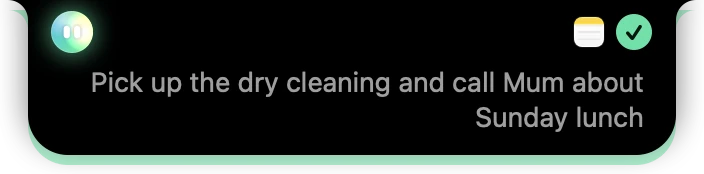
- 1Notes, where the words went.
- 2The check: your words are in the box.
- 3What you said, as it was typed.
Where it works
In any app where you can type, including:
- Messages and email: Slack, WhatsApp, Messages, Mail, Gmail and Outlook in your browser.
- Notes and documents: Notes, Pages, Word, Google Docs, TextEdit.
- Web pages in Chrome, Safari and other browsers: search boxes, forms, comment boxes. With Springle for Chrome added to Chrome (Settings › Connected apps › Your browser), Springle can see the box you’re in, so your words show at your cursor there too and go in without touching your clipboard.
- AI chats: ChatGPT, Claude and the like. What you say goes into their box, as a message to them.
- Terminals: Terminal, iTerm, Warp, Ghostty and others. At a command prompt Springle types the words on one line, as a command, and never presses return for you. With an AI agent running in it, like Claude Code or Codex, your words go in as a prompt.
Springle never types into a password box, or into the windows where your Mac asks for its own password.
Tidied up to fit
Springle writes what you meant to say. It leaves out "um" and "er", stutters and false starts, and adds the punctuation. Then it fits the words to the place they’re going:
| Where your cursor is | What Springle does |
|---|---|
| Right after a word | Puts a space first, so the words don’t run together. |
| In the middle of a sentence | Starts with a small letter ("Hi there, how are you?"). Names keep their capital, and so does "I". |
| Before more words | Leaves out its own full stop, and puts a space after. |
| In a one-line box, like a search box | Keeps it to one line, and drops a lone full stop ("Best pizza near me"). |
| In a chat, like Slack or Messages | Drops the full stop from a one-line message ("Sounds good, see you at 7"). |
| At a command prompt in a terminal | Writes it as a command: one line, no full stop, the command in small letters ("git status"). |
While you hold ⌃fn
A few keys do something while you hold ⌃fn. They never reach the app you’re in.
| Press | What happens |
|---|---|
| A finish’s letter | Shapes your words before they’re typed: T Tidy, S Shorter, P Prompt (for an AI chat), E Email, L Translate, and the finishes you make yourself. See Finishes. |
| return | Your words are typed, then sent. In a chat (Slack, Messages, WhatsApp) or an AI chat (ChatGPT, Claude, Claude Code). Anywhere else, like an email or a command prompt, they’re only typed, and Springle tells you so. |
| esc | Throws them away. Nothing is typed. |
| space | Keeps listening after you let go, so you can talk hands-free for as long as you like (up to 10 minutes). Press ⌃fn again to finish, return to finish and send, or esc to stop. |
Hands-free, a lock shows beside the microphone, with how long it’s been listening.
Snippets: say a phrase, get your text
Some things you type again and again: your address, a booking link, your sign-off. Save them once in Settings › Dictation › Snippets with a short phrase, like "my address". Then hold ⌃fn, say just the phrase, and let go: the whole text is typed. Springle suggests a few from what it knows about you, like your address or phone number.
The phrase has to be all you say. "Send it to my address" is typed as you said it.
Type in another language
Speak whatever language comes naturally, and have it typed in another, app by app. In Settings › Dictation › Type in another language, choose an app (WhatsApp, say) and a language (Spanish). From then on, what you dictate in that app is translated before it’s typed. It takes a second or two longer.
Recent dictations and your week
Settings › Dictation › Recent keeps your last ten dictations for a day, on this Mac only, so words that went to the wrong place, or were copied for want of a box, can be copied again. Turn off Keep my recent dictations to stop it (and forget them at once).
This week shows how many words you’ve dictated, how much time that saved over typing, and how many of them you left exactly as typed. Copy to share copies a line about it, with your Spring a Friend link.
Change your mind as you talk
There’s no need to stop and start again. Say it the way you’d say it to a person, and Springle types what you ended up meaning:
| You say | What’s typed |
|---|---|
| "Let’s meet at three, actually no, four o’clock on Thursday." | Let’s meet at 4:00 on Thursday. |
| "Send the report to Sam. Scratch that. Send it to Priya instead." | Send the report to Priya. |
| "Hi Sam, new paragraph, thanks for the deck, new paragraph, best, Alex" | The greeting, the message and the sign-off, each on its own line. |
| "I need three things: first milk, second eggs, and third bread." | A numbered list: Milk, Eggs, Bread. |
| "Are you coming tonight question mark" | Are you coming tonight? |
| "Sounds good, thumbs up emoji" | Sounds good 👍 |
Names, spelled right
Springle listens out for the names it knows, so they come out spelled right the first time:
- The names on your screen: the people in the thread you’re answering, the To line of your email, the file and function names in your code editor or terminal. Only the names go with what you say, and nothing from your screen is kept.
- Yours, and the people you’ve told it about: your name, your helper’s, and the names in what Springle remembers about you.
- The ones you teach it. If a name still comes out wrong, just correct it in the box. Springle notices, and spells it your way from then on, in every app.
You can see and change these in Settings › Dictation. Under Words I know are the words Springle learned from your corrections (and where), the ones you added, and the names from About you. Click ✕ to make it forget one, or type a word and click Add. To stop it reading the names on your screen, turn off Listen for the names on my screen. Your words stay on this Mac.
Dictate, or ask Springle?
The two pairs of keys never mix:
| Hold | What happens to your words |
|---|---|
| ⌃ control fn | Typed into the text box you’re in. Nothing goes to Springle. |
| ⌃ control ⌥ option | Sent to Springle as a request, even when your cursor is in a text box. See Hold ⌃⌥ to talk. |
So if you’re writing an email and want help with it, hold ⌃⌥ and say "make this more polite". If you want to write the next line yourself, hold ⌃fn and say it.
With no text box
If nothing has your cursor, such as when you’ve just clicked the desktop, Springle tells you before you speak, and a clipboard shows beside the microphone. When you let go, your words are copied instead of typed, and Springle says so. Press ⌘ command V wherever you’d like them.

- 1The clipboard: there’s no text box to type into.
- 2Springle says it will copy your words instead.
Your clipboard is left alone
Springle types your words by pasting them, which every kind of box accepts, and it counts as one step if you undo. Whatever you had copied before is put back straight afterwards, so it’s still there the next time you paste. The dictated words are marked so that clipboard managers skip them.
If the words couldn’t be typed, they’re left on the clipboard and Springle tells you, so you can paste them yourself.
When nothing is typed
Dictating never types anything by accident:
- A quick tap of the keys does nothing.
- Another key joins in. If you press a letter, an arrow or ⌥ option while holding ⌃fn, Springle treats it as some other shortcut and drops what it heard. (return, esc and space are different: see While you hold ⌃fn.)
- You press esc while holding ⌃fn. Springle says "Thrown away" and types nothing.
- You said nothing. Springle says "I didn’t catch that", and nothing is typed.
- A password box has the cursor. Springle won’t type there.
Try it in the tour
The tour lets you try dictation once, safely. After Springle sends a pretend reply to Sam for you, you hold ⌃fn and say your own reply into the Practice Desk. Nothing in it is ever sent.
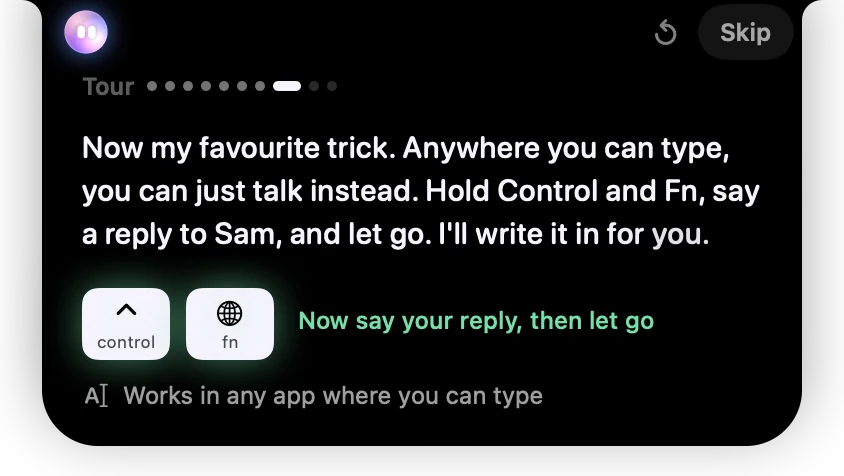
- 1The tour shows the two keys to hold, lit while you hold them.
- 2The same keys work in any app where you can type.
Change the keys, or turn dictation off
Open Settings › Shortcuts. The Dictate row shows the keys in use.
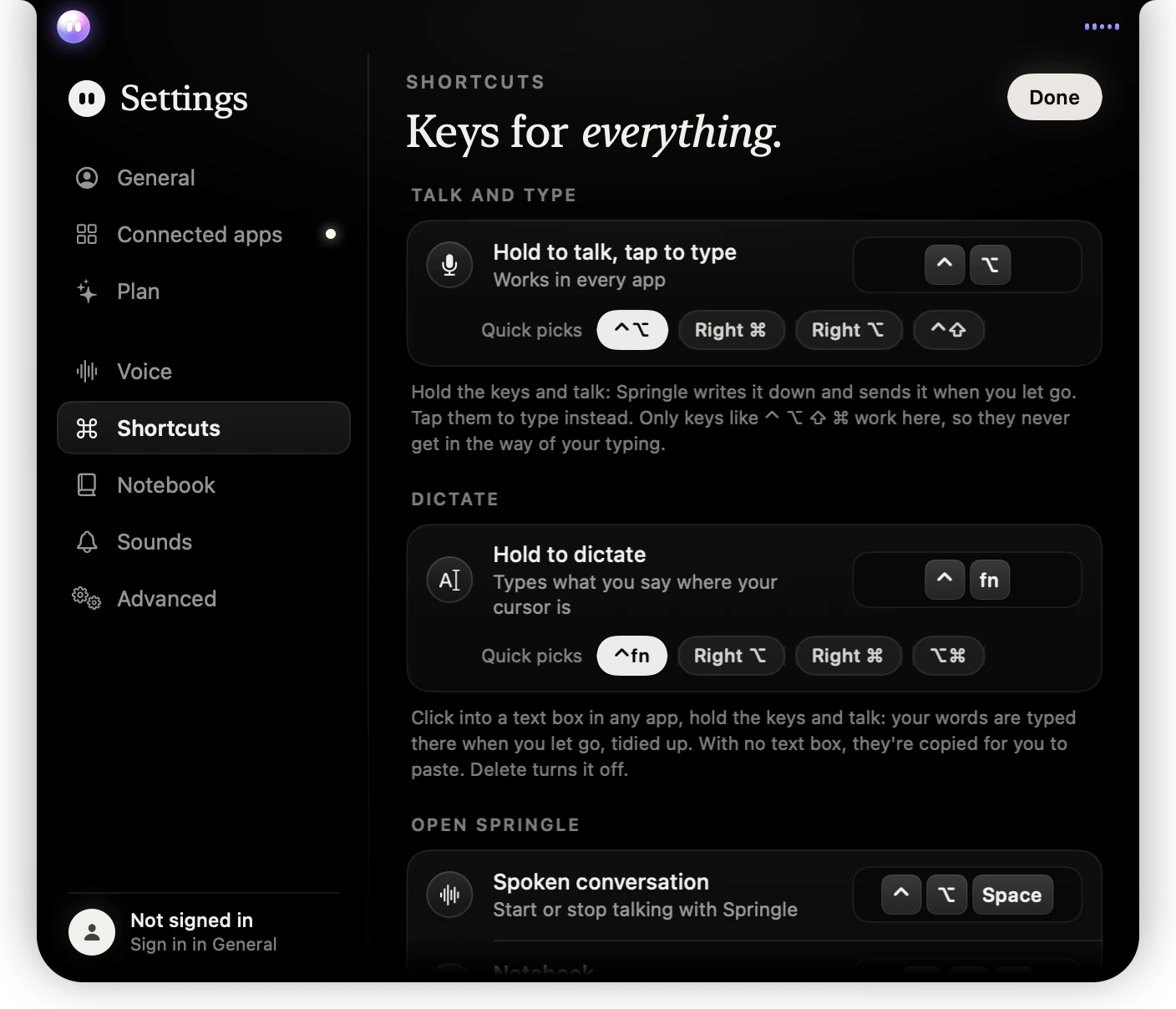
- 1Hold to dictate: click the keys, then hold the new ones and let go.
- 2Quick picks set the common choices in one click.
- To choose other keys, click them and hold the new ones, then let go. Like the talk keys, they can only be keys such as ⌃ fn ⌥ ⌘: two held together, or one on the right-hand side on its own.
- Quick picks set ⌃fn, Right ⌥, Right ⌘ or ⌥⌘ in one click.
- To turn dictation off, click the keys and press Delete. It shows Off until you choose keys again.
- To put them back, click the small arrow beside them.
Dictation can’t use the same keys as Talk. Springle says so if you try.
No Fn key? Some keyboards made for Windows don’t have one, or keep it to themselves. Choose Right ⌥ or Right ⌘ in the quick picks instead.
If it doesn’t work
- Nothing happens when you hold the keys. Check that dictation isn’t turned off in Settings › Shortcuts, and that Springle is allowed in System Settings › Privacy & Security › Accessibility. See Permissions.
- Springle doesn’t hear you. Check the microphone in Settings › Voice. More fixes are in Springle can't hear me.
- Holding Fn also opens the emoji picker or changes your keyboard language. That’s your Mac’s own use of the key. Set System Settings › Keyboard › Press 🌐 key to to Do Nothing, or choose other keys for dictation.
- The words were copied, not typed. Click into the box first, so the cursor is blinking there, then hold the keys.
Dictating doesn’t use your asks or talk time: nothing goes to Springle. Like holding ⌃⌥, your voice is written down by the same service, only once the press is clearly a hold.
Did this help?