Springle can’t hear you? Let’s fix that.
You hold the keys and talk, but nothing comes through, or Springle says its microphone is off. Here’s what to check, quickest first.
You hold ⌃ control ⌥ option, say something and let go, but nothing happens. Or Springle answers "I didn’t catch that", or tells you its microphone is off. Work through these in order. Most people are sorted by step 3.
Fixes, quickest first
- Hold the keys the whole time you talk. Press both and keep them down while you talk; a green microphone appears beside the island. Let go when you’ve finished. A quick tap opens the text box instead. Pressing another key while you hold them (Space, an arrow) turns it into a different shortcut, and nothing is sent. If you changed the talk keys in Settings › Shortcuts, use those.
- Allow the microphone if your Mac asks. The first time you hold the keys, macOS may ask whether Springle can use the microphone. Click Allow, then hold the keys again.
- Switch the microphone permission back on. If Springle says "I can’t hear you, because my microphone is off", macOS is blocking it. If the menu bar shows Finish Setting Up Springle…, choose it and press Fix it for me. Otherwise open System Settings › Privacy & Security › Microphone and switch on Springle.
- Choose the microphone you’re talking into. See Choosing the microphone below.
- Give a Bluetooth headset a moment. AirPods and other headsets can take a moment to switch their microphone on. If the start of what you say goes missing, wait a beat after pressing the keys. If the headset’s microphone won’t start, Springle uses the system default and then the Mac’s built-in microphone, so speak towards the Mac.
- Quit and reopen Springle. In the menu bar, choose Help › Quit and Reopen Springle.
Choosing the microphone
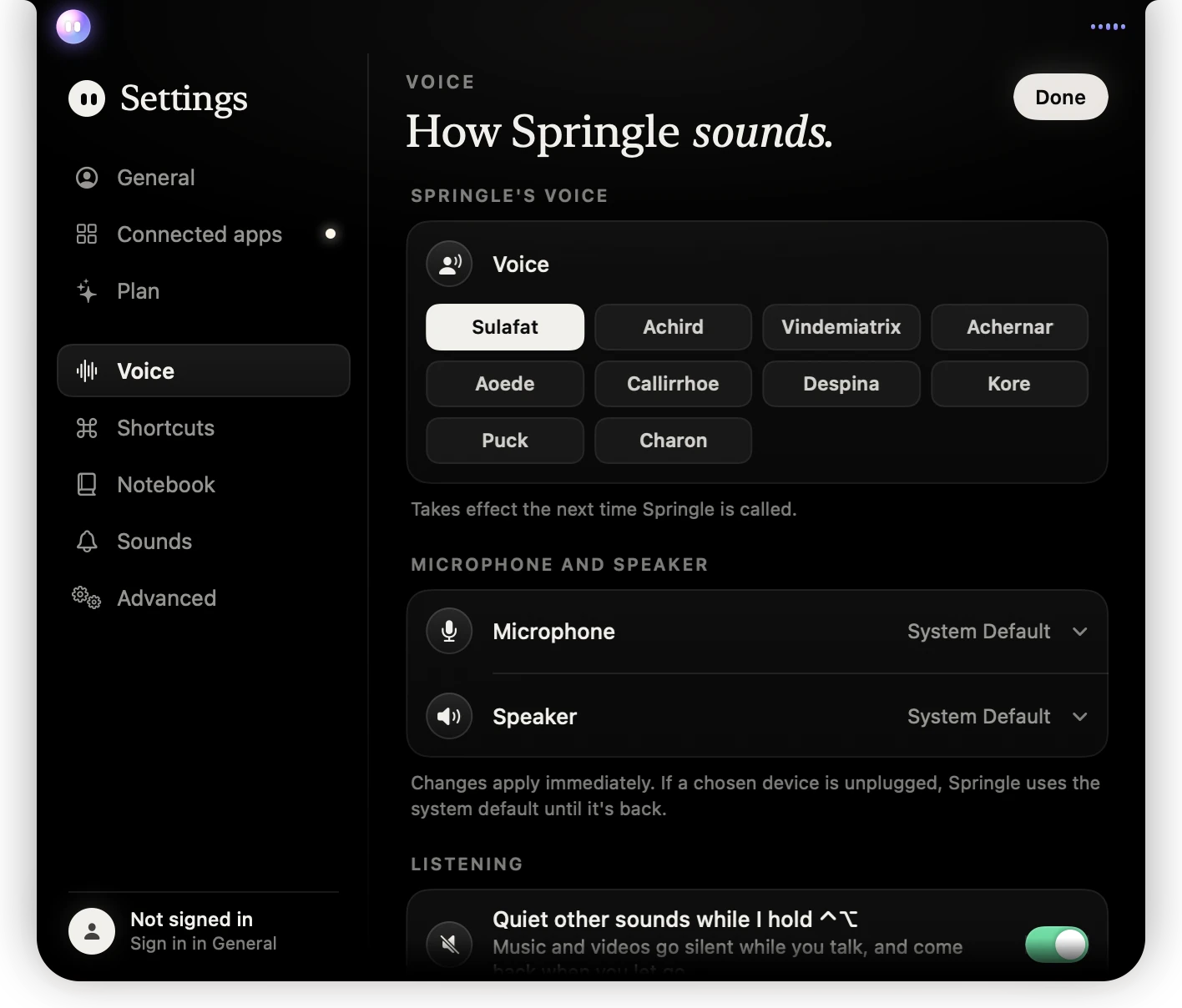
- 1Voice, in the sidebar.
- 2Microphone: pick the one you talk into. System Default follows your Mac’s own choice.
- 3Speaker: where Springle’s voice and sounds play.
- 4Quiet other sounds while you hold the keys. Leave it on, so music and videos don’t drown you out.
Open Settings from the menu bar, or point at the island and click the gear. Changes apply straight away. If the note under the list says conversations use the Mac’s default microphone, choose it in System Settings › Sound as well.
If Springle hears itself through your speakers, turn on Stop listening while Springle talks further down the page.
When the microphone is off
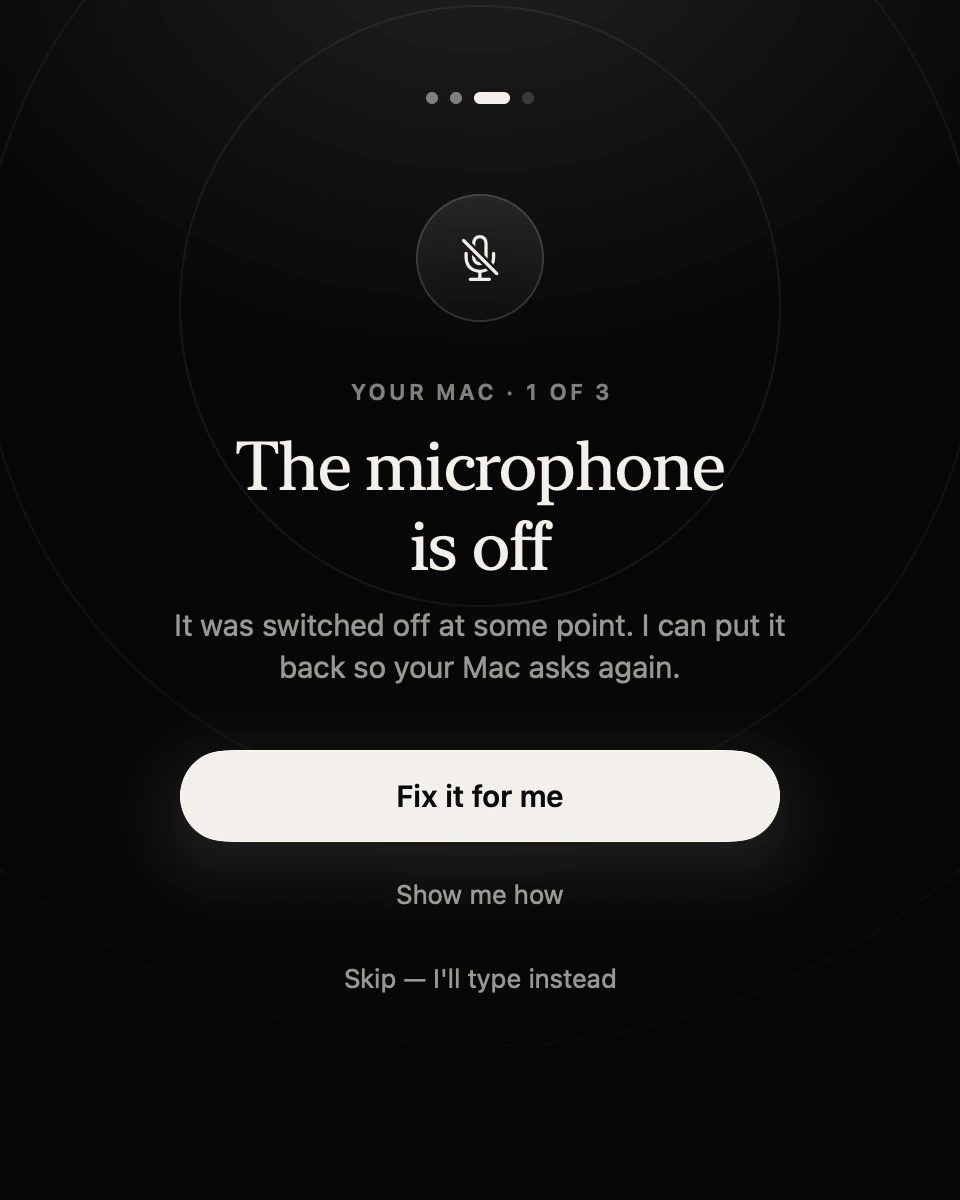
- 1Springle tells you plainly that the microphone is switched off.
- 2Fix it for me resets Springle’s own entry, so your Mac asks again. Click Allow when it does.
- 3Show me how lists the steps to do it yourself in System Settings.
- 4Skip — I’ll type instead turns Springle into typing only.
If setup says the microphone is blocked, whoever manages the Mac (work or school) has turned it off. Ask them to allow it.
"I didn’t catch that"
Springle heard the keys but no words. Hold the keys until you’ve finished your last word, then let go. A quiet voice is fine; a cough or a knock comes to nothing. If it says "I couldn’t write that down just now", the service had a hiccup: try again, or type it.
Typing only
If you chose Skip — I’ll type instead during setup, a tap of ⌃⌥ opens the text box and nothing listens. To start talking later, hold the keys and click Allow if your Mac asks. If it doesn’t ask, switch Springle on in System Settings › Privacy & Security › Microphone.
What working looks like
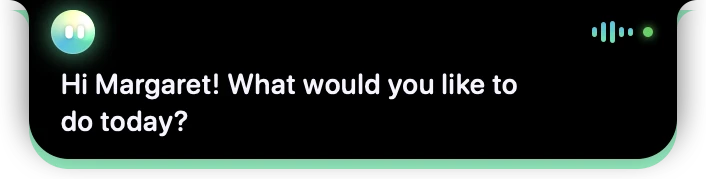
- 1The bars move as it hears your voice.
- 2Springle’s words appear under the island.
- 3The island’s lower edge glows green while it’s really listening.
While you hold the keys, a green microphone shows beside the island and your words appear as you say them. When you let go, it says "Writing it down" and sends them.
Still stuck?
Open the session log and email it to support@innoventuresai.com with the time it happened and which microphone you use. We’ll take a look.
Did this help?