Update won’t install? Restart, or start fresh.
There’s a dot on Settings, or Springle says it’s too old to keep using, and the update doesn’t seem to happen. Here’s how to finish it, or get the latest copy by hand.
Springle updates itself, quietly. It downloads a new version in the background and installs it when you step away from the Mac, so it never restarts in the middle of something. If a dot on the Settings gear won’t go away, or Springle says this version is too old, here’s what to do.
What the dot means

- 1A dot on the Settings gear means Springle has news. Violet: an update is ready. Amber: an important update, or this version is too old.
Point at the island to see the gear. Click it and Settings opens at General, where the Springle section shows your version and what’s waiting.
Fixes, quickest first
- Restart now. In Settings › General › Springle, press Restart now (or Update). Or choose Restart to Update from Springle’s menu in the menu bar. Springle closes and opens again on the new version in a few seconds.
- Finish what you’re doing first. Springle won’t restart during a conversation, a task (even a paused one), the tour or while you hold the keys. Stop or finish it, then try again.
- Step away for a while. With Update automatically on, Springle installs when you lock the Mac, it goes to sleep, or you’ve been away for about ten minutes. Leaving setup, Settings or the notebook open while you’re at the Mac makes it wait too.
- Check for updates. Choose Help › Check for Updates… from Springle’s menu. If it says "Couldn’t check just now", check your internet; Springle tries again later.
- Make sure Springle is in your Applications folder. A copy opened from Downloads or the disk image can’t update itself. If Springle offers Move to Applications, accept. Otherwise quit it, drag Springle into Applications, and open it from there.
- Download it again. Quit Springle, go to getspringle.com/download for the latest version, open the disk image and drag Springle into Applications, replacing the old one. Your notebook, settings and account stay as they were.
"Update Springle to keep using it"
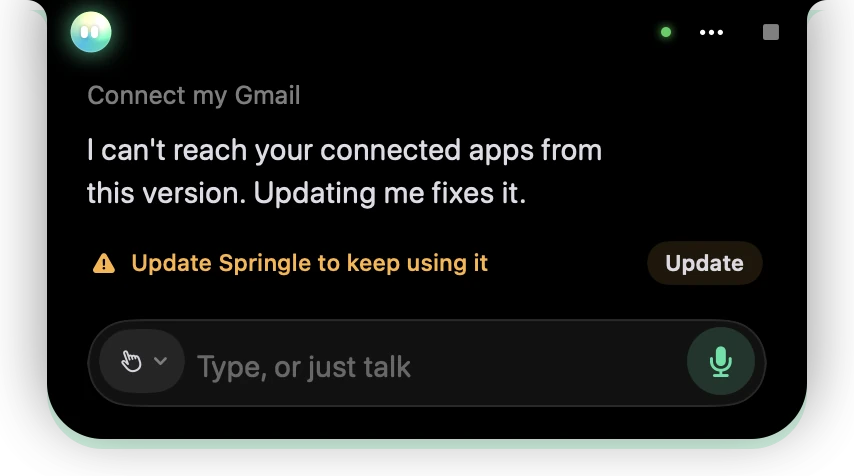
- 1An amber line: this version is too old to keep working.
- 2Update installs the new version straight away.
Sometimes an old version stops working with Springle’s service, for example with your connected apps. Springle tells you plainly, with one button. Press Update (or Check if nothing has downloaded yet). If it won’t install, download it again as in step 6.
What working looks like
After the restart, a violet dot on the gear says Springle was updated: click it to see what’s new. Settings › General › Springle shows the new version and "Up to date". The version is also at the bottom of the Help menu.
Still stuck?
Open the session log and email it to support@innoventuresai.com, with the version shown at the bottom of the Help menu. The log records each update check, download and install, so we can see where it stopped.
Did this help?