Springle keeps itself up to date.
Springle downloads updates quietly and installs them while you’re away from your Mac. Here’s what the dot by the island means, and how to update now.
Springle checks for a new version every few hours and downloads it in the background. It installs it when you’ve stepped away, restarts in a few seconds, and is back at the top of your screen before you return. It never restarts in the middle of a conversation, a task, the tour or dictation, and you don’t have to grant permissions again.
Updates are signed by Springle and checked by Apple before they install.
When you’ll see something
Most updates you’ll never notice. When there’s news, a small dot appears on the Settings gear beside the island when you point at Springle.

- 1A violet dot on the Settings gear: an update is ready, or Springle has been updated.
| Dot | Means | What to do |
|---|---|---|
| Violet | An update is downloaded and waiting | Nothing. It installs when you step away. To install now, click the gear, then Restart now. |
| Violet, after an update | Springle was updated | Click the gear to read What’s new. |
| Amber | An important update, or this version is too old | Click Restart or Update in the card. |
An update is ready
Springle installs a waiting update once your Mac has had no keyboard or mouse use for 10 minutes, or the screen is locked or asleep. If one of Springle’s windows is open (setup, Settings or the notebook), it waits until you’ve stepped away.
If you never step away, after three days Springle offers it with the violet dot and Springle 0.4.3 is ready (with the real version number). Quitting Springle also installs it.
To install it now, use any of these:
- Click the gear by the island, then Restart now in Settings › General.
- Choose Restart to Update to … from Springle’s menu bar icon.
- Ask Springle: "update yourself". It says it will be right back, and restarts.
Important updates

- 1An amber dot on the Settings gear: an important update is waiting.
For an important fix, the dot is amber and the card shows an amber line, Important update to the new version, with Restart. Click Restart to install it now. If you close the line, it comes back in an hour; meanwhile, Springle installs it the next time you’ve been away for about a minute.
After an update

- 1After an update, a violet dot on the gear. Click it to read what changed.
After an update, the gear has a violet dot. Clicking it opens Settings › General with What’s new open. You can also ask Springle "what’s new?". The dot goes once you’ve seen it, or after a day.
When a version is too old
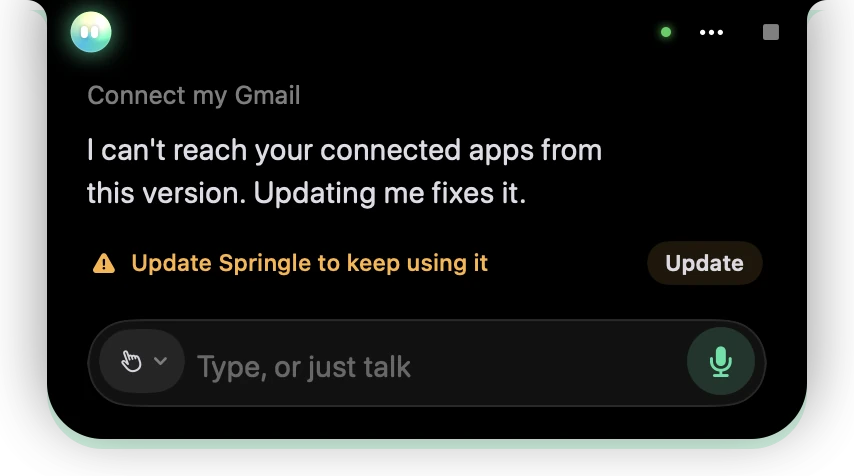
- 1Springle says what it can’t do on this version.
- 2The amber line: Update Springle to keep using it.
- 3Update installs the latest version.
Very rarely, an old version stops working with Springle’s services, for example connected apps. Springle tells you plainly, with an amber line, Update Springle to keep using it, and an Update button. This line can’t be dismissed. Click Update, and Springle restarts on the new version.
Settings › General › Springle
At the bottom of Settings › General:
- Version, and whether you’re up to date: Up to date, checked 2 hours ago, Downloading the update…, or Springle 0.4.3 is ready. It installs when you step away.
- Check now, or Restart now when an update is waiting.
- Update automatically. On by default. Off, Springle still tells you when there’s an update, and you install it with Update.
- Try early versions. New things a day or two before everyone else. Turn it off to go back to regular updates from the next version.
- What’s new in the version you’re on, after an update.
You can also choose Check for Updates… from the Help submenu of Springle’s menu bar icon. The answer shows in Settings › General. Or ask Springle, "are you up to date?"
Keep Springle in Applications
Springle can only update itself from your Applications folder. If you open it from somewhere else, such as Downloads, it offers to move itself: click Move to Applications. If that doesn’t work, drag Springle into Applications in Finder, then open it from there.
If an update won’t install, see Update won't install.
Did this help?