Your Springle account. One Google sign-in.
Signing in with Google, signing out, deleting your account, and what follows you from one Mac to another.
Your Springle account is how Springle knows your plan, your connected apps and a few details about you. You sign in with Google; there’s no separate password.
Sign in with Google
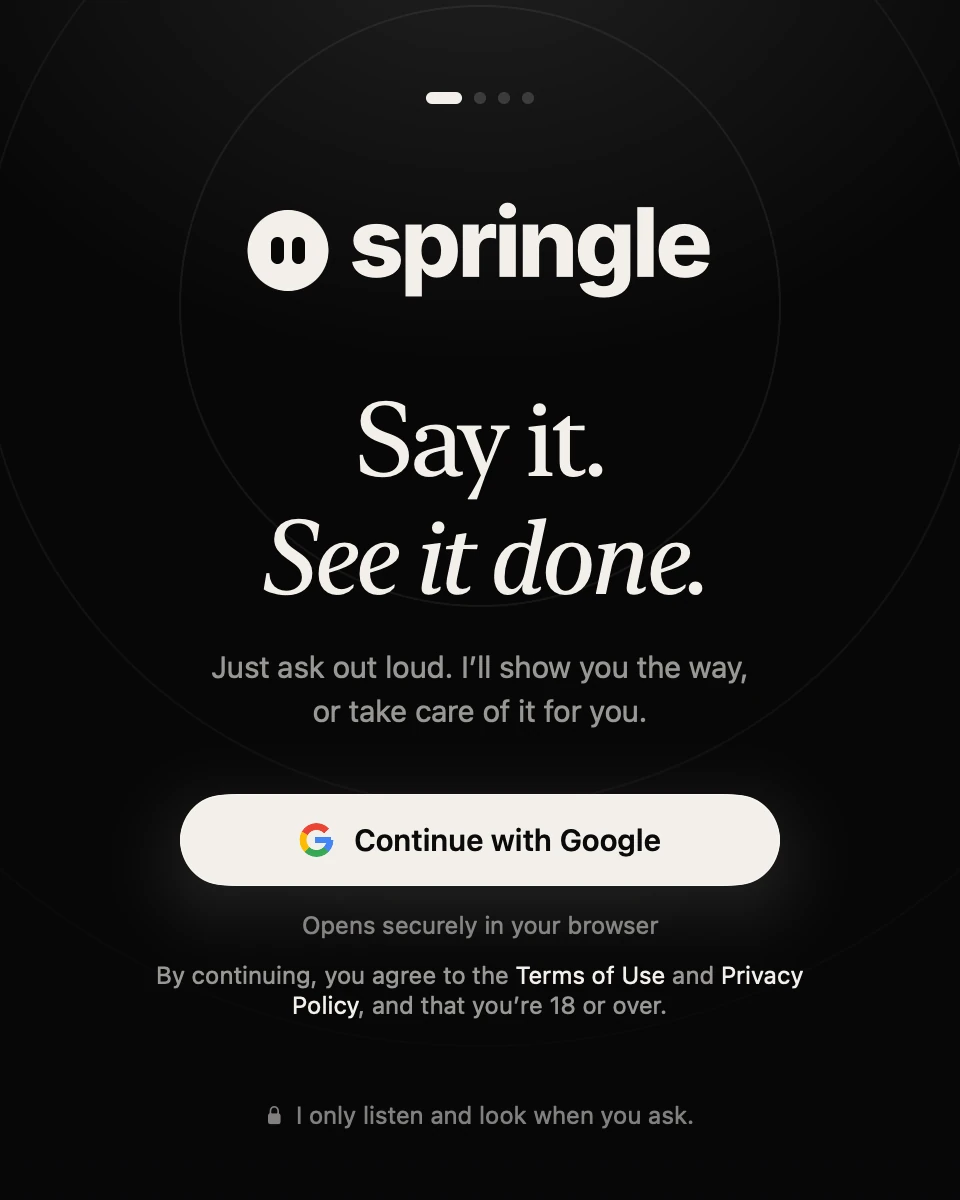
- 1Continue with Google opens Google’s sign-in in your browser.
- 2Continuing means you agree to the Terms and Privacy Policy, and that you’re 18 or over.
- In setup, click Continue with Google. If you skipped it, use Sign In with Google… in the menu bar, or Continue with Google at the top of Settings › General.
- Choose your Google account in the browser and allow it.
- Springle picks up where you left off.
Google is the only way to sign in to Springle. Signing in shares your name and email address with Springle. It doesn’t give Springle access to your Gmail, Calendar or Drive; each of those connects separately, and only when you approve it.
Springle stays signed in when you quit or restart your Mac. If your sign-in ever ends on Springle’s side, Springle says Your sign-in has ended and opens setup at sign-in.
See who’s signed in
- Settings › General: the card at the top shows your email, your plan and the talk time you have left, with Sign Out.
- The menu bar: click Springle’s icon. Your email is near the bottom; its submenu has Your Plan…, Sign Out… and Delete Account…
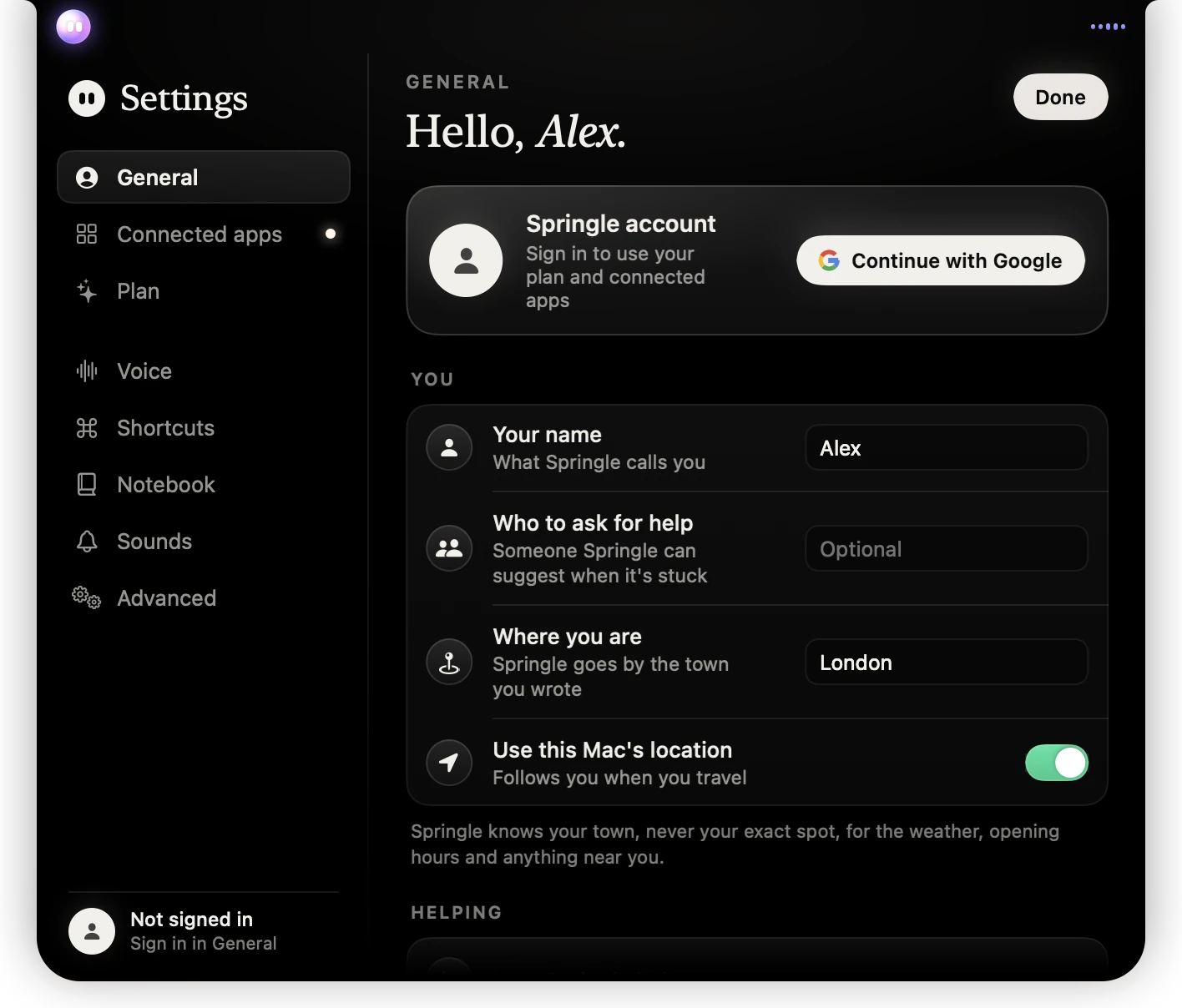
- 1Signed out, the card at the top of General offers Continue with Google.
- 2The foot of the sidebar shows who’s signed in, or Not signed in.
Sign out
Click Sign Out in Settings › General, or Sign Out… in the menu bar and confirm.
- Any conversation stops, and setup opens at the sign-in screen.
- Your notebook stays on this Mac.
- Your plan, connected apps and Springbase link wait for you. Sign back in with the same Google account to pick them up.
- Nothing is sent to your connected apps or to Springbase while you’re signed out.
To use a different Google account, sign out, then sign in with the other one. When someone else signs in on the same Mac, Springle forgets the last person’s name, so nobody is greeted by the wrong name.
Delete your account
- Click Springle’s menu bar icon, then your email address, then Delete Account…
- Read what goes and what stays, then click Delete Account.
What’s deleted: your Springle profile, your plan details and this month’s use, your family membership and trusted helper. Your connected apps are disconnected. This can’t be undone.
What stays: your notebook, on this Mac. Paddle, which handled any payments, keeps its own receipts.
Cancel a paid plan first. If your plan would renew, Springle says Cancel your plan first and offers Manage Plan. Cancel it there, then delete your account. See Upgrade, switch or cancel.
Your Springbase account is separate. To remove this Mac from it, disconnect Springbase in Settings › Connected apps before you delete your Springle account, or remove it in Springbase under Connected devices.
Using Springle on another Mac
Install Springle on the other Mac and sign in with the same Google account. Here’s what comes with you and what doesn’t:
| Follows your account | Stays on each Mac |
|---|---|
| Your plan and this month’s use | Your notebook (unless it’s in iCloud Drive) |
| Connected apps | Your Springbase link |
| Your name and birthday from setup, so it doesn’t ask again | Voice, shortcut, sound and other settings |
| Whether you’ve seen the tour and the plan step | Who to ask for help |
| Your family and trusted helper | Permissions such as Microphone and Screen Recording |
Want the same notebook everywhere? Turn on Keep the notebook in iCloud Drive in Settings › Notebook. Your notebook then appears on your other Macs, and in the Files app on iPhone and iPad. See The notebook.
Each Mac needs its own permissions; setup walks you through them. See Permissions.
Did this help?