Two people, one plan. Someone looking out.
Springle Family covers two people, each on their own Mac, with shared talk time and scam alerts to a trusted helper. Here’s how to set it up, including for someone else.
Springle Family is for two people who know and trust each other, like you and a parent. Each person uses Springle on their own Mac with their own Google account. Together you get everything in the Springle plan, 4 hours of talk time a month to share, and scam alerts to a trusted helper.
What’s included
| Springle Family | |
|---|---|
| Price | $24.99 a month, or $219 a year |
| People | 2: the person who pays (the owner) and one person they invite |
| Asks | Unlimited for both of you (fair use) |
| Talk time | 4 hours a month, shared between you |
| Explanations | Unlimited |
| Connected apps | Yes, each person connects their own |
| Scam alerts | Emailed to a trusted helper |
You can see each other’s name and email address, and you share one pool of talk time. You can’t see each other’s conversations, screens or notebooks.
Set it up
- Buy Springle Family. In Settings › Plan, click Choose Family, or pick it in setup’s plan step. Checkout opens in your browser. See Upgrade, switch or cancel.
- Get a code. Back in Settings › Plan, under Family, click Get a code next to Invite someone. Click Copy and send the code to the other person.
- They join on their Mac. They install Springle, sign in with their own Google account, then go to Settings › Plan › Join a family, type the code and click Join. During setup, they can use Have a family invitation code? on the plan step instead.
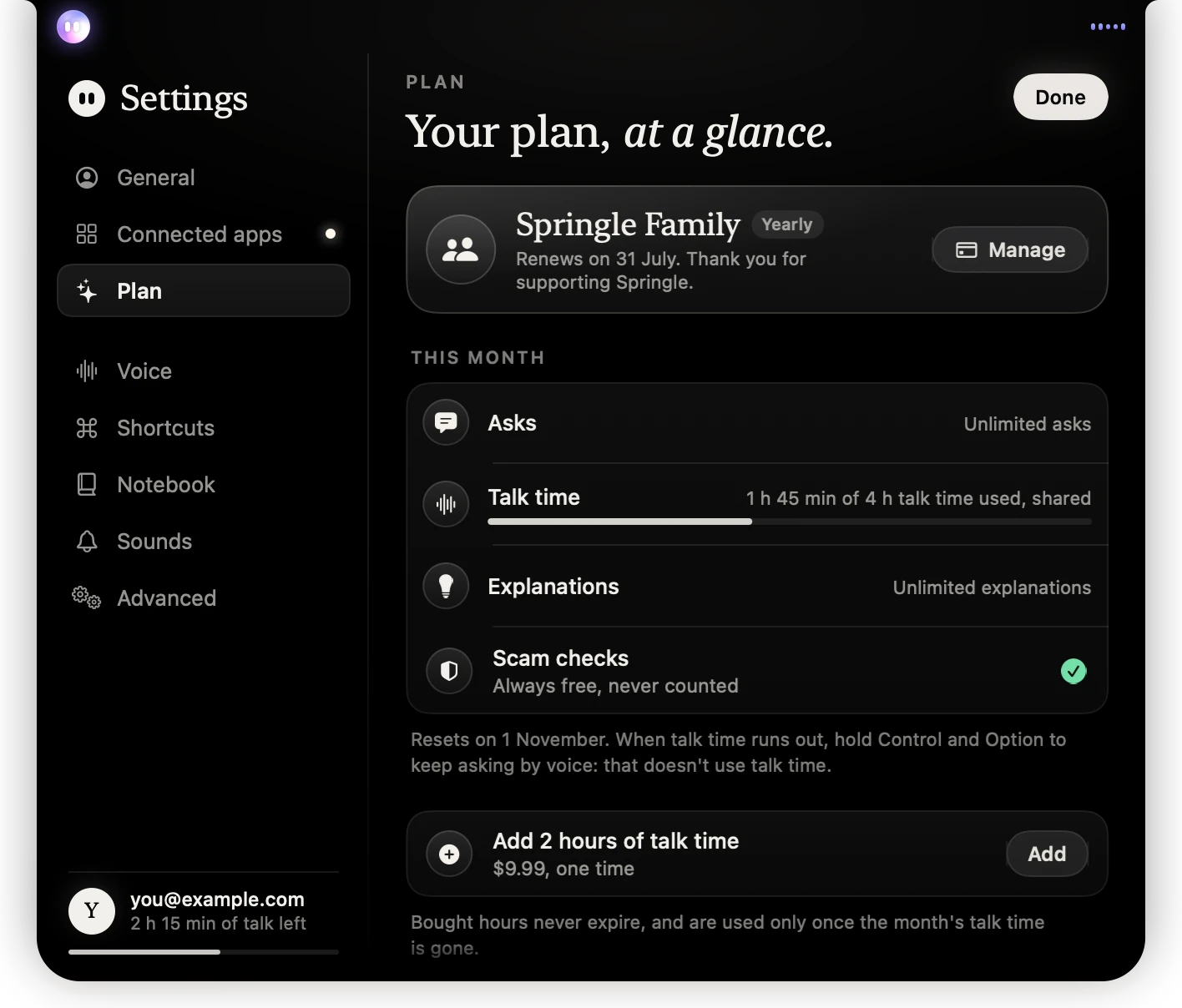
- 1Springle Family, yearly, with the date it renews.
- 2Manage opens Paddle’s page for payment details and cancelling.
- 3Talk time used this month, shared by both of you.
- 4Add 2 hours of talk time if you need more this month.
Codes are 8 letters and numbers, work for 7 days, and can be used once. Joining costs the other person nothing: their plan becomes Springle Family straight away.
Setting it up for someone else
If you’re buying Family for a parent or someone you look after:
- They need their own Google account and their own Mac. You can’t share one Springle account between two people.
- Install Springle on their Mac and go through setup with them. They sign in with their Google account; you don’t need to be signed in there.
- Use the code you got from Get a code to join your family from their Mac.
- Help them choose a trusted helper (below). It’s their choice, made on their Mac.
You manage the payment from your own Mac. Their plan follows yours.
Trusted helper and scam alerts
If Springle spots a likely scam, such as a fake pop-up or a suspicious email, it stops, and with Springle Family it can email a trusted helper about it.
To set one up, on the Mac of the person being helped:
- Open Settings › Plan › Trusted helper.
- Type the helper’s name (optional) and email address, then click Save helper.
- Turn on Scam alerts.
The alert says what Springle noticed, never what’s on the screen. Springle sends at most a few alerts an hour. Only add someone who has agreed to get these emails, and you can remove the helper or turn alerts off at any time.
If the invited person hasn’t chosen a helper of their own, their alerts go to the owner’s Google email address.
Talk time on Family
Both of you draw from the same 4 hours each month. Settings › Plan shows the total used, marked shared. Either of you can buy a talk top-up. Each person uses their own bought hours first, then the owner’s.
Leaving or removing someone
- The invited person can click Leave under their family in Settings › Plan. They go back to the Free plan.
- The owner can click Remove next to the other person’s name. They go back to the Free plan, and the seat is free for a new code.
- If the owner cancels, Family ends at the end of the period already paid for, and both people move to Free.
Switching from Springle to Family is covered in Upgrade, switch or cancel.
Did this help?