Settings, tab by tab.
What each of the eight Settings tabs holds, and what every option does, in plain words.
Springle’s Settings open inside the island, in the same dark style as the rest of Springle. To open them:
- Point at the island and click the gear.
- Choose Settings… from Springle’s menu in the menu bar.
- In the card, click ⋯ and choose Settings….
Changes save as you make them, so there’s nothing to confirm. Click Done, press esc, or click outside Settings to close them.
The tabs run down the left. The first three are about you: your account, your apps and your plan. The rest are about how Springle behaves. At the bottom of the sidebar you’ll see who’s signed in and how much talk time is left this month. Click it to go to your plan.
General
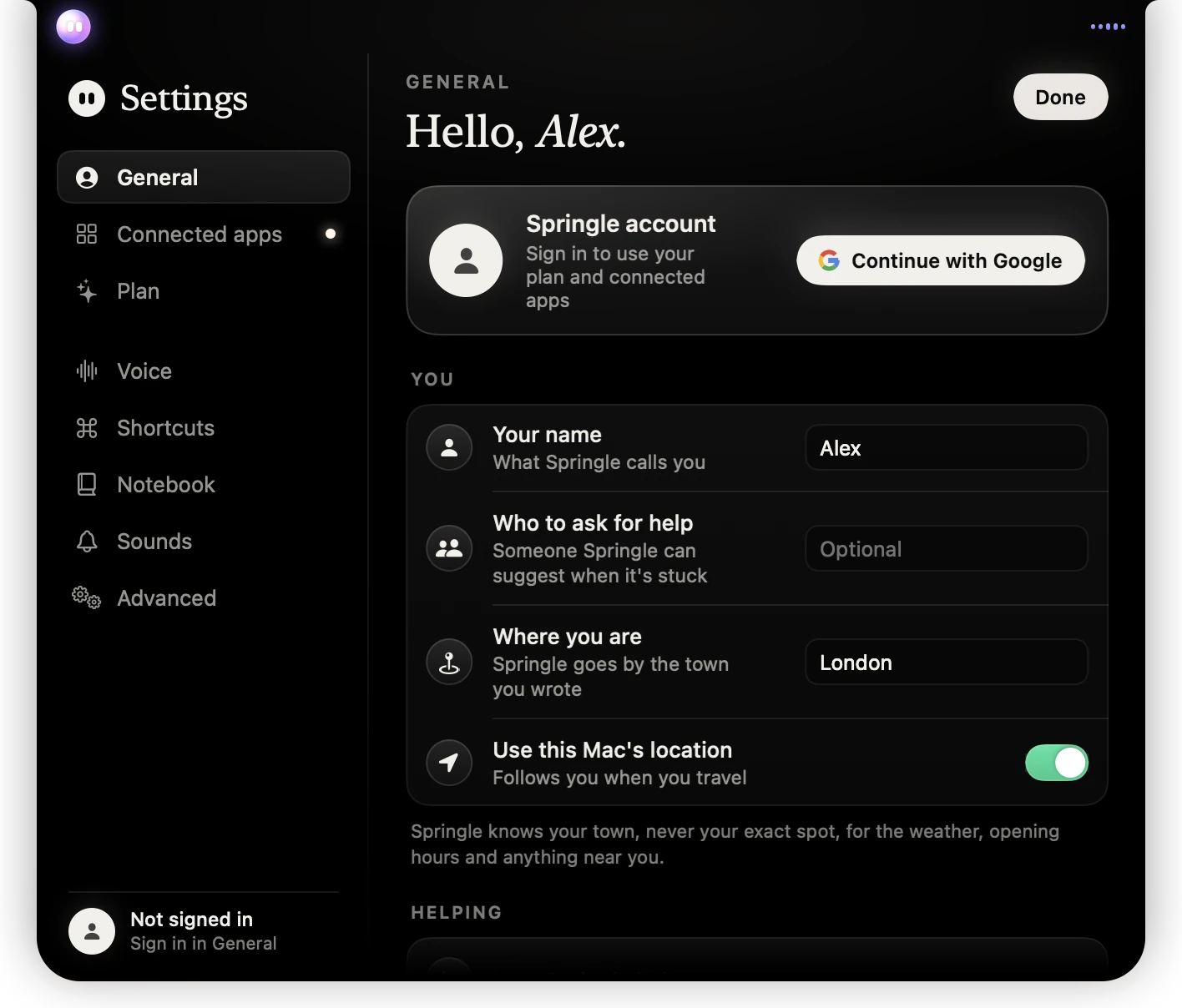
- 1The tabs. General is open.
- 2Your Springle account. Continue with Google signs you in; then it shows your email, your plan and Sign Out.
- 3Your name, and someone Springle can suggest you ask when it’s stuck.
- 4Where you are: your town, written by you or found from this Mac’s location.
- 5Who’s signed in, or Not signed in. Once you are, it shows how much talk time is left.
Account. Shows the Google account you’re signed in with and Sign Out, or Continue with Google if you’re not signed in. Underneath is your plan, how much talk time is left, and a Plan or Upgrade button.
You
- Your name: what Springle calls you.
- Who to ask for help: optional. The name of someone Springle can suggest you ask when it’s stuck.
- Where you are: your town, for the weather, opening hours and anything nearby. Leave it empty to let Springle work it out, or write your town.
- Use this Mac’s location: lets Springle find your town from the Mac’s location, so it follows you when you travel. Springle only ever knows your town, never your exact spot.
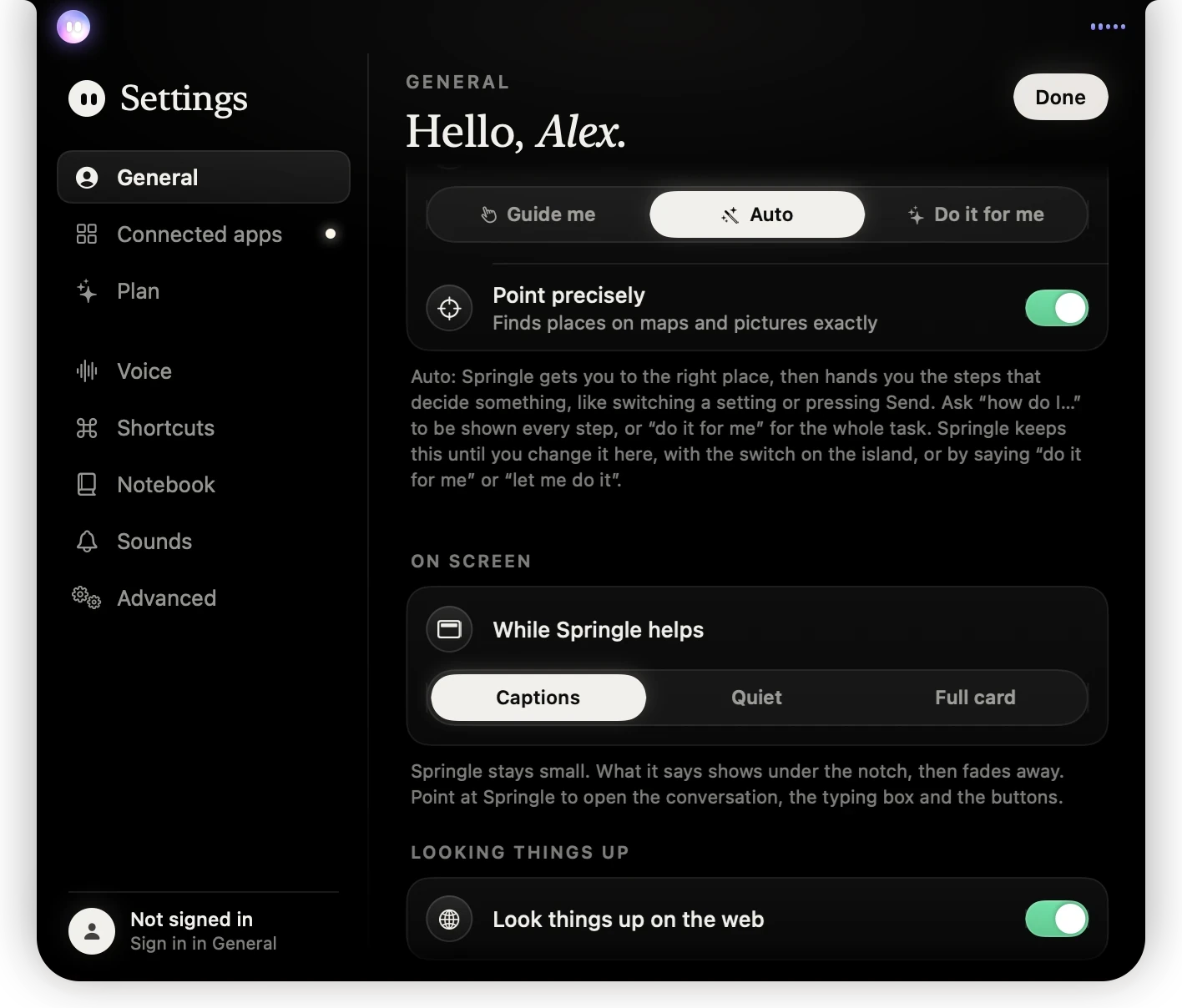
- 1How Springle helps: Guide me, Auto or Do it for me. Auto is chosen here.
- 2Point precisely, for maps and pictures.
- 3While Springle helps: Captions, Quiet or Full card.
- 4Look things up on the web.
Helping
- How Springle helps: Guide me (Springle shows each step, you click), Auto (Springle gets you to the right place, then hands you the steps that decide something, like pressing Send) or Do it for me (Springle clicks and types while you watch). Springle keeps your choice until you change it here, with the chip in the card, or by saying "do it for me" or "let me do it". See Guide me, Auto and Do it for me.
- Point precisely: finds places on maps and pictures exactly. To do it, Springle sends a small picture of the part of the screen it’s pointing at to an AI service, with password boxes blanked out.
On screen
- While Springle helps: Captions (Springle stays small, and what it says shows under the island, then fades), Quiet (no words, only what it’s doing; its voice says the rest) or Full card (the whole conversation, the box and the buttons stay open). See Captions, quiet or the card.
Looking things up
- Look things up on the web: for current how-to steps, checking whether a message or caller is genuine, and quick facts. Only a short search leaves your Mac, never your screen, with names, email addresses and card or account numbers taken out first. Springle shows where each answer came from, and asks before opening or typing anything a web page suggests. See Looking things up.
Starting up
- Open Springle when my Mac starts: Springle waits in the menu bar from the moment you log in. If it’s switched off in System Settings, a row says so with Open Login Items.
Springle
- Version: which version you have and whether it’s up to date, with Check now, or Restart now when an update is ready.
- Update automatically: installs updates while you’re away, never in the middle of something.
- Try early versions: get new things a day or two before everyone else.
- What’s new: the notes for the latest version, when there are some.
See Keeping Springle up to date.
Connected apps
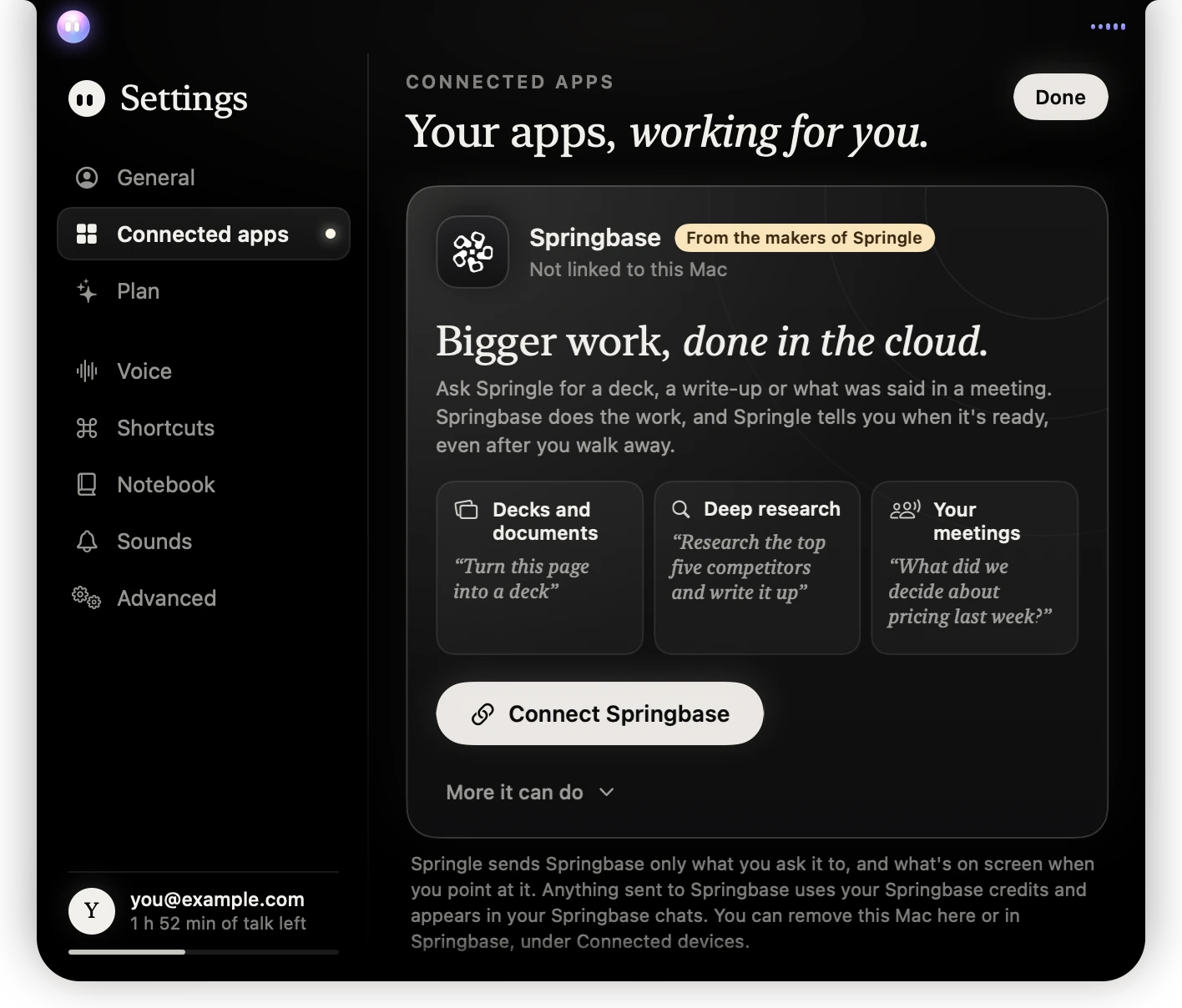
- 1Springbase, from the makers of Springle, not yet linked to this Mac.
- 2A few of the bigger jobs Springbase does, with things you could say.
- 3Connect Springbase links it to this Mac.
- 4More it can do lists the rest.
- 5What Springle sends to Springbase, and what it costs.
Springbase. Springbase does bigger work in the cloud, like decks, write-ups, deep research and what was said in your meetings, and Springle tells you when it’s ready.
- Connect Springbase: opens your browser with a code. Check the code matches the one in Settings, then press Connect there.
- Once linked, the row shows your Springbase account and credits, with Disconnect.
- Send what’s on screen: When I say "this" (requests about what’s on screen, like "turn this into slides", take the page or window with them; otherwise Springle asks), Ask each time, or Never (your words only). Password boxes are never sent.
- Say when tasks finish: Springle tells you out loud when a Springbase task is done, unless it’s already talking with you.
Work you send to Springbase uses your Springbase credits and appears in your Springbase chats. See Springbase.
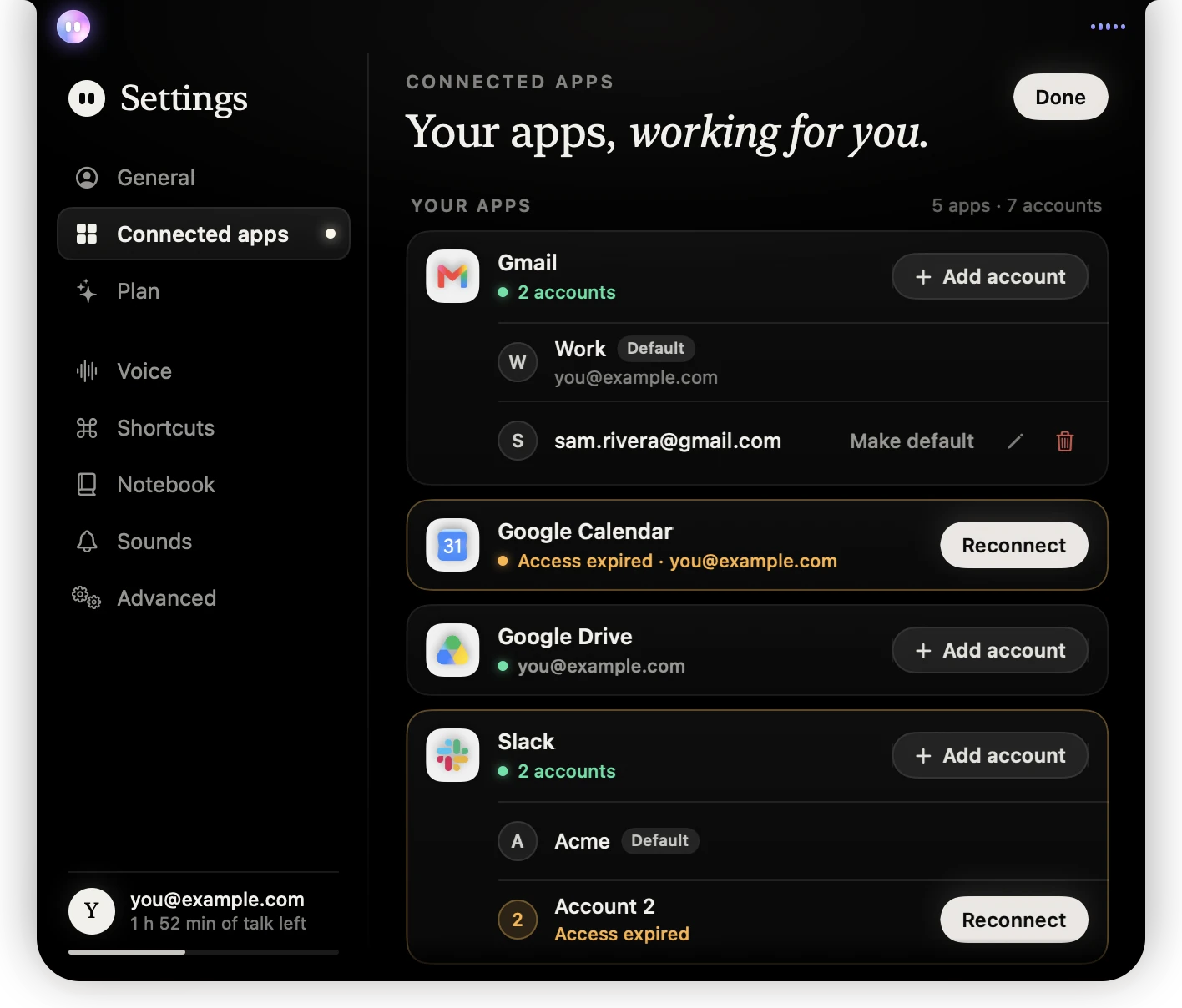
- 1A connected app, Gmail, with two accounts.
- 2Add account connects another account of the same app.
- 3Point at an account to make it the default, rename it or remove it.
- 4Google Calendar’s access has expired. Reconnect puts it right.
Your apps. Each app you’ve connected has a card, with its accounts listed under it when it has more than one. Add more, below, lists popular apps to connect, and All … apps shows every app Springle can connect to, with a search box.
- Connect: click an app under Add more to give Springle access to it. Your browser opens; finish there and come back.
- Add account: connects another account of the same app, like a work and a personal Gmail.
- Make default: the account Springle uses when you don’t say which. Point at an account to see it.
- Rename: the pencil beside an account. A name like Work is easier to ask for than an email address.
- Remove: the bin beside an account, or beside the app’s name for all its accounts. It asks once more before it does.
- Reconnect: shows when an app’s or an account’s access has expired.
Each app connects on its own. Signing in with Google doesn’t give Springle access to your Gmail or Drive. Connected apps need a paid plan; on Free, a note explains this and links to your plan. If you’re not signed in, this tab asks you to sign in first. See Connect your apps.
Plan
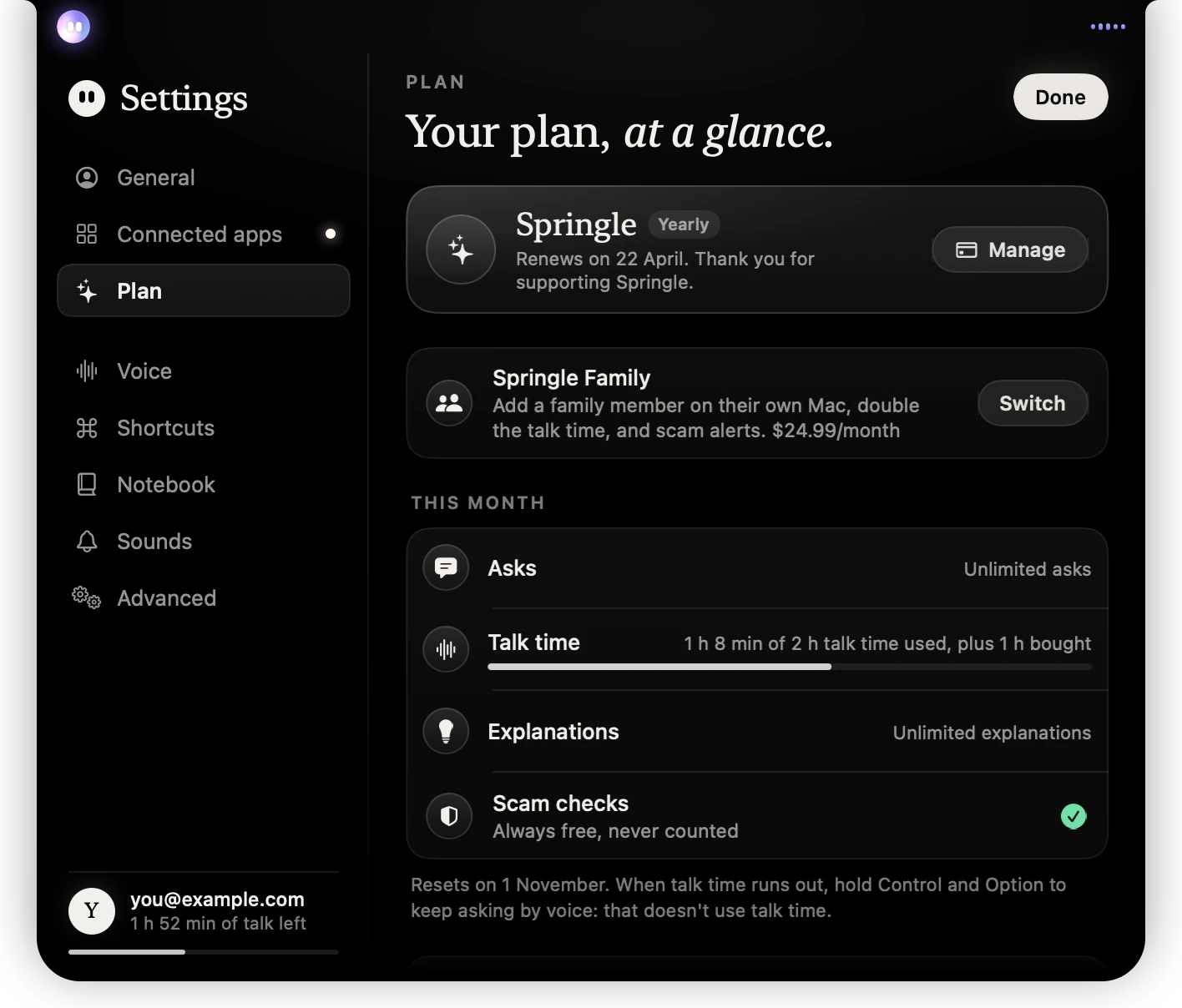
- 1Your plan, how it’s billed and when it renews.
- 2Manage opens your billing page, to change your card or plan.
- 3On the Springle plan, you can switch to Springle Family.
- 4This month: asks, talk time, explanations and scam checks.
- Your plan: the plan you’re on and when it renews or ends. Manage opens your billing page in the browser.
- On the free plan, the paid plans come first, with Yearly and Monthly prices and a button to upgrade. Checkout opens in your browser.
- This month: how many asks, how much talk time and how many explanations you’ve used, and when they reset. Scam checks are always free and never counted.
- Add 2 hours of talk time: buy more talk time. Bought hours never expire, and are used only once the month’s talk time is gone.
- Family (on Springle Family): who’s in your family, Invite someone to get a code for them, or Leave if you joined someone else’s.
- Trusted helper (on plans that include it): a name and email for someone Springle emails if it stops a likely scam. It tells them what it noticed, never what’s on your screen.
- Join a family: type an invitation code from someone with Springle Family.
- Compare every plan on getspringle.com opens the pricing page.
See Plans, Talk time and Springle Family.
Voice
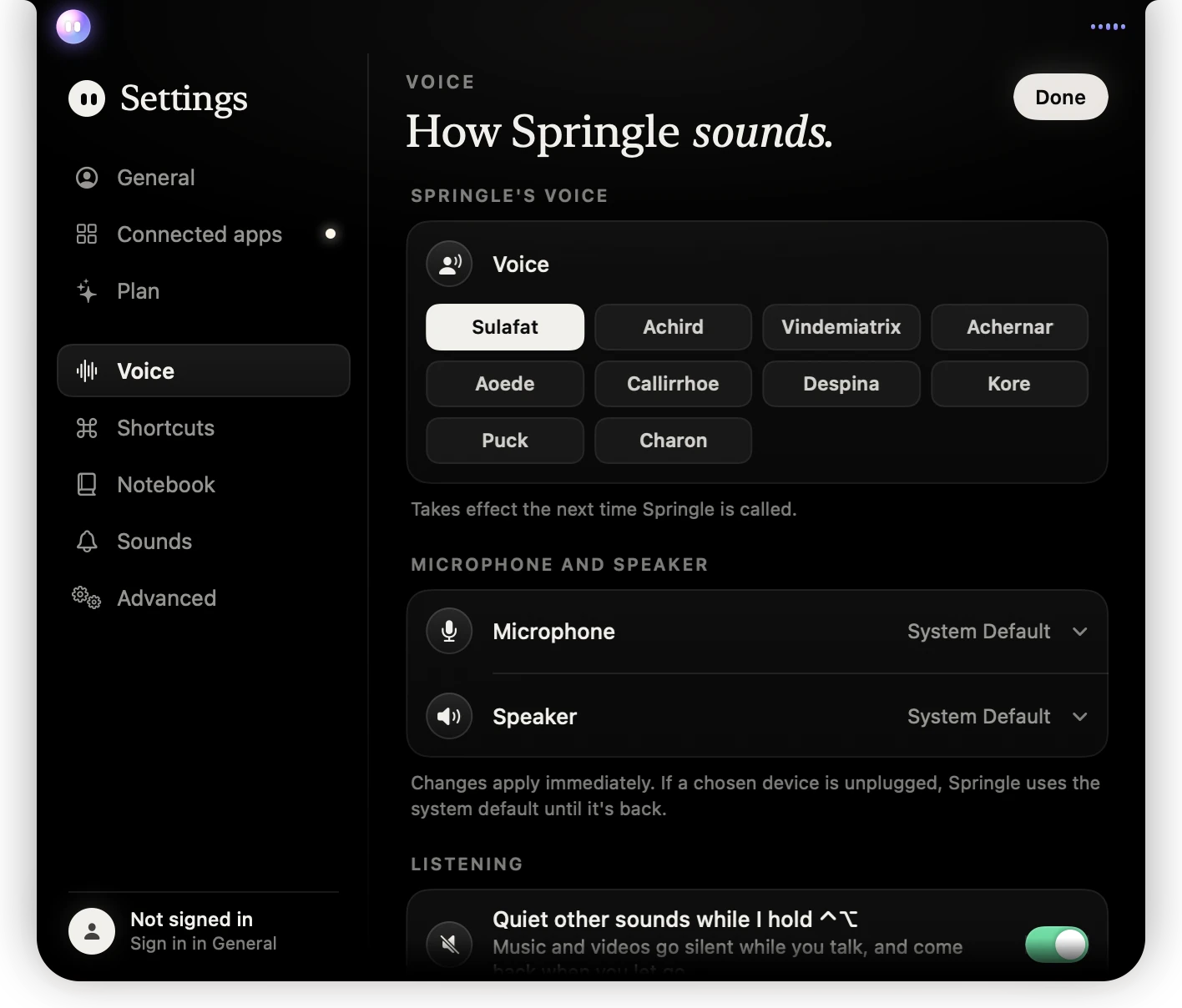
- 1Springle’s voices. The one in white is chosen.
- 2Which microphone and speaker Springle uses.
- 3Listening options start here, with Quiet other sounds while you hold ⌃⌥.
Springle’s voice
- Voice: choose how Springle sounds. The change applies the next time you call Springle.
Microphone and speaker
- Microphone and Speaker: System Default, or a particular one. Changes apply immediately. If the one you chose is unplugged, Springle uses the system default until it’s back.
Listening
- Quiet other sounds while I hold ⌃⌥: music and videos go silent while you talk, and come back when you let go. It works while you hold the dictation keys too, and shows your own talk keys if you changed them.
- Stop listening while Springle talks: switch this on if Springle hears itself, for example on speakers without headphones.
- Pause before answering: how long Springle waits after you stop talking before it answers, from 0.7 to 2 seconds. Make it longer if Springle jumps in while you’re still thinking.
Shortcuts
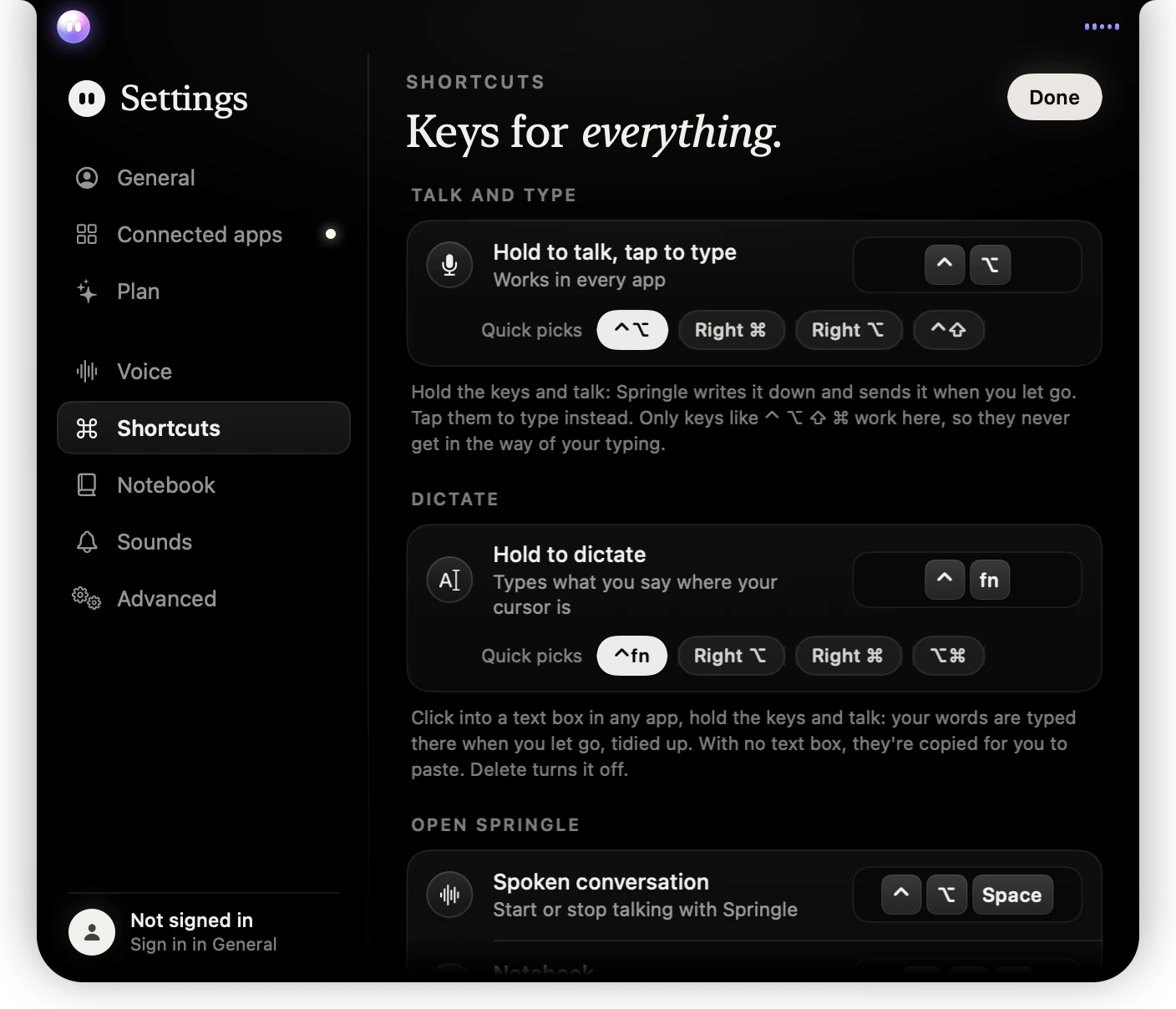
- 1Hold to talk, tap to type: the keys set now.
- 2Quick picks for the talk keys.
- 3Hold to dictate: the keys you hold to type by voice.
- 4The Spoken conversation, Notebook and Circle to ask shortcuts.
- Hold to talk, tap to type: the keys you hold to ask out loud and tap to type. Click it and hold the new keys, or use a Quick pick: ⌃⌥, Right ⌘, Right ⌥ or ⌃⇧.
- Hold to dictate: the keys you hold to have what you say typed into the text box you’re in (⌃fn to begin with). Click it and hold the new keys, or use a Quick pick: ⌃fn, Right ⌥, Right ⌘ or ⌥⌘. Delete turns dictation off. See Dictate with ⌃fn.
- Spoken conversation, Notebook and Circle to ask: click one and press the new keys. esc cancels, and Delete turns it off.
- Restore Standard Shortcuts: puts every shortcut back.
The full list of keys, and which combinations Springle won’t take, is in Keyboard shortcuts.
Dictation
- Keys: the keys you hold to dictate. Change takes you to Shortcuts.
- Listen for the names on my screen: the people, places and code around your cursor are spelled right when you dictate. Only those names go with what you say, and nothing is kept. On to begin with.
- Finishes: Springle’s own (Tidy, Shorter, Prompt, Email, Translate), each with a switch, the language Translate types in, and the finishes you made. Open Finishes opens the Finishes window, where you make, change and try them; click any finish to open it there. Show finishes while I talk shows their letters at your cursor; Offer finishes from my changes lets Springle offer one when you keep changing dictated words the same way. See Finishes.
- Words I know: the words Springle learned when you corrected a name it typed, the ones you added, and the names from About you. Click ✕ to make it forget one, or type a name and click Add. They stay on this Mac.
See Dictate with ⌃fn.
Notebook
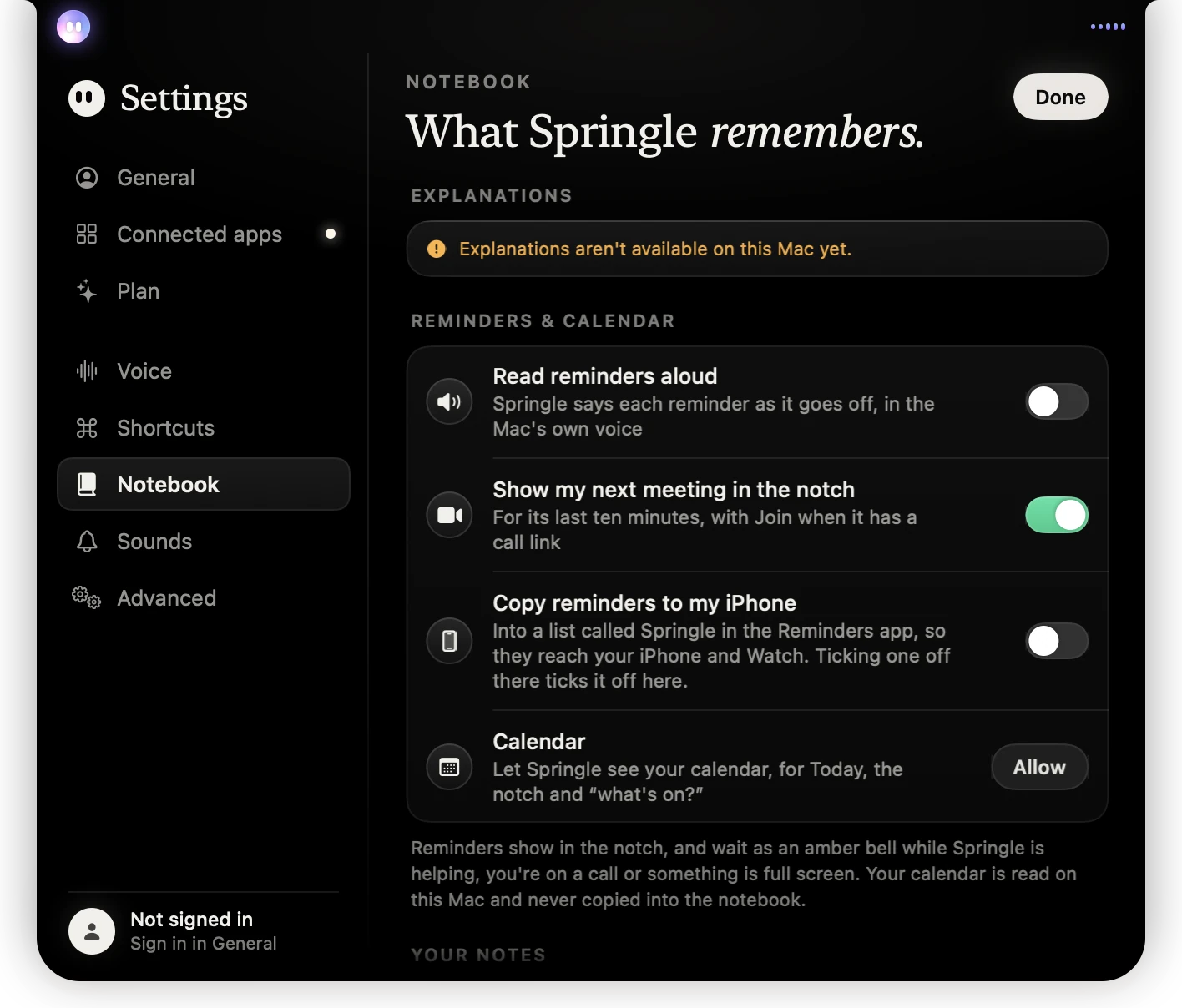
- 1Explanations. Here, a note says they aren’t available on this Mac yet.
- 2Reminders read aloud, your next meeting on the island, and reminders on your iPhone.
- 3Calendar: Allow lets Springle see your events.
Explanations. A note on what’s sent when Springle goes deeper or writes an explanation: only your question, its own short answer, a short description of what matters on screen with names and numbers taken out, and the facts you kept about yourself.
Reminders & calendar
- Read reminders aloud: Springle says each reminder as it goes off, in the Mac’s own voice.
- Show my next meeting on the island: for its last ten minutes, with Join when it has a call link.
- Copy reminders to my iPhone: puts them in a list called Springle in the Reminders app, so they reach your iPhone and Watch. Ticking one off there ticks it off here.
- Calendar: Allow lets Springle see your events, for Today, the island and "what’s on?". Once allowed, each of your calendars has its own switch, so you can hide any you don’t want shown.
Reminders wait as an amber bell while Springle is helping, while you’re on a call or while something is full screen. Your calendar is read on your Mac and never copied into the notebook.
Your notes
- Move notes to Older notes after 30 days: keeps the notebook tidy. Pinned notes stay.
- Answer questions from my notes: when you ask your notebook something, the few notes that match go to the explaining model, and the answer shows which ones it used. Off, Springle only searches them on your Mac.
- Keep the notebook in iCloud Drive: the same notebook on your other Macs, and in the Files app on iPhone and iPad. iCloud Drive must be on in System Settings.
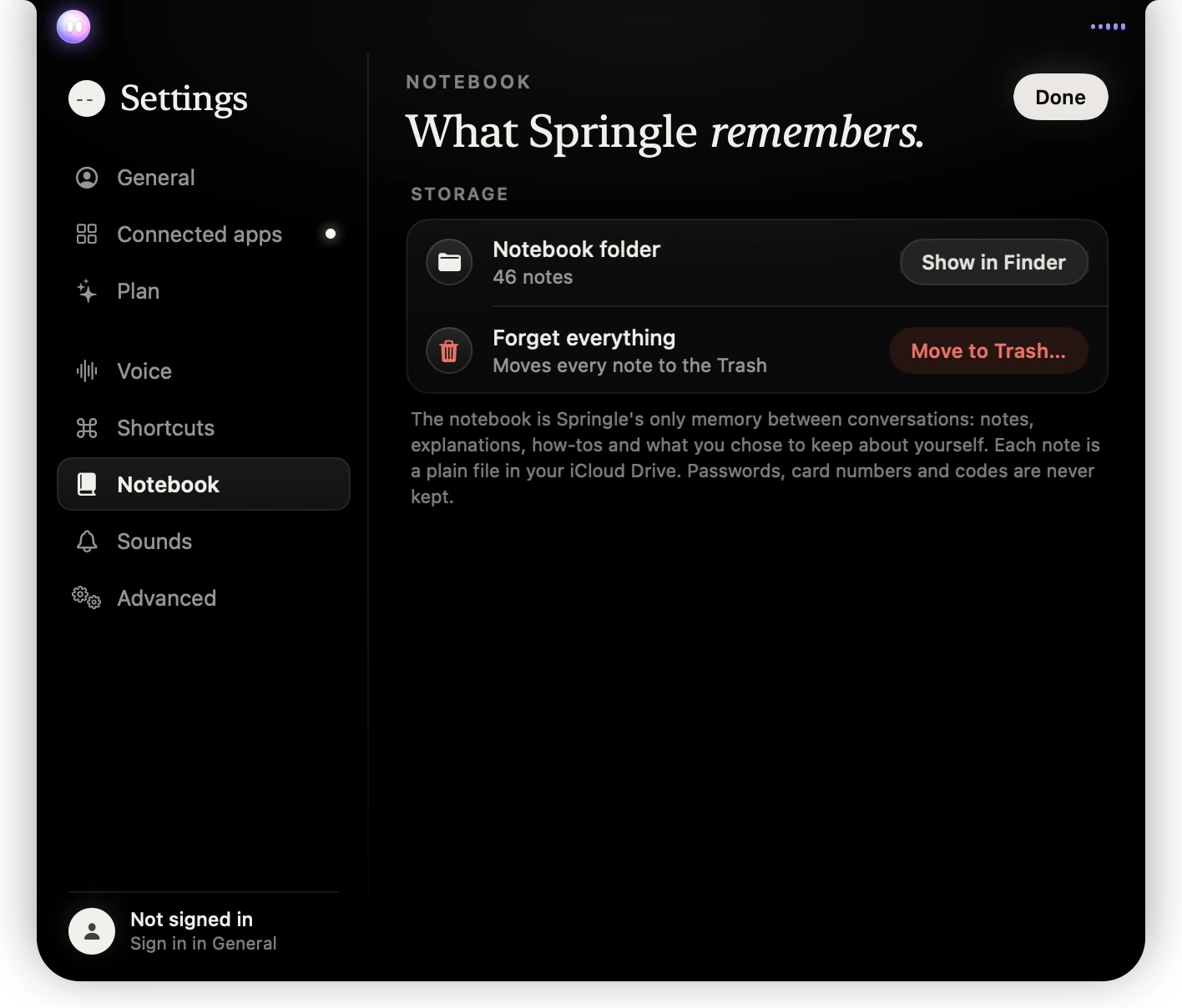
- 1Notebook folder: how many notes you have. Show in Finder opens it.
- 2Forget everything: Move to Trash… asks once more first.
Storage
- Notebook folder: how many notes you have. Show in Finder opens the folder. Each note is a plain file.
- Forget everything: Move to Trash… asks once more, then moves every note to the Trash. You can still get them back from the Trash until you empty it.
The notebook is Springle’s only memory between conversations. Passwords, card numbers and codes are never kept. See The notebook and Forget everything.
Sounds
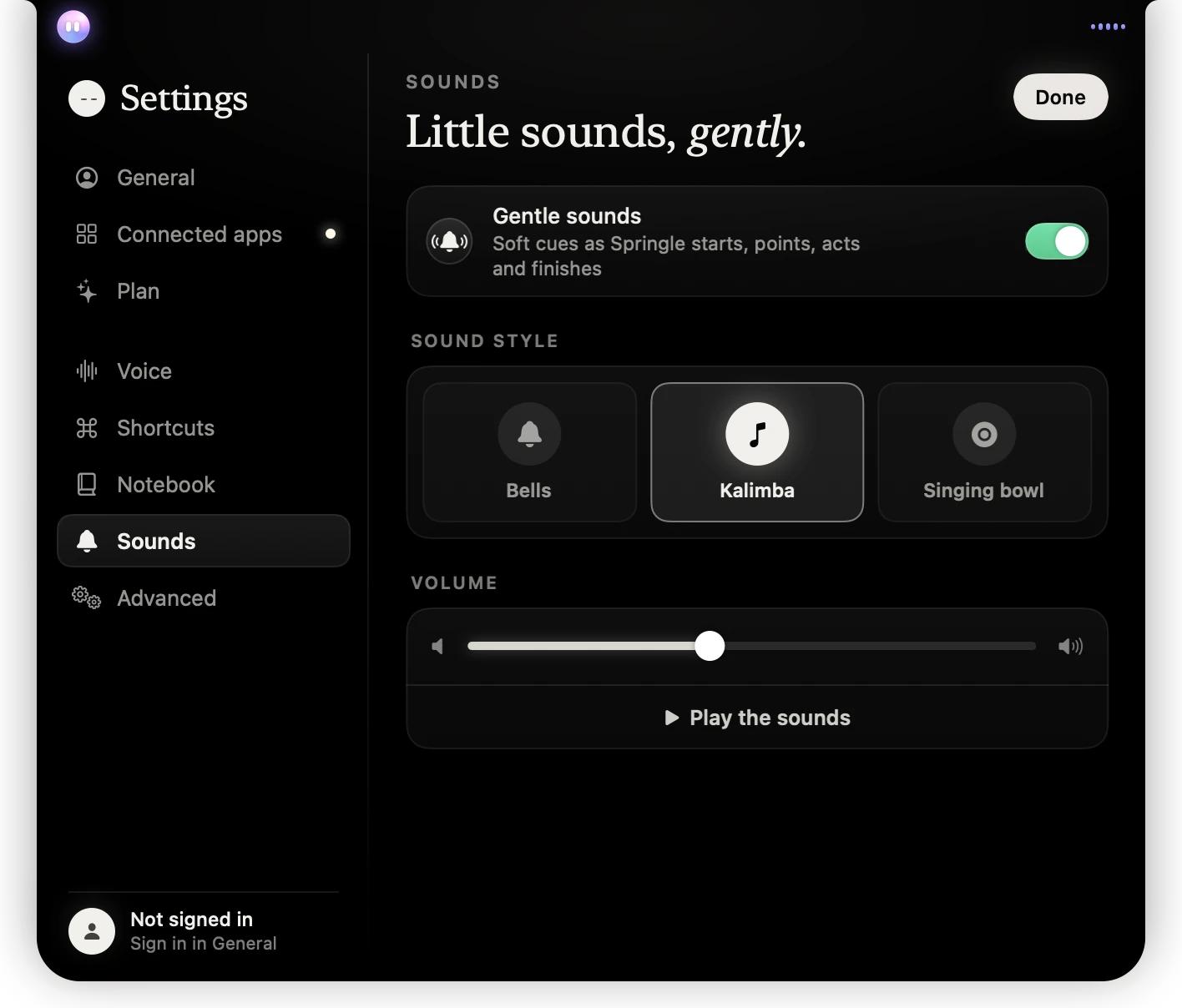
- 1Gentle sounds on or off.
- 2Three sound styles. Kalimba is chosen; click one to hear it.
- 3How loud the sounds are.
- 4Play the sounds plays the whole set.
- Gentle sounds: soft cues as Springle starts, points, acts and finishes. Switch it off for silence.
- Sound style: Bells, Kalimba or Singing bowl. Clicking one plays a sample.
- Volume: how loud the cues are.
- Play the sounds: hear them all in turn.
Sound style and volume only show while Gentle sounds is on.
Advanced
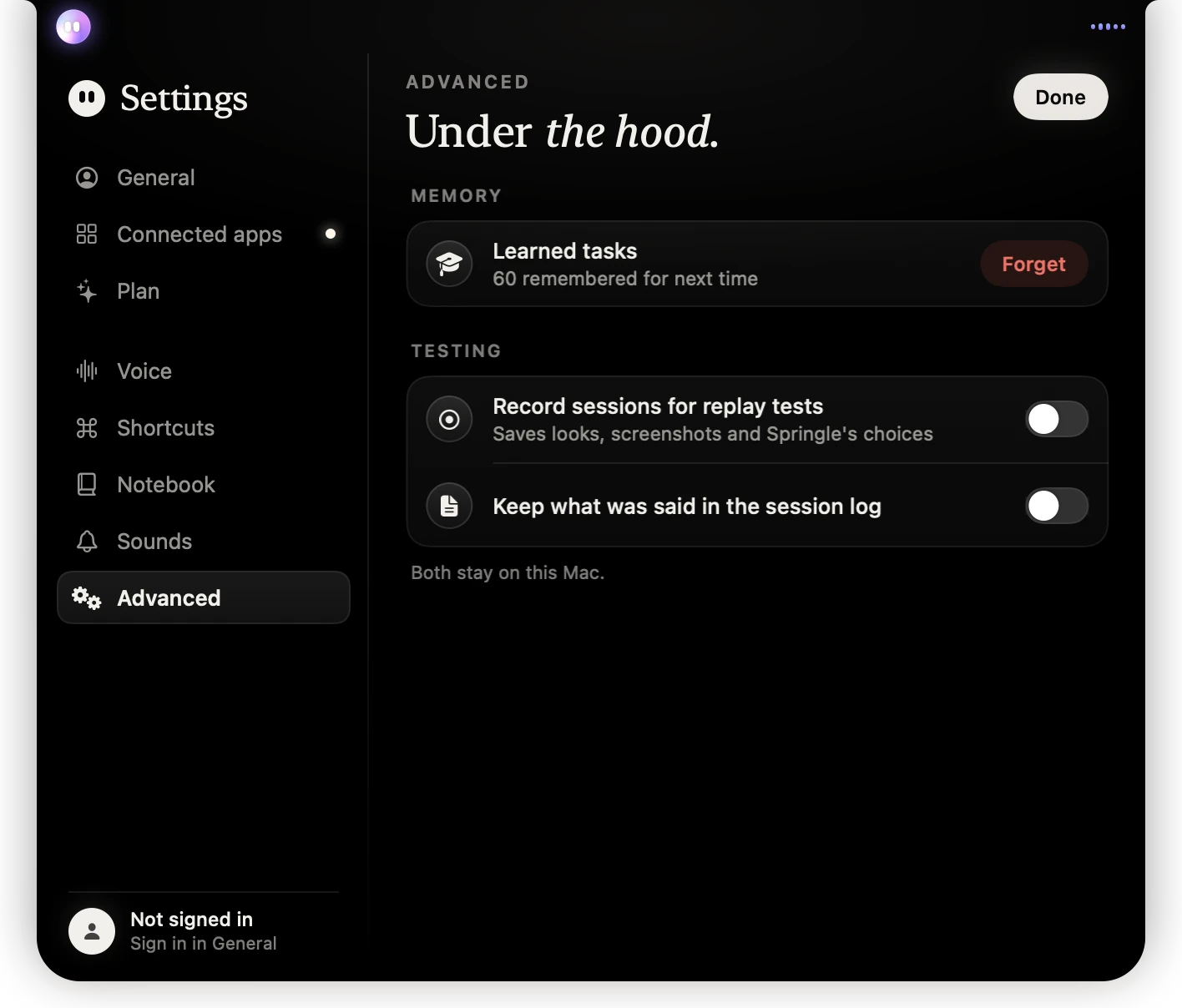
- 1Learned tasks: ways of doing things Springle remembered. Forget clears them.
- 2Two testing options. Both stay on this Mac.
Memory
- Learned tasks: how many tasks Springle has remembered how to do, so it’s quicker next time. Forget clears them.
Testing. Both are for testing and troubleshooting, and both stay on your Mac.
- Record sessions for replay tests: saves what Springle saw, screenshots and its choices.
- Keep what was said in the session log: adds the words of your conversations to the session log. See The session log.
Settings that aren’t in Settings
A few things live elsewhere:
- Read replies aloud is in the card’s ⋯ menu.
- Springle Help (this help centre), the tour, Set Up Springle… and Check for Updates… are in the Help menu, in Springle’s menu in the menu bar.
- Sign Out and Delete Account… are also under your email in that menu.
Questions about a setting? Write to support@innoventuresai.com.
Did this help?