Start the notebook from a clean page.
Settings › Notebook › Forget everything moves every note to the Trash, so Springle no longer remembers any of it. Your account and plan stay as they are.
The notebook is Springle’s only memory between conversations. Clear it, and Springle no longer remembers anything you kept: no notes, no answers, no reminders, no facts about you.
You can clear it all at once, or delete notes one at a time.
Forget everything
- Click Springle’s icon in the menu bar and choose Settings…, then Notebook. In the notebook, ⋯ › Notebook Settings… goes to the same place.
- Scroll down to Storage. Next to Forget everything, choose Move to Trash….
- Springle asks first: "Move every note to the Trash?" Choose Move 13 Notes to the Trash (the button says how many you have), or Cancel.
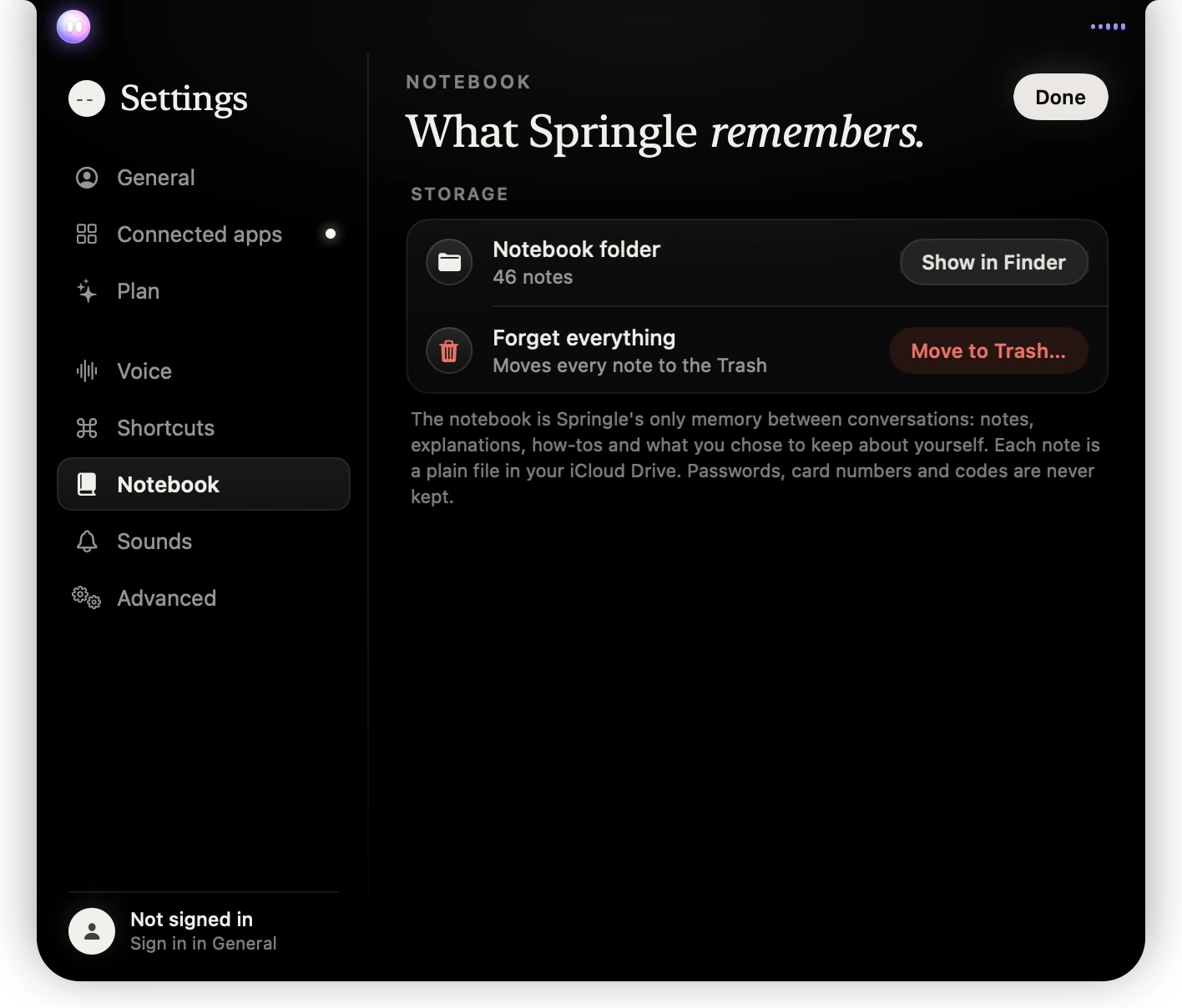
- 1Notebook in Settings.
- 2Forget everything, under Storage.
- 3Move to Trash… asks you first, then moves every note to the Trash.
The button is greyed out when the notebook is already empty.
What it removes
Every note in the notebook, wherever it is:
- Clips, your own notes and explanations, including Older notes.
- How-tos you kept.
- Every fact on the About you page, and any suggestions waiting there.
- Reminders. They’re cancelled and won’t go off. If Copy reminders to my iPhone is on, their copies leave the Springle list in Reminders.
- Notes you were keeping on screen. Their windows close.
If you keep the notebook in iCloud Drive, it’s the same notebook on your other Macs, so the notes go from those too.
What it keeps
Forget everything only touches the notebook. These stay as they are:
| Stays | Where to change it |
|---|---|
| Your Springle account, sign-in and plan | Settings › General, and Settings › Plan. See Your account. |
| Your birthday and name from setup | They’re part of your account. Tell Springle the right birthday and it uses that one. |
| Steps Springle learned on this Mac | Settings › Advanced › Learned tasks › Forget. |
| Connected apps | Settings › Connected apps. |
| Events in your Calendar app | Springle reads your calendar but never copies it into the notebook. Events it added for you stay in Calendar. |
| Your settings | They stay as you set them. |
To close your account and remove what’s kept with it, see Your data.
Getting notes back
Springle has no Undo for Forget everything, so think before you press it. The files aren’t erased straight away, though. They go to the Trash on your Mac.
If you change your mind, open the Trash in Finder before you empty it and move the files back into the notebook folder. Springle watches that folder and picks them up again. Settings › Notebook › Notebook folder › Show in Finder opens the folder.
Once you empty the Trash, the notes are gone for good. Neither Springle nor support can bring them back.
Delete one note
- Open the notebook with ⌃ control ⌥ option N and open the note.
- Choose More, then Move to Trash. Or press ⌘ command delete.
- Undo shows for six seconds if you change your mind.
To make Springle forget one fact about you, you can also say it: "Forget which bank I’m with". See What Springle remembers about you.
Want a tidier notebook rather than an empty one? Clips move to Older notes by themselves after 30 days unless they’re pinned. Nothing is deleted. Settings › Notebook › Move notes to Older notes after 30 days turns it on or off.
Did this help?