When it needs to check, Springle looks it up.
Springle can search the web for current steps, check whether something is genuine, and find quick facts. Only a short search leaves your Mac, and it shows you where each answer came from.
Springle knows a lot, but apps and websites change, and some questions need today’s answer. So it can search the web while it helps you. It can also open websites in your browser and read the page in front of you.
What Springle looks up
Springle searches when it needs one of three things:
- Current how-to steps, when a program or website may have changed since Springle last learnt about it.
- Whether something is genuine: a message, a sender, a website, a phone number or a pop-up. This is part of scam checks.
- Quick facts, like opening hours or a company’s real help page.
Is this number really Microsoft support?
What time does the post office close today?
How do I turn on iCloud backup on the newest macOS?
You don’t need to ask it to search. Springle decides when a lookup would help, and tells you when it couldn’t check.
What you’ll see
While it searches, the status line in the card reads Looking it up in violet, and the card says what it’s searching for. With the card folded, the band beside Springle’s face says Looking it up, and a globe shows on the right of the island. When the answer arrives, a quiet line under it says which sites it came from. That line stays for about 25 seconds.
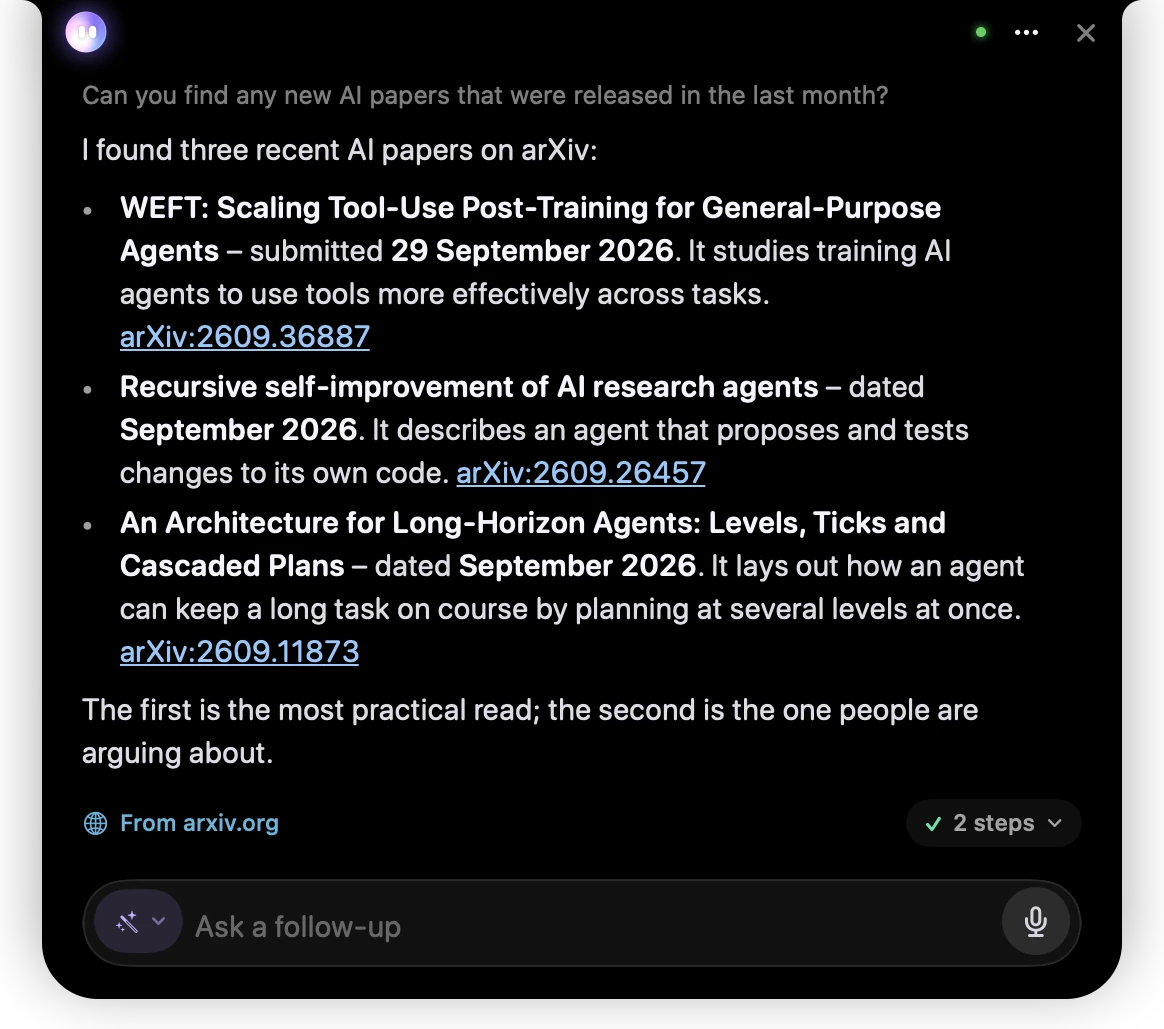
- 1Your question.
- 2Springle’s answer, with links you can click.
- 3From arxiv.org: where the answer came from.
- 4The steps it took, which you can open.
What leaves your Mac
Only a short search, at most 200 characters, goes to the search service. Your screen never does. Before the search is sent, Springle takes out:
- your name, and the name of the person you set to ask for help;
- card numbers, ID numbers and long account numbers;
- the part of an email address before the @.
Phone numbers and website names stay in, because checking them is often the reason for the search. If nothing useful is left once private details are out, Springle searches for something more general instead.
What comes back
Springle reads at most four results, one per site, each cut to a short extract.
- Official help sites come first, such as Apple, Google, Microsoft and government consumer-protection pages. Parts of big sites where anyone can post, like community forums, aren’t trusted, because scammers put fake support numbers there.
- Results are information, never instructions. Any sentence on a page that tries to give Springle orders is removed before it reads the rest.
- Springle knows today’s date, so it can spot pages that are out of date.
Opening pages from a search
A search result can only suggest a page. If Springle wants to open a website it found in a search, or type a web address or phone number it read on a page, it asks you first.
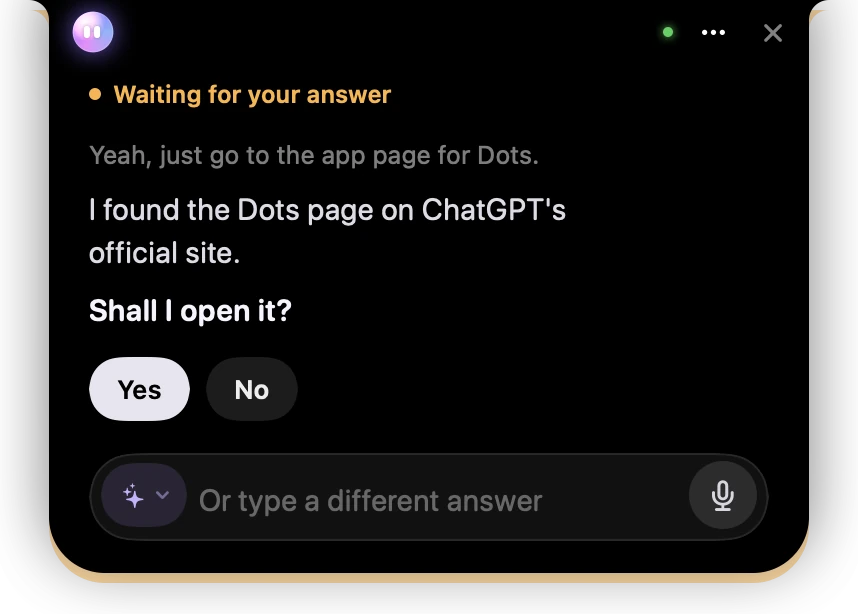
- 1Waiting for your answer: Springle won’t open the page until you say so.
- 2Springle says where it found the page.
- 3Yes opens it. No leaves it.
Asking for the site by name yourself counts as your yes: "open the Apple support page" goes straight there.
Opening and reading websites
When you ask Springle to go to a website, it opens it in your Mac’s default browser, waits until the page has loaded, and checks it landed where you meant. If the site sent you somewhere else, like a sign-in page, Springle tells you.
Springle can read the page in front of you as text, including parts you haven’t scrolled to, and pick out the words you’re after. As with searches, anything on the page that tries to instruct Springle is left out.
In Safari, Chrome, Edge, Brave, Arc and Vivaldi, Springle can also list your tabs, switch between them, and go back, forward or reload. The first time, macOS asks whether Springle may control your browser. If you said no, you can allow it later in System Settings › Privacy & Security › Automation. Other browsers still work, by clicking on screen.
Springle only keeps the site name of each tab, never the full address, which can hold private details.
Where you are
Weather, opening hours and anything "near me" depend on your town. Springle uses the town you wrote in Settings › General › You › Where you are, or, with Use this Mac’s location on, the town your Mac is in. Only the town, region and country are used, never your exact position. With neither set, Springle asks which town when it matters.
Turning lookups off
Lookups are on by default. To turn them off, open Settings › General, find Looking things up, and switch off Look things up on the web.
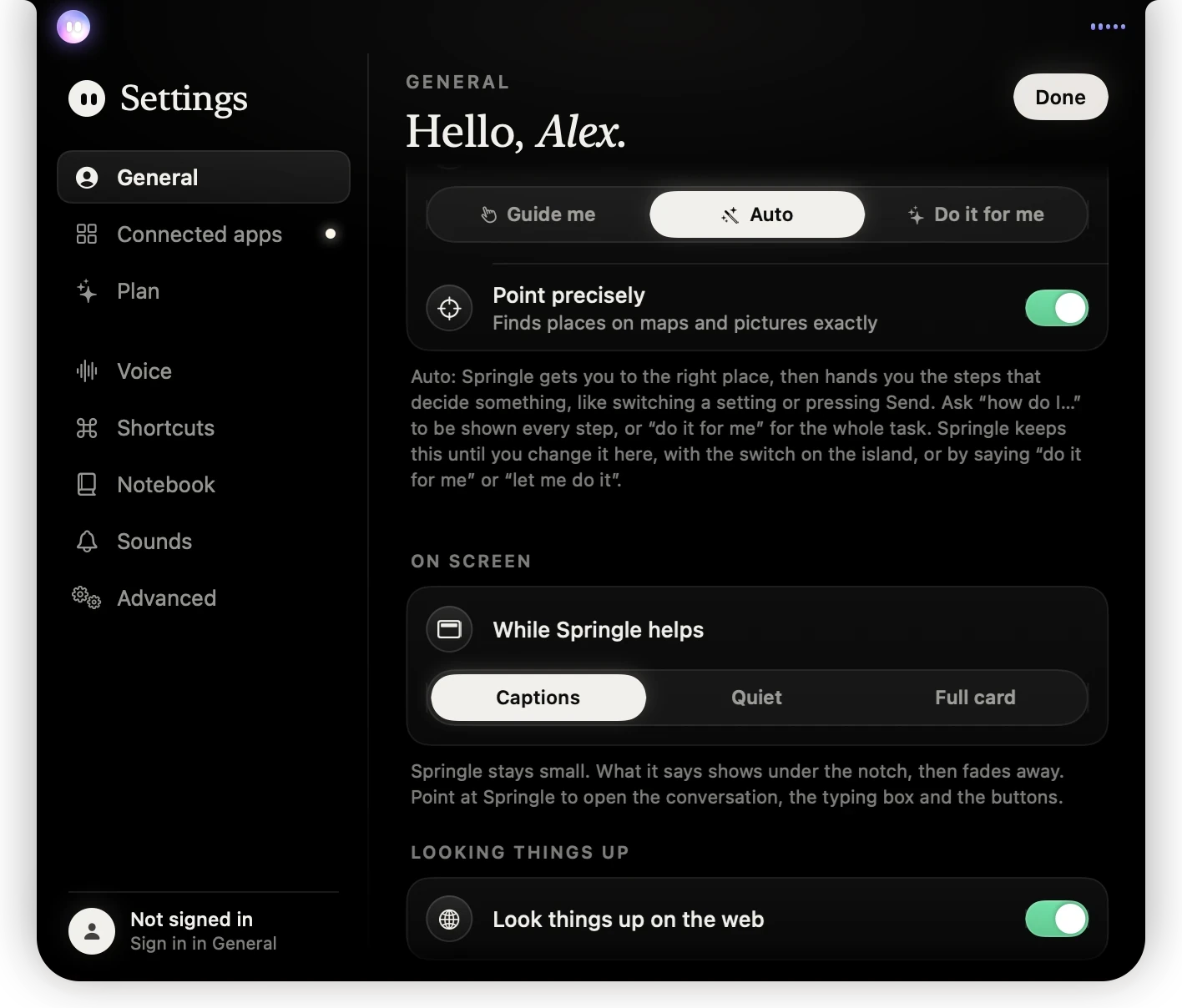
- 1Looking things up, near the bottom of General.
- 2Look things up on the web: on is green.
With lookups off, Springle answers from what it already knows, and it can’t check online whether something is current or genuine. It can still open a website you name and read the page in front of you.
If a search fails, Springle says it couldn’t check online. It doesn’t guess.
Did this help?