Clicks in the wrong place? Here’s how to steer it.
Springle points at the wrong thing, clicks beside the button, or says it can’t press anything. These fixes cover permissions, two displays and switching to Guide me.
Springle rings the wrong button, clicks beside it, works on the wrong window, or tells you it can’t see the controls or press anything. Try these in order.
Fixes, quickest first
- Tell it. Say or type what’s wrong: "That’s the wrong button, it’s the blue one at the bottom." Springle takes a fresh look and tries again.
- Keep your hands still while it works. In Do it for me, Springle waits for your hand to settle before each click, so the two of you never click at once. If you’re moving or clicking, it pauses a moment for you each time. Typing over it, or pressing esc, stops it.
- Click in the window you want help with. Springle works in the app at the front. If another app or window is in front, it looks there. Click once in the right window, then ask again.
- With two displays, keep the window on one screen. Springle looks at the display that holds most of the window you’re working in. A window split across two screens, or one on a screen you’re not looking at, can send it to the wrong place. Drag the window fully onto one display.
- Check the Accessibility permission. Springle needs Accessibility to find buttons, show you where they are and press them. If it says "Accessibility is switched off" or "I need your OK to point and click on this Mac", choose Finish Setting Up Springle… from its menu bar menu and follow the steps. If the switch is on but nothing works, setup’s Fix it for me clears out an older copy of Springle left in the list. See Permissions.
- Turn on Point precisely for maps and pictures. Some things, like a spot on a map or part of a photo, aren’t buttons. Settings › General › Helping › Point precisely helps Springle find those exactly.
- Switch to Guide me. If clicks still go astray in one app, let Springle point while you click. Choose Guide me from the chip at the start of the typing box, say "let me do it", or change How Springle helps in Settings › General.
Choosing who clicks
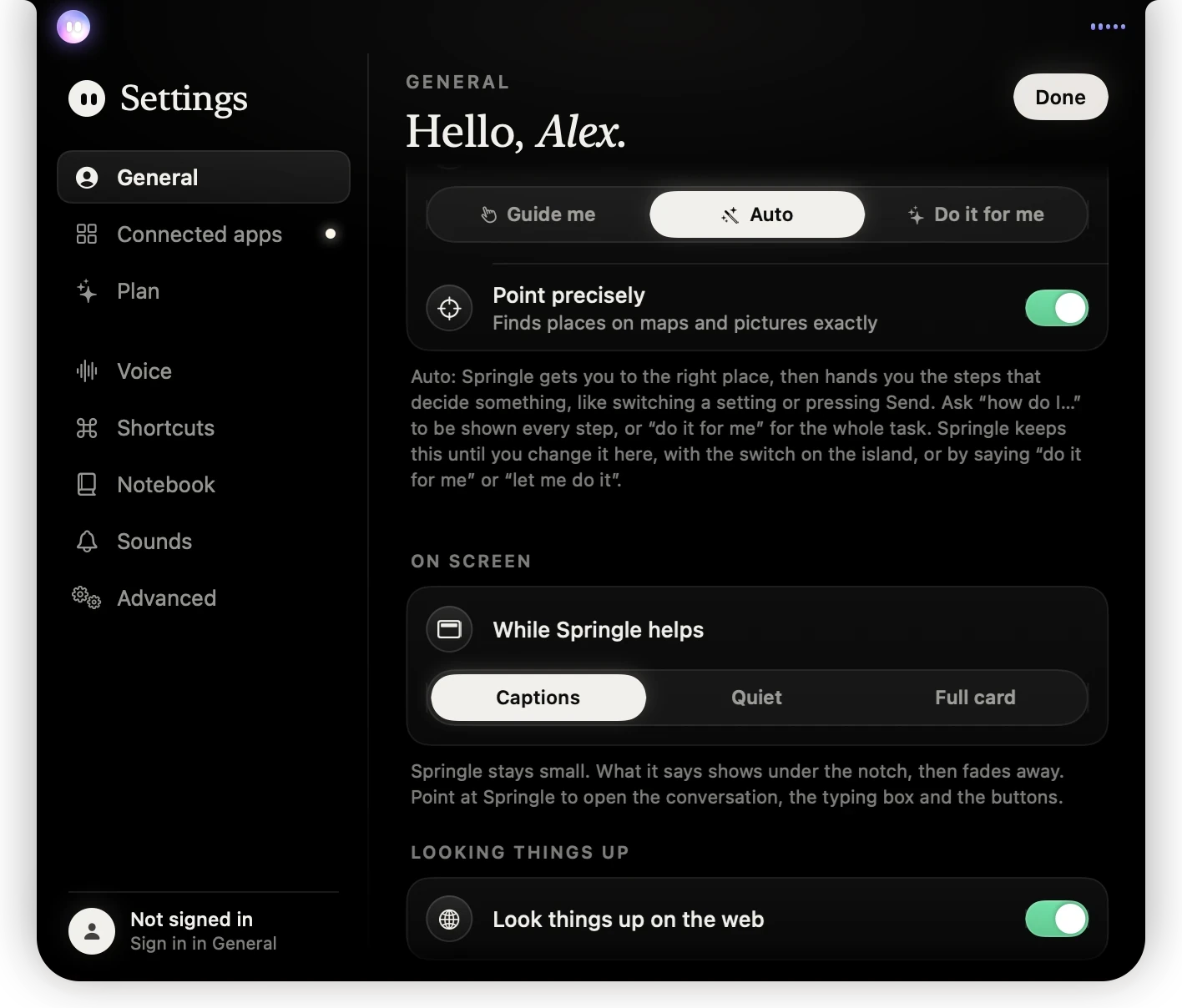
- 1How Springle helps: Guide me, Auto or Do it for me.
- 2Point precisely, for places on maps and pictures.
- 3What the mode you picked means, in a sentence.
In Guide me, Springle never clicks: it rings the thing to press and you click it. In Auto, it gets you to the right place and hands you the steps that decide something. In Do it for me, it clicks and types while you watch. See Guide me, Auto and Do it for me.
What working looks like

- 1Springle’s face: it’s guiding you.
- 2It says plainly what to press and where to find it.
On screen, a ring lands on the right control, on the display you’re using, and Springle notices when you click it.
Still stuck?
Open the session log and email it to support@innoventuresai.com. Tell us which app you were in, roughly when it happened, and whether you use more than one display. We’ll take a look.
Did this help?