When an app needs reconnecting.
Sometimes an app’s access runs out. Here’s how to spot it, and how to get it working again in a minute.
A connected app can lose its access after a while. When that happens, Springle can’t reach it until you sign in to it once more. Nothing you had in the app is lost, and the fix takes about a minute.
How you’ll know
- In Settings. Settings › Connected apps shows the app’s card with an amber edge, Access expired, and a Reconnect button. If the app has more than one account, only the account that stopped working says Access expired, with its own Reconnect. The line under the list names the app too: Google Calendar needs reconnecting.
- When you ask. If you ask for something in that app, Springle tells you it needs reconnecting and offers to do it, in one short question.
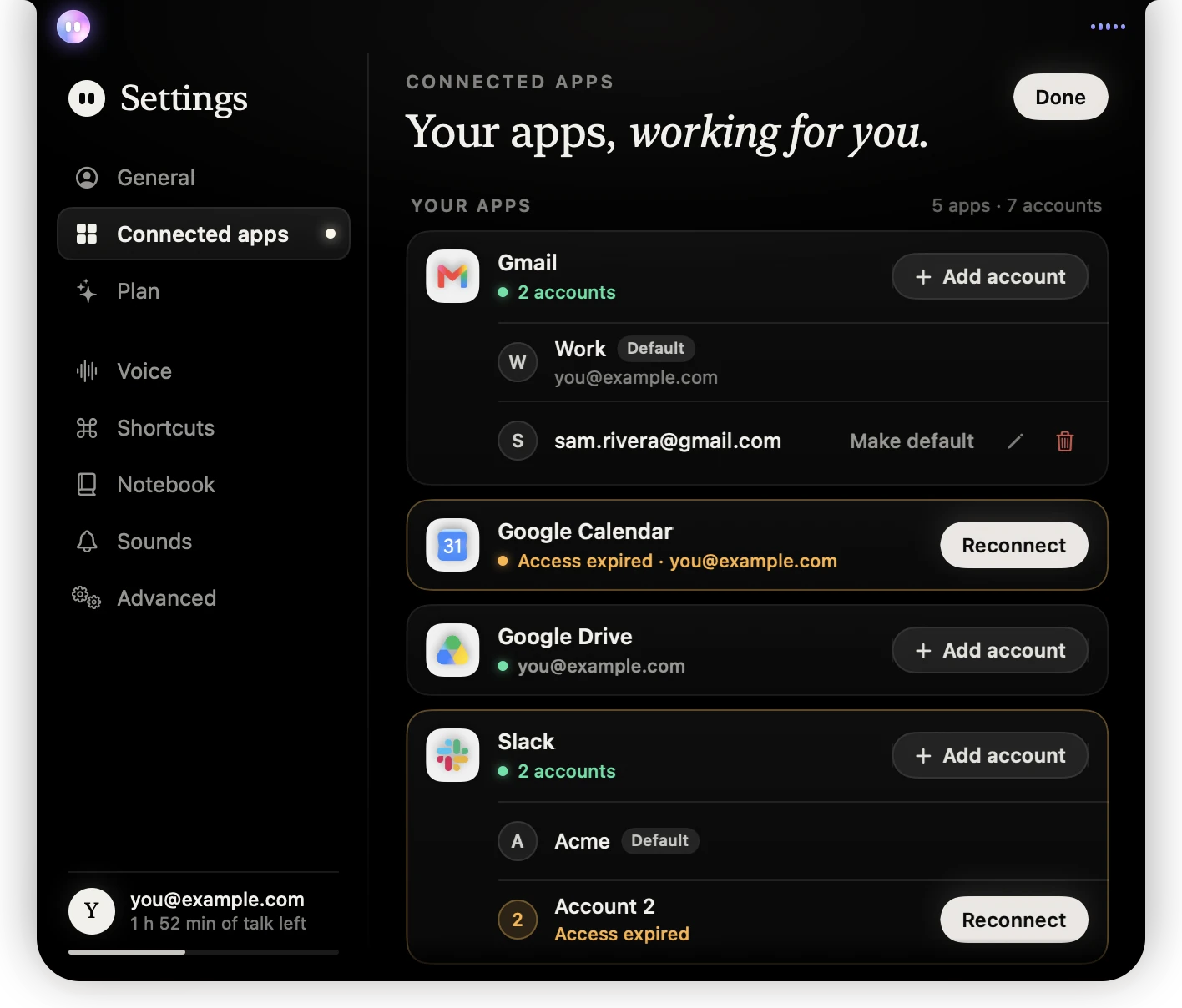
- 1Gmail is fine: the green dot shows its accounts are connected.
- 2Google Calendar’s card has an amber edge and says Access expired.
- 3Reconnect opens Google’s sign-in page in your browser.
- 4With several accounts, only the one that stopped working needs reconnecting.
Why it happens
Apps only give access for so long, and some end it sooner: for example after you change your password, or remove Springle from the list of apps with access in your account’s security settings. Springle also marks an app for reconnecting when the app refuses a request, even if the app still lists the connection as active.
Reconnect it
- Open Settings › Connected apps.
- Click Reconnect on the amber card, or beside the account that says Access expired.
- Your browser opens the app’s sign-in page. Sign in with the same account as before and allow access.
- Springle notices by itself, and the card goes back to a green Connected.
Or answer Yes when Springle offers to reconnect, or say "reconnect my Google Calendar". Springle opens the same page, then carries on with what you asked once you’re done.
Reconnecting replaces the old connection, so you won’t end up with two. The account keeps its name, and stays the default if it was.
What Springle fixes by itself
Most hiccups never reach you. Behind the scenes, Springle:
- starts a fresh session with the app’s service when an old one has dropped,
- tries a look-up once more if the app was slow or busy,
- finds the right action again if the first attempt didn’t fit.
The one thing it never does by itself is repeat a send or a change. If a connection drops in the middle of sending, Springle can’t be sure whether it went, so it tells you and offers to check the app (your Sent folder, for example) before doing anything else.
If reconnecting doesn’t work
- "Still waiting for Google Calendar." Springle watches for a few minutes, then stops. Finish the page in your browser, then click Reconnect again.
- Wrong account. If your browser is signed in to a different Google or Microsoft account, choose the right one on the sign-in page.
- Start fresh. Point at the app’s name or the account, click the bin, then Remove. Then connect it again under Add more, or with Add account.
- Check your plan. Connected apps come with Springle and Springle Family. If your plan has ended, the apps stay listed but locked, with an Upgrade button. See Plans and prices.
- Check for an update. If Springle says it can’t reach your connected apps from this version, update it. See Updates.
Still stuck? Email support@innoventuresai.com. It helps to attach the session log, which records which app was used and whether it worked, never what was in it.
Did this help?