Something wrong, or a wish? Tell the team.
Send an idea or a problem to the people who make Springle, from inside the app, with pictures and links. A person reads every one.
If Springle gets something wrong, or you wish it did something it doesn’t, you can tell the team from inside the app. Write what happened or what you’d like, add pictures and links, and send. A person on the team reads every one.
Three ways in
- The menu bar. Click Springle’s face, then Help › Suggest a Feature… or Report a Problem….
- Settings. Open Settings › About. Under Tell us, press Suggest… or Report…. Settings folds away and the window opens. Searching Settings for "feedback", "bug" or "feature" finds them too.
- The card. When the card is open, click ⋯ at its top and choose Report a problem…. Springle takes a picture of the screen as it is at that moment, with the island and the card in it, folds the card away, then opens the window with the picture already added. It’s the quickest way to show something that looks wrong.
The window opens on the one you chose. The switch at the top moves between Suggest a feature and Report a problem at any time.
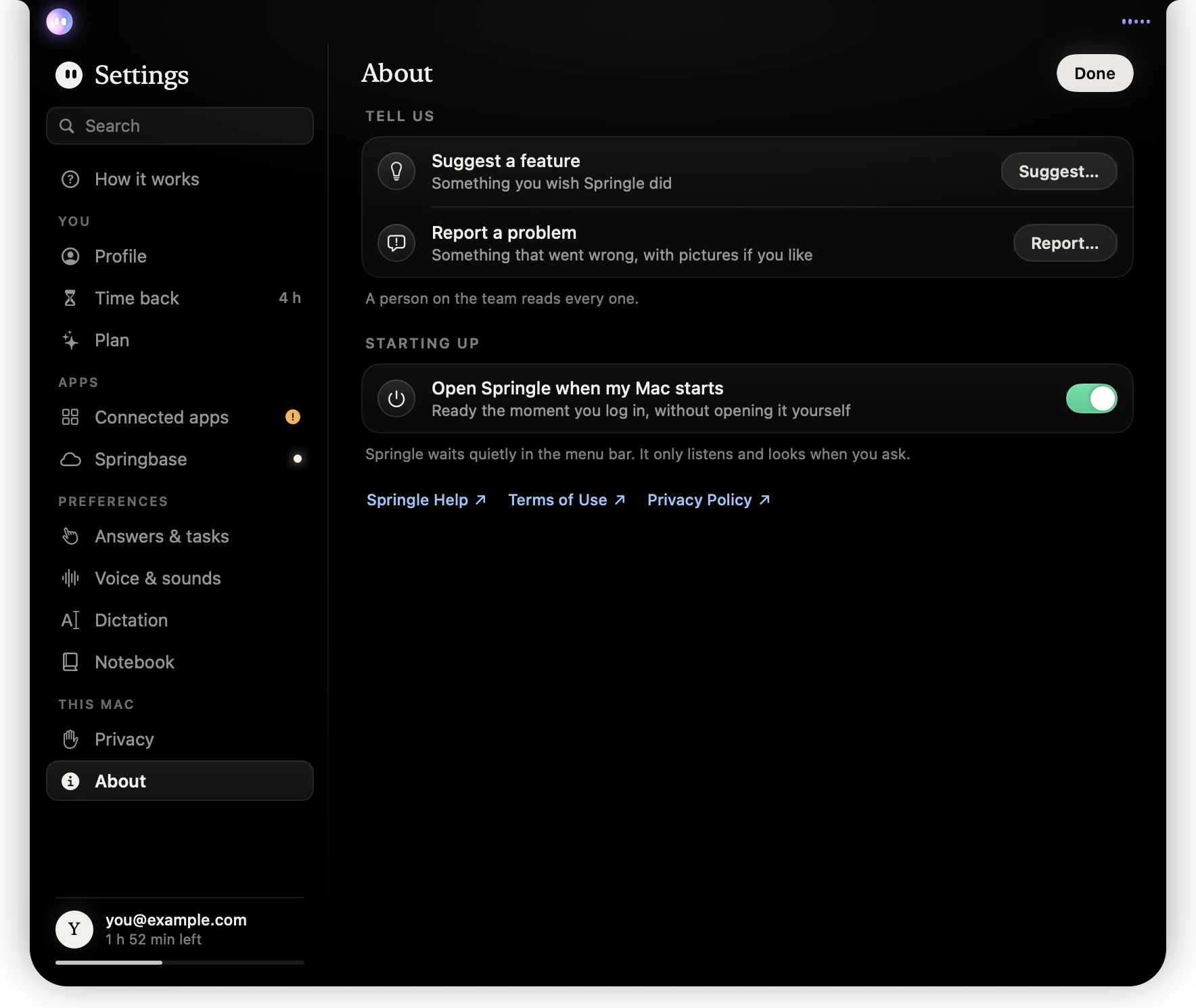
- 1Suggest… opens the window for an idea.
- 2Report… opens it for a problem.
- 3Settings › About.
Report a problem
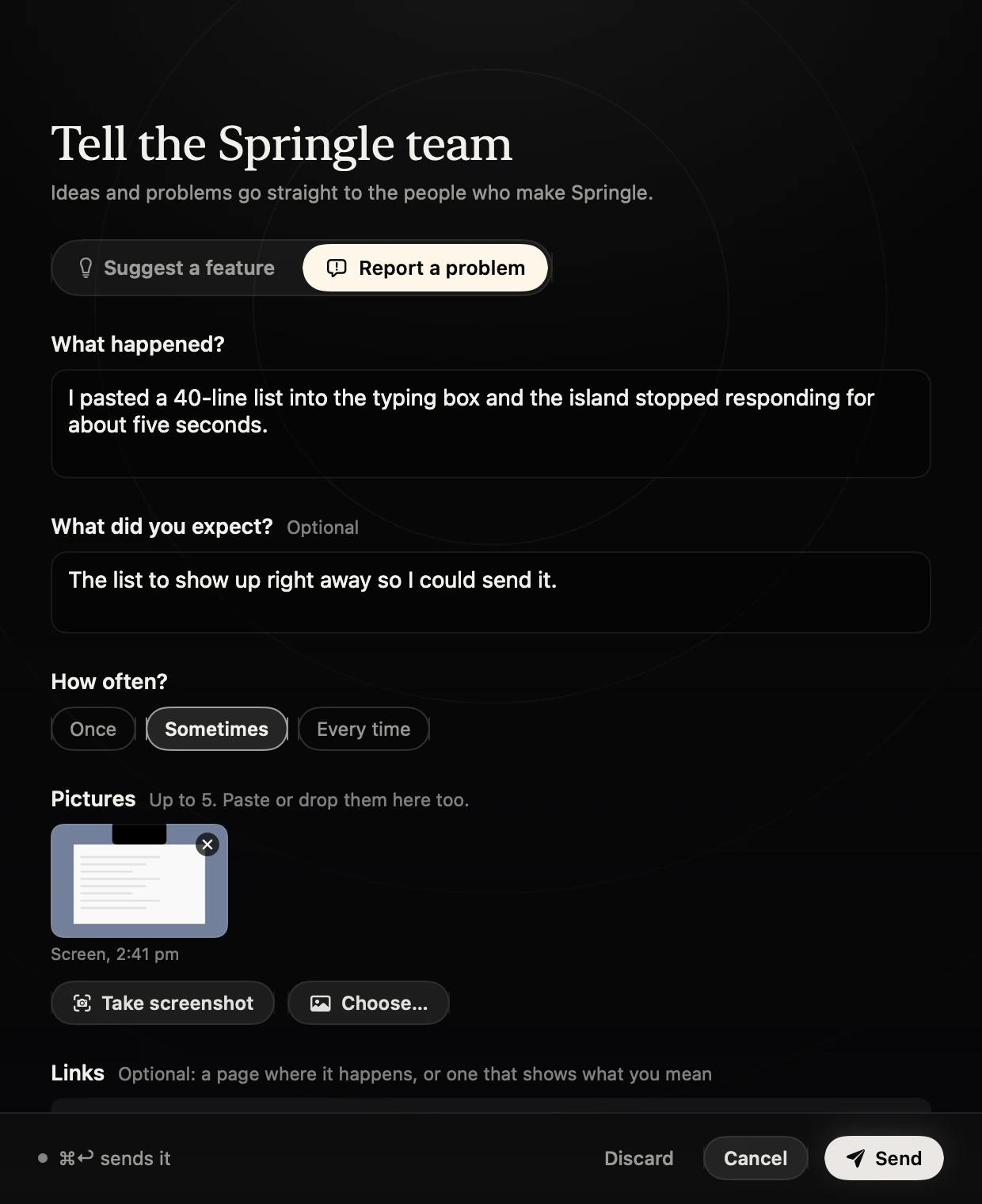
- 1An idea or a problem. You can switch at any time.
- 2What happened? The only box you have to fill in.
- 3How often it happens, if you know.
- 4A picture of the screen, added for you when you start from the card.
- 5Take screenshot or Choose… adds more, up to five.
- What happened? What you did, and what went wrong. This one is needed before you can send.
- What did you expect? What you thought would happen instead. You can leave it empty.
- How often? Once, Sometimes or Every time, if you know.
The more exact, the better: the words you said or typed, the app or website you were in, and roughly when it happened. Each box holds up to 5,000 characters.
Suggest a feature
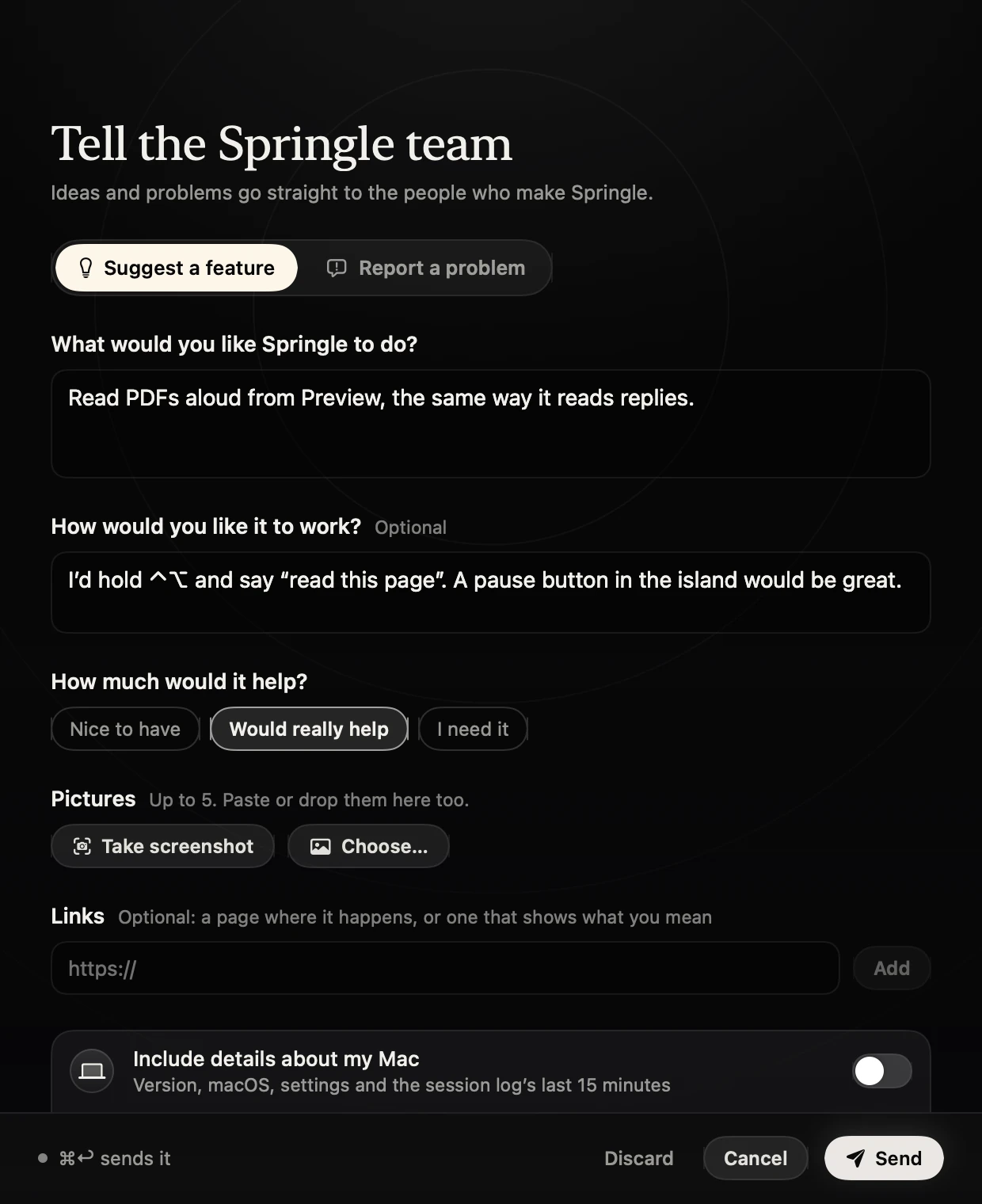
- 1What you’d like Springle to do. The only box you have to fill in.
- 2How you’d like it to work, if you can picture it.
- 3How much it would help you.
- 4Include details is off for ideas, to begin with.
- What would you like Springle to do? The thing you wish it did. This one is needed before you can send.
- How would you like it to work? How you’d ask for it, and what you’d see. You can leave it empty.
- How much would it help? Nice to have, Would really help or I need it.
Pictures and links
Add up to five pictures:
- Take screenshot. The window steps aside, Springle takes a picture of the screen it was on, and the window comes back with the picture added. The island stays in the picture, so the team sees what Springle showed you. Password, card and ID boxes are blanked before the picture is kept, as in every picture Springle takes. It needs Screen Recording; without it, choose a picture instead.
- Choose… opens your Mac’s file picker.
- Paste or drop. Copy a picture and press ⌘ command V in the window, or drag pictures onto it.
Each picture is saved again as a plain picture before it goes, so the hidden details some photos carry, like where they were taken, are left behind. Click × on a picture to take it out.
Under Links, paste a web address and press Add: the page where it happens, or one that shows what you mean. Up to ten. Web addresses you type in the boxes are added too.
Include details
The switch under the links adds what helps the team find and fix a problem. It’s on for problems and off for ideas to begin with, and you can change it either way.
| What goes | |
|---|---|
| Always | Your words, pictures and links, your plan, your language and region, and which version of Springle, macOS and which kind of Mac sent it |
| With details on, also | Your usual mode (Guide me, Auto or Do it for me), how many displays you use, whether Accessibility, Screen Recording and the microphone are on, whether Springle for Chrome is connected, how many apps you’ve connected, and the last 15 minutes of the session log |
The session log is a plain record of what Springle did. It has no sound and no pictures, and what you said is only in it if you turned on Keep what was said in the session log (in Settings › About, shown when you hold ⌥ option as you open it).
Press See exactly what’s sent to read every fact and every log line before anything goes.
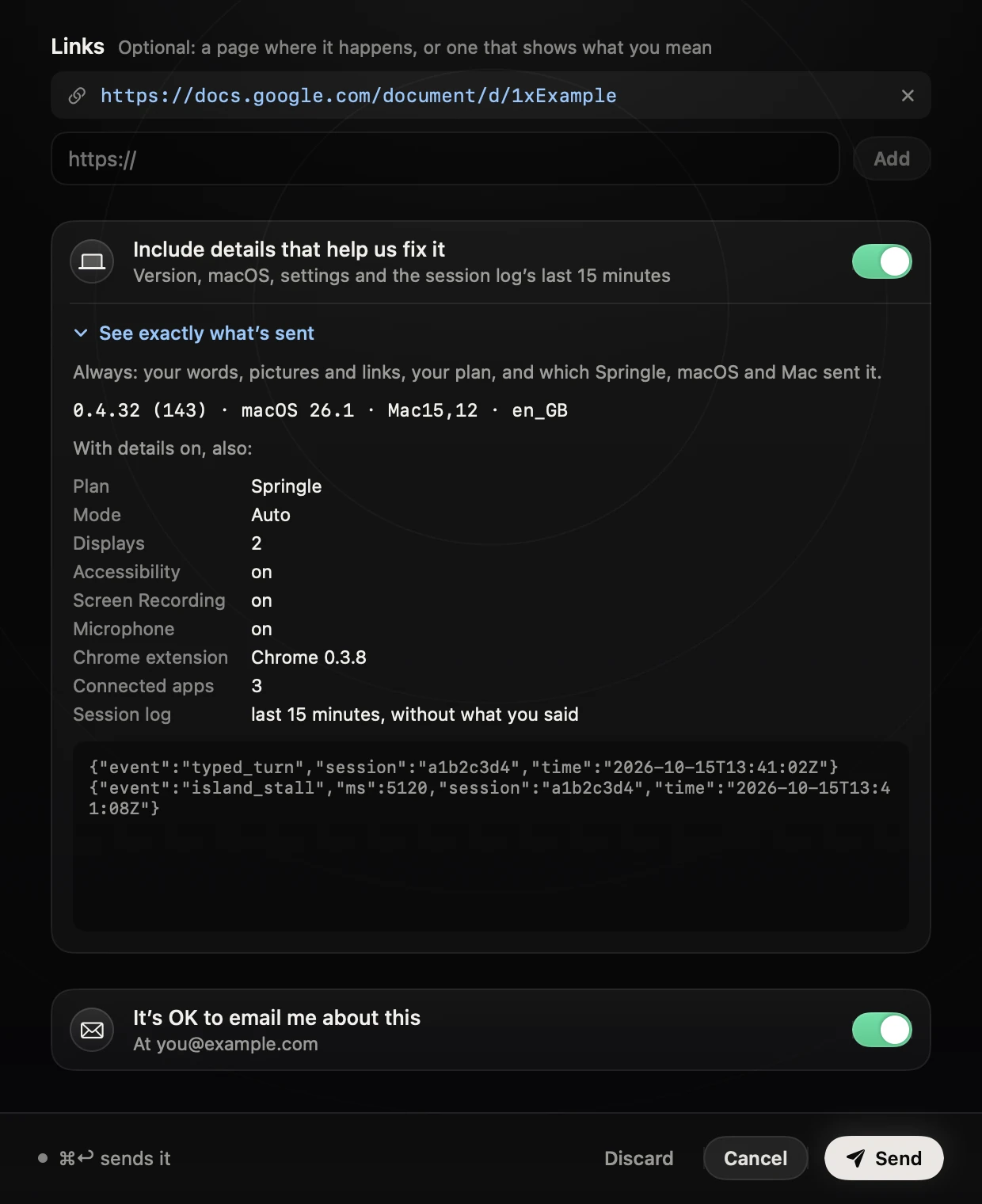
- 1Include details: on for problems, off for ideas, to begin with.
- 2See exactly what’s sent opens the list.
- 3The facts that go only with details on.
- 4The session log’s last 15 minutes, line by line.
- 5It’s OK to email me lets the team reply to you.
It’s OK to email me about this is on to begin with, and shows the address the team would write to. With it on, the team can reply to you about this report. Turn it off and they won’t.
Sending
Press Send, or ⌘ command return. The window says Sent to the team with your report’s number. Mention the number if you write to us about it later.
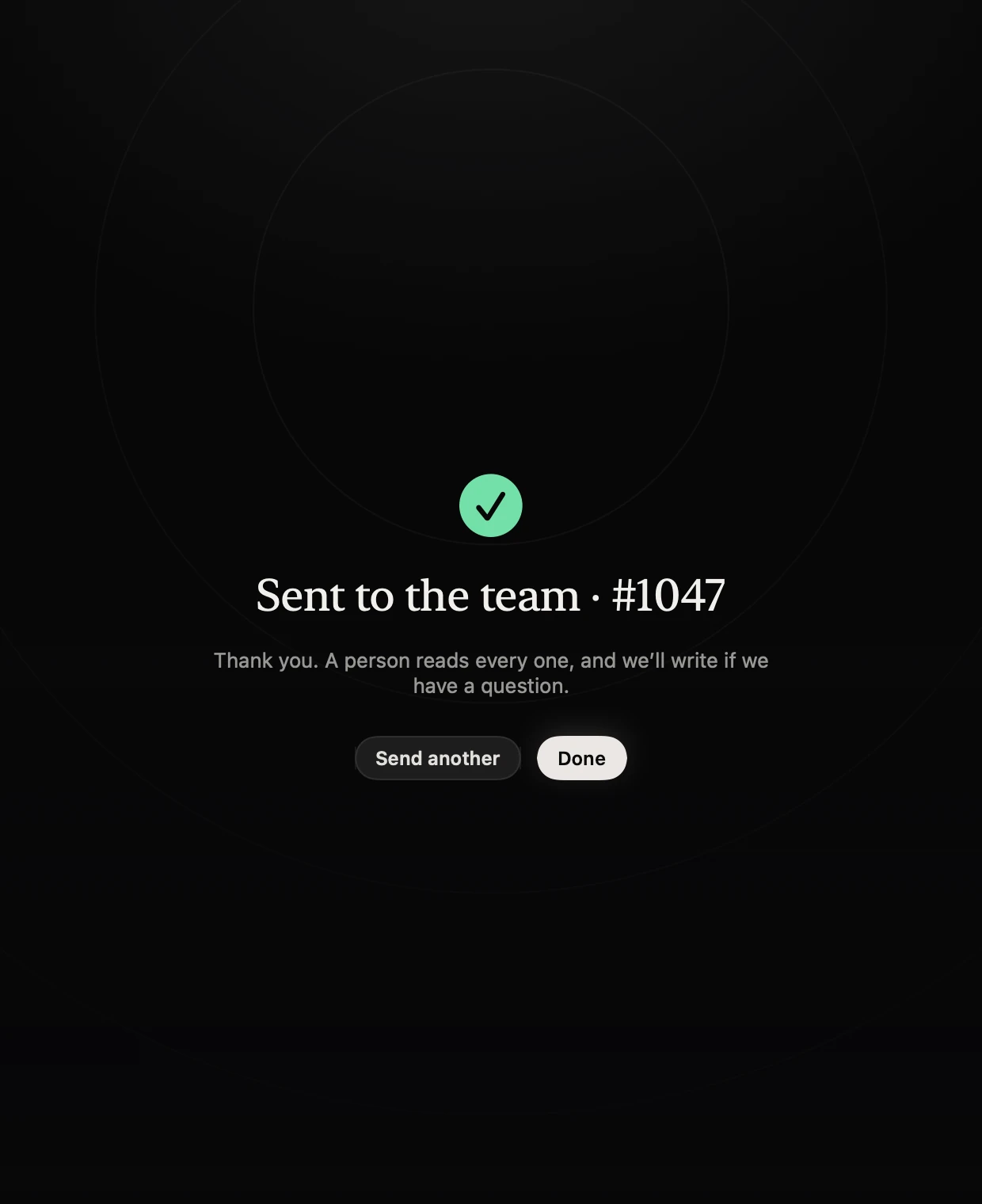
- 1Sent, with your report’s number.
- 2Send another starts an empty page.
Closing without sending. Press Cancel or close the window, and what you wrote is kept for next time. Pictures aren’t kept. Discard empties the page.
If it’s turned back. If something can’t go as it is, for example a box longer than 5,000 characters, the reason shows at the bottom of the window. Change it and press Send again.
When it can’t go yet
Springle saves every report on your Mac before it sends it. If you’re offline, or Springle’s servers can’t take it right now, the window says Saved on this Mac with the reason, and Springle sends it by itself later: a little after Springle opens, and every 15 minutes, while you’re signed in to the same account. A report that still hasn’t gone after 30 days is dropped.
You can send up to 10 reports a day, and 40 a month. Past that, a report waits on your Mac and goes when it can.
Signed out
Reports go from your Springle account, so the team knows who to write back to. Signed out, the window offers Sign In with Google, and the support address: support@innoventuresai.com.
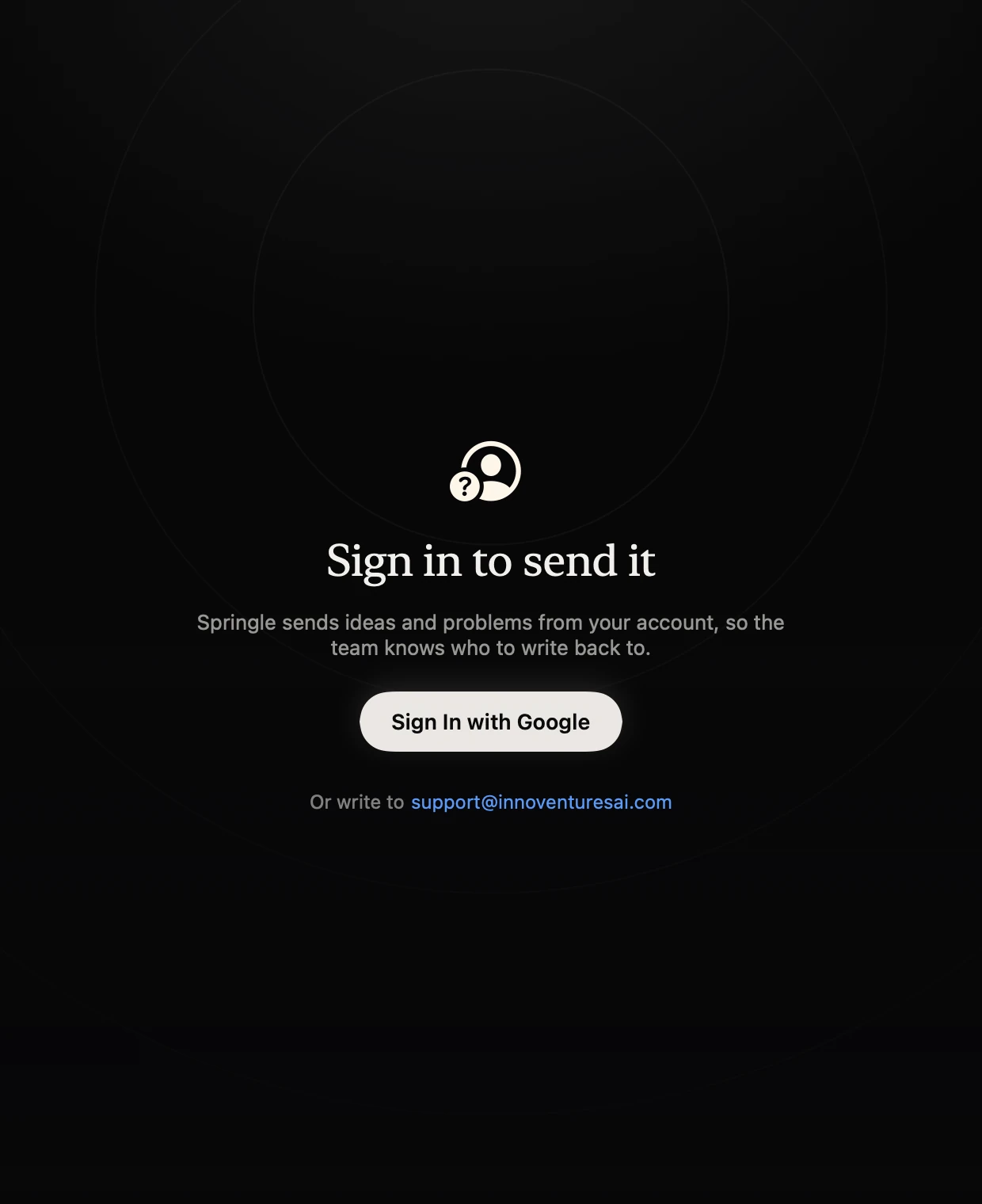
- 1Sign in, then send.
- 2Or write to the support address.
What happens to it
Your report goes to the Springle team, with your name and email address so we know who sent it. A person reads every one. We use reports only to fix problems and to decide what to build, never for anything else.
Pictures and log lines are deleted 180 days after we close the report. The words stay with your account, and everything you sent is deleted if you delete your account. The details are in our Privacy Policy.
Did this help?