Lost something? Just ask.
Say what you remember about a file, and Springle finds it and opens it. It looks in your files, Mail, Photos and your connected drives.
You don’t need the file’s name. Tell Springle what you remember, the way you’d describe it to a friend, and it finds the file and opens it.
Where’s my CV?
Open the lease my landlord emailed me last month
Open the spreadsheet I was working on yesterday
Find the screenshot with my flight number on it
Show me the photos from Grandad’s 80th
What you can say
Any detail you remember helps. Springle uses all of them together.
| What you remember | For example |
|---|---|
| Part of the name, or another word for it | "my CV" finds Resume 2026.docx |
| Words inside it | "the PDF about the boiler warranty" |
| When | "the spreadsheet I was working on yesterday", "the Word document I made last week" |
| Who sent it, or where it came from | "the lease my landlord emailed me", "the thing I downloaded from Booking.com" |
| Who wrote it | "the deck Priya sent me" |
| Which version | "the final version of my speech", "my old CV from a couple of years ago" |
| What’s in a picture | "the screenshot with my flight number on it" |
| A folder | "the photos from Grandad’s 80th" |
"Working on" and "reading" mean the last time you opened it. "Made" means when it was created, and "sent me" or "downloaded" means when it arrived. When there are several versions of the same file, Springle opens the newest unless you ask for an older one.
The first time, Springle asks
Your Mac keeps your Desktop, Documents and Downloads private until you allow an app in. The first time you look for something, Springle asks in the island.
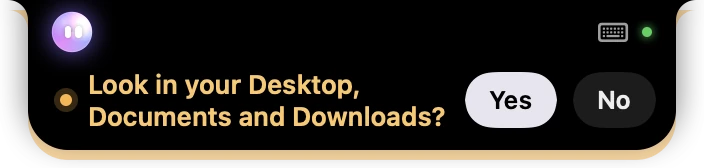
- 1Yes lets Springle look. Your Mac then asks once for each folder.
- Click Yes, or say yes.
- Your Mac asks once for each folder: "Springle" would like to access files in your Desktop folder. Click Allow each time.
- Springle carries on looking. It won’t ask again.
If you say No, Springle looks everywhere else, tells you those three folders weren’t searched, and doesn’t ask again for a month. To change your mind, open System Settings › Privacy & Security › Files and Folders and switch on the folders under Springle.
When it’s clearly the one
Springle opens it straight away, in the app it belongs to, and a receipt appears in the island.
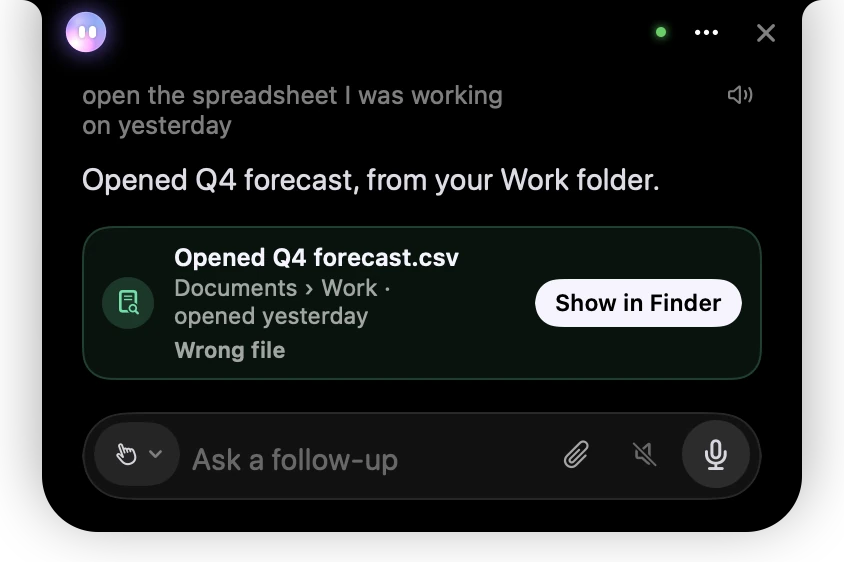
- 1Show in Finder takes you to where the file is kept.
- 2Wrong file tells Springle it isn’t the one, and the next likely ones come up.
If you asked where something is rather than to open it, the receipt has Open instead. Say "show me where it is" and Springle shows it selected in Finder.
When it’s a close call
If a few files fit what you said, Springle doesn’t guess. Up to three appear in the card, each with its picture and why it might be the one.
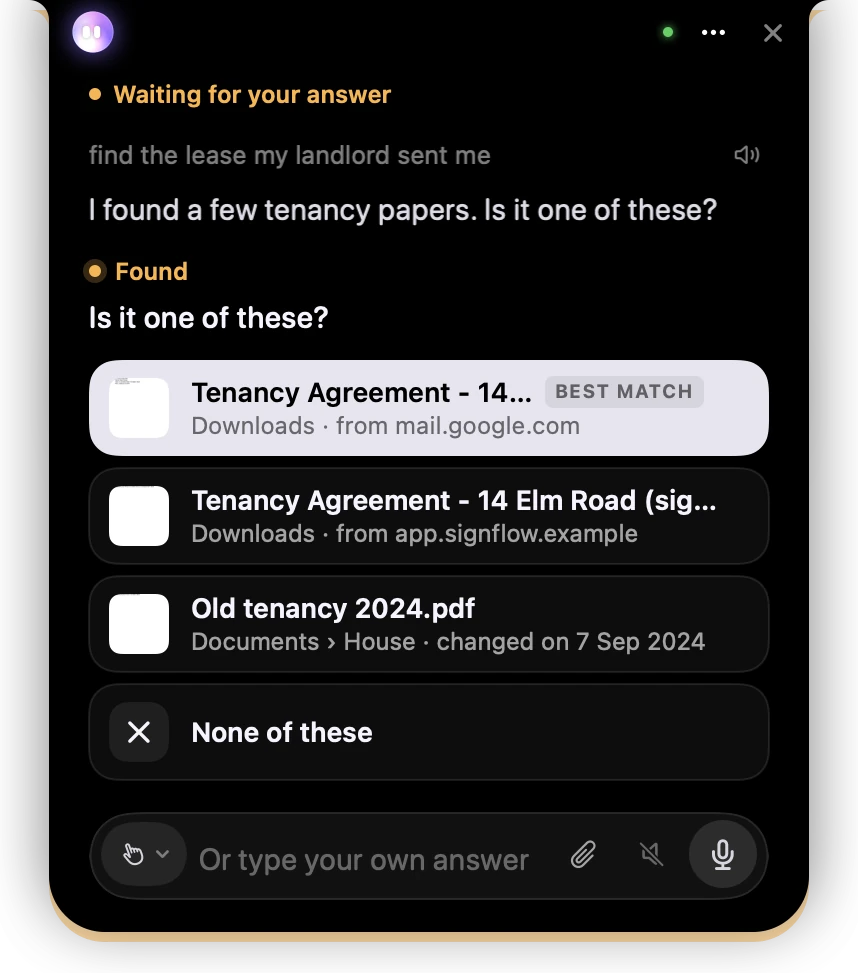
- 1Each file’s own picture, so you can tell them apart at a glance.
- 2Why it fits: where it is, and where it came from or when you last opened it.
- 3None of these, if it isn’t there. Springle asks one more thing you remember.
Click the one you want, press its number, or say it ("the second one"). It opens straight away. If none of them is right, choose None of these and tell Springle one more thing you remember, like a word that’s in it or roughly when you got it.
If Springle can’t find anything close, it says where it looked and asks you one thing to try next. It never opens a file it isn’t sure about.
Where it looks
- Your files: your home folder, including your Desktop, Documents, Downloads and iCloud Drive. Code folders, caches and the insides of apps are left out.
- Mail: attachments in your emails, once you’ve let Springle work in Mail (see Your Mac's apps, directly). Say "emailed" or "attachment" and it looks there too.
- Photos: Photos' own search, which knows what’s in your pictures, once you’ve let Springle work in Photos.
- Your connected apps: Gmail attachments, and files in Google Drive, OneDrive and Dropbox, if you’ve connected them (see Connect your apps). Say "in my Drive" or "someone shared it" and Springle looks there too.
- Your browser: with Springle for Chrome added (Settings › Connected apps › Your browser), what you downloaded and pages you visited, if Chrome already lets Springle see them. A find never asks Chrome for more.
- Words in pictures: when you’re looking for a picture or a screenshot, Springle reads the words in your recent ones, on your Mac.
- The Trash: only if you’ve given Springle Full Disk Access. Otherwise it says the Trash wasn’t searched.
Then do something with it. Once Springle has found a file, you can carry on: "email it to Mum", "put it in my Drive", "move it into the Taxes folder". It uses the file it just found.
What it keeps private
- Springle searches with your Mac’s own Spotlight, so it doesn’t make or keep a copy of your files.
- Springle’s helper sees each likely file’s name, where it is, its dates and which of your words it matched. It never sees what’s inside your files.
- The words in your pictures are read on your Mac and forgotten when Springle quits.
- Nothing is opened, moved or sent unless you asked for it.
If it can’t find something
- Say a different word. "Receipt" and "invoice", or "lease" and "tenancy agreement", can be what the file actually says.
- Say when, or who. "Last spring", "from my accountant" or "the one I downloaded from the council website" narrows it down a lot.
- Check the folders are allowed. If you said no to the first question, Desktop, Documents and Downloads aren’t searched. See The first time, Springle asks.
- A file only on your phone or in an app Springle can’t search won’t turn up. Springle says where it looked, so you know what’s left.
Did this help?