One-minute lessons, on your own Mac.
Short, hands-on lessons that each teach one thing Springle can do. Springle talks you through it, and you do it for real as you go.
A lesson teaches one thing in about a minute. Springle talks you through it in the same voice as the tour, and you do it for real on your own Mac. Each step moves on only once it has really happened: your words typed into a box, a circle drawn on the screen, a note in your notebook.
Take them whenever you like, in any order, as often as you like.
The four lessons
| Lesson | What you’ll do | How long |
|---|---|---|
| Dictate anywhere | Hold ⌃ control fn and say a reply in the Practice Desk. Then dictate into a box of your own, in any app. You can skip that second part. | 1 min |
| Circle to ask | Press ⌃⌥ C, draw round anything on your screen, and ask about it. | 1 min |
| Guide me or do it | Click where Springle points, watch it write a reply for you, answer Yes or No before it sends, and choose how Springle helps from now on. | 90 s |
| Keep and remind | Open a page, keep a note of it, set a reminder, and find them both in your notebook. | 90 s |
In Learn, the lessons are grouped by what they help with: Write faster, Show Springle what you mean, Hand it over, and Remember and find.
Start a lesson
Any of these opens the lessons:
- In the notebook, click the Learn tab. Open the notebook with ⌃⌥ N, then ⌘ command 5 goes straight to Learn.
- In the card, click ⋯ and choose Learn something new….
- In Springle’s menu in the menu bar, choose Help › Lessons….
Click Start beside a lesson. A Springle lesson link, such as springle://lesson/circle-to-ask, starts that lesson too.
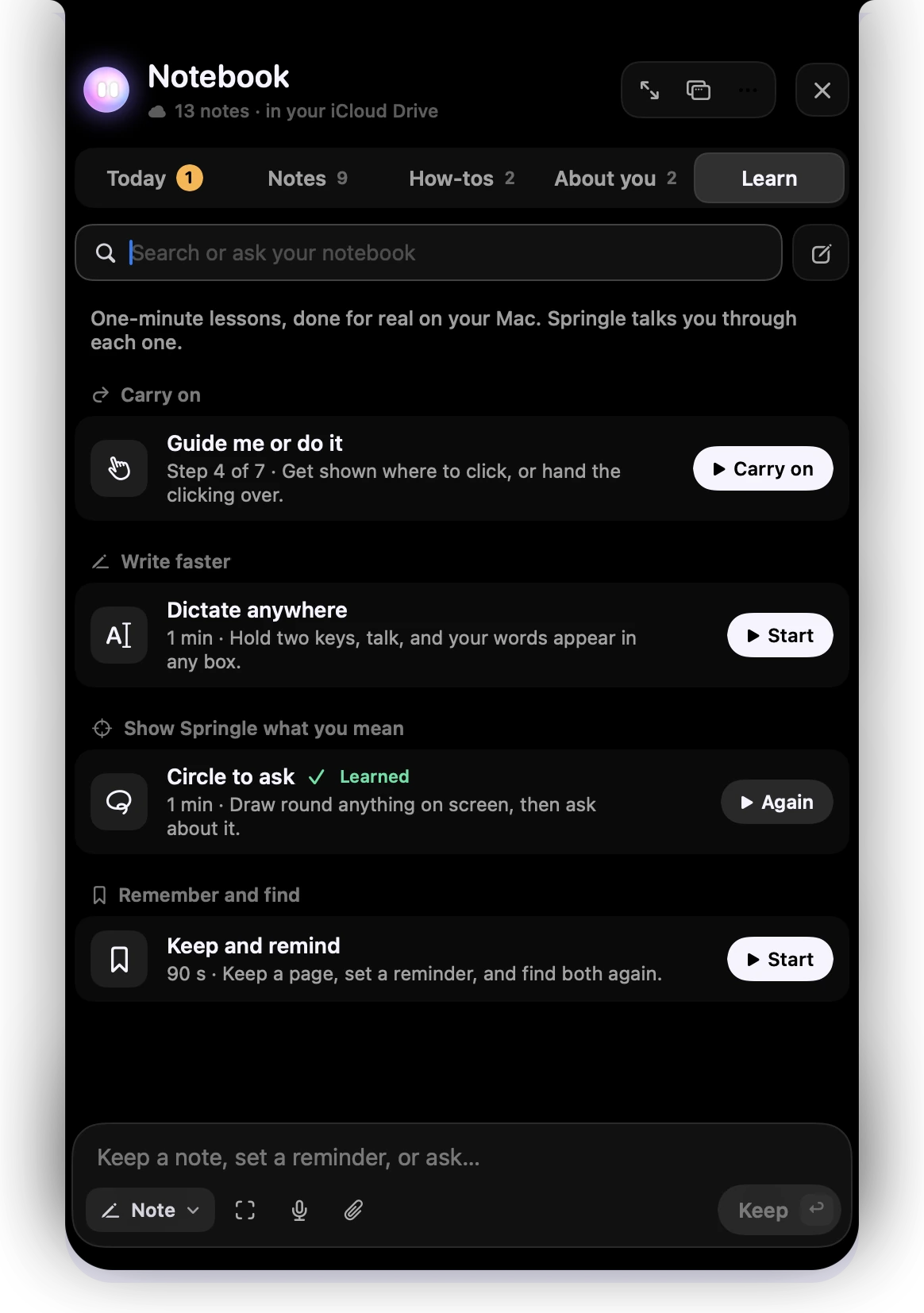
- 1The Learn tab in the notebook.
- 2Carry on: a lesson you left, at the step you’d reached.
- 3Lessons are grouped by what they help with.
- 4A lesson you’ve finished is marked Learned. Again takes it once more.
Each lesson shows how long it takes and what you’ll be able to do. One you’ve finished is marked Learned, and its button says Again. If a lesson needs something first, Learn says what, such as Needs the microphone or Turn on the dictation keys in Settings.
How a lesson goes
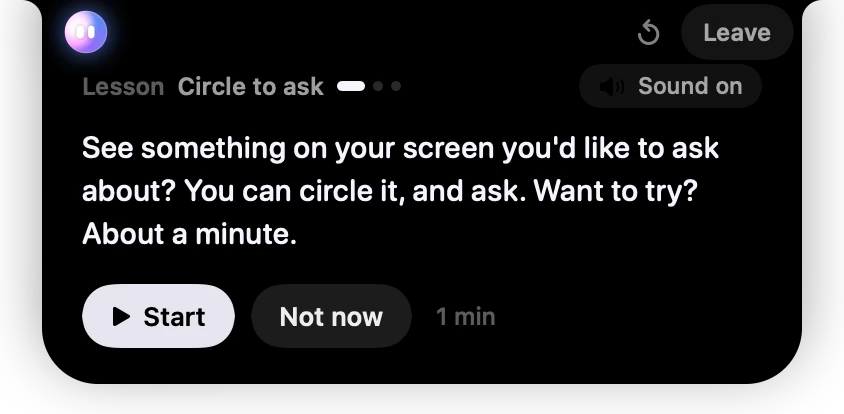
- 1Say it again replays the line. Leave stops the lesson.
- 2Which lesson you’re in, and how far along.
- 3What you’ll learn, in one line.
- 4Start, or Not now, and about how long it takes.
- Springle says what you’ll learn. Click Start, or Not now if it isn’t a good moment.
- It tells you what to do. Once it has finished speaking, the card shows the keys to press or the words to say.
- You do it for real. Springle moves on as soon as it has happened. If you hesitate, it gives you a gentle nudge. If something isn’t quite right, it tells you and waits.
- Some steps can be left out. They show Skip this bit.
Beside the notch, Say it again replays what Springle just said, and Leave stops the lesson.
Dictate anywhere and Guide me or do it use the Practice Desk, Springle’s pretend message window. Nothing in it is a real message, and nothing is ever sent. See The Practice Desk.
Guide me or do it ends by asking how you’d like Springle to help from now on: Auto, Guide me or Do it for me. That choice stays. You can change it later in Settings › General, or with the chip in the card. See Guide me, Auto and Do it for me.
The cheat card
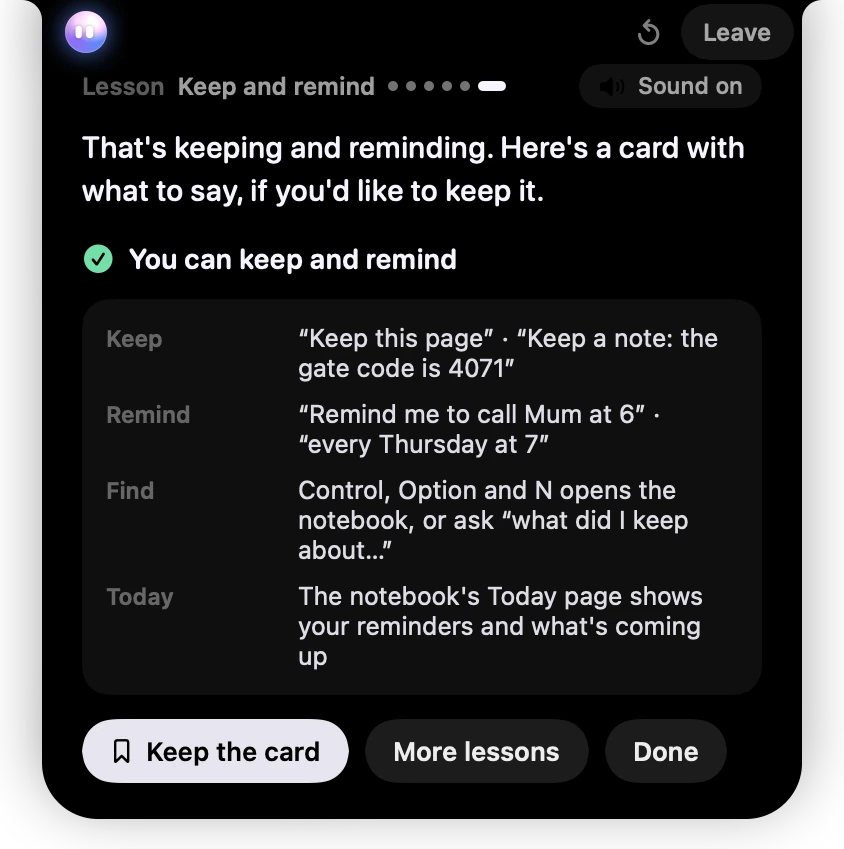
- 1What you can now do.
- 2The keys, what to say and where it works.
- 3Keep the card, More lessons, or Done.
At the end, a small card sums up what you learned, so you don’t have to remember it all.
- Keep the card puts it in your notebook as a note, so you can look it up later.
- More lessons opens Learn.
- Done closes the lesson.
Leave now, carry on later
Click Leave beside the notch at any time. The lesson stops straight away, and Springle remembers where you were for 7 days. Until then, Learn shows it at the top under Carry on, and it picks up at the step you’d reached.
Good to know
- Lessons don’t eat into the Free plan. On Free, the first 10 asks you make in each lesson don’t count against your month. That’s 10 per lesson in all, however many times you take it. See Plans.
- What you do is real. A note you keep stays in your notebook, and a reminder you set really goes off.
- The recorded voice says "Control and Option" (and "Control and Fn" for dictation). If you changed your keys in Settings › Shortcuts, the keycaps on the card show the keys you chose.
- New to Springle? Start with the three-minute tour. The lessons go further, one thing at a time.
Did this help?