The time Springle saved you, added up.
Settings › Time back shows how much time Springle has saved you, where it came from, and exactly how each minute was counted.
Every time Springle answers a question, finishes a task, sends an email for you or types what you said, it saves you some time. Time back adds that up. It shows one number first, then where the time came from and how it was counted.
Open it
Open Settings, then choose Time back. It’s under Yours, just below You. The number beside it in the sidebar is the time saved over the last 30 days.
Choose 7 days, 30 days or All time at the top to change the range for the whole page. Under the number you’ll see how it compares with the same stretch before, such as "Up 33% on the 7 days before", once Springle has been counting for long enough to compare. All time says when the counting began instead. Point at a day’s bar to see that day’s time.
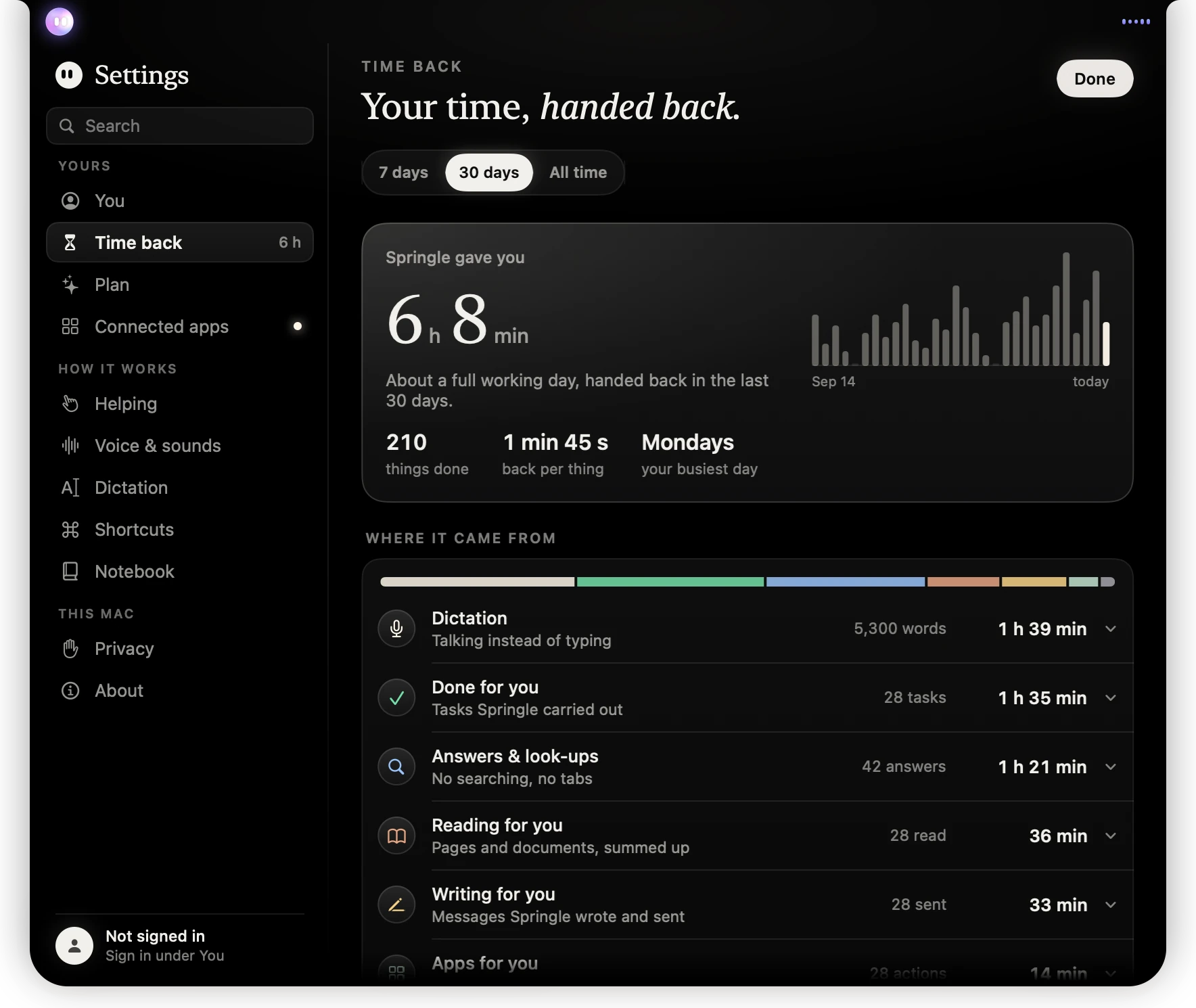
- 1Time back, with the last 30 days beside it.
- 2The range for the whole page.
- 3The time Springle saved you, with something everyday that takes about as long.
- 4A bar for each day. Today’s is the brightest.
- 5Where the time came from, most first.
Where it came from
Each kind of help has its own row, with how many times it helped and the time it saved:
| Row | What counts |
|---|---|
| Dictation | Words you dictated with your dictation keys. |
| Answers & look-ups | Answers Springle looked up for you on the web, and fuller answers from Go deeper. |
| Done for you | Tasks Springle finished for you, with a receipt. |
| Writing for you | Emails and messages Springle wrote and sent from a connected app. |
| Reading for you | Pages Springle read so it could answer you. |
| Apps for you | Things done straight in an app: music, timers, calendar events, emails. |
| Keeps & reminders | Notes kept, reminders set, and things found again in your notebook. |
Click a row to open it: you’ll see its biggest saves by name and how that kind is counted.
Biggest saves lists the three biggest of all, such as "Read a 34-page lease and listed what to check".
How it’s counted
For each thing, Springle works out how long it would take you by hand, then takes off the time you spent asking, waiting and answering its questions.
- Only finished things count. A task you stopped, or one that couldn’t be finished, counts nothing.
- If Springle was slower than you’d have been, it counts nothing. Opening a website by asking is often slower than clicking it yourself, so that isn’t counted.
- Each kind has a most it can count for one thing, so one very long document can’t make your month look bigger than it was.
- The numbers are estimates, and the big number is rounded down.
The rates are listed at the bottom of the page, under How we count. Some examples: a quick fact looked up counts 75 seconds, reading a page counts the time to read its words at 238 a minute, and writing an email counts its words at 19 a minute, the pace people write something new. For a task, Springle’s quick helper estimates how long it takes by hand, and the estimate is kept within what the task’s steps allow.
Lessons and Guide me aren’t counted. They teach you to do things yourself, so Time back lists them as things you learned, not time saved. Nothing you do while a lesson is running counts either.
Your typing speed
Dictation counts typing your words at 40 words a minute, less the time you spent saying them. If you type faster or slower than that, choose your speed under How we count › Your typing speed. The This week card in Settings › Dictation uses the same speed.
If a number looks too high
Point at one of the biggest saves and click Too high?, then Take it out. That save stops counting, and Springle counts that kind of help a fifth lower, the times already counted included.
To start again from zero, click Clear… beside Clear time back, then Clear. Your notes and dictation settings aren’t touched.
On the receipt
When Springle finishes a task, its receipt in the card shows how much time it saved you, such as "about 10 min back". It shows only when the task saved a minute or more, and it can take a moment to appear while Springle works out the estimate. See Receipts and how-tos.
Milestones
When your total passes 1 hour, 5 hours, 10 hours, a full day and 100 hours, a short line shows once under the notch, such as "That’s 10 hours back with Springle." Click it to open Time back. The milestones you’ve reached are marked on the page.
Share it
Copy card puts a picture of your number on the clipboard, with a line that includes your Spring a Friend link. Paste it into a message or a post. The picture shows the total and the top three kinds of help. It never shows what Springle did for you.
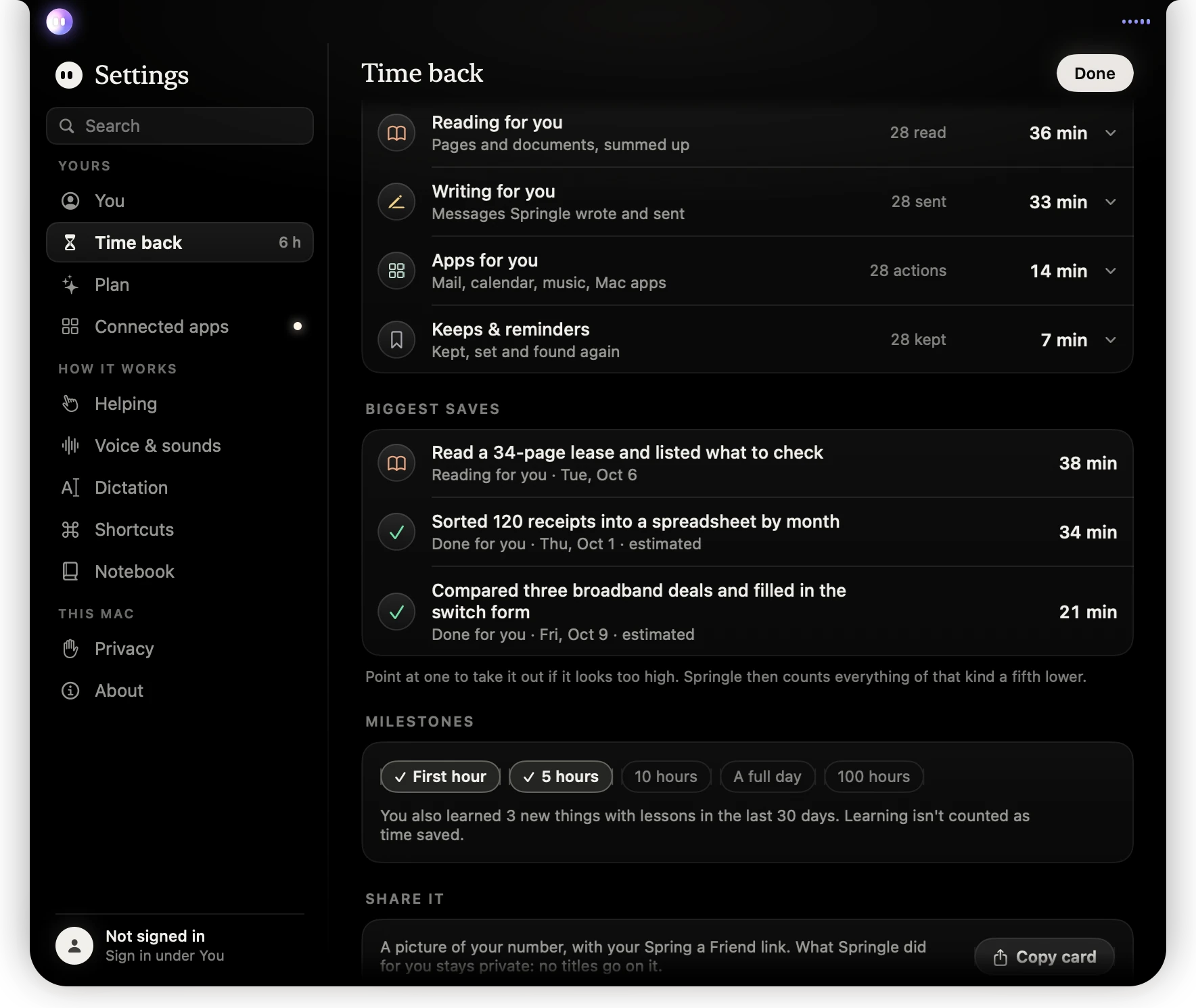
- 1Your biggest saves. Point at one to take it out if it looks too high.
- 2The milestones you’ve reached are ticked.
- 3Copy card puts the picture and your link on the clipboard.
Your privacy
Time back is kept on your Mac, in Springle’s own folder. What Springle did for you, such as task names and what you looked up, never leaves it. If Share usage analytics is on in Settings › Privacy, Springle sends only the kind of help and the number of seconds, so we can see how much time Springle saves people. See Your data.
Did this help?